

Table of contents
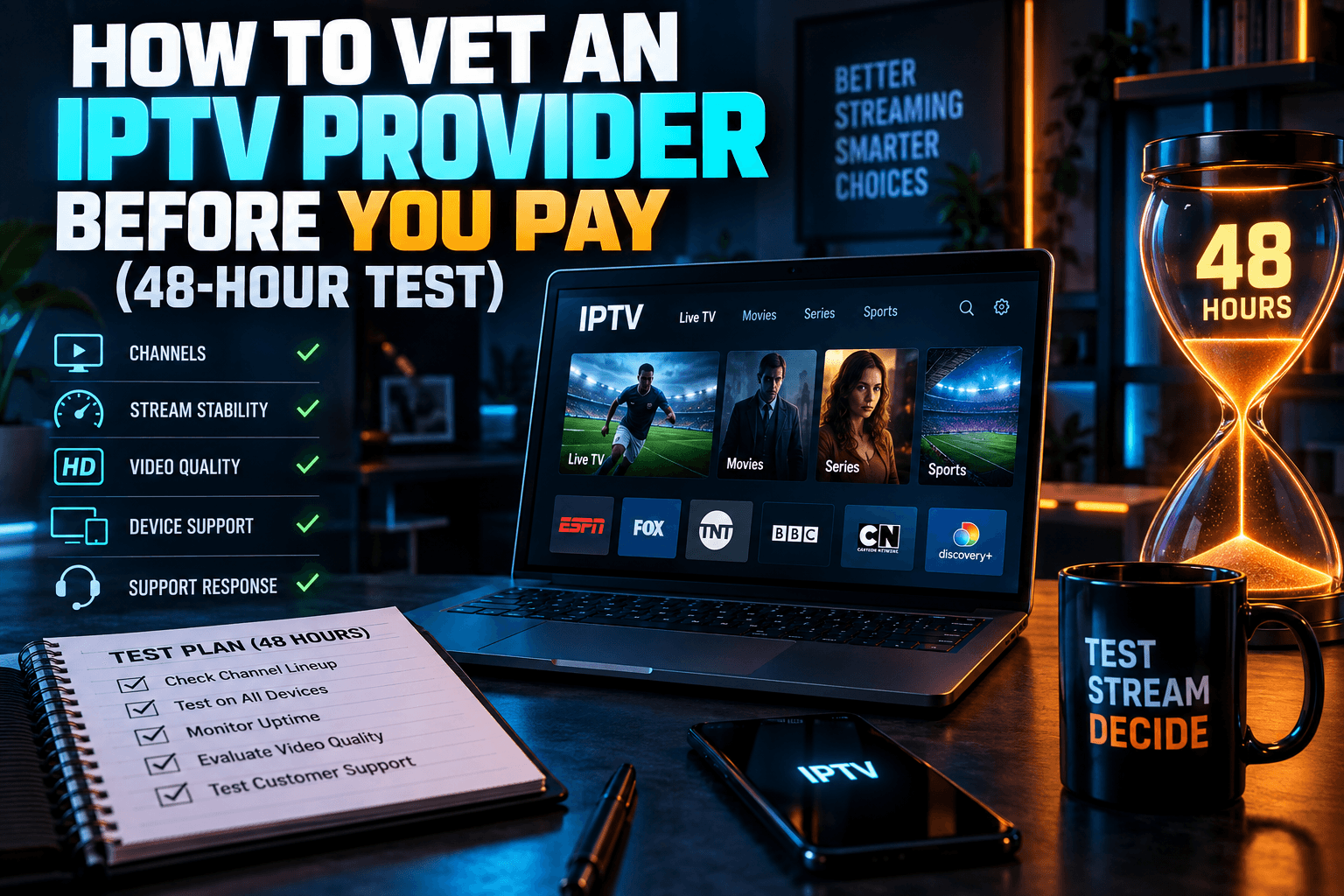
How to test an IPTV provider before you pay is the question I get asked most. After testing well past a hundred services since starting IPTV Wire, I’ve settled on one method. The services that taught me the most looked fantastic on day one and were gone by month three. So here’s my exact process as of early 2026: a 48-hour test with real metrics, a printable scorecard, and a red-flag checklist that works on any service, big brand or brand-new.
There’s no ranked list here. On purpose. Lists go stale in weeks, but a testing method keeps working.
Why ‘Top 10 IPTV Provider’ Lists Rarely Help You
Search “best IPTV service” and you’ll hit dozens of ranked lists, most of them stamped “updated monthly.” I get the appeal. You’d like someone else to do the homework. The trouble is that most of these lists can’t keep pace with the market they claim to rank, and a fair number were never built on testing at all.
How Affiliate Rankings Get Made
Lots of ranking pages earn a commission on every signup. That alone isn’t dishonest (IPTV Wire uses affiliate links on some hardware reviews, too). But when the #1 slot goes to whoever pays the fattest percentage, the list measures payouts. Not performance.
Here’s a quick tell. Does every provider get “4.8/5” with no buffering counts, no test dates, and no mention of which devices were used? Then nobody bothered to work out how to test an IPTV provider, let alone measure anything. Real testing produces messy, lopsided results, and one service always embarrasses itself on a Saturday night.
Why Providers Change Faster Than Any Monthly Update
Unverified IPTV services rebrand constantly. A brand can vanish after a domain seizure on Tuesday and reappear under a new name by Friday, same channels, same backend, same support guy on Telegram. Others are resellers renting access to someone else’s server panel, so when the upstream source goes down, ten “different” brands fail in the same minute.
In 2025 I followed one service that changed its name three times in seven months. The channel list never changed, typos included. Any ranking that recommended it was out of date within weeks.
So here’s what this article gives you instead: a repeatable 48-hour method for how to test an IPTV provider on your own hardware and your own connection. Once you’ve run it a couple of times, you won’t need anyone’s list. Mine included.
Before the Trial: How to Test an IPTV Provider on Paper in 10 Minutes
Don’t install anything yet. When you’re figuring out how to test an IPTV provider, ten minutes of homework can knock out half your shortlist before it eats your weekend. I do these with a notes app open and a coffee going cold next to me.
Licensed vs. Unverified Services: Know What You’re Buying
Be honest with yourself about what kind of service you’re looking at. Licensed live TV in the US means YouTube TV, Sling TV, Hulu + Live TV, and Fubo. UK viewers have Freeview and NOW, and Canadians can go through Rogers or Bell, plus standalone apps. These cost more. YouTube TV sits at roughly $83/month in the US as of early 2026, and Fubo isn’t far behind. But they hold contracts with the channels they carry, so they don’t disappear overnight.
Treat those prices as your baseline. Step one of how to test an IPTV provider is checking whether its pricing even makes sense. If a provider promises every premium sports package, every US local, and every UK network for $10/month, the math simply doesn’t work for a licensed operation. That gap is the clearest sign a service has no rights to what it streams, which matters for your legal exposure and for whether the thing will still exist in March.
This approach to how to test an IPTV provider works on licensed services, too. I’ve used it to compare stream start times on YouTube TV against Sling on the same Fire TV Stick, and the gap was noticeable, about a second and a half on average in my tests.
Reseller Panels and Rebranded Services
Many unverified IPTV brands are just storefronts for a small number of backend panels. A reseller buys credits, spins up a website, and sells “their” service. Part of how to test an IPTV provider is catching this: compare channel group names, category order, or weird naming quirks across two brands. If both show “|UK| SKY SPORTS MAIN EVENT FHD” with identical pipe formatting and the same spelling mistakes three rows down, they’re pulling from one source.
Why does this matter when you’re learning how to test an IPTV provider? Because the reseller has zero control over uptime. When the panel goes dark, your support ticket lands in a void.
Payment Methods That Should Make You Pause
Checkout is where the most obvious IPTV provider red flags show up. Stop and think if you see any of these:
- Crypto-only payment. No chargebacks. No buyer protection. No recourse whatsoever.
- Gift cards as payment. Asking for Amazon or Steam codes is a classic scam pattern well outside of IPTV.
- “Friends and family” PayPal requests. This deliberately strips out PayPal’s purchase protection.
- Payment to a personal name that doesn’t match the business name on the site.
Payment trails are also how enforcement groups track these operations down. For the bigger picture, I covered it in Who Really Funds Pirate IPTV?, which follows where the money goes and why it sometimes ends up somewhere you’d rather not be funding.
Refund Policy and Support Channels
Look for written refund terms. “Contact us for refunds” doesn’t count. You want an actual policy with a timeframe, like seven days. Then check how support works, since support is a core part of how to test an IPTV provider. A service that only offers Telegram or WhatsApp, with no email address and no ticket system, is quietly telling you how long it plans to stick around.
Two more quick checks for how to test an IPTV provider before paying:
- Domain age. Run the site through a WHOIS lookup. A domain registered six weeks ago that boasts “10 years of experience” on the homepage? Doesn’t add up.
- Seizure history. Search the brand name plus “seized” or “shut down.” Anti-piracy coalitions like the Alliance for Creativity and Entertainment publish their actions. My breakdown of IPTV Piracy Crackdowns: What Actually Gets Seized covers what happens to subscribers when a service falls over. Short version: your prepaid months go down with it.
The 48-Hour Trial Test: How to Test an IPTV Provider Properly
This is the heart of my IPTV free trial checklist. Most trials run 24 hours, which isn’t long enough to catch a full prime-time cycle and an overnight stretch. Ask for 48. If the provider says no, buy the shortest paid plan (usually one month) and treat the first two days as your test window.
Start on a weekday afternoon if you can. Something like a Thursday at 3pm gets you two prime-time windows, one overnight, and, with luck, a live game.
Hour 0: Setup on Two Devices (Firestick + Google TV/Apple TV)
Always test on two different devices. My current pair is a Fire TV Stick 4K Max (2nd gen) and an Onn 4K Pro running Google TV. When I want an Apple data point, I add an Apple TV 4K (the 2022 model). Running two devices is how you separate a provider problem from a device problem later on.
Hour 0 setup checklist:
- Load the M3U or Xtream Codes login into a player you already know well. I use TiviMate on Android TV hardware and iPlayTV on Apple TV.
- Time how long the playlist and EPG take to load. On my 300Mbps fiber line, a clean playlist finishes in under 15 seconds. Anything past a minute gets a note.
- Write down the channel count the player reports. You’ll check it against the advertised number later.
- Pick a 20-channel sample: 5 news, 5 sports, 5 entertainment, 5 local or regional channels for your country. Stick to this exact list for the entire test.
Prime-Time Stress Test: Live Sports and News at Peak Hours
Prime time is where weak providers fall apart. Server load climbs sharply between roughly 7pm and 11pm in your time zone. Eastern Time matters most for US-heavy servers, while UK servers tend to peak around 8pm–10pm GMT. A live football match or breaking news pushes things even harder.
Watch one sports channel for at least 60 unbroken minutes during a live event. Count every buffering event, meaning any freeze or spinner, even for a second. This is your IPTV buffering test, and it’s the single most predictive number in the whole process.
Last NFL Sunday I ran two trials side by side, one on each device. One logged zero buffering events across 90 minutes. The other logged 11, almost all bunched right after kickoff when everyone tuned in at once. Same TV, same router, same evening.
While you’re watching, check the resolution you’re really getting. In TiviMate, pull up the stream info panel (it’s a long-press away, annoyingly easy to miss). A channel labeled “FHD” that’s actually delivering 1280×720 is a very common trick. Write down claimed versus actual.
Channel Zapping Speed and Stream Start Time
Grab a stopwatch app. Select each of your 20 sample channels and time the gap between pressing OK and seeing moving video. Once in the afternoon, once at prime time.
In my testing, well-run services usually start streams in 1–3 seconds. Overloaded ones drift up to 6–10 seconds at peak. Log any channel that never loads as “dead.” Don’t give it a second chance on this pass. You’ll retry dead channels separately on day 2.
Overnight Uptime Check
Before bed, leave one channel running on the Firestick with the TV off, or on a spare monitor. Many players keep a reconnect log. In the morning, see whether the stream is still going and whether it dropped during the night.
Some providers reboot or rotate servers somewhere between 2am and 5am. A short reconnect is fine. A stream that died at 1:30am and never came back says a lot about how closely anyone is watching their servers.
Catch-Up and VOD Spot Checks
On day 2, test catch-up on 3 channels that advertise it. Go back 24 hours and confirm the archived program actually matches the EPG entry. Then spot-check 5 VOD titles: one recent release, one older film, one TV episode, one 4K title, and one non-English title if that matters to you.
Last step: send support a simple question around Hour 40 and time the reply. A provider that answers in 2 hours during a trial will probably take 2 days once you’ve paid. One that ignores you during a trial won’t suddenly get better.
The 48-Hour Scorecard
Print this or copy it into a spreadsheet. Fill it in as you go, not from memory at the end (yes, you really do need to do this; memory is generous to services you want to like).
| Metric | How to Measure | Day 1 Result | Day 2 Result |
|---|---|---|---|
| Playlist load time | Seconds from login to full channel list | ||
| Avg. stream start time (afternoon) | Average of 20-channel sample, in seconds | ||
| Avg. stream start time (prime time) | Average of 20-channel sample, in seconds | ||
| Buffering events per hour (prime time) | Count during 60 min of live sports | ||
| Claimed vs. actual resolution | Stream info panel on 5 channels | ||
| Dead channels (of 20) | Channels that fail to load | ||
| EPG accuracy | Matches out of 10 checked | ||
| Overnight uptime | Still playing at 7am? Drops logged? | ||
| Catch-up/VOD success | Working titles out of 8 | ||
| Support response time | Hours until first real reply | ||
Testing EPG Accuracy and Playlist Quality
A broken guide makes even a rock-solid service miserable to use day to day. Playlist bloat can also cripple cheaper streaming sticks. Both deserve their own checks.
Checking EPG Against Real Broadcast Schedules
Pick 10 channels from your sample and compare what the electronic program guide says is on right now with what’s actually playing. Then cross-check against each channel’s official schedule page.
The most common fault is a time offset. If every program shows up exactly 5 hours late, the EPG is probably in UTC and your player isn’t adjusting for Eastern Time. Most players have an EPG time-shift setting, so fix that before you blame anyone. Random offsets are a different story. One channel 2 hours off, another 30 minutes off? The provider’s guide data is badly matched, and no setting will save you.
I also make sure the guide runs at least 3 days ahead. Less than 24 hours makes recording and planning a chore.
Spotting Bloated or Duplicate Playlists
“20,000+ channels” sounds great until you scroll through it. From what I’ve seen, those totals are padded with the same channel listed 4–6 times: SD, HD, FHD, “backup,” “VIP,” and “4K” versions that all turn out to be 1080p. Add thousands of 24/7 loop channels and plain dead entries, and the headline number starts to look silly.
Quick check: search for a big channel like CNN or BBC One and count the hits. Test three of them. If they’re all the same stream wearing different labels, the real channel count is a fraction of the advertised one. More channels doesn’t mean more value. Usually it just means a messier playlist.
How Playlist Size Affects Low-RAM Devices
A base Fire TV Stick with 1GB of RAM can choke on a huge playlist plus a 7-day EPG. Expect the player to crash during guide loads, scroll like it’s wading through mud, and restart when you switch back from another app. That isn’t a stream quality issue, but it ruins daily use all the same.
If your provider’s panel lets you filter categories, strip out countries you never watch. I ran detailed numbers on this in IPTV Players Stress-Tested: Big Playlists, EPG & Low RAM, including which players handle 50,000-entry lists without falling over.
Is It the Provider or Your Setup? Isolating the Problem
Roughly a third of the “this provider is terrible” emails I get turn out to be Wi-Fi or device problems. So before you fail a provider, rule out your own house. This step is how you answer the question “is my IPTV provider legit and reliable, or is the problem on my end?”
Run the Same Stream on a Different Player
If a channel buffers in TiviMate, open the same stream URL in VLC or a second player like IPTV Smarters. Plays fine there? Then your first player’s buffer settings or decoder choice is the culprit. Flip between hardware and software decoding before you try anything fancier.
This is also why you set up two devices at Hour 0. If the stream stutters on the Firestick but plays cleanly on the Onn box at the same moment, the provider isn’t to blame.
Wired vs. Wi-Fi Baseline
Run a speed test on the streaming device itself, not your phone, using Speedtest by Ookla or Fast.com. Then compare the result against what the stream needs:
- 720p live: roughly 3–5 Mbps
- 1080p live sports: roughly 6–10 Mbps
- 4K: roughly 15–25 Mbps
Aim for 2–3 times the stream’s bitrate as headroom. Then plug in Ethernet (a USB Ethernet adapter runs about $15 and works fine on Firesticks) and repeat the prime-time sports test. The first time I did this at home, buffering dropped from 8 events to zero. My Wi-Fi had been the bottleneck the whole time, and I’d been blaming a perfectly decent provider for a week.
Testing With and Without a VPN
Some ISPs throttle traffic that looks like heavy video streaming, especially at peak hours. On top of that, courts have ordered certain UK and Canadian ISPs to block specific IPTV servers during live sports, though how aggressively that’s enforced varies by ISP and by season. To check, play the same channel for 30 minutes with your VPN off, then 30 minutes with it on, at the same time of day.
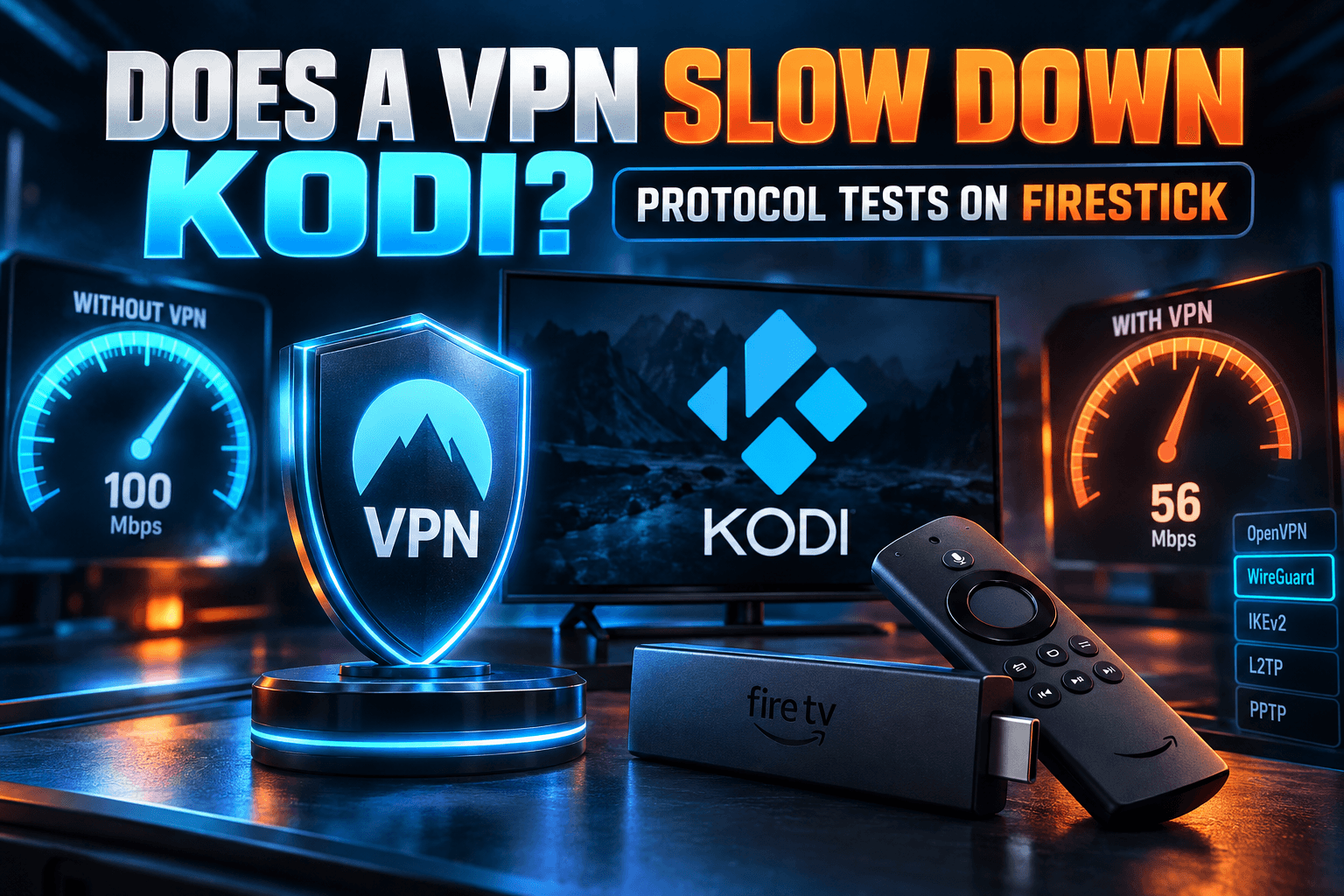
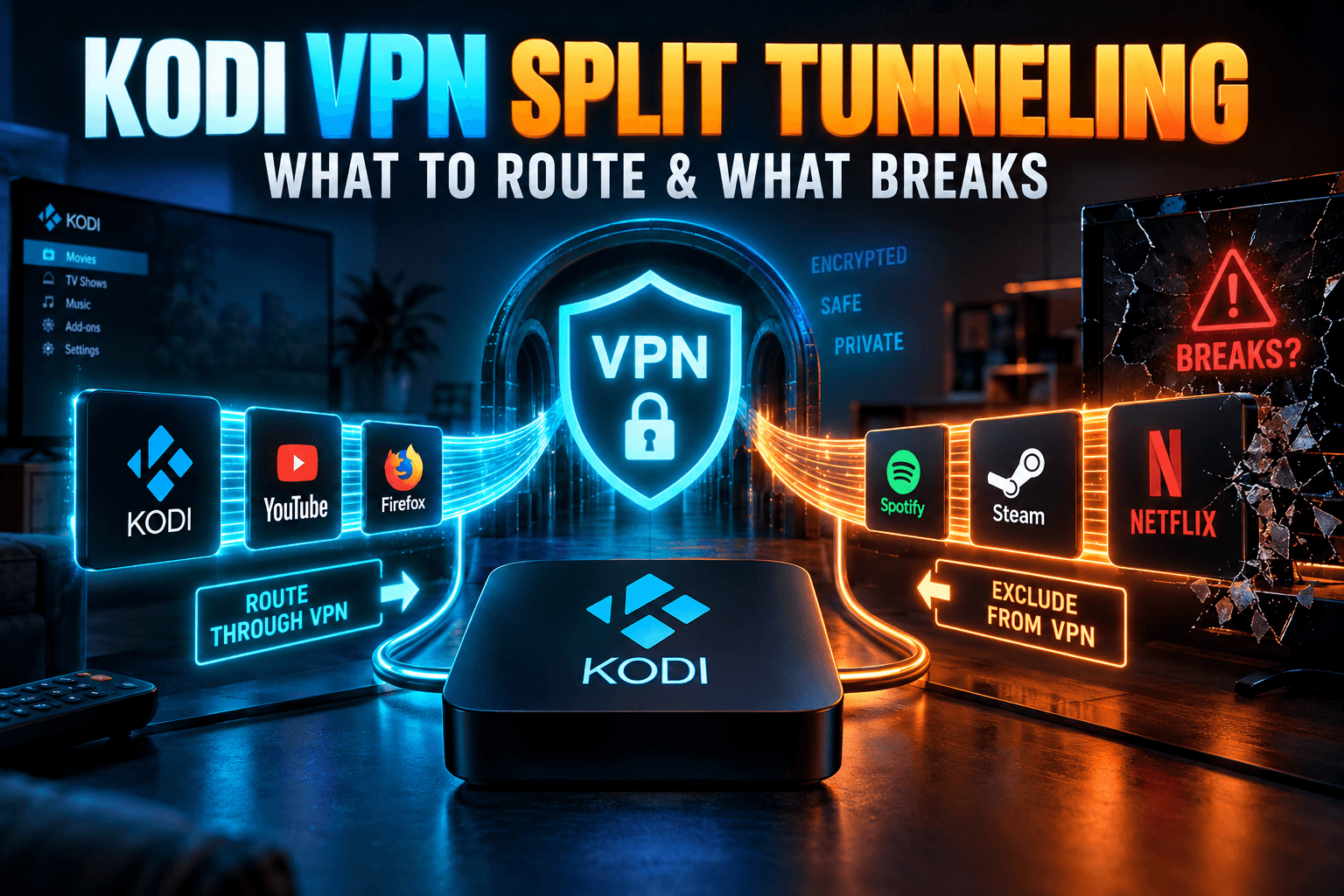
If buffering vanishes with the VPN on, your ISP is probably interfering. If it gets worse, the VPN server or protocol may be the weak link. Try WireGuard before OpenVPN. My Does a VPN Slow Down Kodi? Protocol Tests on Firestick article has speed data for each protocol. And if you want the VPN to cover every device at once, read VPN on Your Router: What Actually Changes for IPTV first, because cheap routers can cap your throughput badly.
Scoring the Results: Pass, Fail, or ‘Monthly Only’
Time to turn the scorecard into a decision. Every service I test ends up in one of three buckets: pass, fail, or “monthly only.” That last one means usable, but not trustworthy enough for any long commitment.
Bodhi’s Scoring Thresholds
| Metric | Pass | Monthly Only | Fail |
|---|---|---|---|
| Prime-time buffering | 0–1 per hour | 2–3 per hour | More than 3 per hour |
| Avg. stream start time | Under 3 sec | 3–6 sec | Over 6 sec |
| Dead channels (of 20) | 0–1 | 2–3 | 4 or more |
| EPG accuracy (of 10) | 9–10 | 7–8 | 6 or fewer |
| Resolution as claimed | All 5 match | 1 mismatch | 2+ mismatches |
| Overnight uptime | No drops or one quick reconnect | Brief outage, self-recovered | Dead by morning |
| Support response | Under 12 hours | 12–24 hours | No reply in 48 hours |
A fail on prime-time buffering overrides everything else. Perfect EPG, gorgeous interface, freezes during every match? Not worth paying for. Two or more “monthly only” scores means exactly what it says: pay month to month and keep watching closely.
Why You Should Never Prepay 12 Months Upfront
The 12-month deal always has the lowest monthly price. It’s also the riskiest purchase in this entire process. Unverified services can be seized, abandoned, or quietly downgraded at any point, and nobody refunds a prepaid year when the domain goes dark.
I know two people who paid for 24 months upfront and lost access in month four. Paying a few dollars extra each month for flexibility is cheap insurance. Even with licensed services I stay on monthly billing, mostly so I can drop sports packages in the off-season.
Protecting Yourself After You Subscribe
Passing the 48-hour test isn’t the finish line. Providers change. Good ones sometimes slide.
Privacy Basics: VPN and Separate Payment Methods
Pay with something that has buyer protection, and consider a virtual card. Many US banks offer them, as does Privacy.com, so you can freeze the card instantly if things go sideways. Never reuse your email or banking password on an IPTV account.
A reputable VPN also keeps your viewing traffic private from your ISP. Don’t forget the hardware, either. Some cheap Android boxes send data to servers you’ve never heard of, which I dug into in Is Your Android TV Box Phoning Home?
Re-Testing Every Month
Set a calendar reminder for a week before each renewal. Then run a cut-down version of the test: one hour of prime-time sports, the 20-channel zap test, and a 10-channel EPG check. It takes about 90 minutes. It also tells you, with actual numbers, whether the service is holding up or quietly getting worse.
Back up your player settings too. TiviMate and most serious players can export a backup file. If you ever need to switch providers in a hurry, you keep your favorites, layout, and EPG settings instead of rebuilding everything at midnight before a big game.
Final Thoughts on How to Test an IPTV Provider
Knowing how to test an IPTV provider gives you something no ranked list can: an answer built on your devices, your internet, and the channels you actually watch. Do the 10-minute pre-purchase checks. Take the full 48 hours. Fill in the scorecard as you go, and rule out your own setup before you fail anyone. After that, pay monthly, re-test before each renewal, and walk away the moment a service starts slipping.
Is it more work than clicking the top link on somebody’s list? Definitely. But in my experience it’s the only approach that still holds up six months later.
⚖️ Legal Disclaimer: IPTV Wire does not own or operate any streaming service, application, or website mentioned in this article. We do not verify whether third-party services carry proper licensing. Users are responsible for ensuring they comply with copyright laws in their jurisdiction.
Frequently Asked Questions
How long should an IPTV free trial be to properly test a provider?
48 hours is my minimum. That covers two prime-time windows and one overnight stretch, which is where weak services usually crack. A 24-hour trial tends to miss one or the other, so ask for an extension or just buy a single month.
What are the biggest red flags of an unreliable IPTV provider?
The big ones: crypto-only or gift-card payments, no written refund policy, Telegram-only support, a very new domain, and prices far below licensed services. Identical channel lists across supposedly “different” brands, plus pressure to prepay 12 months, are strong warning signs too.
How can I tell if IPTV buffering is caused by the provider or my internet?
Play the same stream on a second device and a second player at the same time. Then compare Wi-Fi against wired Ethernet, and VPN on against VPN off. If buffering follows the stream across every device and connection, it’s the provider. If it disappears on one setup, the problem is on your side.
Is it safe to pay for an IPTV subscription with crypto or gift cards?
No. Neither gives you buyer protection, so you can’t dispute the charge if the service vanishes or never works. Requests for gift card payment are a common scam tactic in general. Stick with payment methods that support chargebacks.
Do I need a VPN when testing an IPTV service?
Not strictly. Still, testing with and without one is the easiest way to spot ISP throttling or blocking, and it keeps your streaming activity private from your ISP. Use WireGuard where you can to keep speed loss low.
Why do different IPTV providers have identical channel lists?
Many brands are resellers renting access to the same backend panel. They slap their own logo and website on top, but the streams, channel names, and outages all come from one shared source. When that source goes down, every brand riding on it fails at once.
Comments
Leave a comment
Your email address will not be published. Comments are moderated before they appear.