

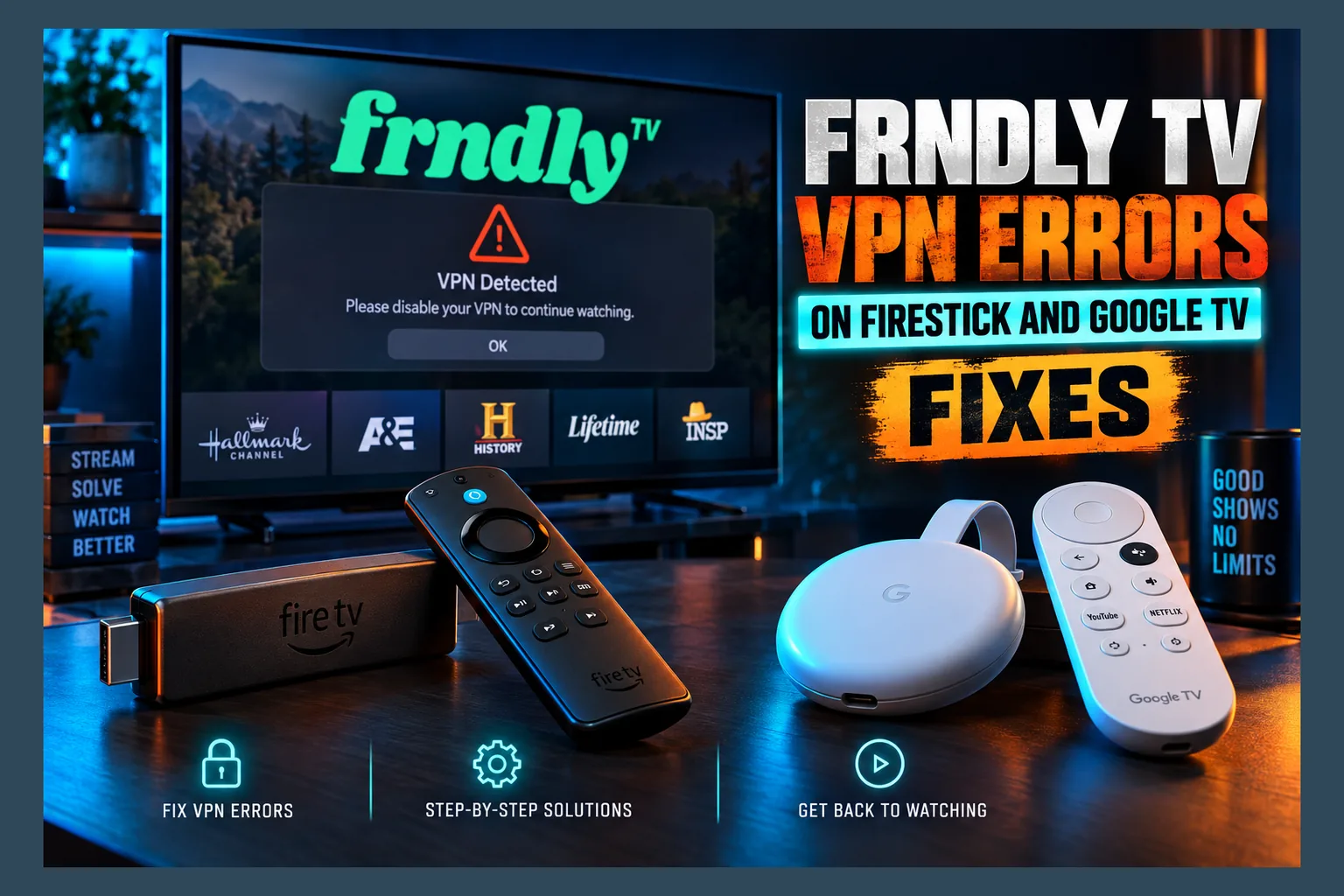
Frndly TV VPN not working on your Firestick or Google TV? The cause is usually one of a few things: a flagged server IP, a DNS or IPv6 leak, an app-store region lock, or split tunneling that leaves the app outside the tunnel. Don’t change five settings at once. Match what’s on your screen to the table below, then apply the single fix that goes with it on your device. You’ll know exactly what solved it.
This guide assumes your setup is already broken. You know a VPN is part of the picture. What you don’t know yet is which piece is failing. As of 2026, Frndly TV checks your location several different ways, and a frndly tv vpn not working problem almost always traces back to just one of those checks. Find that one first. Changing five settings at once only makes it harder to tell what actually fixed it.
Frndly TV VPN Not Working? Find Your Problem Fast
Start with what’s on your screen, because every Frndly TV VPN not working error looks a bit different. Each symptom points somewhere different, and the fix for one rarely does anything for another. Use the table below, then jump to the section it names.
| What you see | Most likely cause | Go to section |
|---|---|---|
| App isn’t in the Amazon Appstore or Play Store | Store country is tied to your account, not your VPN | App Missing From the Appstore or Play Store |
| “Not available in your region” with VPN connected | Flagged server IP, DNS leak, IPv6 leak or cached location | Fixing Location Errors |
| Works on your phone, fails on the TV | Split tunneling, a different network, or casting | Works on One Device but Not Another |
| Plays, but buffers or looks blurry | Protocol overhead, server distance, weak Wi-Fi | Buffering and Low Picture Quality |
| Stream freezes, then shows a network error | Kill switch blocking traffic during a reconnect | Kill Switch Cutting Off Streams |
App Won’t Install or Isn’t Listed
This one isn’t really a Frndly TV VPN not working issue at all. It’s a store problem. No VPN server in the world changes what the Amazon Appstore or Google Play decides to show you, so skip straight to the app-store section.
Location or Region Error With the VPN On
The app opens. Then it refuses to play, or it throws a location message at login. Something is still giving away a non-US location, and in most Frndly TV VPN not working cases the culprit is the server’s IP reputation, your DNS resolver or a stray IPv6 address.
Works on Phone but Not on the TV Device
Two devices, two routes to the internet. If your phone streams fine and your Fire TV Stick 4K doesn’t, they aren’t sending traffic the same way. That’s a routing mismatch, not a classic Frndly TV VPN not working fault. The server is probably fine.
Plays but Buffers or Drops to Low Quality
Good news, sort of. The location checks passed, which means the VPN is doing its job. What’s left is a throughput bottleneck, and protocol choice, server distance and Wi-Fi quality are the usual suspects.
Who This Guide Is For (and Frndly TV’s US-Only Terms)
Let’s get this out of the way. Frndly TV is a US-only live TV service (plans ran roughly $7 to $12 a month as of late 2025), and its terms of use limit the service to the United States. Using a VPN to appear in the US from somewhere else may breach those terms. Frndly can restrict or close accounts that do it.
So who is this Frndly TV VPN not working guide for? Existing US subscribers who are travelling or temporarily abroad and want to understand why their device is acting up. It doesn’t cover creating accounts from outside the US, and it doesn’t cover getting around payment or billing checks. I won’t help with that.
Read Frndly TV’s current terms yourself before relying on a VPN. Policies shift, and their wording is what counts, not my summary of it. If the risk isn’t worth it to you, the fallbacks section near the end has some safer options.
Frndly TV App Missing From the Appstore or Play Store Abroad
A missing app is the single most common complaint about Frndly TV on a Firestick abroad, and it often gets mislabelled as Frndly TV VPN not working. A VPN can’t fix it. App stores decide what to list based on your account or store country, not your current IP address, which is why connecting to a New York server changes precisely nothing in the Appstore.
Why Your Amazon Account Region Controls the Firestick Appstore
The Fire TV Appstore follows the country set on your Amazon account. You’ll find it on Amazon’s website under Manage Your Content and Devices → Preferences → Country/Region Settings (it’s not on the device itself, annoyingly). If that country is the US, the Frndly TV app should show up wherever you happen to be.
Bought your Firestick in the UK or Canada and registered it there? Then you won’t see US-only apps. And changing the account country isn’t a quick toggle. It can affect existing purchases, Kindle content, Appstore subscriptions and some digital balances, so read Amazon’s warning screen properly before you hit confirm.
Google Play Country Settings on Google TV and Android TV
Google Play ties the store country to the payment profile on your Google account. Two rules matter here. You can only change the Play country about once a year, and the change normally needs a payment method from the new country. That second rule is where a lot of travellers get stuck.
If your account is already set to the US, Frndly TV should appear on a Chromecast with Google TV or a similar device even while you’re abroad. Not showing up? Open the Play Store on the TV, search for the app by name, and confirm the device is signed into the right Google account. Households with several profiles trip over that last step constantly.
Honestly, the easiest way to avoid a Frndly TV VPN not working headache abroad is boring: install Frndly TV before you leave the US. Once an app is on the device, a store region change usually won’t remove it, though updates may stall after a while.
Why Sideloading a Random Frndly TV APK Is Risky
Search “Frndly TV APK” and you’ll get a pile of mirror sites hosting copies of unclear origin. Some carry modified code. Some bundle adware. Others are outdated builds that fail Frndly’s login checks anyway, leaving you with a Frndly TV VPN not working error no server switch can fix. On top of that, you’d be typing your account password into an app you have no way to verify.
Google is also tightening Android developer verification, rolling out from 2026, which makes unverified APKs harder to install and harder to trust on certified devices. If you sideload anything at all, it should come from a source you can trace back to the official developer. The safer route is still the official store, while your account region supports it.
Fixing Location Errors While Connected to a VPN
Most “frndly tv location error vpn” reports land here. Streaming apps rarely lean on a single signal. They stack several checks, and a VPN can pass one while quietly failing another.
Roughly, the detection works like this:
- IP reputation: the app checks whether your IP belongs to a home broadband provider or a datacenter range known for VPNs.
- DNS resolver location: if your DNS requests go to a resolver in another country, that’s a mismatch.
- IPv6 address: if your device has IPv6 and the VPN only tunnels IPv4, your real IPv6 address can leak out.
- Cached data: the app may remember the location it saw last time.
VPN Server IP Is Flagged as a Datacenter Address
Commercial geolocation databases list plenty of VPN server IPs as hosting or proxy ranges. Streaming services block those ranges in bulk. Getting an instant region error? Try a different US city first, then a different server inside that city.
Read next: MobiFlix Not Working? Fixes by Error on Fire TV & Android
Some providers label servers as “streaming optimized,” and a few sell dedicated or residential-style IPs, usually for a few extra dollars a month. Those can help. Nothing is guaranteed, though, because blocklists change week to week. Check whether your provider’s support pages mention Frndly TV by name, since many only list the bigger services like Netflix and Hulu.
DNS Leaks Revealing Your Real Location
A frndly tv dns leak happens when your device keeps asking the hotel’s or local ISP’s DNS server for addresses, even with the VPN connected. Frndly’s servers then see a US IP paired with, say, a resolver in Lisbon. That combination is a classic red flag for streaming services.
The fix starts in the VPN app. Turn on its own DNS or “DNS leak protection” setting. On Google TV and Android TV builds that expose Private DNS in network settings, set it to off or automatic so it can’t override the VPN. Then connect a phone or laptop to the same VPN server and run a DNS leak test site; it’ll show exactly which resolvers your traffic is hitting.
IPv6 Leaks on Firestick and Android TV
Fire OS doesn’t give you a simple IPv6 on/off switch. Neither do most Google TV devices. If your VPN app doesn’t tunnel or block IPv6, dig into its settings for an “IPv6 leak protection” option, which most major providers include.
No such option in your VPN? You can disable IPv6 in your home router’s admin panel instead. Hotel Wi-Fi won’t let you do that, of course, and that’s one more reason to pick a VPN that handles IPv6 on its own.
Clearing Cached Location Data in the Frndly TV App
Fixing the leak isn’t always enough. The app may cling to the location it saw earlier. Disconnect the VPN, clear the app’s data, reconnect the VPN, and only then open Frndly TV. (Yes, the order matters. And yes, you’ll have to sign in again.)
- Fire OS: Settings → Applications → Manage Installed Applications → Frndly TV → Force Stop, then Clear Data and Clear Cache.
- Google TV / Android TV: Settings → Apps → See all apps → Frndly TV → Force stop, then Clear data and Clear cache.
That same force-stop routine sorts out a surprising number of stubborn app errors. I go through it in more detail in my MobiFlix fixes for Fire TV and Android guide.
A Note on Smart DNS vs a Full VPN
Smart DNS reroutes only the lookups for specific streaming domains. It encrypts nothing. It can work, but only if your provider explicitly supports Frndly TV’s domains; otherwise the app still sees your real foreign IP and blocks you. Smart DNS also tends to fall over on IPv6 networks and on public Wi-Fi that forces its own DNS.
Frndly TV Works on One Device but Not Another
“But it works on my phone.” Few troubleshooting moments are more frustrating. The cause is almost always the same: the two devices aren’t taking the same route to the internet.
Split Tunneling Sending Frndly TV Outside the Tunnel
Split tunneling lets you pick which apps go through the VPN. If Frndly TV landed on the exclusion list, it connects over your local network and shows your real location. On the Firestick, open the VPN app’s split tunneling menu and make sure Frndly TV is included. Or just switch split tunneling off while you troubleshoot.
Check the reverse setting too. Some VPN apps run in “only selected apps use VPN” mode, and Frndly TV may simply never have been added.
Router-Level VPN vs App-Level VPN
A travel router running a VPN, something like a GL.iNet pocket router in the $30 to $100 range, covers every device that connects to it. That includes TVs that can’t run a VPN app at all. An app-level VPN covers only the device it’s installed on. So if your phone runs a VPN app but your Google TV sits on plain hotel Wi-Fi, you’ll get two completely different results.
Casting From a Phone to a TV That Isn’t on the VPN
This one catches a lot of people out. When you cast to a Chromecast or Google TV device, your phone only sends instructions. The TV device then fetches the stream itself, over its own connection.
Which means a VPN on your phone does nothing for the cast stream. The TV needs to be on the VPN as well, either through its own app or through a VPN router. The same “which device actually fetches the stream” logic shows up in my Snappier IPTV fixes for Apple TV and iPhone.
Buffering and Low Picture Quality Over a VPN
Frndly TV buffering on a VPN while a plain connection plays fine is a performance problem, not a location problem. Encryption adds overhead. And budget streaming sticks, like the Fire TV Stick Lite, have modest processors that can struggle to encrypt and decrypt at full speed.
Choosing a Faster Protocol Like WireGuard
OpenVPN and other older protocols put a heavier load on low-power hardware. WireGuard, plus provider variants built around it such as NordLynx or Lightway, is leaner and usually reconnects faster too. Switch the protocol in your VPN app’s settings, then restart the stream.
Older Firestick models stuck on earlier Fire OS versions have even less processing headroom. On that hardware, protocol choice matters more, not less.
Server Distance and Picking the Right US City
Every hop adds latency. From the UK or Europe, East Coast servers in New York or Ashburn are usually the better bet; a London-to-New York round trip typically sits somewhere around 70 to 90 ms, versus well over 130 ms to Los Angeles. From Asia or Australia, West Coast cities generally make more sense.
Wi-Fi Limits on Firestick and Using an Ethernet Adapter
Hotel and travel Wi-Fi often caps bandwidth per device. It may throttle video, too, or block common VPN ports outright. Going wired removes one variable. Amazon sells its own Ethernet adapter for Fire TV sticks (around $15 in the US), and Google TV dongles can use a USB-C hub with an Ethernet port. Double-check that the adapter fits your exact model’s port before buying.
Quick buffering checklist:
- Switch the VPN protocol to WireGuard or your provider’s equivalent.
- Choose the US city closest to you geographically.
- Restart the Firestick to free up memory: Settings → My Fire TV → Restart.
- Use Ethernet or move closer to the router.
- Test the network with the VPN off to see what the raw connection can handle.
For more on telling network problems apart from app problems, see my Streamflix Reborn fixes by error type.
VPN Kill Switch Cutting Off Frndly TV Streams
A kill switch blocks all traffic if the VPN drops, so your real IP never slips out. Great for privacy. The catch is that a live stream stalls while the tunnel rebuilds itself.
Why Streams Freeze When the VPN Reconnects
Live TV runs on a small buffer, often just a few seconds. If the VPN drops even briefly, the kill switch cuts traffic and that buffer runs dry. Frndly TV then throws a playback or network error. Sometimes the reconnect also lands on a new IP, which can kick off a fresh location check on top of everything else.
Kill Switch Settings That Avoid Constant Drops
Keep the kill switch on. Turning it off risks exposing your real location mid-stream, which is exactly what you’re trying to avoid. Go after whatever is causing the drops instead: enable “auto-reconnect,” use WireGuard for faster handshakes, and pin yourself to one server rather than letting the app auto-switch. Still dropping? Then the network itself is unstable, and on hotel Wi-Fi that’s depressingly common.
When Nothing Works: Practical Fallbacks
Sometimes the device just won’t play along. These are worth a shot:
- Use a browser: Frndly TV has a web player. A laptop running a full desktop VPN client gives you more control over DNS and IPv6.
- Check your VPN’s support pages: providers often say which US streaming services currently work, and their live chat can point you to working servers.
- Contact Frndly TV support: ask what their travel policy is. Their answer is more reliable than any workaround.
- Pause the subscription: if you’re away for weeks, pausing or cancelling may make more sense than fighting blocks.
Login and playlist issues with other apps can look a lot like this. My iMPlayer login and EPG fixes cover that side of things.
So, to pull it together. When Frndly TV is not working with your VPN, identify the symptom before touching anything. Store problems need account-region fixes. Location errors need leak checks and a clean app cache. Device mismatches usually come down to split tunneling or casting, and buffering calls for a protocol and server change. Through all of it, keep Frndly’s US-only terms in mind.
⚖️ Legal Disclaimer: IPTV Wire does not own or operate any streaming service, application, or website mentioned in this article. We do not verify whether third-party services carry proper licensing. Users are responsible for ensuring they comply with copyright laws in their jurisdiction.
Frequently Asked Questions
Why does Frndly TV still say I’m outside the US when my VPN is on?
Most of the time the server IP is flagged as a VPN or datacenter address, or a DNS or IPv6 leak is exposing your real location. Switch to another US server, turn on the VPN’s DNS and IPv6 protection, then clear the app’s data before reopening it.
Is it against Frndly TV’s terms to use a VPN?
Frndly TV’s terms limit the service to the United States. Using a VPN abroad may breach them and could get your account restricted. Read the current terms yourself, and if you’re unsure, ask Frndly support about travel directly.
Why can’t I find the Frndly TV app on my Firestick abroad?
The Amazon Appstore lists apps based on your Amazon account’s country, not your VPN location. If the account isn’t set to the US, the app won’t appear. Installing it before you travel sidesteps the whole problem.
Does Frndly TV work with Smart DNS instead of a VPN?
Only if your Smart DNS provider explicitly supports Frndly TV’s domains. If not, the app sees your real IP and blocks playback. Smart DNS also offers no encryption and often fails on IPv6 or hotel networks.
Why does Frndly TV buffer on a VPN but not without it?
Encryption adds overhead, which low-power streaming sticks feel, and a distant server piles on latency. Switching to WireGuard, picking a closer US city and plugging into Ethernet usually help.
Can I use Frndly TV on Google TV while travelling outside the US?
Technically, yes: a US Google account with the app already installed and the device on a working VPN can stream. Frndly’s terms are US-only, though, so you’re taking a risk with your account. And the Play Store country can’t be changed on a whim, since Google limits changes to about once a year.
Comments
Leave a comment
Your email address will not be published. Comments are moderated before they appear.