

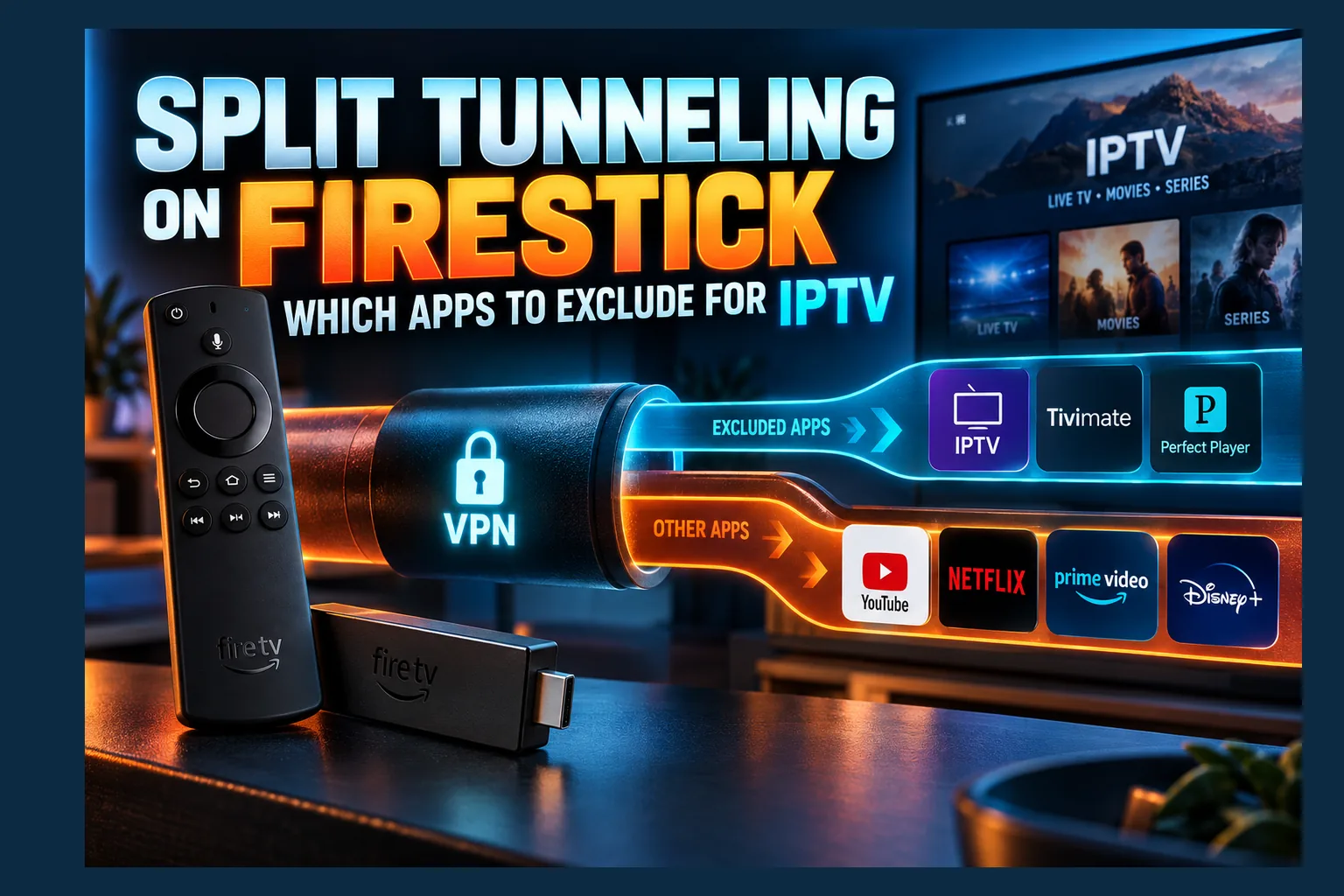
Split tunneling on Firestick sounds like a checkbox you tick once and forget, but on a TV device the real work is deciding which apps go where. Get it wrong and you break your Plex server, trip a VPN block in an official app, or leave your IPTV player sitting on your real IP without noticing. I’ll go app by app for 2026, including the Fire TV quirks phone guides skip: sideloaded apps that vanish from the list, leaky external players, and the kill switch gap.
Most guides treat split tunneling as a checkbox and move on. That’s the easy part. On a TV device, the real work is deciding which apps go where, and a bad call can break your Plex server, get you blocked in an official app, or leave your IPTV player sitting on your real IP without you noticing.
So this guide goes app by app, updated for 2026. It also covers problems specific to Fire TV and Android TV that you’ll rarely hit on a phone: sideloaded apps that don’t show up, external players that leak, and the kill switch gap.
What Split Tunneling on Firestick Actually Does
By default, a VPN pushes all of a device’s traffic through one encrypted tunnel. Split tunneling on Firestick changes that. You decide which traffic goes through the tunnel and which uses your normal connection, and each app lands on one side or the other.
Here’s a Firestick example. TiviMate connects through a VPN server in Amsterdam, while Plex keeps talking to the NAS in your spare room. Both run at once, and you never touch the VPN toggle. For the underlying networking concept, Wikipedia’s split tunneling entry is a decent primer.
App-Based vs URL-Based Split Tunneling
There are two flavors. App-based split tunneling assigns entire apps to either the VPN or your direct line. URL- or IP-based split tunneling sorts traffic by destination instead, so a particular domain or subnet goes one way and everything else goes the other.
For split tunneling on Firestick and Android TV, you’ll almost always get app-based only. Why? Android’s VPN framework is built around per-app rules, so TV and mobile clients follow that model. Destination rules mostly live in desktop VPN apps and router firmware.
Standard vs Inverse Split Tunneling
Standard (exclude) mode sends everything through the VPN except the apps you list. Inverse split tunneling on Firestick does the opposite: only the apps you choose use the VPN, and the rest go direct. Every provider seems to name inverse mode differently. You’ll see “Include,” “Only selected apps,” “Route through VPN” and a few others.
Android lets a VPN client allow-list apps or block-list them. Not both. That’s the reason your VPN app forces you to pick one mode instead of mixing them. If you want the low-level detail, the Android developer documentation on VPNs explains the per-app mechanism.
Why TV Devices Handle It Differently Than Phones
Fire OS is Amazon’s modified Android. Fire OS 7 is based on Android 9, and Fire OS 8 on Android 11. Amazon strips out several system VPN menus that phone owners take for granted, so on many Fire TV models there’s no “Always-on VPN” or “Block connections without VPN” in Settings at all. Your VPN app’s own toggles become the only controls that count for split tunneling on Firestick.
TV setups also lean hard on sideloaded apps, external video players and local network streaming. Those three habits cause most of the headaches with split tunneling on Firestick. Phone-focused guides rarely mention them. My guide to VPN split tunneling on Android covers the phone side if you run both.
One 2026 caveat. Amazon’s newer Vega OS devices, starting with the Fire TV Stick 4K Select from late 2025, don’t run Android APKs the same way. Check whether your VPN provider has a Vega OS app before you plan split tunneling on Firestick around anything below.
Which Apps to Route Through the VPN
Forget speed tests for this part. When setting up split tunneling on Firestick, ask one question per app: does it connect to servers I don’t control or can’t vouch for? If it pulls third-party streams, scrapes links or grabs files from unknown hosts, it goes on the VPN side.
IPTV Players (TiviMate, iMPlayer, IPTV Smarters)
A common assumption is that the VPN protects “the Firestick.” With split tunneling on Firestick, that’s wrong. Protection is per app, and the IPTV player is the app that actually opens the stream connection, so whatever server sits behind your M3U URL or Xtream Codes login sees the IP of the app making the request.
That means TiviMate, iMPlayer, IPTV Smarters and similar players all belong on the VPN. EPG fetches too. They come from the same app, so they follow the same rule. Still picking a player? My roundup of IPTV player apps for Firestick and Android TV compares the main options.
Kodi and Third-Party Addons
Kodi on its own is just a media center. The addons are a different story. A single addon might scrape dozens of link sources, call resolver services and pull repository updates from servers on three continents, and all of it leaves through the Kodi process.
With split tunneling on Firestick, Kodi goes on the VPN side. The catch: Kodi can hand playback to an external player, which is a separate app with its own rule. More on that in the verification section.
Stremio and Torrent-Based Addons
Stremio runs its streaming server inside the app. When an addon resolves a torrent source, your device can join a peer swarm, and every peer in that swarm can see your IP. Few apps are more exposed than that. Always route Stremio through the VPN.
Debrid setups expose less. You stream from the debrid provider’s servers (usually a few dollars a month) rather than from peers. But addon lookups still hit third-party servers, so I’d keep Stremio on the VPN regardless.
APK Downloaders and Sideloading Tools
This one gets forgotten constantly when people set up split tunneling on Firestick. Downloader, file managers with built-in browsers and alternative app stores all reveal your IP to whoever hosts the APK. Some hosts are well run. Others log everything.
Put these tools on the VPN, and be picky about sources to begin with. My sideload app stores for Firestick guide covers which ones are worth trusting.
| App type | Route through VPN? | Reason |
|---|---|---|
| IPTV players (TiviMate, iMPlayer, Smarters) | Yes | Connects directly to third-party stream and EPG servers |
| Kodi with addons | Yes | Scrapers and repos reach many unknown hosts |
| Stremio (torrent addons) | Yes, always | Peer swarms expose your IP publicly |
| Downloader / APK stores | Yes | File hosts see and may log your IP |
| External players launched by the above | Yes | They make the actual stream connection |
Which Apps to Exclude From the VPN
Exclusions are about function, not privacy. Some apps break behind a VPN. Some refuse VPN IPs outright. Others gain nothing from the tunnel and just eat CPU that your IPTV player could use. The table at the end of this section sums it up.
Local Network Apps: Plex, Jellyfin, Casting
Local media servers need to find devices on your home network. A full-tunnel VPN can ship that discovery traffic off to a server hundreds of miles away, where your NAS obviously isn’t. You’ll typically see “server unavailable,” or Plex falls back to remote streaming at lower quality.
If the server lives on your LAN, exclude the Plex, Jellyfin and Emby clients. Casting receivers and screen-mirroring apps act the same way. They depend on local discovery protocols like mDNS and SSDP, and VPN tunnels tend to break those.
Official Streaming Apps That Block VPN IPs
Lots of licensed services check whether your IP belongs to a VPN or data center range. Netflix, Disney+, BBC iPlayer and most US live TV services do some version of this. Some flat-out refuse to play. Others quietly serve a smaller regional catalog, which is arguably worse because you may not realize it’s happening.
Watching on your home connection, in your home region? Then the VPN adds nothing for these apps. Exclude them. If you rely on legal live TV services, my legal IPTV on Firestick guide covers which ones run well on Fire TV hardware.
Banking, ISP and Device Account Apps
Banking apps, ISP account apps and some smart home dashboards get suspicious about unfamiliar IPs. A login from a Dutch data center can trigger fraud checks, repeated 2FA prompts or a full lockout. These apps already use encrypted connections to known servers, so the VPN contributes very little.
Read next: VPN Split Tunneling on Android: What to Exclude & Why
Amazon’s own services usually work fine either way. Still, excluding the Amazon Appstore can save you from region mismatches, where apps or purchases suddenly look tied to the wrong country.
Speed-Sensitive Apps on Weak Connections
Encryption costs processing power. Budget hardware like the Fire TV Stick Lite or the older first- and second-gen sticks has modest CPUs, and heavy VPN traffic competes with video decoding. On a slow line, say under 25 Mbps, that extra hop hurts too.
On weak hardware, save the tunnel for apps that need it. Exclude YouTube, official apps and big Appstore downloads. That frees headroom for the IPTV player, which actually needs the protection.
| App type | Exclude? | Main reason | Risk if left on VPN |
|---|---|---|---|
| Plex / Jellyfin / Emby (local server) | Yes | Needs LAN discovery | Server not found, forced remote streaming |
| Casting and mirroring receivers | Yes | Local discovery protocols | Device won’t appear |
| Official subscription apps | Usually | VPN IP detection | Proxy errors, wrong catalog |
| Banking / ISP / account apps | Yes | Fraud checks on unfamiliar IPs | Locked accounts, repeated 2FA |
| YouTube, Appstore downloads | Optional | No privacy gain, uses CPU | Slower performance on Lite-class sticks |
Setting Up Split Tunneling on Firestick in Common VPN Apps
Steps vary by provider, but the pattern barely changes. Open the VPN app, go to settings, find the split tunneling or per-app section. Disconnect first (yes, really), since many clients only apply changes on the next connection.
Where the Setting Lives in Android TV VPN Apps
Menu labels shift between app versions. Treat these as rough pointers, not exact paths.
| Provider | Typical label | Approximate location |
|---|---|---|
| NordVPN | Split tunneling | Settings > Split tunneling |
| Surfshark | Bypasser | Settings > VPN settings > Bypasser |
| ExpressVPN | Split tunneling | Options/Settings > Split tunneling |
| Private Internet Access | Per-app settings / Split tunnel | Settings > Network or Privacy |
| Proton VPN | Split tunneling | Settings > Split tunneling |
| IPVanish | Split tunneling | Settings > Split tunneling |
Some providers ship a stripped-down TV interface that hides settings the phone app shows. Can’t find split tunneling on the TV version? Check your provider’s help pages for a “TV app” feature list before you conclude it’s missing. It may be there, or it may genuinely not exist on that build. Support varies, and providers change it between releases.
Choosing Exclude Mode vs Include-Only Mode
For most people, exclude mode is the safer default. It’s what I’d recommend. Anything new you install is protected automatically, and you only list the handful of apps that break. The trade-off is that you have to remember to add each new local or official app to the exclusion list.
Include-only (inverse) mode suits a different household: the Firestick is mostly an official-app box, with one IPTV player or Kodi on the side. You protect just those, and everything else runs at full speed. The risk? A newly installed streaming tool runs unprotected until you add it.
Apps That Don’t Appear in the List
Sideloaded apps sometimes don’t show up in the VPN’s app picker. Three causes come up again and again:
- No launcher entry: some phone-first apps never register a TV launcher icon, and certain VPN pickers only list launchable apps.
- System app filter: the picker hides anything it considers a system or background app. Look for a “Show system apps” toggle (often buried at the bottom of the list, annoyingly).
- Stale app list: some clients cache installed apps. Force-stopping the VPN app, or reinstalling it once you’ve finished sideloading, usually refreshes things.
Still missing and you’re in exclude mode? It’s protected anyway, since unlisted apps go through the tunnel. In include-only mode, a missing app simply can’t be protected. That alone is a good reason to switch modes.
Split Tunneling and the Kill Switch: Avoiding the Conflict
Most split tunneling guides skip this section entirely. On streaming devices, it matters more than anywhere else. A kill switch blocks traffic when the VPN drops, while split tunneling decides which traffic was meant to use the VPN in the first place. Those are two separate jobs, and people tend to blur them.
Why Excluded Apps Aren’t Protected
An excluded app never touches the tunnel. The kill switch has nothing to cut. Say you exclude your IPTV player to fix buffering: that app keeps streaming on your real IP whether the VPN is up, down or mid-reconnect, and the kill switch indicator can glow green the whole time.
The rule is short. Only exclude apps where exposing your real IP is acceptable. If an app needs the kill switch, keep it off the exclusion list.
Always-On VPN and Block-Without-VPN Limits
Android’s “Always-on VPN” and “Block connections without VPN” settings work at the system level. Where a device exposes them, they can clash with split tunneling. Depending on the client and Android version, excluded apps might lose internet access entirely, or the VPN might ignore your per-app rules. Behavior isn’t consistent across clients, so don’t assume.
Most Fire TV devices hide these toggles, which leaves you relying on the VPN app’s built-in kill switch. A safe combination looks like this:
- Use exclude mode, with only local and official apps excluded.
- Turn on the VPN app’s own kill switch.
- Set the VPN to connect automatically at boot, so IPTV apps never start unprotected.
- If you also enable Android’s lockdown option on an Android TV box, confirm your excluded apps still connect afterwards.
For more on how per-app rules and system lockdown interact, see my Android split tunneling guide.
How to Confirm Your Split Tunnel Is Working
Saving the rules doesn’t mean they work. Check. Five minutes is enough to see whether each app lands where you meant it to, and all you need is two browsers and a couple of free leak-test sites.
Comparing IPs in an Included vs Excluded Browser
Install two browsers, for example Silk plus a sideloaded Firefox build, or the Downloader app’s built-in browser. Put one on the VPN side. Exclude the other. Then:
- Connect the VPN.
- Open an IP-check site such as ipleak.net in the included browser. You should see the VPN server’s location.
- Open the same site in the excluded browser. You should see your ISP and home city.
- If both show the same result, the rules aren’t applying. Reconnect the VPN and check again.
This proves the split works in general. It doesn’t prove each specific app is set up right. For IPTV players, some providers’ account pages display your connecting IP, which gives you a per-app check.
DNS and IPv6 Leak Checks
Your IP can look perfect while DNS queries still go to your ISP. Run dnsleaktest.com, or the DNS section of ipleak.net, in the included browser. You should only see your VPN provider’s resolvers, or ones it names in its documentation.
IPv6 is the other quiet leak. If your ISP hands out IPv6 addresses and your VPN only tunnels IPv4, an app can slip past the tunnel over IPv6. Most major clients block IPv6 automatically. The leak test will tell you whether yours actually does.
Watching for Apps That Spawn Separate Processes
Here’s the Firestick-specific trap. When Kodi hands playback to MX Player, or TiviMate or Stremio sends a stream to VLC or Just Player, that external player opens the stream connection under its own package name.
So if you’re in include-only mode and listed only Kodi, the scraping goes through the VPN but the video itself goes out on your real IP. Every external player you use needs the same rule as the app that launches it. No exceptions.
Fixing Common Split Tunneling Problems
Most problems fit a handful of patterns. Find your symptom and start with the first fix listed.
IPTV Player Still Shows Your Real IP
- External player: check whether playback opens in a separate app, and add that app to the VPN rule.
- Wrong mode: in exclude mode, make sure the player isn’t still on the exclusion list from some earlier buffering fix.
- Rules not applied: disconnect and reconnect, since many clients only read split tunneling changes at connection time.
- App updated: a reinstalled or updated app can drop off include lists. Open the list and confirm it’s still ticked.
Plex or Casting Breaks After Enabling the VPN
Start by excluding the Plex or Jellyfin client, then reconnect. No luck? Look in the VPN settings for a “Local network access,” “LAN discovery” or “Allow local devices” toggle. Some clients block LAN traffic by default as a privacy measure.
Casting has two ends. The receiving app on the TV matters, and so does the sending device. A phone running a full-tunnel VPN may not find your Fire TV at all, so check both.
Settings Reset After a VPN Update
Some VPN updates wipe or reset per-app lists. Major version jumps are the usual culprit, along with switches between “TV” and “standard” builds. After any update, open split tunneling, confirm the list, then rerun the two-browser IP check.
Disabling automatic updates for the VPN app puts you in control of when this happens. The cost is that security fixes wait until you update manually. Don’t leave auto-updates off for months.
When to Use Router-Level Split Tunneling Instead
Three Fire TV sticks, an Android TV box and a games console? Managing app lists on each one gets old fast. Routers running OpenWrt, Asuswrt-Merlin or GL.iNet firmware support policy-based routing, which lets you send specific devices, or specific destination IPs, through the VPN.
Router rules work per device or per destination, not per app. That’s ideal for a dedicated “IPTV box” that should always use the VPN, sitting next to a family TV that never should. It also covers devices with no VPN app at all, Vega OS sticks included.
Final Thoughts on Split Tunneling on Firestick
Set up properly, split tunneling on Firestick protects the apps that need it without breaking the ones that hate VPNs. Route anything that touches third-party servers: IPTV players, Kodi, Stremio, Downloader and the external players they launch. Exclude local servers, casting, banking and official apps that block VPN IPs.
Then verify. Run the two-browser IP test and a DNS leak test, and remember that the kill switch can’t protect anything on your exclusion list. Recheck your app list after every VPN update. Do that, and you’ll catch most problems before they turn into leaks.
⚖️ Legal Disclaimer: IPTV Wire does not own or operate any streaming service, application, or website mentioned in this article. We do not verify whether third-party services carry proper licensing. Users are responsible for ensuring they comply with copyright laws in their jurisdiction.
Frequently Asked Questions
Does the Firestick support split tunneling natively?
No. Fire OS has no built-in split tunneling menu. The feature comes from your VPN app, which uses Android’s per-app VPN framework, so whether you get it, and what it’s called, depends on your provider.
Should I exclude my IPTV app from the VPN to reduce buffering?
Not if privacy is the reason you use a VPN. An excluded IPTV app streams on your real IP, and the kill switch won’t cover it. Try a closer VPN server or a lighter protocol like WireGuard first.
Does the kill switch protect apps excluded by split tunneling?
No. Excluded apps never use the tunnel, so there’s nothing for the kill switch to block. They keep connecting directly whether the VPN is up or down.
Why can’t I see my sideloaded app in the VPN split tunneling list?
Usually one of three things: the app has no TV launcher entry, the picker hides system apps, or the VPN cached an old app list. Toggle “show system apps” if it’s there, or reinstall the VPN app once you’re done sideloading.
Is inverse split tunneling better for Kodi users?
It can be, if Kodi is the only app you want protected. Include Kodi plus any external player it launches, such as MX Player. Skip that step and playback can leave the tunnel even while scraping stays inside it.
Can split tunneling cause DNS leaks on Android TV?
Yes. Excluded apps use your ISP’s DNS by design, and a misconfigured client can let included apps leak DNS too. Run a DNS leak test in a browser routed through the VPN and confirm only your VPN’s resolvers appear.
Comments
Leave a comment
Your email address will not be published. Comments are moderated before they appear.