

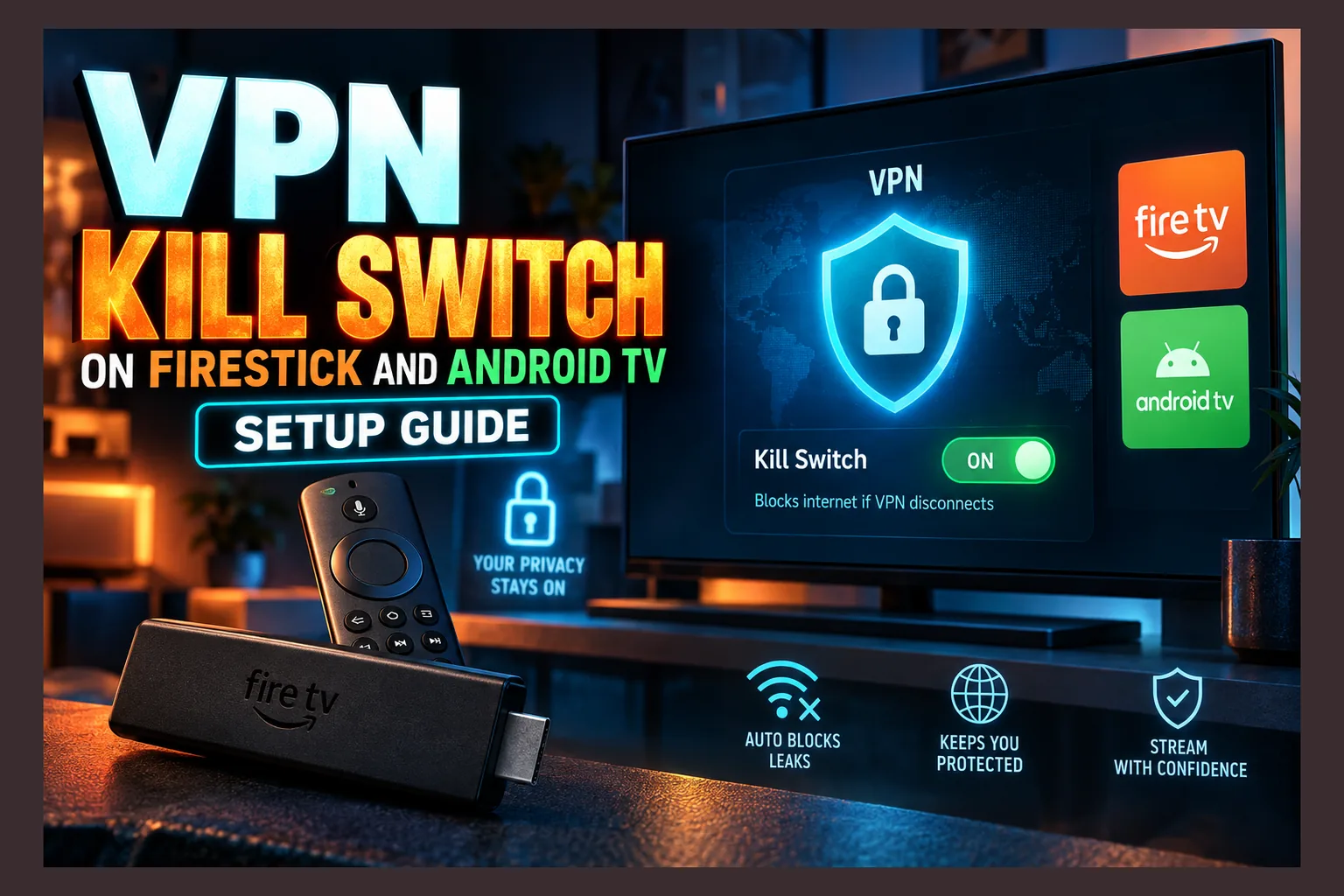
VPN kill switch Firestick protection usually comes down to the toggle inside your VPN app, because Fire OS hides Android’s Always-on VPN lockdown. That toggle only works while the app is running, and TV sticks love closing background apps to free up RAM. Android TV and Google TV can sometimes enforce blocking at the system level, while Roku and most smart TVs need a router-level kill switch. Here’s how each approach works, where it fails, and how to test yours.
Most kill switch explainers assume you’re on a laptop or phone, not a VPN kill switch Firestick setup. TV hardware behaves differently. It sleeps aggressively, closes background apps when RAM runs short, and launches streaming apps before the VPN tunnel finishes connecting.
So, as of 2026, the useful question isn’t “does my VPN have a kill switch?” It’s where that kill switch is enforced. If you’re setting up a VPN kill switch Firestick configuration for the first time, that one detail decides whether you’re protected or only think you are.
Below, we cover app-level vs system-level enforcement, Fire OS workarounds and their limits, Android TV setup, router options for Roku and smart TVs, and a checklist to confirm your kill switch actually blocks traffic.
What a Kill Switch Does on a Streaming Device
A kill switch blocks internet traffic when your VPN connection drops. No tunnel, no traffic. Without one, your device quietly falls back to your normal ISP connection and exposes your real IP address to whatever app is running, with no warning.
Simple enough. On TV hardware, though, the part doing the blocking matters a lot, especially for a VPN kill switch Firestick setup.
App-Level Kill Switch vs System-Level Lockdown
An app-level kill switch is the toggle inside your VPN app. The app watches the tunnel and blocks traffic if it fails. Close the app, let it crash, or let the system kill it for memory, and the protection goes with it.
A system-level lockdown uses Android’s own “Always-on VPN” setting combined with “Block connections without VPN.” Here the operating system enforces the rule. If the VPN isn’t connected, Android refuses to route traffic for any app, whether or not the VPN app is running at that moment.
Google explains this in its Android VPN developer guide, including an easy-to-miss detail: the VPN app has to support always-on mode. Keep that in mind. It explains a lot of greyed-out menus later on.
Why TV Devices Behave Differently From Phones and PCs
Streaming sticks run on tight hardware. A Fire TV Stick Lite ships with about 1GB of RAM, and the original Chromecast with Google TV has 2GB. To keep the foreground player smooth, the OS will shut down background apps, and your VPN app counts as one.
Then there’s standby. TV devices spend most of their lives asleep rather than fully off, and when they wake, Wi-Fi reconnects a few seconds before the VPN does.
An app-level VPN kill switch Firestick users depend on can miss that gap entirely. A system-level lockdown covers it. On a stick that cost around $30 on sale, don’t assume the VPN app is still alive just because you opened it yesterday.
Why a VPN Kill Switch Firestick Setup Matters for IPTV and Sideloaded Apps
For IPTV, a VPN kill switch Firestick setup is mostly about timing. Leaks rarely happen mid-stream. They happen in the short windows when the device changes state, which on a TV box is more often than you’d think.
One thing to clear up first: a VPN doesn’t change whether a service is licensed. That’s a separate question, so check what you’re actually streaming before you worry about tunnels.
Reconnects After Sleep and Wi-Fi Drops
These are the usual leak windows a VPN kill switch Firestick setup needs to cover:
- Waking from standby: Wi-Fi comes up before the VPN finishes its handshake.
- Router reboots or ISP blips: the tunnel drops and the VPN app has to renegotiate.
- Memory cleanup: the OS closes the VPN app to free RAM for a heavy player.
- Server switching: the brief gap while the app moves you to a new location.
Each window lasts anywhere from a second to a minute. Short, yes. But an app that’s already open, such as a player refreshing its EPG in the background, can send requests during that time over your bare connection.
Apps That Start Before the VPN Connects
Plenty of IPTV players and Kodi builds offer “auto-start on boot” or “resume last channel.” Handy, but risky: if the player launches before the VPN at boot, it connects over your plain ISP line.
Many players in our roundup of IPTV player apps for Firestick include some kind of auto-launch. Check that setting in whichever one you use, and turn it off if your VPN can’t connect first.
Sideloaded apps add another layer, since they can make background calls you’ll never see. Weighing up an unfamiliar APK? Read a breakdown like our SStream APK review before installing.
For your VPN’s exact boot behaviour, your provider’s support docs are the real authority. “Connect on launch” and “connect on boot” are not the same thing (providers blur the two more than they should).
Fire OS and the Missing Always-On VPN Setting
This is where any VPN kill switch Firestick setup gets messy. Fire OS 7 is built on Android 9 and Fire OS 8 on Android 11, and both support always-on lockdown under the hood. Amazon just doesn’t show it to you.
What Amazon Removed From the Android Settings Menu
Fire TV’s settings menu is Amazon’s own design. Go to Network and you won’t find a VPN page, so there’s no way to pick an always-on app or tick “Block connections without VPN.”
Read next: Downloader Codes for Firestick & Android TV
That leaves most Fire TV owners with an app-level VPN kill switch Firestick setup, built into whatever VPN app they use. It works while the app is alive. It does nothing once Fire OS closes it in the background.
Also note that Amazon’s newer Vega OS devices, such as the Fire TV Stick 4K Select released in 2025, aren’t Android-based. Sideloading and the workarounds below don’t apply there, so check which OS your stick runs under Settings > My Fire TV > About.
Workarounds and Their Limits
There are two common workarounds people try to harden a VPN kill switch Firestick setup. Neither is officially supported by Amazon, so treat both as experiments rather than guarantees.
- Launching the hidden Android VPN screen: some activity-launcher apps can open the stock Android VPN settings page. On certain Fire OS builds it appears and works. On others it crashes or the always-on toggle stays greyed out.
- Setting always-on via ADB: using Android Debug Bridge, you can write the secure settings always_on_vpn_app (your VPN’s package name) and always_on_vpn_lockdown (set to 1). Some users on Reddit report this holds; others say a Fire OS update or reboot resets it.
Both methods share the same catch. You get no on-screen confirmation that lockdown is active, so the only way to know is to test it yourself using the checklist further down.
If ADB lockdown does stick and your VPN later stops working, every app loses internet. That’s the point of a lockdown, but it can look like a broken network. Write down the reset command (set always_on_vpn_lockdown to 0) before you start.
Making the App-Level Kill Switch More Reliable
If you stay with the built-in toggle, a few habits narrow the leak windows:
- Enable both the kill switch and “connect on device start” in your VPN app, if it offers them.
- Turn off auto-start in your IPTV player so it never beats the VPN at boot.
- After waking the stick, open the VPN app first and wait for “Connected” before launching anything else.
- Uninstall apps you don’t use to free RAM, so Fire OS is less likely to close the VPN.
- Prefer WireGuard-based protocols where available, since they typically reconnect faster after a drop.
Android TV and Google TV: Using System-Level Lockdown
Android TV and Google TV devices are in better shape, though not uniformly. Some manufacturers expose the stock VPN menu, while others hide it as Amazon does.
Where to Find the Setting
On boxes that keep it, look under Settings > Network & Internet or a “More settings” area for a VPN entry. Select your VPN app, then enable Always-on VPN and Block connections without VPN.
The exact path varies by brand and firmware, so don’t panic if yours looks different. If the entry is missing entirely, the same ADB method described above usually applies, since these devices run closer to stock Android.
When the Toggle Is Greyed Out
A greyed-out always-on switch almost always means the VPN app doesn’t support always-on mode. Remember that detail from Google’s guide. Check your provider’s help center, or ask support directly whether their Android TV app supports system-level lockdown.
Roku, Smart TVs, and Router-Level Kill Switches
Roku, Samsung Tizen, and LG webOS don’t run VPN apps at all. For these, the only real option is moving the VPN, and the kill switch, upstream to your router.
How a Router Kill Switch Works
A VPN-capable router (stock firmware with VPN support, OpenWrt, or a travel router from brands like GL.iNet) runs the tunnel for every connected device. A firewall rule then blocks traffic from those devices to your regular internet connection if the tunnel goes down.
Because the device never knows a VPN exists, it can’t bypass it. Sleep, app crashes, and boot order stop mattering.
Things to Watch
- Speed: cheap routers often can’t encrypt fast enough for 4K streams, so check the vendor’s listed VPN throughput.
- Whole-network scope: without policy-based routing, every device goes through the VPN. A separate Wi-Fi network just for streaming devices keeps this tidy.
- Firewall rule: on some firmware, the kill switch is a separate checkbox. Confirm it’s enabled, not just the VPN client.
Kill Switch Options by Device: Comparison
| Device | Kill Switch Type | Survives VPN App Closing? | Best Fix |
|---|---|---|---|
| Fire TV (Fire OS 7/8) | App-level by default | No | ADB lockdown (unofficial) or router |
| Fire TV (Vega OS) | Limited or none | No | Router-level |
| Android TV / Google TV | System-level where exposed | Yes, with lockdown on | Always-on + Block connections |
| Roku | None on device | N/A | Router-level |
| Samsung / LG smart TVs | None on device | N/A | Router-level |
How to Test Your VPN Kill Switch Firestick Setup
Don’t trust a toggle until you’ve watched it block traffic. These checks take about 10 minutes and work on Fire TV and Android TV with any browser app, such as Silk or the browser built into Downloader.
- Get a baseline: with the VPN off, open an IP-check site and note your real IP and ISP.
- Confirm the tunnel: connect the VPN and reload the page. You should see the VPN server’s IP instead.
- Force-stop the VPN app: go to Settings > Applications > Manage Installed Applications, pick your VPN, and choose Force stop. Reload the IP page.
- Read the result: if the page fails to load, system-level lockdown is working. If it shows your real IP, you only have app-level protection.
- Test sleep: reconnect, put the device to sleep for a few minutes, wake it, and immediately reload the IP page before touching the VPN app.
- Check DNS: run a DNS leak test page while connected. Your ISP’s DNS servers shouldn’t appear.
Repeat steps 3 to 5 after any Fire OS update. Updates are the most common reason an ADB lockdown quietly stops working.
Final Take: Getting a VPN Kill Switch Firestick Owners Can Trust
The toggle in your VPN app is a starting point, not a guarantee. On Fire TV it disappears the moment Fire OS closes the app, while Android TV can enforce blocking properly if your VPN supports always-on mode.
If you want a VPN kill switch Firestick, Roku, and smart TV setups can all share, a router-level kill switch is the cleanest answer. Whichever route you pick, run the test checklist yourself, and run it again after every update.
⚖️ Legal Disclaimer: IPTV Wire does not own or operate any streaming service, application, or website mentioned in this article. We do not verify whether third-party services carry proper licensing. Users are responsible for ensuring they comply with copyright laws in their jurisdiction.
Frequently Asked Questions
Does Firestick have a built-in VPN kill switch?
No. Fire OS hides Android’s Always-on VPN and “Block connections without VPN” settings, so you rely on your VPN app’s own kill switch. That only works while the app is running.
Can I enable Always-on VPN on Fire TV with ADB?
Some users report success writing the always-on secure settings through ADB, but Amazon doesn’t support it. Updates or reboots may reset it, so verify with a force-stop test.
Why is the Always-on VPN option greyed out on my Android TV box?
Usually because your VPN app doesn’t support always-on mode. Check your provider’s documentation or contact support to confirm their Android TV app supports it.
How do I use a kill switch on Roku or a smart TV?
Run the VPN on your router and enable its firewall-based kill switch. Roku, Tizen, and webOS can’t run VPN apps, so router-level protection is the only practical option.
How can I tell if my VPN kill switch Firestick protection actually works?
Connect the VPN, force-stop the VPN app, then load an IP-check page. If the page fails to load, traffic is blocked. If it shows your real IP, you only have app-level protection.

Comments
Leave a comment
Your email address will not be published. Comments are moderated before they appear.