

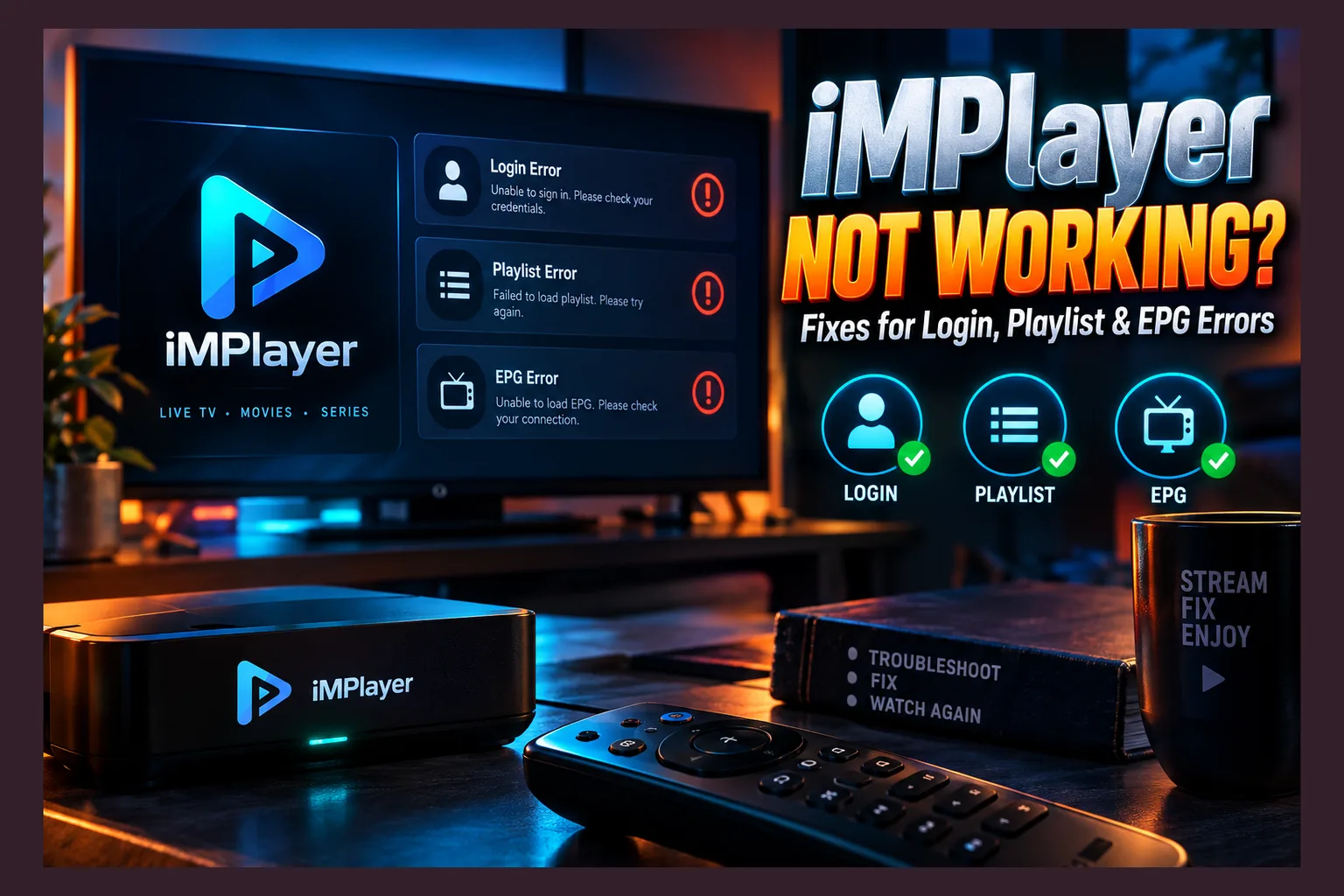
iMPlayer not working usually isn’t iMPlayer’s fault. Nine times out of ten, the culprit is a mistyped Xtream Codes login, an expired or rotated provider URL, a mismatched EPG source, or plain old network trouble. Before you reinstall anything, test your credentials in a second player. If they fail there too, the problem lives with your IPTV service, not the app. I’ve sorted every fix below by error type, so jump straight to whatever’s on your screen.
This guide is for people who already have iMPlayer installed and are staring at a spinning wheel, an “invalid login” message, or a TV guide full of blank rows. It’s sorted by error type. Jump straight to whatever matches your screen. Settings and behavior described here reflect the app as of 2026, but iMPlayer ships updates fairly often, so a menu label or two may have moved by the time you read this.
iMPlayer Not Working? Find the Problem Before You Fix It
Faced with iMPlayer not working, most people reinstall first. That usually burns 20 minutes and fixes nothing. My advice is to work out which layer has actually failed (the app, the playlist, the provider, or your network) because each one needs a completely different fix, and guessing wrong just sends you in circles.
Is It iMPlayer or Your IPTV Service?
iMPlayer is a player only. It doesn’t host, sell, or supply a single channel. You feed it a playlist, either an Xtream Codes login or an M3U link from your provider, and it plays whatever that server sends back.
So when channels vanish and you find iMPlayer not working, the app is often just relaying bad news. Server down? Overloaded? Account cut off? iMPlayer will throw errors in every one of those cases, and you could reinstall it ten times without changing the result.
Reseller-run services break more often, and they’re behind a lot of iMPlayer not working complaints. Why? The reseller rents access from an upstream panel they don’t control, and when that upstream source switches domains or disappears overnight, every account tied to it goes dark at the same moment.
A 60-Second Triage Checklist
If you’ve got iMPlayer not working, run through these in order before you touch a single setting:
- Test the same credentials in a second player. Any app that accepts Xtream Codes or M3U links works for this. If it fails there too, iMPlayer isn’t your problem.
- Check your provider’s status channel. Plenty of services post outages on Telegram, Discord, or a basic status page. Silence during an obvious outage is a red flag.
- Confirm your subscription hasn’t expired. Most providers show an expiry date in their client panel, and many players display it on the account info screen too.
- Try a different network. Switch to a phone hotspot for two minutes. Streams suddenly loading means your ISP or router, not the app, is why you saw iMPlayer not working.
- Restart the device fully. On a Firestick, pull the power cable for 30 seconds. Sleep mode doesn’t count.
Here’s a quick map from each iMPlayer not working symptom to its likely cause:
| Symptom | Most Likely Cause | First Thing to Try |
|---|---|---|
| “Invalid credentials” error | Typo in URL, port, or username | Re-enter server URL with correct http/port |
| Login works, zero channels | Expired account or wrong playlist output | Check expiry date, test M3U in browser |
| Channels load, guide is blank | Missing or mismatched EPG source | Refresh EPG, check tvg-id matching |
| Guide shows wrong times | Timezone or offset setting | Adjust EPG time offset |
| Constant buffering | Server load, ISP throttling, or decoder | Switch stream format and player engine |
| App crashes on launch | Corrupted cache or low storage | Clear cache, free up storage |
iMPlayer Login and Activation Errors
Login trouble is the number one reason people search “iMPlayer not working,” and the fix is usually boring. One wrong character. That’s all it takes to kill the connection.
Xtream Codes Login Fails (Invalid Credentials or Server Unreachable)
An iMPlayer Xtream Codes login error nearly always comes down to how the server URL was typed. Go through each of these slowly:
- http vs https: Lots of IPTV panels only answer on plain http. Type https on a server that doesn’t support it and you’ll get “server unreachable.”
- Missing port: If your provider sent something like http://example-server.com:8080, the :8080 is mandatory. Leave it off and the app knocks on the wrong door. (Ports like 80, 8080, and 25461 show up a lot, but use whatever your provider gave you.)
- Trailing slash: Some panels choke on http://server.com:8080/ but accept http://server.com:8080. Delete that final slash if you added one.
- Case-sensitive usernames: “JohnTV” and “johntv” are two different accounts on most panels. Copy credentials exactly as sent.
- Hidden spaces: Pasting from an email or chat app often sneaks in a trailing space. If pasting keeps failing, type the details by hand.
Still failing in two different players with carefully typed details? Then this isn’t really a case of iMPlayer not working. Contact your provider. The account may be suspended, or the server may have moved without anyone telling you.
Free Trial or Premium Not Recognized
iMPlayer runs a limited free tier plus a paid premium upgrade. Depending on how and where you bought premium, it’s tied either to your iMPlayer account or to one specific device, which explains why a brand-new Firestick can suddenly show the free version again.
If your purchase vanishes, use the restore option through the same store account you paid with: Amazon, Google Play, or Apple. A different store account won’t find it. Simple as that.
I’m deliberately not listing prices here. iMPlayer has changed its pricing and activation terms before, and regional pricing differs between the US, UK, and EU, so check the current terms on the app’s premium screen before you pay anything.
Device Limit and Playlist Sync Problems
Cross-device sync is handy until it isn’t. Edit a playlist on one device, introduce a typo, and sync can happily push that broken entry to every screen on your account.
Every TV in the house showing iMPlayer not working right after a change is the classic sign. Suspect sync. Fix the playlist on one device, confirm it plays, then let it propagate. Separately, your IPTV provider enforces its own connection limit (often one or two simultaneous streams on cheaper plans, though this varies a lot), and going over it commonly triggers login or playback errors that look like an app fault.
Playlist Won’t Load or Shows No Channels
An iMPlayer playlist not loading usually means the app connected fine but got back data that was empty, malformed, or simply too big. That points at the URL or the provider, not the app.
M3U URL Problems
A typical Xtream-style M3U link looks like this: http://server:port/get.php?username=X&password=Y&type=m3u_plus&output=ts. Every parameter matters.
type=m3u_plus carries extra metadata such as logos, group titles, and tvg-id tags, which iMPlayer relies on for categories and EPG matching. Plain type=m3u strips most of that out. The result? Channels that load without logos or guide data.
URL encoding catches people too. Passwords containing &, #, or % can break the whole link, since those characters have special meanings in a URL. If it keeps happening, ask your provider for a password without special characters.
Testing a link takes ten seconds. Paste it into a desktop browser. A working link either downloads a file or shows lines starting with #EXTM3U and #EXTINF; a blank page, a 403/404 error, or a timeout means the fault sits on the provider’s side.
Expired or Rotated Provider URLs
Providers change domains. Takedowns, ISP blocks, and server migrations all cause it. Your old URL just stops answering, and nothing inside iMPlayer is actually broken.
Read next: Diggz Xenon Not Working? Fixes for Common Build Errors
Look in your provider’s announcement channel for the new server address. Then edit the existing playlist entry instead of adding a duplicate (this matters more than it sounds), because editing keeps your favorites linked to the playlist.
Large Playlists That Time Out
Some providers stuff tens of thousands of VOD titles in alongside live channels. On a low-RAM device like the Fire TV Stick Lite, which has around 1GB of RAM, a playlist that size can time out before it finishes loading.
Ask your provider for a live-only M3U, or use category filters in their panel if they offer them. Smaller playlists load faster. They use less memory, and the EPG becomes far more responsive.
EPG Missing, Wrong, or Out of Sync
When the iMPlayer EPG is not showing, channels usually play fine but the guide is blank or plain wrong. If you’re new to how guide data works, our explainer on what EPG is covers the basics.
Adding or Refreshing the EPG Source
With an Xtream Codes login, guide data normally arrives bundled from the provider’s server automatically. M3U playlists are different. You may need to add a separate XMLTV URL, the standard format for guide data described on Wikipedia’s XMLTV page.
Clear the old EPG cache in iMPlayer’s settings before reloading. Skip this and the app may keep showing stale or corrupted guide data. Then trigger a manual refresh and wait a few minutes, because big guide files take a while to parse, especially on budget hardware.
One more setting to check: the auto-refresh interval. Set it too infrequent and the guide can run out of listings after a day or two, which looks exactly like a blank EPG.
Fixing Time Offset Issues
Programs showing up an hour or more off? The guide is reading the wrong timezone. UK and European viewers hit this constantly, since many EPG sources publish in UTC or US Eastern time.
Find the EPG time offset or timezone shift option in iMPlayer’s settings and adjust it one hour at a time. Also confirm your device’s own clock and timezone are right, because a wrong system time throws everything off. Daylight saving bites too. The US switches on the second Sunday in March and the UK on the last Sunday in March, so an offset that worked in winter can drift an hour in spring, and for a couple of weeks the gap between US and UK sources shifts as well.
Channels Showing ‘No Information’
“No information” on specific channels usually signals a tvg-id mismatch. The channel’s ID in the playlist doesn’t match any ID in the EPG file, so the app can’t link them.
In most cases you can’t fix this from inside the app. Report the affected channels to your provider. They control both the playlist tags and the guide feed.
Buffering, Freezing, and Playback Errors
Here, an iMPlayer buffering fix depends entirely on cause. Server load, your home network, and the way the app decodes video can each produce freezes that look identical on screen.
Switching the Player Engine and Decoder
iMPlayer lets you change playback settings, including hardware versus software decoding. Hardware decoding hands the work to the device’s video chip and is efficient. The catch: some cheap Android boxes have buggy chips that stutter on certain streams.
Software decoding leans on the CPU instead. More compatible, but heavier, so it can drop frames on weak hardware. If a channel freezes or shows green blocky artifacts, flip modes and see which one behaves better on your particular device.
Stream Format: TS vs HLS
Providers usually offer streams as MPEG-TS (output=ts) or HLS (output=m3u8). HLS delivers video in small segments, which tends to recover better on shaky connections.
TS is one continuous stream. It starts fast. But when packets drop, it can freeze harder. If one format keeps locking up, change the output parameter in your M3U link, or the stream format option in settings, and compare the two side by side.
When a VPN Helps and When It Hurts
A VPN helps when your ISP is throttling streaming traffic. Some ISPs slow down recognizable IPTV traffic, especially in the 7–11 p.m. peak window, and encrypting your connection hides what you’re doing. Whether your ISP does this varies by country and provider; Reddit threads are full of conflicting reports.
It hurts when the server you choose is far away or the protocol adds heavy overhead. Connecting from the US to a server in Asia piles on latency and can cut throughput noticeably. Pick a nearby server and a lightweight protocol like WireGuard.
Some networks block VPNs outright: certain workplaces, hotels, and countries with restrictive internet rules. There, look for a VPN with obfuscation, which disguises VPN traffic as ordinary web browsing. The easy test? If buffering only shows up at night and disappears once the VPN is on, throttling was your issue.
iMPlayer Firestick Troubleshooting and Other Device-Specific Fixes
Sometimes iMPlayer not working is really a device problem. Every platform has its own quirks.
Firestick and Fire TV
iMPlayer Firestick troubleshooting starts with storage. Go to Settings > My Fire TV > About > Storage. Drop below roughly 500MB free and apps start crashing or failing to load playlists, which happens faster than you’d expect on 8GB models once a few apps pile up.
Next, clear the app’s cache via Settings > Applications > Manage Installed Applications > iMPlayer > Clear Cache. Only reach for “Clear Data” if that doesn’t help. It wipes your playlists.
Know which version you’re running. The Amazon Appstore build updates on its own; a sideloaded APK installed through the Downloader app won’t. Having both installed can cause conflicts, so remove one. If other Fire TV apps also misbehave after installs, our guide to what breaks with TeaTV on Firestick covers several shared Fire OS issues.
Android TV and Google TV Boxes
Google Play Protect may flag sideloaded APKs or quietly disable them. Installed from the Play Store? This shouldn’t affect you. If you sideloaded, treat that warning as a nudge to switch to the official build.
Cheap Android boxes often ship with aggressive “memory cleaner” or battery-saver tools that kill background apps. They can stop iMPlayer mid-load or wipe half-finished EPG downloads. Whitelist iMPlayer in those tools, or just switch them off entirely (I’d lean toward off).
Apple TV
tvOS has an Offload Unused Apps setting that removes apps you haven’t opened in a while but leaves the icon behind. Tap the icon and it redownloads, sometimes with settings missing. If you only open iMPlayer occasionally, turn this off under Settings > Apps.
App acting up after a tvOS update? Delete it and reinstall from the App Store. For more Apple-specific player problems, see our Snappier IPTV Apple TV and iPhone fixes, since many tvOS quirks apply across players.
Whatever the platform, stick with the official store build. Random APK mirror sites sometimes host outdated or modified versions bundled with adware, and those can expose your saved logins.
Reset Without Losing Your Setup
A clean reset fixes stubborn crashes. But save what you need first. Rebuilding playlists from memory is miserable.
Back Up Playlists and Favorites First
Use iMPlayer’s account sync or export options if your version has them. If not, store your server URL, port, and username in a password manager such as Bitwarden or 1Password.
Don’t keep logins in screenshots or plain cloud notes. Screenshots get auto-uploaded to photo backups like Google Photos or iCloud, and IPTV credentials leaked that way can end up shared around, which gets your account banned for too many connections.
Clean Reinstall Steps
Go through these in order, testing after each one so you can stop the moment it’s fixed:
- Clear cache and reopen the app.
- Clear data (this removes local playlists and settings).
- Uninstall iMPlayer completely, then restart the device.
- Reinstall from the official app store for your platform.
- Re-add your playlist, typing details carefully, then restore premium through your store account.
When to Stop Troubleshooting iMPlayer Not Working
Eventually the honest answer is that nothing’s left to fix on your end. These signs mean the provider is down, or gone for good:
- Every player fails with the same credentials, on every device and network.
- The provider’s domain won’t load in a browser at all.
- Support channels have gone silent or been deleted.
- Your renewal page or reseller has disappeared.
Sound familiar? Stop paying for renewals. And be wary of “replacement” services pushed in the same Telegram groups, because unverified providers can vanish just as quickly. The same diagnostic logic applies to other apps too, as covered in our guides for SStream APK, OnStream APK, and Diggz Xenon build errors.
Bottom line: when you hit iMPlayer not working, isolate the layer first. Test in a second player, verify your credentials and URL, then work through EPG, playback, and device fixes in that order. Most problems get solved without a single reinstall.
⚖️ Legal Disclaimer: IPTV Wire does not own or operate any streaming service, application, or website mentioned in this article. We do not verify whether third-party services carry proper licensing. Users are responsible for ensuring they comply with copyright laws in their jurisdiction.
Frequently Asked Questions
Why does iMPlayer say my login is invalid when my credentials are correct?
Usually it’s the server URL, not the username or password. Look for https where it should be http, a missing port number, a trailing slash, or hidden spaces from copy-pasting. If the same details fail in another player, your account may be suspended or the server may have moved.
Why is my iMPlayer EPG showing the wrong times?
The guide source is probably published in a different timezone than yours. Adjust the EPG time offset in iMPlayer’s settings one hour at a time and confirm your device clock is correct. Check again after daylight saving changes.
Does iMPlayer provide any channels or content?
No. iMPlayer is only a player. You need a playlist from a separate IPTV provider, added as an Xtream Codes login or M3U URL.
Should I use a VPN with iMPlayer on Firestick?
A VPN helps if your ISP throttles streaming traffic, particularly at peak evening hours. Choose a nearby server and a lightweight protocol like WireGuard so you don’t slow your connection down.
How do I reset iMPlayer without losing my playlists?
First, save your server URL, port, and username in a password manager or use the app’s account sync. Then clear cache, clear data, reinstall from the official store, and re-add your playlist.
Why does iMPlayer buffer when other apps stream fine?
Other apps pull from different servers. Your IPTV provider may be overloaded, or your ISP may be throttling IPTV traffic specifically. Try switching between TS and HLS formats and toggling hardware decoding before you blame the app.


Comments
Leave a comment
Your email address will not be published. Comments are moderated before they appear.