

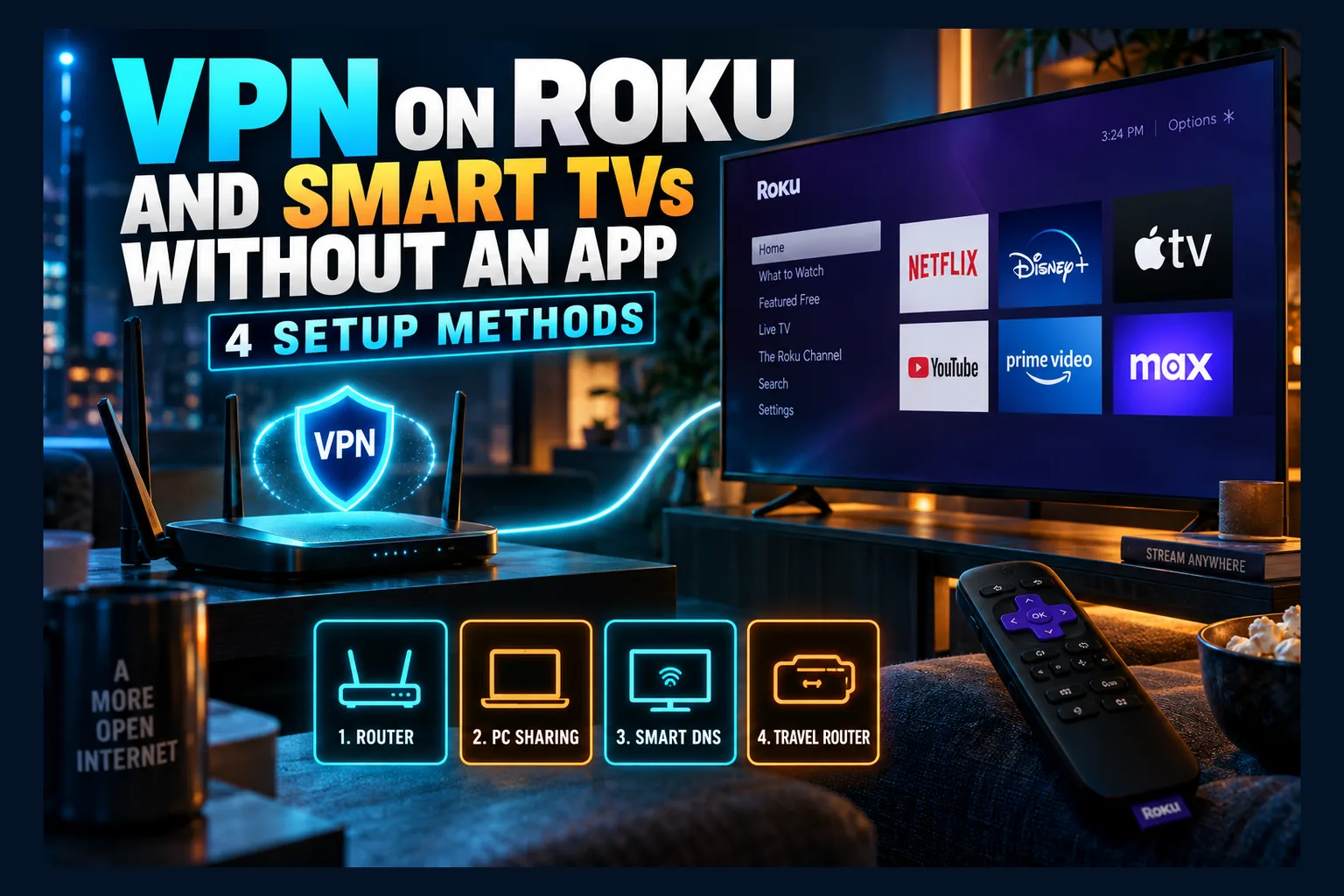
VPN on Roku without app support sounds impossible until you realise the TV never has to run the VPN itself. Roku OS, Samsung’s Tizen and LG’s webOS all block VPN apps, so the trick is putting the tunnel upstream of the TV. I’ll walk you through four methods that actually work in 2026: a VPN-capable home router, a travel router, a shared connection from a Windows PC or Mac, and Smart DNS. Pick the one that fits your setup and skip the rest.
Searched the Roku Channel Store for NordVPN, Surfshark or ExpressVPN and come up empty? The store isn’t broken. Roku, Samsung’s Tizen and LG’s webOS simply don’t allow VPN apps, and neither do the older cast-only Chromecasts. This guide walks through four practical ways to set up a VPN on Roku without app support as of 2026. Every one of them also works on smart TVs with the same restrictions.
It’s a device-first guide to running a VPN on Roku without app access. Own a Firestick or a Google TV box? You probably don’t need most of what follows, and the table below will confirm that in about ten seconds.
Why Roku, Samsung and LG TVs Can’t Run VPN Apps
A VPN app needs the operating system’s permission to create a network tunnel and push all traffic through it. Android, iOS, tvOS, Windows and macOS all hand developers that access. Roku OS, Tizen and webOS don’t. That’s why a VPN on Roku without app support has to live outside the TV.
Closed App Stores on Roku OS, Tizen and webOS
Roku channels are written in BrightScript, Roku’s own scripting language. It has no system-level networking hooks, so even a provider that badly wanted to ship a VPN channel couldn’t. Developer mode exists. But it’s there for testing channels you’ve written yourself, not for sideloading Android APKs (a common misconception on forums).
Tizen and webOS are more capable platforms, but Samsung and LG curate both stores tightly. You won’t find a client from any major VPN provider in either one, and neither TV installs packages from outside its store unless you go through developer tooling. I’ve covered how this affects IPTV players in why IPTV Smarters on smart TVs differs from the Firestick version. Same walls, different app.
One warning. If an app on one of these stores calls itself a “VPN,” be suspicious. Read what fake VPN apps for streamers actually install before you trust anything with a shield icon on it.
Devices That Do Support VPN Apps (Firestick, Google TV, Apple TV)
Before spending $50–$250 on a router to get a VPN on Roku without app support, check whether your device can just run an app:
| Device / Platform | Native VPN App? | Notes |
|---|---|---|
| Roku players and Roku TVs | No | No VPN API, no sideloading |
| Samsung Smart TV (Tizen) | No | Manual DNS available |
| LG Smart TV (webOS) | No | Manual DNS available |
| Vizio (SmartCast) | No | Same workarounds apply |
| Chromecast (pre-Google TV, cast-only) | No | Uses hardcoded Google DNS |
| Amazon Fire TV / Firestick | Yes | Major VPNs are in the Amazon Appstore |
| Chromecast with Google TV / Google TV Streamer | Yes | Via Google Play |
| Android TV / Google TV sets (Sony, TCL, Hisense Google TV models) | Yes | Check that your model runs Google TV, not Roku or VIDAA |
| Apple TV 4K (tvOS 17 and later) | Yes | VPN apps arrived with tvOS 17 in September 2023 |
In the “Yes” group? Install the app and you’re done. Do read how to check that a VPN app is legit first, though. And Firestick owners who want something outside the Appstore can use these sideloading methods that don’t need Downloader.
Hardcoded DNS on Chromecast and Some Smart TVs
Some devices ignore whatever DNS servers your router hands out. Classic Chromecasts fire their lookups straight at Google’s 8.8.8.8. A handful of smart TV apps behave the same way.
Why care? Two methods for a VPN on Roku without app support depend on it. Smart DNS fails outright if the device never asks your chosen server, and a VPN router can leak DNS when those lookups slip outside the tunnel. The fix for a leak-free VPN on Roku without app support is in the troubleshooting section near the end.
Method 1: Get a VPN on Roku Without App Support Using Your Home Router
This is the most permanent way to put a VPN on Roku without app support. Your router builds the encrypted connection once, and every device behind it, TV included, can ride the tunnel.
Check If Your Router Supports a VPN Client
Look for the words VPN client. Not VPN server. Plenty of routers advertise “VPN” on the box when they only let you connect into your home network from outside, which does nothing if you want a VPN on Roku without app support.
Routers that usually ship with a VPN client:
- ASUS: most current models handle OpenVPN, and stock firmware from roughly the 388 series onward adds WireGuard on supported hardware. Per-device routing lives in a feature called VPN Fusion.
- GL.iNet: built on OpenWrt, with WireGuard and OpenVPN clients in a simple web panel. Many VPN providers publish GL.iNet-specific setup guides.
- Netgear: wildly inconsistent by model. Lots of Nighthawk units only offer a VPN server, so read the spec sheet before buying.
The alternative is custom firmware: Asuswrt-Merlin for ASUS hardware, OpenWrt for a long list of routers, or DD-WRT. You get finer VPN controls. The downside is real, though. An interrupted or botched flash can brick the router, and flashing typically voids the warranty.
Regional note: ISP-supplied routers almost never include a VPN client. That covers BT, Sky and Virgin Media hubs in the UK, Xfinity and Spectrum gateways in the US, and Rogers and Bell boxes in Canada. For a VPN on Roku without app support, you’ll usually add your own router behind the ISP box rather than replacing it outright (some ISPs make replacement awkward anyway).
WireGuard vs OpenVPN on Router Hardware
Every packet gets encrypted on the router, and consumer routers have modest CPUs. OpenVPN is heavy. It mostly runs on a single core, and on plenty of mid-range routers that caps VPN throughput well below what your ISP actually delivers, sometimes at a fraction of a 300 Mbps or 500 Mbps plan.
WireGuard is far leaner. On identical hardware it generally pushes several times the throughput of OpenVPN, which is why it got merged into the Linux kernel back in 2020. Netflix suggests about 15 Mbps for 4K, and most services land somewhere in the 15–25 Mbps range, so if 4K streaming is the reason you want a VPN on Roku without app support, pick WireGuard.
Treat those figures as rough guidance. Results depend on the router’s chipset, how loaded the VPN server is, and how far away it sits. To check your own setup, run a speed test from a laptop on the router’s network with the VPN off, then again with it on, and compare.
Policy-Based Routing: Send Only the TV Through the VPN
You don’t have to force the whole household through the tunnel. Policy-based routing lets the router send specific devices through the VPN while everything else uses your normal connection.
The general setup:
- Give the Roku or TV a fixed IP with a DHCP reservation tied to its MAC address. On a Roku, the MAC sits under Settings > System > About.
- Open the router’s policy routing feature. It’s VPN Fusion on stock ASUS, VPN Director on Asuswrt-Merlin, the device rules in GL.iNet’s VPN Dashboard, and the pbr package on OpenWrt.
- Add a rule sending that IP through the VPN tunnel.
- Leave everything else on the WAN connection.
For a single IPTV TV, this is my preferred setup. Your partner’s video calls and your kid’s console don’t pay the speed tax. Banking apps stop throwing “unusual location” warnings, too.
Method 2: Use a Travel Router as a VPN Bridge
Renting? Sharing Wi-Fi with roommates? Just don’t want to touch the main router? A travel router is the lowest-risk option here: a small, cheap box that broadcasts its own Wi-Fi network with the VPN already running.
Read next: Why the IPTV Smarters App on Smart TVs is Different from the Version on Firestick and Android Boxes
How a Travel Router Sits Between Your ISP Router and the TV
Picture a chain: ISP router → travel router (VPN on) → TV. The travel router connects upstream over Ethernet or by repeating your existing Wi-Fi, then broadcasts a fresh network. Anything that joins that network goes through the tunnel.
GL.iNet owns this category. The Opal (GL-SFT1200), the Beryl AX (GL-MT3000) and the Slate AX (GL-AXT1800) have typically sold for roughly $40 to $130, depending on model and whether there’s a sale on. The setup flow looks like this:
- Power the travel router and connect it to your main router by Ethernet. Repeater mode works too, but expect lower speeds.
- Log into its admin panel, usually at 192.168.8.1 on GL.iNet units.
- Download a WireGuard config file from your VPN provider’s dashboard. Most major providers offer manual WireGuard configs, though some bury them a few menus deep.
- Import the file into the WireGuard client section and connect.
- Turn on “block non-VPN traffic” (yes, you really do want this on).
- Connect your Roku or smart TV to the travel router’s Wi-Fi, not your main network.
Only devices you move onto the travel router’s network use the VPN. Device-level control, zero policy rules.
Using It in Hotels and Rentals
Here’s where a travel router really earns its keep. Pack a Roku stick and the router, pair them once, and the Roku remembers that network in every hotel you visit.
Hotel Wi-Fi often sits behind a captive portal, the login or “accept terms” page you get on first connect. Most GL.iNet units detect it. The usual routine: pause the VPN, connect your phone to the travel router, accept the portal page, then switch the VPN back on. If the hotel caps devices by MAC address, the router’s MAC cloning option can borrow your phone’s address so the network only sees one device.
Method 3: Share a VPN Connection From a Windows PC or Mac
Already have a laptop? Then you can share a VPN connection from PC to TV for free. It’s clunky. Still, it’s fine for a weekend or a quick test before you spend money on hardware.
Windows Mobile Hotspot Over a VPN Adapter
Windows 10 and 11 can both turn a laptop into a Wi-Fi hotspot and pass the VPN tunnel through it. The steps:
- Install your VPN’s Windows app and connect using OpenVPN. Some providers’ WireGuard or proprietary protocols don’t create an adapter Windows can share.
- Go to Settings > Network & Internet > Mobile hotspot and turn it on. Note the network name and password.
- Press Win + R, type ncpa.cpl, and hit Enter.
- Find the VPN adapter. It’s often labeled with the provider’s name or “TAP-Windows Adapter.”
- Right-click it, then choose Properties > Sharing tab.
- Tick “Allow other network users to connect through this computer’s Internet connection.”
- In the dropdown, pick the hotspot adapter, usually “Local Area Connection* 10” or a similar number.
- Click OK, then connect the Roku or TV to the hotspot.
TV connected but no internet? Toggle the hotspot off and on, or re-tick the sharing box. Windows sometimes forgets that setting after a reboot (annoyingly, without telling you).
macOS Internet Sharing Limitations
macOS has Internet Sharing under System Settings > General > Sharing. In practice, it often won’t pass VPN traffic to shared devices. Modern VPN apps run as macOS network extensions, and shared traffic frequently bypasses the tunnel or doesn’t route at all.
Some users on Reddit and provider forums report success with specific providers using manual IKEv2 or OpenVPN setups. Results vary by macOS version, so treat it as unreliable. To check, open a “what is my IP” page in the TV’s browser, or use an IP-checking app, and see whether it shows the VPN server’s location.
When This Method Makes Sense
The PC has to stay on, awake and connected the entire time you’re watching. Laptop hotspots also tend to have weaker Wi-Fi than a real router, which can mean buffering at 4K, especially through a wall or two.
I’d use it for testing, a one-off event, or travel when a laptop’s coming anyway. For anything permanent, a $50 travel router pays for itself in convenience within a week or so.
Method 4: Smart DNS for Smart TVs Instead of a Full VPN
People confuse Smart DNS for smart TVs with a VPN more than any other option on this list. It’s useful. It just does a much narrower job.
What Smart DNS Changes and What It Doesn’t
Smart DNS swaps your DNS server for one the provider runs. When an app checks your location, the provider reroutes that specific lookup so the app sees a different region. Everything else travels over your normal connection, untouched.
The honest trade-off:
- No encryption. Your ISP can still see your traffic.
- No IP masking for most traffic. Most services still see your real IP.
- Almost no speed loss, since nothing gets encrypted.
- Location-based app access only, and it tends to break whenever streaming services update their checks.
For privacy, and especially for IPTV, Smart DNS falls short. My reasons are in why you should stop using IPTV without a VPN.
Entering Custom DNS on Roku vs Smart TVs
Roku has no DNS setting at all. You’ll need to enter the Smart DNS addresses in your router’s DHCP or WAN DNS fields so every device on the network picks them up. Some Roku models also hardcode Google DNS, so the router may need the port 53 redirect covered further down.
Samsung (Tizen): go to Settings > General > Network > Network Status > IP Settings. Set DNS to “Enter manually” and type in the provider’s addresses.
LG (webOS): go to Settings > Network > your Wi-Fi or wired connection > Advanced Settings > Edit. Untick “Set Automatically” and enter the DNS servers. LG reshuffles menu names between model years, so hunt for anything labeled “IP settings” or “Advanced.”
Most Smart DNS services also make you register your home IP in their dashboard. Many UK and European residential connections get a new IP periodically, and every time that happens you’ll have to update it.
Which VPN on Roku Without App Method Fits Your Setup
Quick Comparison Table
| Factor | Home Router | Travel Router | PC Hotspot | Smart DNS |
|---|---|---|---|---|
| Upfront cost | $0 if supported, about $80–$250 if not | About $40–$130 | Free | Free to about $5/mo, often bundled with a VPN |
| Difficulty | Medium to high | Low to medium | Medium | Low |
| Privacy / encryption | Full | Full | Full | None |
| Speed impact | Depends on router CPU | Depends on travel router CPU | Limited by laptop Wi-Fi | Minimal |
| Effect on other devices | All, unless you set policy routing | Only connected devices | Only connected devices | All, if set on the router |
| Portability | None | Excellent | Good, with a laptop | Breaks when your home IP changes |
Common Household Scenarios
Renters stuck with an ISP router: buy a travel router and plug it into the ISP box by Ethernet. None of your provider’s equipment needs changing.
Frequent travelers: a travel router plus a Roku stick or Firestick makes the most portable kit going. Set it up once at home, then just plug it in at each hotel.
Whole-home privacy: run WireGuard on a capable home router, something like an ASUS on Merlin or a GL.iNet Flint-class unit. Then use policy routing to exclude devices that misbehave on a VPN, which is usually smart home gear and the odd games console.
One TV for IPTV: go with a home router plus a per-device rule, or a travel router dedicated to that TV. If your IPTV setup runs on a Roku, my guide to IPTV on Roku TV apps, workarounds and limits covers the player side.
Fixing Leaks and Problems After Setup
DNS Leaks From Hardcoded DNS
When a device sends DNS straight to 8.8.8.8, those lookups can escape the tunnel or skip your Smart DNS entirely. The fix: a firewall rule that catches every outgoing port 53 request and redirects it to the router’s own DNS.
Asuswrt-Merlin calls this DNS Director. GL.iNet has an “Override DNS settings of all clients” toggle. On OpenWrt, add a port-forward or NAT rule redirecting LAN TCP and UDP traffic on port 53 to the router. Then open a DNS leak test page in a browser on the same network and confirm only your VPN’s DNS servers appear.
Router-Level Kill Switch Settings
Roku has no device-level kill switch, so the router has to cover it. Look for “Block internet when VPN is down,” “Killswitch – block routed clients if tunnel goes down” on Merlin, or “Block non-VPN traffic” on GL.iNet.
Turn it on. Without it, a dropped tunnel silently shifts the TV’s traffic onto your normal connection, and nothing on screen tells you it happened.
Apps Detecting the VPN or Buffering
Streaming apps maintain lists of known VPN server IPs. Seeing a proxy error? Switch to another server in the same city first. If that fails, try a different protocol, or a dedicated or obfuscated IP option if your provider sells one (often around $3–$5/month extra).
Buffering is a different problem. Check the router’s CPU load on its status page while the TV plays. Sitting near 100%? Then the router is the bottleneck, not your ISP, and your options are switching from OpenVPN to WireGuard, picking a closer server, or upgrading the hardware.
Final Thoughts
Roku, Samsung and LG may never allow VPN apps. You don’t need one. Getting a VPN on Roku without app support really just means deciding where the tunnel lives. A home router covers the whole house, a travel router is the low-risk pick, a PC hotspot works as a free stopgap, and Smart DNS handles location-based access with no privacy at all.
For most readers, I’d start with a travel router running WireGuard. It leaves your main network alone, works in hotels, and gives the TV full encryption.
⚖️ Legal Disclaimer: IPTV Wire does not own or operate any streaming service, application, or website mentioned in this article. We do not verify whether third-party services carry proper licensing. Users are responsible for ensuring they comply with copyright laws in their jurisdiction.
Frequently Asked Questions
Can you install a VPN app directly on a Roku?
No. Roku OS has no VPN API and blocks sideloading, so no provider can offer a Roku VPN channel. Use a router, a travel router, a shared PC connection or Smart DNS instead.
Does a VPN router slow down 4K streaming?
It can. Much depends on the router’s CPU and the VPN protocol. WireGuard is far lighter than OpenVPN and usually leaves enough headroom for 4K on modern routers, but compare speeds with the VPN on and off to be sure.
Is Smart DNS safe to use instead of a VPN on a smart TV?
Safe in the sense that it won’t harm your TV, yes. It offers no encryption or IP protection, though. Use it only for location-based app access, and switch to a full VPN if privacy matters.
Can I put only my TV on the VPN and leave other devices off it?
Yes. Set up policy-based routing on your router through ASUS VPN Fusion, Merlin’s VPN Director or GL.iNet device rules. Simpler still: connect only the TV to a dedicated travel router running the VPN.
Do Samsung and LG smart TVs support VPN apps in 2025 and 2026?
Not from the major VPN providers. Tizen and webOS still lack real VPN clients, so you’ll need a router-based VPN, or the TV’s manual DNS setting paired with a Smart DNS service.
Will a VPN on my router work with IPTV apps on a smart TV?
Yes. The IPTV app never needs to know the VPN exists, because the router encrypts traffic before it leaves your home. Just enable the router’s kill switch so streams don’t fall back to your unprotected connection if the tunnel drops.
Comments
Leave a comment
Your email address will not be published. Comments are moderated before they appear.