

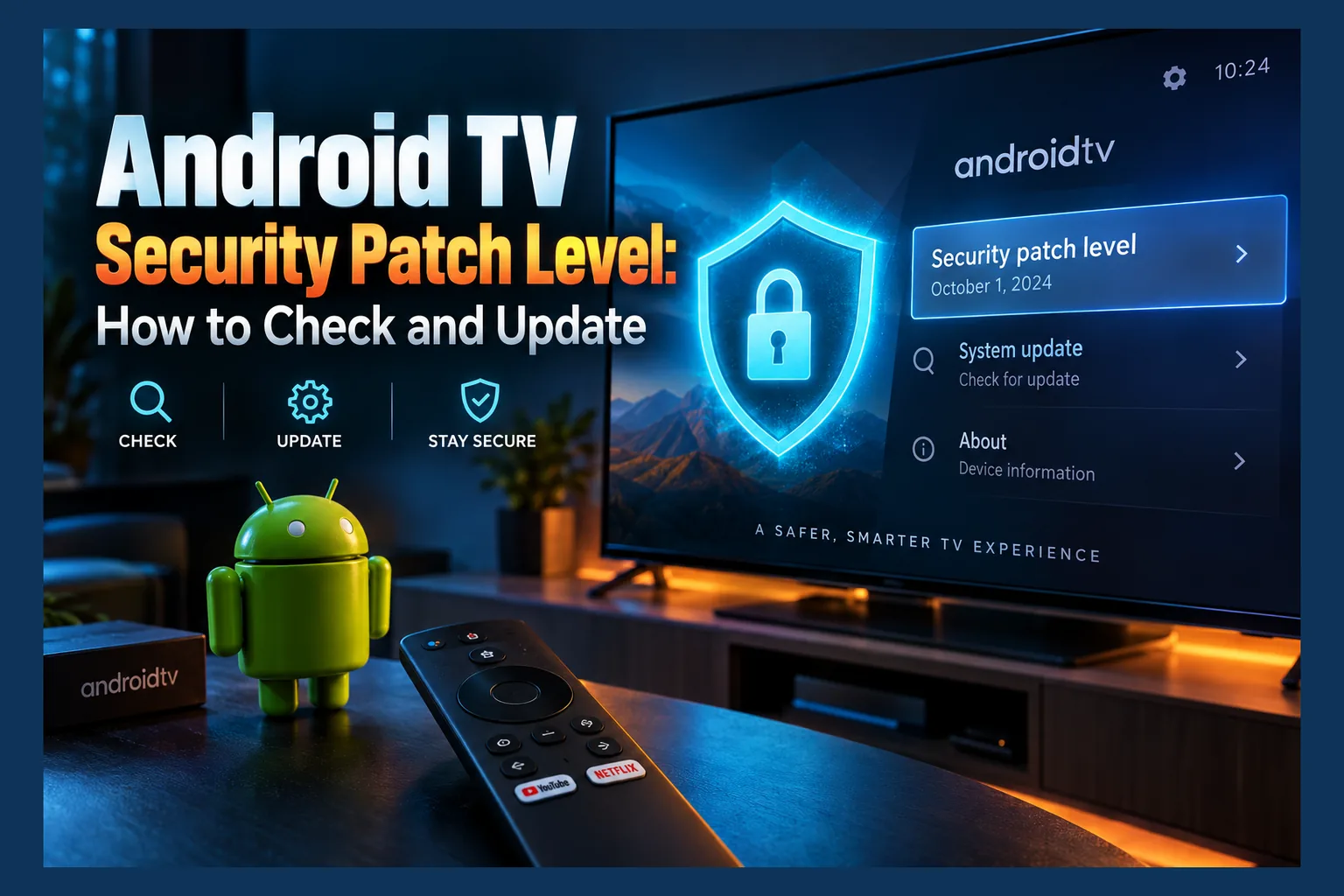
Android TV security patch level is the one setting almost nobody checks, and it might be the most important number on your streaming box. To find it, open Settings > System > About on Google TV, or Settings > Device Preferences > About on NVIDIA Shield and most Android TV boxes. Fire TV hides it, so you’ll need ADB or a device-info app. If the date is more than a year old, your box is overdue or abandoned.
Almost nobody checks the Android TV security patch level on their streaming box. In 2026 that’s a problem. Plenty of living-room hardware is still running firmware with holes that were publicly fixed a long time ago, sometimes years ago. Below you’ll find where the patch date lives on each major device, how to tell whether it’s honest, and what to do once the updates dry up.
Why Unpatched Streaming Devices Are an Easy Target
Remember ScreenConnect? In February 2024, attackers started mass-exploiting ConnectWise’s remote-access servers within days of the fix going public. The flaw carried a maximum 10.0 severity score. Most of the victims weren’t running some exotic setup. They just hadn’t installed the update yet, and that same pattern shows up across routers, NAS boxes, cameras and, yes, the TV box under your screen.
Here’s the uncomfortable part. A fix also works as documentation. Anyone can read the bulletin, diff the patched code against the old code, and work out exactly how to hit devices that skipped the update.
What a Security Patch Level Actually Means
Google publishes the Android Security Bulletin every month. Each bulletin lists that month’s fixed vulnerabilities, along with CVE numbers and severity ratings. Device makers then roll those fixes into their own firmware, on their own schedule, which is where things get messy.
Your Android TV security patch level is just a date string, something like 2025-11-01 or 2025-11-05. It tells you which bulletin the device claims to be fully patched against. A “-01” date covers the core Android framework fixes. A “-05” date adds the vendor and kernel component fixes from that same month.
Don’t confuse the Android TV security patch level with the Android version. They’re separate values. An Android 12 box with a 2022 patch date is far less protected than an Android 12 box patched last month, even though both say “Android 12” on the box.
How Attackers Exploit Known, Already-Fixed Flaws
Consumer devices rarely need a brand-new exploit. Why bother? Attackers go after flaws that have been public for months or years, knowing full well that millions of devices are stuck on an old Android TV security patch level. Some bulletins even flag a bug as under “limited, targeted exploitation,” meaning someone was abusing it before the patch shipped.
What does a successful attack look like on a streaming box? It might turn the device into a residential proxy that rents out your home IP address. It could pull the box into a botnet. Or a malicious app could quietly gain elevated privileges. The cheap-box world has already produced big operations like BadBox, and the FBI publicly warned consumers about it in mid-2025.
Why TV Boxes Are Often Left Unpatched
Phones nag you. TV boxes don’t, so the Android TV security patch level just quietly ages.
Most streaming devices update silently in the background, or not at all, and many owners never open the system menu again after first setup. Budget manufacturers are worse still: plenty ship a single firmware build and never release another, leaving the Android TV security patch level frozen at the factory date.
Then there’s the network angle. Streaming devices stay connected 24/7, usually on the same subnet as your laptops, phones and NAS drives. They’re also the device people are most likely to sideload apps onto. Old firmware, an always-on connection and a pile of unvetted APKs? That’s a risky mix.
How to Check the Android TV Security Patch Level by Device
The menu paths below for finding your Android TV security patch level match recent firmware as of late 2025. Labels do shift between OS versions and manufacturer skins, though, so if something doesn’t line up exactly, look for an “About” or “Device info” entry under System or Device Preferences.
| Device | Where to find the patch date | Shown on screen? |
|---|---|---|
| Google TV Streamer / Chromecast with Google TV | Settings > System > About | Yes |
| NVIDIA Shield TV / Shield TV Pro | Settings > Device Preferences > About | Yes |
| Onn 4K / 4K Pro and other Google TV boxes | Settings > System > About | Yes |
| Amazon Firestick / Fire TV | Settings > My Fire TV > About (Fire OS version only) | No, use ADB or a device-info app |
| Generic boxes (X96, H96, Mecool, T95) | Settings > Device Preferences > About, or Settings > About | Usually, but may be unreliable |
Google TV and Chromecast with Google TV
Select the profile or gear icon at the top right of the home screen. Then head to Settings > System > About and scroll down to Android TV OS security patch level. The Android TV OS version and build number sit on the same screen, which is handy if you’re comparing against a forum post or support page.
That path also works on the Google TV Streamer (the roughly $100 box Google launched in 2024) and on Sony, TCL and Hisense sets running Google TV. Google stopped selling the Chromecast with Google TV that same year. If you still use one, watch how far its Android TV security patch level drifts behind the newer hardware over the next year or so.
NVIDIA Shield TV
Go to Settings > Device Preferences > About. You’ll see three numbers there: the Shield Experience version, the OS version and the Android TV security patch level.
The Shield has a well-earned reputation for long support. The original 2015 model kept getting updates nearly a decade after launch, which is almost unheard of in this category. Still, NVIDIA ships its releases in batches rather than monthly, so an Android TV security patch level several months old between Shield Experience versions is normal and not a reason to panic.
Onn and Other Google TV Boxes
Walmart’s Onn 4K and 4K Pro run stock Google TV. Same path, then: Settings > System > About. Most certified Google TV boxes from smaller brands follow suit.
Be realistic about budget hardware. A box that costs around $20–50 tends to update less often than Google’s own devices, and that’s the trade-off for the price. Compare the Android TV security patch level against the current month, and treat a gap of more than six months as a sign the maker is slowing down.
Amazon Firestick and Fire TV
This is where the menus genuinely mislead people. Settings > My Fire TV > About shows the Fire OS version and a software version number, but no Android security patch date anywhere (annoyingly). For context, Fire OS 7 is built on Android 9 and Fire OS 8 on Android 11. The newer Vega OS models, which started appearing in late 2025, aren’t Android-based at all, so none of this applies to them.
To see the real patch date on an Android-based Fire TV, you have two options:
- ADB: Enable ADB debugging under Developer Options, connect from a computer on the same network, and run
adb shell getprop ro.build.version.security_patch. The output is the patch date string. - Device-info app: Apps like AIDA64 read the same system property and show it on screen. Install only from the Amazon Appstore or a source you trust.
Going the ADB route? Switch debugging off the moment you’re done. Leaving it enabled on a box that never leaves the network is one of the more common ways streaming devices get compromised.
Read next: Is Your Android TV Box Play Protect Certified? How to Check
Generic Android TV Boxes (X96, H96, Mecool, T95)
Uncertified boxes usually run a lightly modified AOSP build. Start with Settings > Device Preferences > About. If your box uses a phone-style menu, try Settings > About instead. Some custom launchers hide the full settings app entirely, in which case you’ll need to dig it out of the app drawer.
Mecool is a partial exception, since some of its models are Google-certified and get the odd update. The rest is grimmer. Most X96, H96 and T95 boxes never receive a single firmware update after leaving the factory.
How to Read Your Android TV Security Patch Level: What Counts as Too Old
Treat the thresholds below as rough guidance, not lab results. They’re based on how Android update cycles typically play out. Compare your date to the current month.
Recent vs Outdated vs Abandoned
| Patch age | Status | What it usually means |
|---|---|---|
| 0–3 months | Recent | Device is actively maintained |
| 3–12 months | Outdated | Slow update cadence or a pending update you haven’t installed |
| 12–24 months | Stale | Support is likely winding down |
| 24+ months | Abandoned | Treat as end of support |
Streaming hardware rarely stays inside the 0–3 month window. That’s fine. One reading tells you less than the trend does, so write the date down and check again in three months.
Spoofed or Suspicious Patch Dates on Cheap Boxes
Some uncertified firmware just sets the patch date property to something recent without including any of the fixes. Remember, it’s only a text field in the build. Nothing stops a manufacturer from editing it. So a box claiming a 2025 patch while running Android 9 or older deserves real suspicion.
A couple of cross-checks help. Look at the kernel version and build date on the About screen: a kernel compiled years before the stated patch date is a red flag. And a box that claims a recent patch but has never once shown a system update? Also suspicious.
The combination to watch for is a very old Android version, an uncertified device and no visible update channel. If all three apply, assume the patch date tells you nothing at all. Our guide on checking whether your Android TV box is Play Protect certified walks through the certification check step by step.
How to Update Your Device Safely
Before blaming the manufacturer, make sure you’ve actually installed what’s on offer. Plenty of boxes have an update already downloaded and just sitting there, waiting for a reboot nobody ever does.
Official System Update Menus
- Google TV / Chromecast / Onn: Settings > System > About > System update.
- NVIDIA Shield: Settings > Device Preferences > About > System upgrade.
- Fire TV: Settings > My Fire TV > About > Check for Updates, then Install Update if one downloads.
- Generic boxes: Look for a “System update” or “Wireless update” app. Many boxes have the app but no live server behind it.
Amazon does things differently from Google. Older Firesticks stay on Fire OS 7 or earlier instead of moving to Fire OS 8, and Vega OS devices sit on a separate track entirely. Knowing which branch your stick is on gives you a decent idea of how long it’ll stay supported, though Amazon doesn’t publish firm end-of-support dates for most models.
Why ‘Your System Is Up to Date’ Can Be Misleading
That message only means the update server had nothing newer for your model. It says nothing about whether your device is secure. On an abandoned box, “up to date” can appear right next to a patch date from 2020.
Some cheap boxes go further and display the message without contacting any server. It also explains the familiar “Google TV system update not available” complaint you’ll see on Reddit and support forums: some older models just aren’t getting new builds anymore.
Avoid Random Custom Firmware Downloads
Don’t flash custom ROMs from forum mirrors or file lockers to “fix” an old patch date. You can’t verify what’s inside the image. A bad flash can brick the box. And some custom builds simply paste a newer patch string onto the same old code, which leaves you worse off because now the date lies to you.
Be extra wary of IPTV sellers who send “firmware update” files along with a subscription. Firmware has total control of the device. That makes it an ideal delivery method for preinstalled malware. If you suspect a box has already been tampered with, run through our Android TV box malware check.
When the Updates Stop: Living With an Unsupported Box
Android TV box end of support doesn’t mean the device stops working. It means every vulnerability discovered from that point on stays open permanently. You can keep using it. You should just shrink what it can reach and what it can run.
Reduce Exposure on Your Home Network
Move the box onto your router’s guest network, ideally with client isolation switched on. That keeps it away from your laptop, your phone and any NAS drives holding personal files. If your router or mesh system supports VLANs (many prosumer models from brands like Ubiquiti do; most ISP-supplied routers don’t), a dedicated IoT VLAN is even better.
Watching where the box connects is smart too. Our guide on checking whether your Android TV box is phoning home shows how to spot and block suspicious traffic. DNS-level filtering, covered in our article on blocking ads on Android TV and Google TV, can also cut off a lot of known bad domains.
What about a VPN? One with a kill switch encrypts the box’s traffic and hides it from your ISP and anyone else on the local network. Useful, but limited. A VPN can’t patch the OS, can’t stop a malicious app you’ve installed yourself, and can’t block an attack coming from another device on the same network.
Trim Sideloaded Apps and Permissions
Every app on an unpatched box is another possible route to those old vulnerabilities. So uninstall anything you haven’t opened in a month. After that, review the permissions on whatever’s left, paying particular attention to storage, microphone and “install unknown apps.”
Once you’re done installing, turn unknown sources back off (yes, every time). On Google TV that lives under Settings > Apps > Security & restrictions; on Fire TV it’s Settings > My Fire TV > Developer Options. Be picky about where your APKs come from as well, because third-party stores vary wildly in quality. Our breakdowns of whether Aptoide TV is safe and how to check a ClipBox APK show the kind of vetting worth doing.
Signs It’s Time to Replace the Device
Treat these as decision points, not a reason to rush out and buy something new:
- The patch date is more than two years old and hasn’t moved in your last two checks.
- The box isn’t Play Protect certified and has no working update channel.
- Apps you rely on have started dropping support for its Android version.
- It shows signs of compromise, such as unknown apps, pop-ups or unexplained network activity.
- It runs Android 9 or older and holds logins to accounts you care about.
Two or more of those? A certified replacement from a brand with a public update track record usually works out cheaper over time. That’s doubly true once you factor in the hassle of cleaning up an infected box, which can easily eat an afternoon.
Remote Access Apps and Old Firmware: A Risky Combination
Which brings us back to ScreenConnect. Remote-control and screen-sharing apps exist precisely to hand control of a device to someone else. On an unpatched box, a weakness in the remote app, or in the OS underneath it, can hand that control to the wrong person instead.
Some IPTV resellers ask customers to install remote support tools so they can “set things up.” If you agree to that on an unsupported box, uninstall the tool as soon as the session ends. Never leave unattended access switched on.
ADB works the same way. It’s effectively a remote-access door into Android. Keep it off unless you’re actively using it, and close it again straight afterwards.
Quick Security Checklist for Streaming Devices
Save this list and run through it every few months:
- Check the patch date using the menu path for your device, or ADB on Fire TV.
- Check certification status and be skeptical of patch dates on uncertified boxes.
- Turn off ADB debugging and developer options you aren’t using.
- Audit installed apps, remove what you don’t use and disable unknown sources.
- Segment the network by putting streaming boxes on a guest network or IoT VLAN.
- Set a reminder every three months to check for system updates and note the patch date.
Checking your Android TV security patch level takes about 30 seconds. For that half-minute, you learn a surprising amount about a device you leave running all day. Look it up today, write it down somewhere, and decide whether your box needs an update, some isolation, or a replacement.
⚖️ Legal Disclaimer: IPTV Wire does not own or operate any streaming service, application, or website mentioned in this article. We do not verify whether third-party services carry proper licensing. Users are responsible for ensuring they comply with copyright laws in their jurisdiction.
Frequently Asked Questions
How do I check the security patch level on Android TV?
On Google TV devices, go to Settings > System > About. NVIDIA Shield and most other Android TV boxes use Settings > Device Preferences > About instead. Look for the entry labelled “security patch level.”
Does a Firestick get Android security patches?
Android-based Fire TV devices do get security fixes through Fire OS updates, but Amazon doesn’t show the patch date in its menus. You can read it with ADB using getprop ro.build.version.security_patch, or with a device-info app. Older models get fewer updates as time goes on.
Is it safe to use an Android TV box that no longer gets updates?
It’s riskier, but you can cut that risk down. Isolate the box on a guest network, remove apps you don’t use, turn off unknown sources and ADB, and avoid signing into sensitive accounts on it.
Why does my Android TV box say it is up to date when the patch is years old?
“Up to date” only means the update server isn’t offering anything newer for your model. Once the maker stops releasing firmware, you’ll see that message no matter how old the patch is. Some cheap boxes don’t even check a server.
Can a VPN protect an unpatched streaming device?
Partly. A VPN with a kill switch encrypts traffic and hides it from your ISP and anyone snooping on the local network. It can’t fix OS vulnerabilities, though, or stop malicious apps already installed on the device.
Can a cheap Android TV box fake its security patch date?
Yes. The patch date is just a text property in the firmware, and some uncertified builds set it to a recent date without shipping the actual fixes. Warning signs include a recent date on Android 9 or older, a kernel build date that’s years older, or no update history at all.

Comments
Leave a comment
Your email address will not be published. Comments are moderated before they appear.