

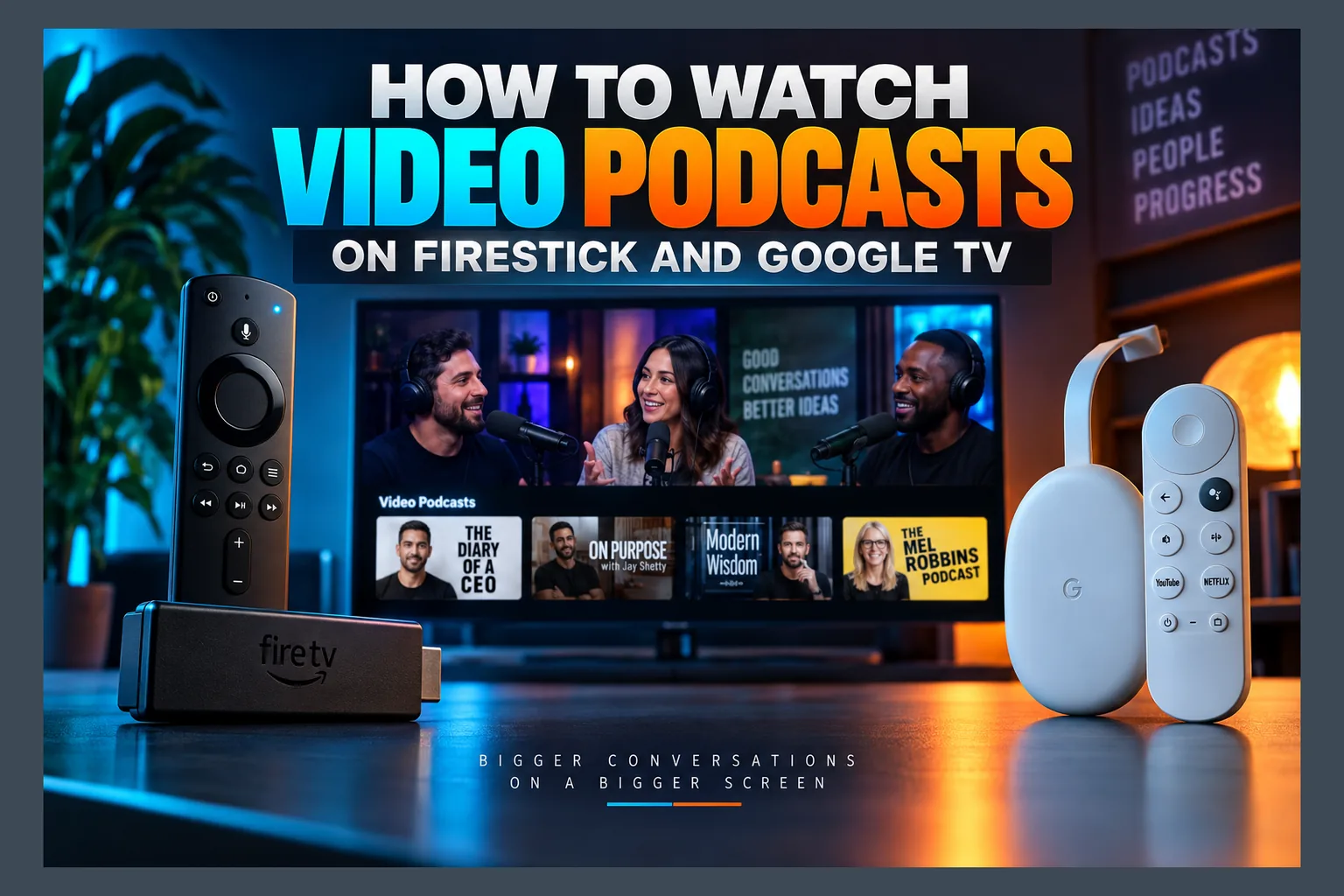
Watch video podcasts on Firestick or Google TV and you’ll quickly find the easiest route is the YouTube or Spotify TV app. Apple Podcasts has no Fire TV or Android TV app, so for those feeds you can cast from a phone, sideload an open-source player like AntennaPod, or self-host episodes with Jellyfin or Plex. Below I’ll break down what each device actually supports, how to fill the gaps safely, and how to build a setup you won’t fight every evening.
Video podcasts have left the phone and moved to the couch. My inbox shows it. Plenty of IPTV Wire readers now want to watch video podcasts on Firestick and Google TV, and they keep finding that the app situation in 2026 is a mess, with some platforms well covered and others barely covered at all. This guide lays out what each device actually supports, how to fill the gaps without wrecking your stick, and how to build a setup you won’t have to fight every evening.
Video Podcasts on TV: What Changed and Why It Matters for Cord-Cutters
For most of podcasting’s history, “video podcast” meant a downloadable MP4 that played fine on a phone and awkwardly on everything else. Not anymore. The big platforms now treat podcasts as free, ad-supported video, and they want you watching on the biggest screen in the house.
For cord-cutters, that’s good news. If you watch video podcasts on Firestick or a similar box, you get hours of free programming on hardware you already paid for. The catch? What works depends almost entirely on whose ecosystem your device belongs to.
Audio Feeds vs Video Feeds: How Video Podcasts Are Delivered
A traditional podcast is an RSS feed, which is just a text file listing episodes. Each episode includes an “enclosure,” a direct link to a media file. Audio shows usually point to an MP3. Video shows typically point to an MP4.
The newer method is HTTP Live Streaming (HLS). Instead of serving one large file, the server chops the video into small chunks at several quality levels, and the player hops between them as your connection rises and falls. YouTube does the same thing. So do most IPTV services.
Why should you care? If you want to watch video podcasts on Firestick, it shapes which tools will work. Almost any decent podcast app or media server can grab an MP4 enclosure. HLS-based video usually needs the platform’s own app to play properly.
Why Platforms Are Pushing Free Video Podcasts to the Big Screen
YouTube has spent the last few years turning itself into a major podcast destination, complete with a dedicated podcasts section in its TV apps. Spotify has poured money into video podcasts too and pushed them well past mobile. Apple, for its part, has announced HLS video support for Apple Podcasts, which brings video episodes to Apple TV. Rollout timing and supported OS versions vary, so check Apple’s newsroom for the current details rather than trusting a third-party summary (including this one).
The motivation isn’t complicated. A video on a 55-inch TV holds attention longer, and earns more per ad, than audio in someone’s earbuds while they wash dishes. Viewers get more free content out of it, whether they watch video podcasts on Firestick, Roku, or Apple TV. They also get ecosystem lock-in, which you’ll have to work around on non-Apple hardware.
Which Apps Let You Watch Video Podcasts on Firestick, Google TV and More
Here’s the compatibility picture by device, based on each app’s documented platform support. App features shift constantly, sometimes within a single month. Look at the store listing on your own device before you build a routine around any of this.
| Device | YouTube | Spotify | Apple Podcasts | Android podcast apps (AntennaPod, etc.) |
|---|---|---|---|---|
| Apple TV (tvOS) | Yes, native TV app with video | TV app available; check video podcast support | Yes, native app | Not applicable |
| Fire TV (Fire OS) | Yes, native TV app with video | TV app available; check video podcast support | No app | Sideload only; phone-style interface |
| Fire TV (Vega OS) | Check Appstore listing | Check Appstore listing | No app | No sideloading |
| Google TV / Android TV | Yes, native TV app with video | TV app available; check video podcast support | No app | Sideload, or Play Store if the app is TV-compatible |
| Roku | Yes, native channel with video | Channel available; check video podcast support | No app (AirPlay on supported models) | Not possible |
Apple TV: Apple Podcasts and Third-Party Options
Apple TV is the easy one. The native Apple Podcasts app plays video episodes, syncs with your iPhone library, and remembers where you stopped. YouTube and Spotify both offer tvOS apps for shows published on their platforms.
It’s a closed garden, though. You can’t install any RSS player you like, the way you can on Android-based boxes.
Firestick and Fire TV: What’s in the Amazon Appstore
On Fire OS sticks, two apps do the real work: YouTube and Spotify. Both sit in the Amazon Appstore, and both behave well with the standard Alexa Voice Remote. Since so many popular video podcasts post full episodes to YouTube, that app ends up being the default way to watch video podcasts on Firestick for most owners.
Apple Podcasts has no Fire TV app. Period. The Apple TV app you’ll find on Fire TV covers Apple’s paid video service, not podcasts, so your subscriptions won’t show up there (this trips up a lot of people). Proper RSS podcast players with a real TV interface are also scarce in the Appstore, which is the biggest hurdle if you want to watch video podcasts on Firestick beyond YouTube and Spotify.
One more thing: figure out which Fire TV you own. Amazon’s newer Vega OS devices, such as the Fire TV Stick 4K Select that arrived in late 2025, run a Linux-based system instead of Android. None of the sideloading steps below will work on them, so if you watch video podcasts on Firestick models running Vega OS, you’re limited to what the Appstore offers.
Google TV and Android TV: Play Store Options
Google TV and Android TV give you YouTube, Spotify, and a few more options than you get when you watch video podcasts on Firestick. There’s a wrinkle. The Play Store on a TV only lists apps the developer has flagged as TV-compatible, so lots of phone podcast apps simply won’t appear when you search. The real advantage here is built-in Chromecast, which I’ll get to shortly.
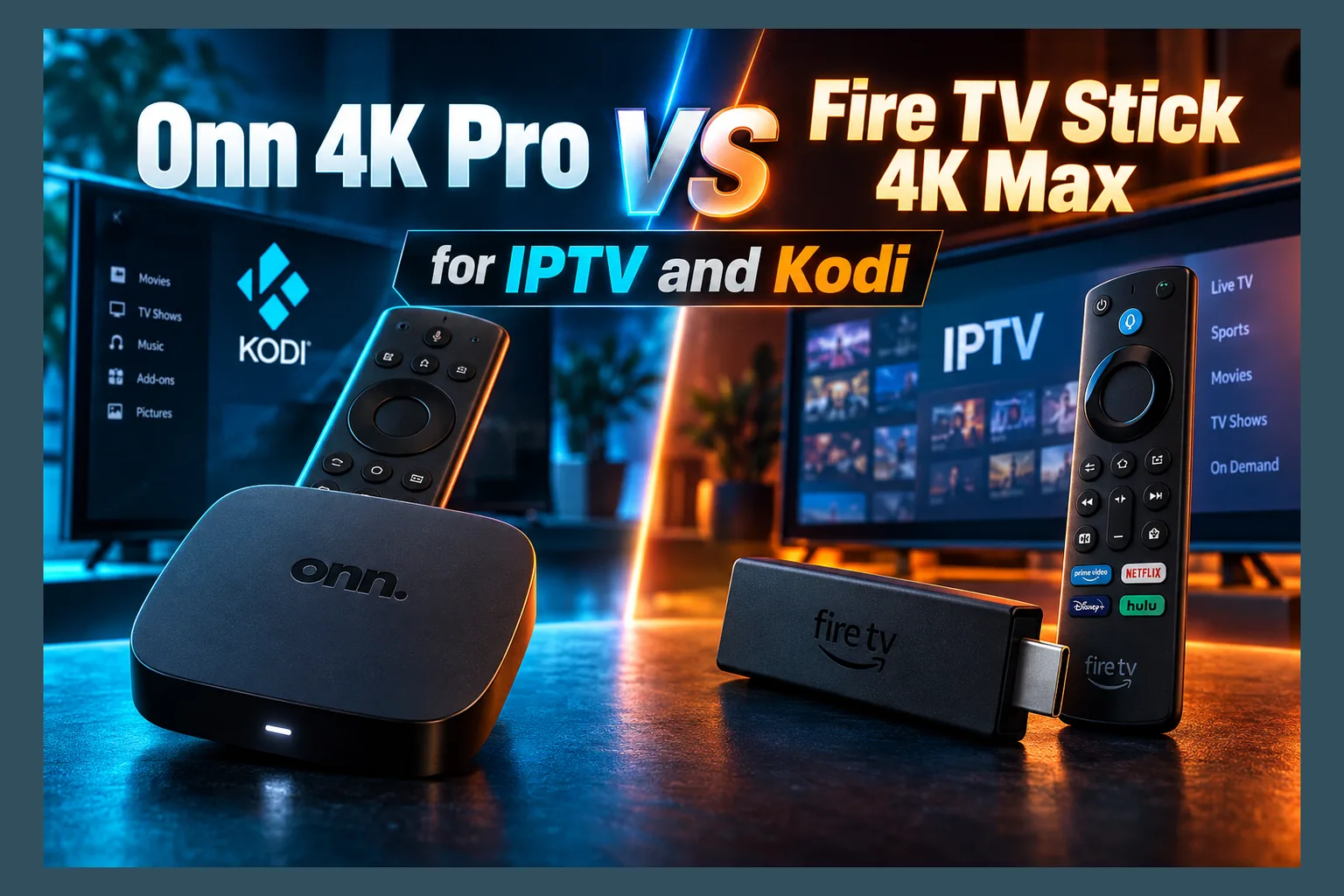
If you’re still shopping for hardware, say an Onn 4K stick versus a Fire TV Stick 4K Max, my Onn Google TV Stick vs. Firestick comparison explains where each platform comes out ahead.
Roku and Smart TVs: Built-In Channel Limits
Roku and most smart TV platforms (Samsung’s Tizen, LG’s webOS) only run apps from their own stores. You’ll get YouTube and usually Spotify. For RSS feeds, you get nothing. The saving grace is AirPlay: many recent Roku, Samsung, and LG models support it, which gives iPhone users a path for Apple Podcasts video.
How to Sideload a Podcast App to Watch Video Podcasts on Firestick and Android TV
Want an independent RSS player, maybe one that handles private or self-published feeds? Then sideloading is your route. Setup takes about ten minutes. Where the APK comes from matters far more than any individual step.
Using Downloader to Install an Open-Source Podcast APK
AntennaPod is the one I’d point most people to. It’s free, open source, and plays video enclosures from standard RSS feeds without fuss. Grab it only from the official F-Droid listing or the developer’s GitHub releases page.
Read next: Stremio Firestick vs Google TV: What Changes After Install
- On Fire TV, go to Settings > My Fire TV > About and click your device name seven times to reveal Developer Options (skip this if the menu already shows up).
- Install Downloader (by AFTVnews) from the Amazon Appstore or Play Store.
- Go to Developer Options > Install unknown apps and allow Downloader. On Google TV, the equivalent lives under Settings > Apps > Security & restrictions > Unknown sources.
- Open Downloader and type in the F-Droid or GitHub release URL.
- Download the APK that matches your device’s architecture (most streaming sticks use ARM builds; a universal APK is the safest bet).
- Install it, then delete the APK file. Sticks with 8 GB of storage fill up faster than you’d think.
- Open the app and add your feed by URL or through its built-in search.
Skip “modded” or repackaged APKs from mirror sites. Those builds are one of the most common ways malware lands on streaming sticks, and a free podcast app has no premium features to crack in the first place. There’s zero upside.
A heads-up on what’s coming: Google’s Android developer verification program will require apps on certified Android devices to come from registered developers, with the rollout starting in 2026. Whether and when it reaches Google TV hardware in your region isn’t fully clear yet, so keep an eye on it. It could change how unsigned APKs install.
Remote and D-Pad Navigation Problems with Phone-First Apps
Most podcast apps were built for fingers, not remotes. On a TV, you’ll hit buttons the D-pad can’t reach, swipe gestures with no remote equivalent, and menus where the focus highlight just vanishes. Playback itself usually works fine once it starts. Getting to the episode is the painful part.
The usual workaround: manage subscriptions on your phone and treat the TV app as a playback-only tool. Some apps can also hand video off to an external player, and my guide to video player apps for Firestick covers which ones play nicely with a remote.
Using a Mouse Toggle App for Non-TV Interfaces
Mouse Toggle for Fire TV puts an on-screen cursor on your display that you steer with the D-pad. You’ll need ADB debugging switched on in Developer Options (yes, really, it won’t work without it). Double-press Play/Pause to turn the cursor on or off. Android TV has similar cursor apps in the Play Store.
Is it clunky? Absolutely. But it makes nearly any phone app usable on a TV, and for a podcast app you open a few times a week, that’s a fair trade.
Casting Video Podcasts from Your Phone Instead
Sideloading not your thing? Casting is the low-effort alternative. Your phone holds the podcast library. The TV just shows the video.
Chromecast and Google Cast from Android Podcast Apps
Google TV devices, from the $99 Google TV Streamer down to budget Onn sticks, have Chromecast built in. Apps like AntennaPod and Podcast Addict include a Cast button, and YouTube and Spotify support it too. With native casting, the TV pulls the video stream straight from the internet. Your phone becomes a remote, nothing more.
That’s the setup you want. Phone battery drain stays small, you’re free to text or scroll while the episode plays, and video quality isn’t capped by the Wi-Fi link between your phone and the TV.
AirPlay to Apple TV from iPhone
Apple Podcasts on iPhone sends video to an Apple TV, or to an AirPlay-compatible Roku or smart TV, through the AirPlay button. Like Cast, AirPlay can pass the stream directly to the receiver. If you own an iPhone but no Apple TV box, this is the cleanest way to get Apple Podcasts video onto a big screen.
Screen Mirroring on Fire TV: Pros and Cons
Fire TV doesn’t support Google Cast or AirPlay natively, which surprises a lot of people. What it offers instead is Display Mirroring (Settings > Display & Sounds), which works with Android phones that support Miracast-style screen casting. Support varies by phone brand, and some recent models have dropped Miracast entirely.
- Pros: works with any app, needs nothing installed on the TV, and handles Apple Podcasts’ web player in a mobile browser.
- Cons: your phone has to stay awake and stream the whole time, the battery drops fast, notifications pop up on the TV for everyone to see, and quality falls apart on crowded Wi-Fi.
For the occasional episode, mirroring is fine. If video podcasts are a nightly habit, though, a Google TV device with native Cast is the better long-term buy.
Self-Hosting Video Podcasts with Plex or Jellyfin
Self-hosting is the power-user move, and it sidesteps the app problem completely. Your media server grabs new episodes automatically, and you watch them through the polished Jellyfin or Plex apps on Fire TV, Google TV, Roku, or Apple TV.
Auto-Downloading Video Feeds to a Media Server
You’ll need a podcast downloader running on your server. gPodder (desktop and command line) and Podgrab (a Docker-friendly web app) both subscribe to RSS feeds and save new enclosures to a folder on a schedule. Check each project’s recent commit activity before choosing, since smaller open-source tools can go quiet for long stretches.
- Install the downloader on the same machine or NAS that runs your media server.
- Add the video feed URLs the publisher provides.
- Point the download folder at a dedicated path such as
/media/podcasts. - Set the refresh schedule and retention (keeping the latest 20 episodes is a sensible starting point).
Only download feeds the publisher distributes freely through public RSS. Self-hosting is a convenience layer. It is not a way around paywalls or into private feeds you don’t have access to.
Organizing Podcast Episodes as a TV Library
In Jellyfin, the quickest approach is a “Home Videos” library pointed at your podcast folder, which displays files without strict naming rules. Prefer a tidy show-and-episode layout? Use a “Shows” library and rename files to the season and episode format described in the Jellyfin documentation. Plex works much the same way, using either a personal media library or TV-style naming.
Once it’s running, new episodes appear on your Firestick or Google TV home screen through the Jellyfin or Plex app, complete with remote-friendly menus and resume points.
Keeping Your Server Patched
A media server humming away 24/7 on your network needs some care. Turn on automatic updates for both the server software and the downloader. Leave remote access off unless you genuinely need it, and use strong passwords. If you do expose the server to the internet, a reverse proxy with HTTPS is the bare minimum.
Network and VPN Considerations for Podcast Streaming
Video podcasts chew through far more bandwidth than audio. VPN setups can also add friction you might not see coming.
Bandwidth Needs for 1080p and 4K Video Podcasts
YouTube’s published guidance suggests roughly 5 Mbps for 1080p and about 20 Mbps for 4K. Audio podcasts usually stream at 64–128 kbps, which works out to around 30–60 MB per hour. Now compare: a 1080p video episode at 5 Mbps eats about 2.25 GB per hour, so a two-hour daily habit on a 1.2 TB capped plan, the kind Comcast uses in many US markets, adds up quickly over a month.
Want your real number? Run a speed test app directly on the stick, not on your phone. Fire TV sticks connected over 2.4 GHz Wi-Fi often post much lower results than a phone sitting in the same room, especially when the stick is tucked behind the TV.
Split Tunneling Podcast Apps Outside the VPN
Most major VPN apps for Android and Fire TV include split tunneling, which lets chosen apps bypass the encrypted tunnel. Excluding YouTube, Spotify, or your Jellyfin client makes sense when the VPN slows streams, triggers endless CAPTCHAs, or blocks local-network access to your media server.
Running a kill switch? Test the combination carefully, because some kill switch modes block excluded apps too. My VPN kill switch setup guide for Firestick and Android TV explains how those settings interact. And if pre-roll ads in free podcast apps drive you up the wall, the methods in my guide on blocking ads on Android TV and Google TV can cut them down.
Region-Locked Podcast Content
Most RSS podcasts are available worldwide. Platform-exclusive video sometimes isn’t. Spotify in particular rolls features out country by country, so viewers in the UK, Canada, and Europe may wait weeks or months longer than US users. A VPN can change your apparent region, but read the platform’s terms first, since some services restrict that.
Which Setup Fits Which Viewer: Watch Video Podcasts on Firestick, Google TV, or Apple TV
There’s no single best setup. Only the one that fits your hardware and your patience.
- Apple ecosystem users: use the native Apple Podcasts app on Apple TV, or AirPlay from your iPhone. No workarounds required.
- Casual Firestick and Google TV users: start with YouTube or Spotify. If your shows live there, you’re done.
- Google TV users who follow RSS feeds: cast from AntennaPod or Podcast Addict on your phone. Native Cast barely touches the phone’s battery.
- Fire OS tinkerers: sideload AntennaPod from F-Droid and pair it with a mouse toggle app for the menus.
- Power users: self-host with Jellyfin or Plex for automatic downloads, remote-friendly menus, and one shared library on every TV in the house.
If you want to watch video podcasts on Firestick specifically, check first whether your stick runs Fire OS or Vega OS (it’s listed under Settings > My Fire TV > About). That one detail decides whether sideloading is even on the table. For more on how the two platforms treat third-party apps after install, see my Stremio Firestick vs Google TV breakdown.
⚖️ Legal Disclaimer: IPTV Wire does not own or operate any streaming service, application, or website mentioned in this article. We do not verify whether third-party services carry proper licensing. Users are responsible for ensuring they comply with copyright laws in their jurisdiction.
Frequently Asked Questions
Can you watch Apple Podcasts video episodes on a Firestick?
Not natively. Apple Podcasts has no Fire TV app. You can mirror an Android phone running the Apple Podcasts web player, or plug the show’s public RSS feed into a sideloaded player like AntennaPod, assuming the publisher offers video enclosures.
What is the best free app for video podcasts on Google TV?
For most people, YouTube. Tons of video podcasts publish full episodes there, and the TV app is built around a remote. For RSS feeds, casting from AntennaPod on your phone is the best free option.
Do video podcasts on TV use more data than audio podcasts?
Yes, by a wide margin. An audio episode uses roughly 30–60 MB per hour, while 1080p video can top 2 GB per hour, and 4K uses considerably more than that.
Is it safe to sideload a podcast APK on Firestick?
Reasonably safe, as long as you install only from official sources like F-Droid or the developer’s GitHub releases. Steer clear of repackaged APKs from mirror sites, and switch “Install unknown apps” back off when you’re done.
Can Jellyfin or Plex play video podcasts automatically?
Not by themselves. Pair them with a downloader like gPodder or Podgrab that saves new episodes to a folder your media server watches. After that, fresh episodes appear in your library without you lifting a finger.
Do I need a VPN to stream video podcasts on a TV?
No. Most video podcasts are free and widely available. A VPN mainly helps with privacy on shared networks or with region-limited platform features, and you can split-tunnel podcast apps if it slows playback.
Comments
Leave a comment
Your email address will not be published. Comments are moderated before they appear.