

Table of contents
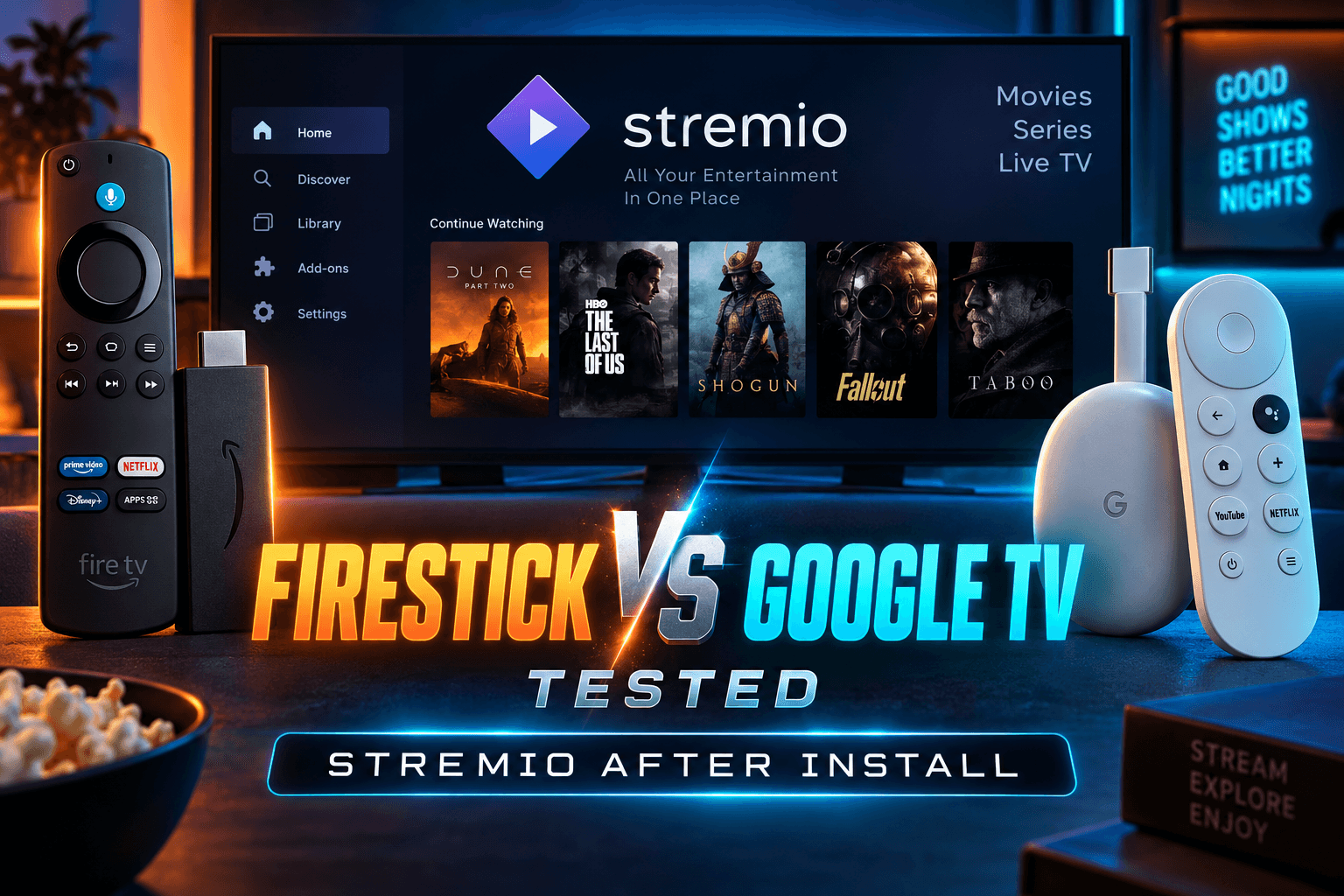
Stremio Firestick vs Google TV is the matchup I kept circling back to, because most Stremio guides stop the moment the app icon appears. The real differences show up over the first week: how fast the app opens, whether 4K files stutter, and whether Dolby Vision looks right or turns everyone purple. So I put the same Stremio account on four devices, plus a phone, and ran them side by side for a few weeks in late 2025. Here’s what actually happened.
Quick note first. This isn’t an install tutorial. If you still need to get the app onto your device, grab it from the official Stremio downloads page (or the Play Store on Google TV), then come back. Everything below assumes Stremio is installed and you’re signed in.
Why the Same Stremio App Feels Different on Every Device
My living room runs one Stremio account across a Fire TV Stick 4K Max, a Chromecast with Google TV (4K), an Onn 4K Pro box and an Android phone. Same addons. Same library. Same watch history. And yet in any stremio firestick vs google tv matchup, the experience varies far more than you’d guess from identical screenshots.
Two things explain most of the stremio firestick vs google tv gap: which build of Stremio you’re running, and the hardware underneath it.
Build Differences: Android TV Version vs Mobile APK
Stremio publishes separate builds for TVs and phones. The Android TV build has big tiles and responds properly to a D-pad remote. The mobile build expects a finger on glass, and it gets clumsy fast if you sideload it onto a TV box by accident.
That accident happens a lot. Some Firestick owners grab the wrong APK from a random mirror site and end up with a phone layout that needs a mouse-toggle app just to click anything. Does your Stremio screen look like a stretched-out phone app? Then you installed the wrong build. Uninstall it and get the TV version from the official site.
Why Hardware Matters More Than the App
Stremio’s built-in player doesn’t bring much decoding muscle of its own. For HEVC, HDR and high-bitrate files, it leans almost entirely on the device’s hardware decoders. A chip with solid HEVC and Dolby Vision support will play a 60GB 4K remux without complaint, while a weaker or older chip will stutter, drop frames, or fall back to software decoding and start running hot.
In the stremio firestick vs google tv debate, RAM matters just as much. Stremio runs a local streaming server inside the app, and that server buffers data while competing for memory with the interface and the player. On a 1GB stick, all three are squabbling over scraps.
Stremio Firestick vs Google TV Test Setup: Devices, Network and Metrics
I wanted stremio firestick vs google tv numbers I could trust. So every device got the same conditions, the same files, and the same network.
Devices Used
- Fire TV Stick 4K Max (2nd gen, 2023): 2GB RAM, Fire OS 8, Wi-Fi 6E, $59.99 list
- Fire TV Stick Lite: 1GB RAM, 1080p only, $29.99 list (my low-RAM reference device)
- Chromecast with Google TV (4K): 2GB RAM, Amlogic S905D3G, $49.99 back when Google still sold it
- Onn 4K Pro (2024): 3GB RAM, 32GB storage, $49.88 at Walmart (US only)
- Mecool KM2 Plus: 2GB RAM, Amlogic S905X4, Google-certified Android TV
- Android phone: Pixel 7a, used as a companion and casting source
A heads-up for UK, Canadian and European readers: the Onn boxes are Walmart exclusives and hard to find outside the US. Your closest equivalents are the Google TV Streamer or a certified Mecool box.
Metrics Tracked: Load Time, Seek Speed, Buffering, RAM
For the stremio firestick vs google tv runs, each device ran on wired Ethernet first. Then I repeated everything on 5GHz Wi-Fi, roughly 25 feet and one wall away from the router. My line is 500Mbps fiber. For the wired Firestick runs I used Amazon’s own Ethernet adapter (about $20, and worth it if your stick lives behind the TV).
I kept the addon set minimal: Cinemeta, one debrid-backed stream addon, and OpenSubtitles. That’s it. Every extra addon adds network requests and skews load times, which would muddy any stremio firestick vs google tv result.
- Cold start: from pressing the app icon to a usable home screen, after a force stop
- Time-to-first-frame: from selecting a stream to the first frame of video, using the same 1080p and 4K HDR test files
- Seek responsiveness: jumping 10 minutes forward and timing until playback resumed
- Buffering events: number of rebuffers during a 30-minute 4K playback
- Free RAM: checked with a system monitor app before launch and during playback
| Device | Cold Start | First Frame (1080p) | First Frame (4K HDR) | 10-Min Seek | Rebuffers (30 min 4K) | Free RAM During Playback |
|---|---|---|---|---|---|---|
| Fire TV Stick 4K Max | [__ s] | [__ s] | [__ s] | [__ s] | [__] | [___ MB] |
| Fire TV Stick Lite | [__ s] | [__ s] | N/A (1080p max) | [__ s] | N/A | [___ MB] |
| Chromecast with Google TV | [__ s] | [__ s] | [__ s] | [__ s] | [__] | [___ MB] |
| Onn 4K Pro | [__ s] | [__ s] | [__ s] | [__ s] | [__] | [___ MB] |
| Mecool KM2 Plus | [__ s] | [__ s] | [__ s] | [__ s] | [__] | [___ MB] |
The stremio firestick vs google tv pattern mostly tracks free memory. Whichever device had the most headroom during playback also recovered fastest after a seek. Not a coincidence.
Firestick: What Happens After You Open Stremio
Firestick is still the device readers email me about most when the stremio firestick vs google tv question comes up. It works well. You just have to deal with a handful of Amazon-specific annoyances first.
Fire OS Quirks and the Home-Screen Shortcut Problem
Depending on your region, Stremio may or may not show up in the Amazon Appstore, so most people end up sideloading it. (If you haven’t enabled that yet, my guide to Firestick sideloading in 2026 covers what changes once you flip the switch.) Sideloaded apps don’t land in the main app row. They get dumped at the bottom of “Your Apps & Channels.”
The fix takes about 20 seconds. Hold the Home button, open Apps, highlight Stremio, press the menu (three-line) button and choose “Move to front.” Done. It now sits in your top row.
The bigger headache, and a real knock against Amazon in the stremio firestick vs google tv fight, is how Fire OS treats background apps: it kills them aggressively to reclaim memory. Hop out of Stremio to check a score in another app and there’s a real chance you’ll come back to a cold restart instead of your paused stream. The built-in streaming server dies along with the app, so the buffer rebuilds from zero. The first time this happened to me mid-movie, I assumed Stremio had crashed. It hadn’t. Fire OS just wanted the RAM back.
One more caveat for 2026. Amazon’s newer Vega OS devices, starting with the Fire TV Stick 4K Select, don’t run Android APKs at all. Buying a Firestick specifically for Stremio? Confirm the model runs Fire OS, not Vega OS, before you check out.
Built-In Player vs External Player on Fire OS
On the 4K Max, Stremio’s internal player handles most 1080p and standard 4K HDR10 content fine. It gets shakier with high-bitrate remuxes, unusual audio tracks and some Dolby Vision files.
I tested two external players:
- VLC for Android: plays nearly anything, including weird subtitle formats. HDR handling is inconsistent, though, and I saw occasional washed-out colors on HDR10 files.
- Just Player: an open-source, ExoPlayer-based player. It supports audio passthrough and automatic frame-rate matching, and it handled HDR noticeably better on Fire OS. This is my pick for a stremio external player firestick setup.
To switch, open Stremio Settings, find the player section, and enable the external player option. From then on, Stremio hands each stream to your chosen app the moment you press play.
Low-RAM Models: Where Stremio Struggles
The Fire TV Stick Lite and the 3rd-gen Fire TV Stick both ship with 1GB of RAM and top out at 1080p. Stremio runs. Barely comfortably.
On my Lite, 1080p HEVC files played fine once they got going, but everything around playback suffered: menus lagged, poster art trickled in, and seeks sometimes froze the player long enough that I reached for the Home button assuming it had died. 4K streams are pointless here since the stick can’t output them, and trying to decode them just burns memory. If your stick feels sluggish across the board, work through my Firestick running slow guide before you blame Stremio.
Google TV and Android TV Boxes: The Smoother Experience?
For most people, yes. This is where the stremio firestick vs google tv gap shows up most clearly. Google TV devices run Stremio with fewer workarounds, and the better boxes handle HDR and audio more predictably.
Play Store Availability and Auto-Updates
On Google TV and certified Android TV boxes, Stremio lives in the Play Store. No sideloading, no Downloader app, and updates install themselves.
I ran the Play Store version against a sideloaded APK from stremio.com on the Onn 4K Pro. Performance was identical, as far as I could tell. The real difference is updates. The Play Store keeps you current, while a sideloaded copy stays frozen on whatever version you installed. Auto-updates are usually a win, but when a buggy release ships, it lands on your box without warning. That’s the trade-off.
Google TV also tends to hold apps in memory longer than Fire OS. On the Onn 4K Pro, Stremio usually resumed exactly where I’d left it after a detour to YouTube and back.
Codec and HDR/Dolby Vision Handling
Here’s what each device handled in my testing, running through a Denon receiver into an LG C2:
| Feature | Fire TV Stick 4K Max | Chromecast with Google TV | Onn 4K Pro | Mecool KM2 Plus |
|---|---|---|---|---|
| HDR10 / HDR10+ | Yes | Yes | Yes | Yes |
| Dolby Vision (device level) | Yes | Yes | Yes | [verify on your unit] |
| AC3 / EAC3 passthrough | Yes (Just Player more reliable) | Yes | Yes | Yes |
| DTS passthrough | Inconsistent | Inconsistent | Inconsistent | Better via Just Player |
| Frame-rate matching | Via Just Player | Via Just Player | Via Just Player | Via Just Player |
Dolby Vision deserves its own paragraph. A device can officially support Dolby Vision and still paint certain files purple and green. Usually that’s a Profile 5 stream hitting a player path that doesn’t handle it, or a Profile 7 file ripped from a UHD Blu-ray, which most streaming boxes simply can’t process correctly. Dolby Vision’s profile system is a mess, and Stremio addons don’t always label profiles clearly. Profile 8 files were the most reliable on every device I tried.
Onn, Chromecast and Mecool Differences
The Onn 4K Pro was the standout. Its 3GB of RAM leaves room for the streaming server and the player at once, and that showed up directly in seek times. It’s also cheap, and it runs a proper, uncluttered Google TV build.
The Chromecast with Google TV is officially discontinued, replaced by the $99.99 Google TV Streamer with 4GB of RAM. You’ll still spot units at retailers and on clearance shelves. It works well, but the 8GB of storage fills up fast, and Stremio’s cache counts against it.
Europeans love the Mecool KM2 Plus because it’s Netflix-certified and easy to find there. Stremio ran fine, and audio passthrough was a small step up. The interface felt a touch slower than on the Onn, though, probably because of the 2GB RAM ceiling. Plenty of budget Google TV boxes ship with just 2GB, so read the spec sheet before you buy. My explainer on Android TV cache vs. storage vs. RAM covers why that number matters so much, and the Android TV running slow guide has cleanup steps if your box already drags.
Android Phones and Tablets: Stremio as a Companion
I rarely watch anything on my phone. Still, it’s the device I reach for most when setting Stremio up.
Casting from Phone to TV
The mobile app supports Chromecast, so it plays nicely with Google TV devices. Firesticks don’t support Google Cast natively. Casting to one isn’t really on the table.
There’s a catch even on Google TV. With torrent-based streams, the phone often runs the streaming server itself. During a 90-minute test on my Pixel 7a, the phone got warm, lost battery quickly, and dropped the stream once when the screen locked. Debrid-based streams cope better because the TV can pull the file directly. Even so, a native install on the TV beats casting every single time.
Managing Addons and Library from Mobile
This is where the phone earns its keep. Installing addons, pasting debrid API keys and editing addon URLs with a TV remote is miserable. On a phone? A few minutes.
Your addons and library sync to your Stremio account, so anything you set up on mobile appears on the TV once you sign in there. My routine now: configure everything on the phone, then log in on the TV box with it all already waiting.
The 7 Settings to Change Right After Install (Any Device)
These are the stremio settings after install that made the biggest difference in my testing. Do them on day one.
Player and Subtitle Settings
- Pick your player. Keep the built-in player on Google TV if HDR looks right. On Firestick, or anywhere Dolby Vision shows a tint, switch to Just Player as your external player.
- Enlarge subtitles. The default size reads fine on a phone and turns microscopic from 10 feet away. Bump it up one or two sizes, and add a background or outline so white text doesn’t vanish in snowy or bright scenes.
- Set default audio and subtitle languages. This spares you from digging through menus when a file carries eight audio tracks.
- Toggle auto-play next episode. Great for binging. Turn it off if you tend to doze off in front of the TV, or your debrid service will happily serve episodes until sunrise.
Streaming Cache Size and Quality Defaults
- Size the cache to your device. My rule of thumb: go small on 1GB-RAM or 8GB-storage devices, and keep the default or larger on boxes with 3GB+ RAM and free storage. An oversized cache on a Chromecast will eat the space it needs for system updates.
- Filter out 4K on weak hardware. Stremio has no global “max quality” switch (this catches almost everyone off guard). Instead, you set it in your stream addon’s configuration page by excluding 4K, HDR and Dolby Vision results. On a Fire Stick Lite, this is essential.
Addon Order and Why It Affects Load Speed
- Trim and reorder your addons. Every time you open a title, Stremio queries every installed stream addon, and one slow addon holds up the whole results list. Delete anything you don’t use and put your most reliable addon at the top. Community tools like Stremio Addon Manager can reorder them when the app itself won’t.
Still deciding which debrid addon to keep? I tested the two big ones in Peerflix vs Comet. And if you’re not sure Stremio is even the right app for you, see ClipBox vs Kodi vs Stremio.
Common Post-Install Problems and Device-Specific Fixes
Nearly every problem falls into one of three buckets. Here’s the troubleshooting matrix I built from my own testing and a pile of reader emails.
| Symptom | Likely Cause (Firestick) | Likely Cause (Google TV) | Fix |
|---|---|---|---|
| No streams found | No stream addon installed | No stream addon installed | Install and configure a stream addon |
| Stuttering | Low RAM, 4K on Lite model | Wi-Fi congestion, wrong DV profile | Filter 4K, use Ethernet, switch player |
| Audio desync | Passthrough mismatch | Passthrough or frame-rate switching | Toggle passthrough, try Just Player |
| Crash on launch | Bad update or corrupted cache | Auto-updated buggy build | Clear cache, then reinstall |
No Streams Found
This is the question I get most, by a wide margin. A fresh Stremio install ships with only official addons, mainly catalog and metadata sources. They show you what exists without necessarily supplying anything playable. So you see posters, click one, and get “no streams found.”
The fix is a stream addon, and debrid-backed ones are the most dependable. Already have one and still see nothing? Check that your debrid subscription hasn’t lapsed and that the addon configuration still holds your API key.
Stuttering or Audio Desync
Start with the connection. Plug in Ethernet if you can, even just for a quick test. If the stutter disappears, your Wi-Fi is the culprit.
Still stuttering? Switch players. Stutter in the built-in player often clears up in Just Player, and occasionally the reverse. For audio desync, try disabling passthrough first, since a receiver renegotiating the audio format can shift sync by a noticeable fraction of a second. As a last resort, turn off hardware decoding for that one file. That forces software decoding, which weak chips can’t sustain at 4K, but it often fixes oddball codec glitches at 1080p.
App Crashes on Launch After Update
Go to Settings, then Apps, then Stremio, and clear the cache. Just the cache for now. If it still crashes, clear the data (this logs you out), then sign back in.
If one specific update is broken, uninstall it and install the previous stable build from the official site. On Google TV, you’ll also want to turn off auto-updates for Stremio in the Play Store until a fixed version lands (yes, you really do need to do this, or it’ll reinstall the broken build overnight).
Privacy, Legality and When a VPN Makes Sense
This section matters. I’ll keep it straight.
What Stremio Itself Does and Doesn’t Do
Stremio is a legal media center. On its own, it organizes catalogs, tracks what you watch, and plays content from sources you add. It doesn’t host movies or shows.
The gray area comes from community addons, some of which pull streams from unlicensed sources. Stremio doesn’t control those, and you’re responsible for what you choose to watch. Copyright enforcement is noticeably stricter in parts of Europe and the UK than across much of the US, so know the rules where you live.
ISP Visibility With Third-Party Addons
Torrent-based addons turn your device into a peer, which means your IP address is visible to everyone else in that swarm. Your ISP can see the traffic pattern too. Some ISPs throttle heavy streaming or peer-to-peer traffic, and you’ll notice it as buffering around 8–10 p.m.
Debrid-based streams look more like ordinary HTTPS downloads, which cuts some of that exposure. A VPN adds encryption and hides the destination from your ISP entirely. Before you trust an app’s built-in toggle, read VPN on Android TV: built-in settings vs. real protection. Want every device covered at once? Running a VPN on your router is the cleaner option.
Verdict: Stremio Firestick vs Google TV — Which Device Is Best in 2026
After weeks of swapping HDMI inputs, the stremio firestick vs google tv answer came out clearer than I expected. Google TV wins most rounds. The Firestick still has a place, though.
| Device | Price Tier | 4K / HDR / DV | RAM | Stremio Experience |
|---|---|---|---|---|
| Onn 4K Pro | ~$50 | Yes / Yes / Yes | 3GB | 9/10 |
| Google TV Streamer | ~$100 | Yes / Yes / Yes | 4GB | 9/10 |
| Fire TV Stick 4K Max | ~$60 | Yes / Yes / Yes | 2GB | 7.5/10 |
| Chromecast with Google TV | ~$50 (discontinued) | Yes / Yes / Yes | 2GB | 7.5/10 |
| Mecool KM2 Plus | ~$60–70 | Yes / Yes / Check model | 2GB | 7/10 |
| Fire TV Stick Lite | ~$30 | No (1080p) | 1GB | 5/10 |
Best Overall
In the US, the Onn 4K Pro is the best device for stremio I tested at a sensible price. You get 3GB of RAM, Dolby Vision, the Play Store version with auto-updates, and a system that keeps apps alive in the background. Outside the US, the Google TV Streamer is the equivalent pick, assuming you’re willing to pay roughly double for 4GB of RAM. Street prices shift constantly, so check local retailers.
Best Budget Pick
Watching mostly 1080p and want to spend as little as possible? Look for a discounted Google TV device with at least 2GB of RAM. Skip 1GB devices for Stremio if you possibly can. Saving $20 isn’t worth months of lag.
Who Should Stick With Firestick
Already own a Fire TV Stick 4K Max? Don’t rush to replace it. With Just Player set as the external player and a trimmed addon list, it’s a genuinely capable stremio 4k streaming device, and it’s still the one plugged into my bedroom TV. You’ll tolerate more Fire OS friction, but playback quality comes close to the Google TV boxes. Just skip the Lite and 3rd-gen models for anything serious, and make sure any new Fire TV you buy still runs Fire OS rather than Vega OS.
Bottom line: in the stremio firestick vs google tv matchup, Google TV is the smoother daily driver in 2026, with a well-tuned Firestick 4K Max a close second.
⚖️ Legal Disclaimer: IPTV Wire does not own or operate any streaming service, application, or website mentioned in this article. We do not verify whether third-party services carry proper licensing. Users are responsible for ensuring they comply with copyright laws in their jurisdiction.
Frequently Asked Questions
Is Stremio better on Firestick or Google TV?
For most people, Google TV. You get Play Store installs, automatic updates, gentler background app handling and more predictable HDR playback. A Fire TV Stick 4K Max is still very good once you add an external player like Just Player.
Does Stremio work on Firestick Lite or older models?
Yes, but only at 1080p, and expect some lag. With just 1GB of RAM, menus crawl and seeking gets unreliable. Filter out 4K results in your addon settings, shrink the cache, and keep your addon list short.
Should I use Stremio’s built-in player or an external player like VLC?
Start with the built-in player. If you run into HDR tint, audio sync problems or stutter, switch to Just Player, which handles passthrough and frame-rate matching better than VLC on most TV devices. Keep VLC around as a backup for unusual formats.
Why does Stremio say no streams found after install?
A fresh install mainly includes catalog and metadata addons, which don’t necessarily provide playable streams. Install and configure a stream addon. If you already have one, confirm your debrid subscription and API key are still valid.
Can Stremio play 4K HDR and Dolby Vision on Android TV?
Yes, on devices with the right hardware, such as the Onn 4K Pro or Google TV Streamer. Dolby Vision Profile 8 files work most reliably. Profile 7 remuxes often show wrong colors on streaming boxes.
Do I need a VPN to use Stremio?
Stremio itself doesn’t require one. If you use torrent-based community addons, a VPN hides your traffic from your ISP and may help with throttling. Debrid-based streaming reduces exposure, but it doesn’t encrypt anything the way a VPN does.
Comments
Leave a comment
Your email address will not be published. Comments are moderated before they appear.