

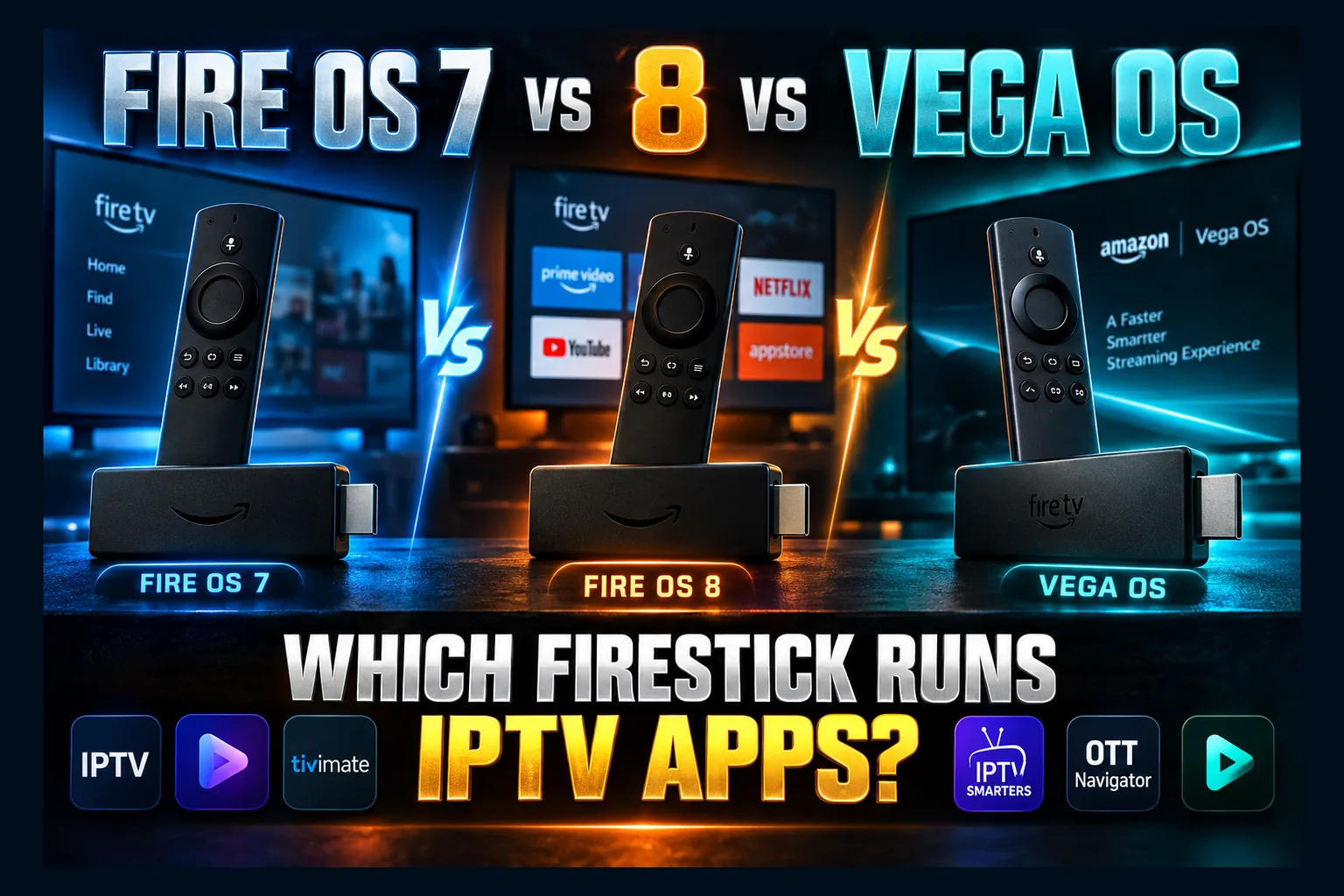
Fire OS vs Android version Firestick questions hit my inbox constantly, usually phrased as ‘Should I get Fire OS or Android?’ Here’s the thing: that’s a false choice, because Fire OS already is Android, just Amazon’s forked take on it. In 2026, what really matters is which Android base sits under your Fire OS release, and whether your stick runs Fire OS at all now that Amazon ships Vega OS hardware. Let’s sort out what each version means for your IPTV setup.
“Should I get Fire OS or Android?” It lands in my inbox constantly. The question rests on a false choice. As of 2026, the Fire OS vs Android version Firestick question is really about which Android base sits under your Fire OS release, and whether your stick runs Fire OS at all. That second part matters a lot more now that Amazon has started shipping hardware with Vega OS.
Below, I build a full Fire OS vs Android version Firestick map, pairing each release with its Android base and API level. You’ll also see what each version means for IPTV players, Kodi and Stremio, plus how to check a device before you hand over any money.
Fire OS vs Android Version Firestick: Not Two Separate Choices
Fire OS Is Amazon’s Fork of Android
Fire OS starts life as the Android Open Source Project (AOSP). Amazon bolts on its own launcher, the Amazon Appstore, Alexa and a pile of Amazon services. Google Play Services and the Play Store get stripped out.
So every Fire OS device already runs Android underneath. The real question is which Android. Sideload an APK onto Android 9 under Fire OS 7 and you’ll get very different results than on Android 5.1 under Fire OS 5.
Why Readers Think They Have to Pick One
Blame the shopping comparisons for the Fire OS vs Android version Firestick mix-up. Retail sites are full of “Fire TV vs Android TV” headlines, and a lot of people read that as two settings on one box. They’re two separate device ecosystems. Android TV and Google TV devices ship with Google’s certified build and the Play Store; Fire TV devices ship with Amazon’s fork.
On a Firestick, you get whatever OS Amazon installed. No toggle. No dual-boot. No official way to swap. Picking a device is picking an OS, which is why the Fire OS vs Android version Firestick decision really happens at checkout.
Where Vega OS Changes the Picture
Vega OS is Amazon’s newer platform, and it runs on Linux rather than Android. Developers write apps for it with Amazon’s Vega SDK, which is based on React Native, instead of packaging them as Android APKs.
That’s why, in any Fire OS vs Android version Firestick comparison, the OS family matters more than any version number. Fire OS 7 and Fire OS 8 sticks are both Android-based, and both sideload APKs. A Vega OS stick can’t run Android APKs at all, so the Downloader-plus-APK routine most cord-cutters lean on simply doesn’t exist there.
Fire OS vs Android Version Firestick Chart: Every Release Mapped
Here’s the Fire OS vs Android version Firestick reference mapping. Amazon shuffles device assignments when it pushes major updates, so confirm your specific model against Amazon’s official Fire TV device specifications before you lean on it.
| OS version | Android / AOSP base | API level | Example devices (verify with Amazon) |
|---|---|---|---|
| Fire OS 5 | Android 5.1 (Lollipop) | 22 | 2015–2016 era Fire TV Stick (2nd gen) and older Fire TV boxes |
| Fire OS 6 | Android 7.1 (Nougat) | 25 | Fire TV Stick 4K (2018), Fire TV Cube (1st gen) |
| Fire OS 7 | Android 9 (Pie) | 28 | Fire TV Stick (3rd gen), Fire TV Stick Lite, Fire TV Stick 4K Max (1st gen), Fire TV Cube (2nd gen) |
| Fire OS 8 | Android 11 | 30 | Fire TV Stick 4K (2nd gen, 2023), Fire TV Stick 4K Max (2nd gen), Fire TV Cube (3rd gen) |
| Vega OS | None (Linux-based) | N/A | Fire TV Stick 4K Select (2025) and future Vega hardware |
Fire OS 5 and Fire OS 6: Legacy Devices
In Fire OS vs Android version Firestick terms, Fire OS 5 sits on Android 5.1, a 2015 release most app developers abandoned years ago. Still on one of these sticks? Expect more and more APKs to fail with a parse error.
Fire OS 6 (Android 7.1) hung on longer, mostly thanks to the hugely popular 2018 Fire TV Stick 4K. Plenty of IPTV players still run on it. It’s living on borrowed time, though, because every time a developer bumps the minimum Android version, another app drops off the list.
Fire OS 7: Android 9 Base
Fire OS 7 covers an enormous installed base: the 3rd gen stick, the Lite and the original 4K Max. By phone standards, Android 9 is ancient (it shipped in 2018). It still clears the minimum requirements of most current streaming APKs, though, so on the Fire OS vs Android version Firestick scorecard, Fire OS 7 remains perfectly usable in 2026.
Fire OS 8: Android 11 Base
Fire OS 8 moves the base up to Android 11 (API 30), the newest rung on the Fire OS vs Android version Firestick ladder. You get newer media codec support at the platform level, fresher security patches and real headroom as developers start dropping Android 9. It also brings Android 11’s scoped storage rules, the one Fire OS vs Android version Firestick detail that catches sideloaders off guard. More on those below, because they trip people up.
Vega OS: No Android Underneath
Vega OS breaks the Fire OS vs Android version Firestick table entirely. There’s no Android API level to compare, because there’s no Android runtime. Apps have to be built for Vega specifically and distributed through the Amazon Appstore.
Amazon’s lookalike hardware makes the Fire OS vs Android version Firestick question genuinely tricky. A Vega stick and a Fire OS stick can share the same form factor, the same remote and roughly the same price bracket (the 4K Select launched at around $40 in the US), so never judge by looks.
How to Check Fire OS Version on a Firestick
Settings > My Fire TV > About Path
On any Fire OS device, settling the Fire OS vs Android version Firestick question takes under a minute:
- Press the Home button and open Settings (the gear icon on the far right).
- Select My Fire TV (labeled “Device & Software” on some builds).
- Choose About.
- Highlight the first entry, usually your device name or Fire TV Stick, and read the software version on the right side.
While you’re on that About screen, run “Check for Updates.” Do it before troubleshooting any app install. A pending update can change exactly what you’re working with.
Reading the Software Version String
You’ll see something like “Fire OS 7.6.x.x” or “Fire OS 8.1.x.x.” Only the first number matters for compatibility, so match it to the Fire OS vs Android version Firestick table above. A 7 means Android 9 underneath; an 8 means Android 11.
Everything after that first digit is point releases and patch builds. Those tweak features and add security fixes, but the Android base stays put. So if an app’s listing says “requires Android 10 or newer,” a Fire OS 7.x device won’t qualify, however recent its point release is.
Spotting a Vega OS Device Before You Buy
This is where people get caught.
Retail boxes rarely print the OS name anywhere prominent, and marketplace listings often recycle old product descriptions word for word. Start with the model name. The Fire TV Stick 4K Select launched as the first Vega OS stick, so treat any “Select” branding, or any newer budget 4K stick, with suspicion. Next, open Amazon’s own product page and scroll down to technical details (it’s usually buried near the bottom, annoyingly), or check the developer spec page linked above. Both list the OS directly.
Read next: Best IPTV Player Apps for Firestick & Android TV (2026)
No OS named in the listing? Shop elsewhere. Third-party sellers on eBay and Facebook Marketplace are the riskiest source by a wide margin.
What the Android Base Means for Firestick APK Compatibility
minSdk and targetSdk: Why Some APKs Refuse to Install
Every APK declares a minSdk, the lowest API level it’ll run on. If your device sits below that number, Android rejects the install. On Fire TV, that usually surfaces as “App not installed” or “There was a problem parsing the package.”
A practical example: an IPTV player with minSdk set to 29 (Android 10) won’t install on Fire OS 7 (API 28), but it’ll install fine on Fire OS 8 (API 30). Kodi is another good case. The team periodically raises its Android floor between major releases, so check the requirements on Kodi’s official Android download page before grabbing a new version for an older stick.
targetSdk works differently. It tells Android which behavior rules the app was built against, and on Android 11 it rarely blocks an install. When an APK fails, check minSdk first. Then check whether you already have a conflicting version installed with a different signature.
32-bit vs 64-bit App Builds
Lots of apps publish two builds: ARMv7 (armeabi-v7a, 32-bit) and ARM64 (arm64-v8a, 64-bit). Several Fire TV devices run a 32-bit software environment even when the chip itself can handle 64-bit. That’s why community guides almost always point Firestick owners to the ARMv7 build of Kodi.
If an ARM64 build throws a parse error, try the 32-bit version before you write the device off as too old. A free device-info app from the Appstore will list your stick’s supported ABIs, so you can confirm in seconds.
Storage and Permission Changes on Newer Fire OS
Android 11 introduced scoped storage, which restricts how freely apps can poke around shared folders. On Fire OS 8, file managers and backup tools may not see other apps’ data folders the way they could on Fire OS 7. Some will ask for a special “All files access” permission. You’ll have to approve that manually (yes, every time you set up a new file manager).
Who does this hit? Mostly people who copy Kodi build folders, restore IPTV player backups or shuffle M3U files around by hand. The usual fix is simple: export from inside the app itself instead of digging through folders with a file manager.
IPTV Players, Kodi and Stremio Compatibility by OS
The breakdown below works at the category level, based on published developer requirements, not device-by-device testing. Developers change their minimums with little warning. Always check the current release notes before installing.
Apps That Need Fire OS 7 or Newer
Newer IPTV players built on modern Android media libraries increasingly set their floor at Android 7, 8 or higher. Fire OS 7 clears most of those. Fire OS 8 clears nearly all of them. If you’re shopping for a player, my roundup of the best IPTV player apps for Firestick is a good starting point, and you can match each app’s stated minimum against the table above.
Current Kodi releases, Stremio’s Android TV build and SmartTube generally run on both Fire OS 7 and 8. Custom launchers are the exception to watch. Amazon has clamped down on launcher replacements in recent Fire OS updates, and Reddit users regularly report launchers breaking after a firmware push, so launcher behavior on newer builds is far less predictable than ordinary app installs.
Apps That Still Work on Older Fire OS
Fire OS 5 and 6 owners often need older app versions. Many developers keep legacy builds online for exactly this reason. Simple M3U and Xtream Codes players tend to survive longest, since they don’t depend on newer media frameworks.
App versions can also differ by platform in confusing ways. I walk through one common example in my piece on why the IPTV Smarters app differs between smart TVs and Firestick.
What Works and What Doesn’t on Vega OS
Vega OS has one rule: if it isn’t in the Amazon Appstore as a Vega app, you can’t install it. Downloader-based sideloading, APK files from developer websites and Kodi builds are all off the table. Amazon’s mainstream streaming apps are there. Most independent IPTV players and Stremio-style apps, however, depend on APK distribution.
Some developers may port their apps to Vega eventually. Until a specific app announces Vega support, assume it isn’t coming.
Fire OS 7 vs Fire OS 8 vs Vega OS: Which Is Best for Cord-Cutters
| Factor | Fire OS 7 | Fire OS 8 | Vega OS |
|---|---|---|---|
| APK sideloading | Yes | Yes | No |
| Android base | Android 9 (API 28) | Android 11 (API 30) | None |
| Kodi / Stremio APKs | Generally supported | Generally supported | Not supported |
| Long-term APK outlook | Aging | Best on Fire TV | Appstore only |
Best Pick for Sideloading Flexibility
Buying a Fire TV device mainly for IPTV players, Kodi or Stremio? Go Fire OS 8. Android 11 gives you the most headroom as developers keep raising minimums. The Fire TV Stick 4K Max (2nd gen, around $60 at list price, though it’s discounted often) and the Fire TV Cube (3rd gen) are the obvious candidates. Confirm the OS on the listing first anyway.
When an Older Fire OS Device Is Still Fine
Already own a Fire OS 7 stick, and your apps work? Keep it. Android 9 still meets most requirements in 2026, so there’s no urgent reason to replace it. Upgrade when your main player or Kodi drops Android 9 support, not before.
Fire OS 5 and 6 owners sit in a weaker spot. Regular parse errors are the hardware telling you it’s time.
When to Skip Fire TV and Use Google TV Instead
If sideloading matters to you and Amazon’s Vega OS direction makes you nervous, look at a Google TV device. Boxes like the Onn 4K Pro (roughly $50 at Walmart in the US; availability varies by region) run certified Android TV with full Play Store access, and they still let you sideload APKs. Plenty of IPTV players sit right there in the Play Store, so you may never need to sideload at all.
For app picks on that side, see my guide to the best IPTV players for Android TV and Firestick. Most of them run on both platforms.
Updates, Downgrades and Staying on a Working Version
Can You Roll Back Fire OS?
In practice, no. Amazon offers no user-accessible way to downgrade Fire OS, and current Fire TV bootloaders are locked. Once a major update lands, you’re on it for good.
Holding Back Problem App Updates Instead
The realistic rollback happens at the app level. If a new Kodi or IPTV player release breaks something, uninstall it and sideload the previous version from the developer’s archive. Back up your settings from inside the app first. Uninstalling usually wipes its data.
Want more control? Turn off automatic updates for Appstore apps under Settings > Applications > Appstore. That keeps a working app from changing under your feet overnight.
Security Trade-Offs of Old Firmware
Sticking with an old Fire OS build, or an old device that no longer gets updates, means missing security patches. Your streaming stick lives on your home network, right next to your laptop and phone, so an unpatched device is a real risk, and that risk climbs when it’s running apps from outside the Appstore.
A VPN with a kill switch adds a layer of network protection for streaming traffic. If some of your apps don’t play nicely with a VPN, my guide to split tunneling on Firestick shows which apps to exclude.
Conclusion: Pick the OS Family First, Then the Version
Drop the false choice and the Fire OS vs Android version Firestick question answers itself. Fire OS is Android under the hood: Fire OS 7 on Android 9, Fire OS 8 on Android 11. Vega OS is the real split. It isn’t Android at all, and it ends APK sideloading.
Check your version under Settings > My Fire TV > About, then compare it to each app’s minimum Android requirement. Buying new for IPTV? Choose a confirmed Fire OS 8 device or a Google TV box, and steer clear of Vega OS hardware.
⚖️ Legal Disclaimer: IPTV Wire does not own or operate any streaming service, application, or website mentioned in this article. We do not verify whether third-party services carry proper licensing. Users are responsible for ensuring they comply with copyright laws in their jurisdiction.
Frequently Asked Questions
What Android version is Fire OS 8 based on?
Android 11, which is API level 30. That’s the most modern Android base on current Fire TV hardware. It also brings scoped storage rules, which change how file managers behave.
Can I install regular Android apps on any Firestick?
Only on Fire OS devices, and only if the app’s minimum Android version sits at or below your device’s base. Apps that depend on Google Play Services may install but then fail to run. Vega OS devices can’t install Android apps at all.
Does Vega OS support sideloading APKs?
No. Vega OS is Linux-based and doesn’t run Android APKs. Apps have to be built for Vega and distributed through the Amazon Appstore, so Downloader-based installs won’t work.
How do I check my Fire OS version on a Firestick?
Go to Settings, then My Fire TV, then About. Highlight your device name to see the software version. The first number, such as 7 or 8, tells you which Android base you’re running.
Can I replace Fire OS with stock Android TV on a Firestick?
Not on current models. Fire TV bootloaders are locked, and there’s no supported way to install Google’s Android TV. If you want stock Android TV, buy a Google TV device instead.
Why does an APK say ‘App not installed’ on my Firestick?
Usually it’s one of two things: your API level falls below the app’s minSdk, or you grabbed the wrong architecture build. A signature conflict with an existing version can cause it too. Try the ARMv7 (32-bit) build, uninstall any older copy first, and check the developer’s stated Android minimum.
Comments
Leave a comment
Your email address will not be published. Comments are moderated before they appear.