

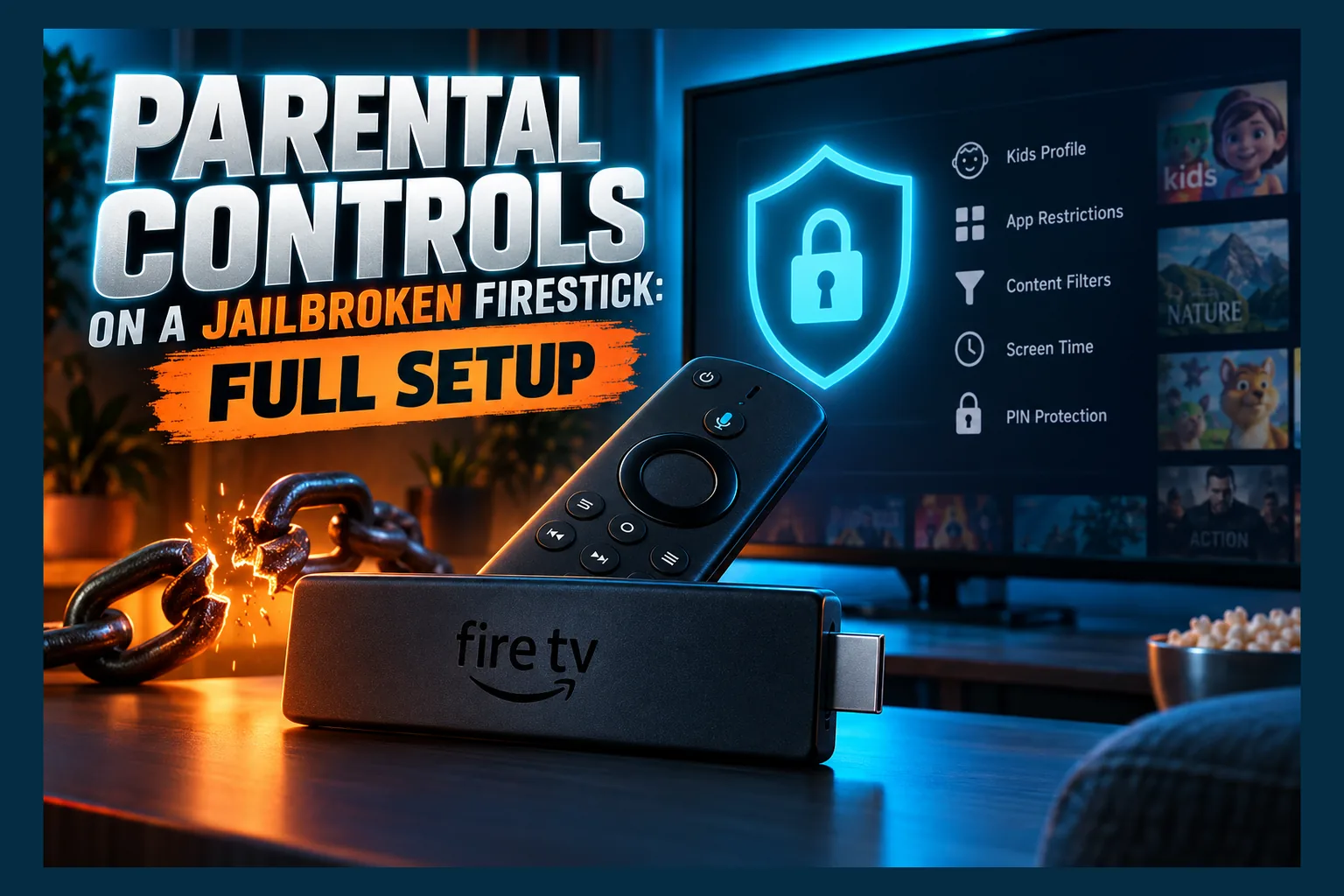
Parental controls on jailbroken Firestick devices take more than flipping one switch in Settings. Amazon’s PIN guards purchases, Prime Video ratings and Appstore apps, but Kodi, TiviMate and anything you sideloaded through Downloader can slip straight past it. The fix is layering: Amazon’s built-in controls, locked-down app installs, app-level PINs in Kodi and your IPTV player, family DNS on your router, and a PIN on your VPN so it can’t sidestep that filter. Here’s how to set up each layer, step by step.
Plenty of households use the Firestick as the family TV box. Many of those sticks have Kodi, TiviMate or Stremio sideloaded alongside Netflix and Prime Video, and Amazon’s default settings protect only part of that device.
This guide walks through setting up parental controls on jailbroken Firestick hardware in 2026, one layer at a time. Each layer works alone. Stacked together, parental controls on jailbroken Firestick hardware hold up far better.
First, a terminology note. “Jailbroken” here just means a Firestick with sideloading switched on, with no custom firmware or exploits involved. For the longer background, read my explainer on what actually gets unlocked on a jailbroken Firestick.
Why Amazon’s PIN Leaves Gaps in Parental Controls on Jailbroken Firestick Devices
Amazon designed its parental controls around its own ecosystem, which is why parental controls on jailbroken Firestick hardware need extra help. That’s reasonable from Amazon’s side, but it leaves a hole the moment you install something from outside the Appstore.
The typical family-room stick runs a mix of both kinds of app. So before setting up parental controls on jailbroken Firestick hardware, you need to know exactly where the line falls.
What the Amazon PIN Actually Covers
The Fire TV parental control PIN is a 5-digit code. It can protect:
- Purchases of apps, games, rentals and in-app items through your Amazon account
- Viewing restrictions on Prime Video and other Amazon-integrated content, by rating category
- App launches for apps installed through the Amazon Appstore
- Amazon Photos and some content types, such as certain live TV integrations
Useful stuff. The problem? Every item on that list depends on Amazon knowing what the app or content is, and sideloaded apps sit completely outside that system.
The Gaps: Kodi, IPTV Players and APKs From Downloader
An APK installed through Downloader never passed through the Appstore, so Amazon holds no rating metadata for it. Depending on your Fire OS version, “PIN Protect App Launches” may not fire for these apps at all. Kodi, TiviMate, IPTV Smarters Pro and Stremio can often open with no prompt whatsoever.
Behaviour seems to vary between Fire OS builds, so don’t rely on anyone’s blanket claim, mine included. Enable the PIN, back out to the home screen, then try launching each sideloaded app in turn. Any app that opens without asking for the code is a gap in your parental controls on jailbroken Firestick hardware, and needs one of the other locks below.
A second gap exists too. If “Install unknown apps” is still switched on, anyone holding the remote can sideload a brand-new app that none of your locks know about. That’s why Step 2 matters just as much as Step 1 for parental controls on jailbroken Firestick devices.
Step 1: Turn On Amazon’s Built-In Parental Controls
Start with Amazon’s own settings, the foundation of parental controls on jailbroken Firestick devices. They handle purchases and the Appstore half of the device, and the whole thing takes about two minutes.
Setting the Profile PIN
- From the home screen, open Settings (the gear icon).
- Go to Preferences > Parental Controls.
- Toggle Parental Controls ON.
- Enter your Amazon Video PIN, or create a new 5-digit PIN if you don’t have one.
When setting up parental controls on jailbroken Firestick hardware, remember this PIN belongs to your Amazon account, not to the individual stick. Own a Fire TV Stick in the lounge and a Cube in the bedroom? The same code applies to both.
You can also manage the PIN from your account’s Prime Video settings on the web. For a general background on the platform and its hardware generations, the Amazon Fire TV entry on Wikipedia is a handy reference.
One judgement call here. Reusing this PIN for Kodi and your IPTV player keeps life simple, and for a household with a six-year-old that’s probably fine. A 14-year-old who has watched you punch in codes for years is a different story, so use a separate PIN for each layer.
Restricting Viewing Ratings and Purchases
In the same Parental Controls menu, open Viewing Restrictions. Four tiers appear: General, Family, Teen and Mature. Tap a tier to lock it, and anything rated within that tier will demand the PIN.
Next, confirm that PIN Protect Purchases and PIN Protect App Launches are both on. The second won’t catch everything (see above). It costs nothing, though, and it does cover your Appstore apps.
Using Amazon Kids Profiles on Supported Models
Newer Fire TV hardware running Fire OS 7 or Fire OS 8 supports multiple user profiles, including the Fire TV Stick 4K Max, the 4K (2nd gen) and recent Fire TV Cubes. Older models like the 2nd-gen Lite may not offer it, so check before planning around it.
Look under Settings > Account & Profile Settings > Profiles. See “Add Profile”? Then you can create a child profile linked to Amazon Kids.
Child profiles show only approved content, and in most setups they don’t surface sideloaded apps at all. For younger kids, this is the cleanest form of parental controls on jailbroken Firestick hardware, because the risky apps simply never appear on their screen.
There’s a weakness in this approach to parental controls on jailbroken Firestick devices, though. Switching profiles takes about three button presses, and if the adult profile has no PIN, a kid can just hop back over. Put a PIN on your adult profile and make the kids profile the default.
Regional note: Amazon Kids+ content and pricing differ between the US, UK, Canada and European markets, and the subscription isn’t sold everywhere. The free Kids profile features generally work without it, but check Amazon’s site for your country before paying for the add-on.
Step 2: Lock Down App Installs and Developer Options
Most guides to parental controls on jailbroken Firestick hardware skip this step entirely. Locking existing apps means very little if a curious teenager can install a fresh, unlocked player in five minutes.
Read next: Jailbroken Firestick in 2026: What Actually Gets Unlocked
Switching Off “Install Unknown Apps”
- Go to Settings > My Fire TV.
- If you don’t see Developer Options, open About and click your device name seven times to reveal it.
- Open Developer Options > Install unknown apps.
- Toggle OFF every app listed, especially Downloader, ES File Explorer and any browser.
Your already-installed APKs keep working after this. You’ll just need to flip the toggle back on whenever you want to update or add something (yes, it’s a mild nuisance every time an app updates).
Disabling ADB Debugging
In the same Developer Options menu, turn off ADB debugging. With it on, anyone on your Wi-Fi can push an APK straight to the stick from a phone or laptop, completely bypassing the remote.
Tech-savvy older kids know about this route. Leave ADB off unless you’re actively using it, then switch it straight back.
Removing or Hiding Downloader
If you rarely sideload, consider uninstalling Downloader entirely and reinstalling it from the Appstore when needed. Since Downloader comes from the Appstore, the Amazon app-launch PIN should cover it if you keep it.
Step 3: Add a Master Lock in Kodi
Kodi ships with its own lock system, which works regardless of what Fire OS does. The current stable release, Kodi 21 “Omega”, handles it like this:
- Open Kodi and select the Settings gear.
- Change the settings level (bottom-left of the menu) to Advanced or Expert.
- Go to Interface > Master lock.
- Set a Master lock code as numeric, gamepad or text.
- Choose which areas to lock: Videos, Music, Programs, Add-on manager, File manager and Settings.
- Optionally enable Ask for master lock code on startup.
Locking the Add-on manager and File manager is the priority. Those two stop anyone from installing new add-ons or repositories behind your back.
For a family-friendly setup, Kodi’s Profiles feature lets you build a separate kids profile with only approved add-ons. More detail lives on the official Kodi website and its wiki.
Step 4: Set PINs Inside Your IPTV Player
IPTV playlists are the biggest wildcard. A single M3U list can contain thousands of channels, including adult categories, and Amazon has no idea any of it exists.
TiviMate
Open Settings > Parental control, set a PIN, then lock individual groups or channels. Some of TiviMate’s parental options may require the Premium tier, so confirm what your version offers.
The simplest approach is to hide adult groups entirely in the playlist settings. A hidden group is harder to stumble across than a locked one.
IPTV Smarters Pro
Smarters includes a Parental Control section in its settings. Set a PIN there, then pick which Live, Movies and Series categories to lock.
Menus shift between versions and rebranded builds, so the exact labels on your stick may differ slightly. Lock the categories, then test by opening one without the PIN.
Stremio
Stremio has historically offered no proper PIN lock. Your main control is which add-ons are installed, so remove anything you wouldn’t want a child browsing.
Add-ons sync to your Stremio account, meaning changes apply across every device signed in. If you share an account with an older teen, consider a separate account for the family-room stick.
Step 5: Filter at the Router With Family DNS
DNS filtering protects every device in the house, not just the Firestick. It mainly blocks websites, which matters if the Silk browser or another browser is installed.
Here are three well-known free family DNS options:
| Service | Primary DNS | Secondary DNS | What It Blocks |
|---|---|---|---|
| Cloudflare for Families | 1.1.1.3 | 1.0.0.3 | Malware and adult content |
| OpenDNS FamilyShield | 208.67.222.123 | 208.67.220.123 | Adult content, some proxies |
| CleanBrowsing Family | 185.228.168.168 | 185.228.169.168 | Adult content, proxies, VPN domains |
Enter these in your router’s DNS settings, usually under WAN or Internet. If your ISP router locks DNS (common with some UK and Canadian providers), you can set it on the Firestick itself via a static IP under Settings > Network.
Be realistic about the limits here. DNS filtering rarely stops IPTV streams, because they come from servers that filter lists don’t categorise. It’s a browser safety net, not a channel blocker.
Step 6: PIN-Lock Your VPN App
A VPN tunnels traffic past your router, which means it also tunnels past your family DNS. Any child who can open the VPN app can sidestep Step 5 in one click.
Most major VPNs, like NordVPN, Surfshark and ExpressVPN, are in the Amazon Appstore. Installed that way, the Amazon app-launch PIN should cover them. Test it by opening the app after enabling the PIN.
If you sideloaded your VPN, the Amazon PIN may not apply. Check whether the app has its own lock in settings, or consider running the VPN on the router instead so nothing on the stick can toggle it.
How Parental Controls on Jailbroken Firestick Devices Fit Together
No single layer closes every gap. This table shows what each one handles and where it falls short.
| Layer | Protects | Misses | Setup Time |
|---|---|---|---|
| Amazon PIN | Purchases, Prime Video, Appstore apps | Many sideloaded apps | 2 minutes |
| Kids profile | Entire home screen for young kids | Older models; unlocked adult profile | 5 minutes |
| Install restrictions | New sideloads, ADB pushes | Apps already installed | 3 minutes |
| Kodi master lock | Add-ons, settings, file manager | Other apps | 5 minutes |
| IPTV player PIN | Adult channel groups | Stremio; renamed groups | 5–10 minutes |
| Family DNS | Websites on every device | IPTV streams; VPN traffic | 5 minutes |
For a young child, a locked-down Kids profile plus disabled installs covers most of it. For teenagers, you’ll want every layer, each with a different PIN.
Keeping Parental Controls on Jailbroken Firestick Setups Working Long-Term
Settings drift over time. A Fire OS update, an app reinstall or a new playlist can quietly undo your work.
Run a quick check every month or after any update:
- Open each sideloaded app and confirm it still asks for a PIN.
- Revisit Install unknown apps and ADB debugging, since you may have flipped them on for an update.
- Check your IPTV playlist for new channel groups that aren’t locked yet.
- Visit a known adult test domain in the browser to confirm DNS filtering still works.
Also rotate PINs occasionally, especially if you’ve typed them in front of the kids. Shoulder-surfing beats every technical control on this list.
Conclusion
Amazon’s PIN is a starting point, not a finished job. Setting up parental controls on jailbroken Firestick devices means stacking Amazon’s settings, install restrictions, app-level PINs, family DNS and a locked VPN.
Start with Steps 1 and 2 tonight, since they take under ten minutes. Then work through Kodi and your IPTV player, and test each app to confirm the locks actually trigger on your Fire OS build.
⚖️ Legal Disclaimer: IPTV Wire does not own or operate any streaming service, application, or website mentioned in this article. We do not verify whether third-party services carry proper licensing. Users are responsible for ensuring they comply with copyright laws in their jurisdiction.
Frequently Asked Questions
Does the Amazon Fire TV PIN lock Kodi?
Not reliably. Because Kodi is usually sideloaded, Amazon may not prompt for the PIN on launch. Use Kodi’s built-in Master lock under Interface settings instead.
Can kids bypass parental controls on jailbroken Firestick devices?
Yes, if gaps remain. Common bypasses include sideloading a new app, using ADB from a phone, switching to an unlocked adult profile or turning on a VPN. Closing each of those routes is what the layered approach is for.
Will family DNS block IPTV channels?
Usually not. IPTV streams come from servers that DNS filters rarely categorise, so use your IPTV player’s parental PIN or hide adult groups for channel-level control.
Do Amazon Kids profiles work on every Firestick?
No. Profiles are supported on newer models running Fire OS 7 or 8, such as the 4K Max and recent Cubes. Check under Account & Profile Settings to see if “Add Profile” appears on yours.
Should I use the same PIN for every layer?
For young children, one PIN is manageable. For teenagers, use different PINs for Amazon, Kodi, your IPTV player and your adult profile, so one leaked code doesn’t unlock everything.

Comments
Leave a comment
Your email address will not be published. Comments are moderated before they appear.