

Table of contents
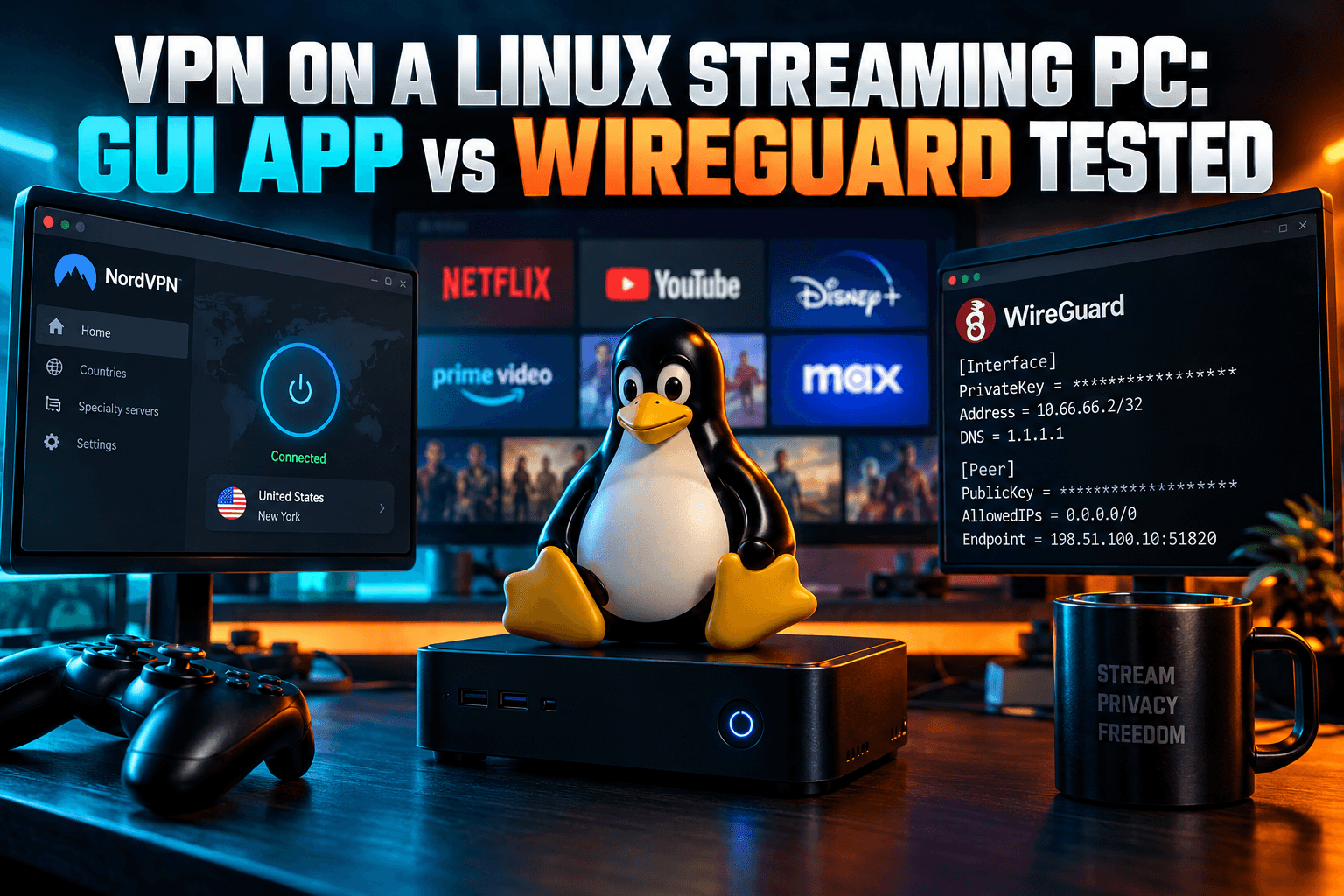
VPN on Linux for streaming sounds simple until you try it on the machine that’s actually plugged into your TV. As of early 2026, more providers ship proper graphical Linux apps than ever, but nearly all of them assume you’re at a desk with a keyboard and a big monitor. They don’t account for a $200 mini PC that boots straight into Kodi, or a Raspberry Pi running LibreELEC with no package manager at all. So I tested both kinds of box, pitting a provider’s GUI app against hand-built WireGuard configs.
Why a VPN on Linux for Streaming Is Still a Blind Spot
Most guides covering a VPN on Linux for streaming still treat Linux as a laptop OS. Fair enough for Ubuntu on a ThinkPad. It falls apart in the living room, where the “desktop” is a Kodi skin like Estuary and the input device is a $15 remote that’s missing half its buttons.
Firestick and Android TV owners get it easy. They open the Amazon Appstore or Google Play, search, install. Anyone setting up a VPN on Linux for streaming gets a grab bag of .deb packages, CLI tools, and config files, and some distros can’t use any of them.
Desktop HTPC vs Kodi-Only Distros (LibreELEC, OSMC)
Linux streaming machines come in two very different flavors:
- Desktop-distro HTPCs: Ubuntu 24.04 LTS, Linux Mint 22, or Fedora on a mini PC, with Kodi, Stremio, or the Plex/Jellyfin client set to launch at login. You get a full OS, systemd, NetworkManager, and the freedom to install whatever provider app you like.
- Kodi-only distros: LibreELEC and OSMC exist to do one job: boot into Kodi fast. LibreELEC has a read-only system partition and no apt. OSMC is Debian-based, so you get more room to work, but it’s still built around Kodi rather than a desktop.
That second group is where a VPN on Linux for streaming gets tricky, because provider apps can’t follow you there. Nobody ships a VPN app for LibreELEC, and the old Kodi VPN Manager add-on (OpenVPN only) hasn’t kept up with modern protocols in years.
What VPN Providers’ New Linux GUI Apps Do and Don’t Cover
NordVPN added a graphical interface to its Linux client fairly recently, and it got a decent amount of press. It joins Mullvad, Proton VPN and a handful of others that already had Linux GUIs. Good news, mostly. But look at the targets: Debian/Ubuntu-family and Fedora/RHEL-family desktops, usually x86_64, sometimes ARM64.
None of them install on LibreELEC. On OSMC you’d be fighting dependency hell on a box with no desktop environment. So when a provider announces “a Linux app,” it covers maybe half the streaming-Linux crowd, at best.
My test setup:
- Box A: x86 mini PC, [BODHI: model, CPU, RAM], running [BODHI: Ubuntu or Mint version] with Kodi [BODHI: version], Stremio, and the Jellyfin Media Player client. Kodi autostarts at login.
- Box B: [BODHI: Raspberry Pi 4/5 or second mini PC] running LibreELEC [BODHI: version].
- Network: [BODHI: ISP plan speed], wired Ethernet on both, Jellyfin server and SMB shares on a NAS on the same LAN.
- VPN: [BODHI: provider(s) used], same server location for every test.
Option 1: Provider GUI App on a Desktop Linux HTPC
Running Ubuntu or Mint on your HTPC? Then the provider app is the obvious first stop for a VPN on Linux for streaming. Here’s how it holds up when you judge it as a streaming tool rather than a sysadmin tool.
Install Methods Compared: .deb/.rpm, Repo, Snap and Flatpak
| Method | Updates | Streaming-box verdict |
|---|---|---|
| Provider APT/DNF repo | Automatic with system updates | Best option. Set it once and forget it. |
| Standalone .deb/.rpm | Manual | Fine, but you will forget to update it. |
| Snap | Automatic | Works on Ubuntu. Mint blocks snapd by default. |
| Flatpak | Automatic | Rare for VPN clients. Creating tunnels needs host-level privileges a sandbox doesn’t normally grant. |
For a VPN on Linux for streaming, go with the repo install if your provider offers one. It runs the VPN daemon as a systemd service. That detail matters a lot for the boot-order problem a couple of sections down.
Couch Usability: Can You Control It With a Remote or Air Mouse?
Here’s where desktop VPN apps give themselves away. They weren’t built for TVs. They’re ordinary windows hiding behind a fullscreen Kodi session, so switching servers means exiting Kodi or Alt-Tabbing, then poking at a small desktop UI from three meters away with whatever pointer you’ve got.
On my setup: [BODHI: describe readability at 10 feet, whether you needed an air mouse, how many steps a server change took, whether the tray icon was reachable with Kodi fullscreen].
Honestly, my workaround for controlling a VPN on Linux for streaming is to skip the GUI entirely from the couch. Most of these apps ship a CLI too (nordvpn connect, mullvad connect, and so on), so I fire off connections over SSH from my phone using Termius. A Kodi add-on or keymap that runs a shell script works as well, if you’re comfortable editing keymap.xml (back it up first; a typo there can leave your remote half-dead).
RAM and CPU on the mini PC, idle and connected: [BODHI: measured RAM for daemon + GUI, CPU % idle and during a 4K stream].
Does It Autoconnect Before Kodi Launches at Boot?
This was the test I cared about most for a VPN on Linux for streaming. Kodi starts at login and immediately refreshes add-ons, scrapers, and home-screen widgets. If the tunnel comes up even a few seconds later, those first requests leave over your real IP.
Provider daemons start at boot, independent of your login session. That helps. But “starts at boot” isn’t the same as “connected before Kodi.” In my test: [BODHI: seconds from boot to tunnel up vs. seconds to Kodi first network request, and whether any requests escaped].
The fix: switch on the app’s always-on or block-without-VPN mode. Mullvad calls it “Lockdown mode,” and other apps use similar names. Traffic then gets blocked until the tunnel is up, instead of leaking through the gap.
Option 2: Raw WireGuard or OpenVPN Configs (No App Needed)
On LibreELEC, this is the only route to a VPN on Linux for streaming. On desktop distros it’s often the cleaner one anyway. WireGuard has lived in the mainline Linux kernel since 5.6, released back in March 2020, so you’re using the kernel’s own implementation rather than a vendor daemon.
Generating a WireGuard Config From Your Provider’s Dashboard
Provider policies here are all over the place:
- Offer downloadable WireGuard configs: Mullvad, Proton VPN, IVPN, Windscribe (paid plans), Surfshark, AirVPN. Pick a server, generate a key, download a
.conffile. Done. - Lock WireGuard inside their app: NordVPN doesn’t officially offer NordLynx config downloads. Community scripts that extract them exist, but they break every time the API changes.
- OpenVPN only, or proprietary protocols: Some providers still offer only OpenVPN files for manual setup. If you run LibreELEC, check this before you pay for a year upfront.
One warning. Every downloaded config contains your private key. Treat it like a password: don’t email it to yourself, and don’t leave it sitting in a Downloads folder that syncs to Google Drive or Dropbox.
Importing Into NetworkManager on Ubuntu or Mint
- Copy the file to the HTPC, for example
~/wg-us.conf. - Import it:
sudo nmcli connection import type wireguard file ~/wg-us.conf - Enable autoconnect:
nmcli connection modify wg-us connection.autoconnect yes - Force DNS through the tunnel (see the leak section for why):
nmcli connection modify wg-us ipv4.dns-priority -50 ipv4.dns-search "~." - Bring it up:
nmcli connection up wg-us, then delete the original.conffile.
Recent Ubuntu and Mint releases can also import the file through the network settings GUI. I still reach for nmcli every time, because it lets me set the DNS options in the same pass instead of clicking through three tabs.
To close the boot gap, tie the VPN to your wired profile so both come up together: nmcli connection modify "Wired connection 1" connection.secondaries wg-us.
Setting Up WireGuard on LibreELEC via ConnMan
LibreELEC handles networking with ConnMan, which supports WireGuard through a provisioning file. The LibreELEC wiki documents the full format. Short version below.
- SSH into the box (enable SSH under LibreELEC Settings → Services).
- Create
/storage/.config/wireguard/vpn.config:
[provider_wireguard]
Type = WireGuard
Name = StreamVPN
Host = 203.0.113.10
WireGuard.Address = 10.66.0.2/32
WireGuard.ListenPort = 51820
WireGuard.PrivateKey = YOUR_PRIVATE_KEY
WireGuard.PublicKey = SERVER_PUBLIC_KEY
WireGuard.DNS = 10.64.0.1
WireGuard.AllowedIPs = 0.0.0.0/0
WireGuard.EndpointPort = 51820
WireGuard.PersistentKeepalive = 25- Copy each value from your provider’s
.conf. Use the server’s IP address forHost, not its hostname, because name resolution at that stage isn’t reliable (this one trips up a lot of people on the LibreELEC forums). - Run
connmanctl services, find thevpn_...entry, and connect withconnmanctl connect vpn_203_0_113_10_.... - For autoconnect, add a small systemd unit in
/storage/.config/system.d/that runs the connect command afternetwork-online.target. The wiki has a template you can copy.
Backup warning: LibreELEC’s built-in backup archives /storage/.config. Which means your private key rides along in every backup tarball. If you share backups, or park them on a NAS other people in the house can open, regenerate the key afterward or pull the file out before backing up.
VPN on OSMC: What Works and What Doesn’t
OSMC is Debian underneath. Standard tools work. On a Pi with a recent OSMC kernel:
sudo apt install wireguard-tools- Put your config in
/etc/wireguard/wg0.confand runsudo chmod 600on it. sudo systemctl enable --now wg-quick@wg0
What’s less smooth: the DNS = line in wg-quick configs needs resolvconf, and OSMC also uses ConnMan, which wants to manage DNS itself. The two don’t play nicely. If wg-quick complains, delete the DNS line and set the VPN’s DNS server in OSMC’s network settings instead.
Own a Vero 4K+ or Vero V? Run sudo modprobe wireguard before anything else. Some older kernels shipped without the module, and I haven’t been able to check every Vero kernel build personally. If modprobe fails, OpenVPN from apt is your fallback.
The Leak Test: Where VPN on Linux for Streaming Quietly Fails
A green “connected” icon proves nothing. So I tested both setups by checking what the box itself exposed, not what some desktop browser reported.
Kodi has no real built-in browser. That forced me to test from three places: Firefox on Box A, Stremio on Box A while a stream was loading, and SSH sessions on both boxes using curl https://ifconfig.co, curl -6 https://ifconfig.co, plus a DNS leak test site’s resolver lookup. If you’re used to the Firestick version of this routine, my 7-point Firestick leak checklist covers the Android side.
| Check | GUI app (Box A) | Manual WireGuard (Box A) | Manual WireGuard (LibreELEC) |
|---|---|---|---|
| IPv4 address | [BODHI] | [BODHI] | [BODHI] |
| IPv6 address | [BODHI] | [BODHI] | [BODHI] |
| DNS resolver | [BODHI] | [BODHI] | [BODHI] |
| Leak at boot | [BODHI] | [BODHI] | [BODHI] |
DNS Leaks Through systemd-resolved
Ubuntu and Mint route DNS through systemd-resolved, which keeps DNS servers per network link. Sounds harmless. It isn’t. When the WireGuard link has a DNS server but no routing domain, resolved can still fire queries at your router’s DNS on the Ethernet link, so the tunnel carries your traffic while your ISP still sees every lookup.
Run resolvectl status. If your wg interface doesn’t show ~. under DNS Domain, you’ve got this problem. Fix it with the ipv4.dns-search "~." and negative dns-priority settings from earlier, or try sudo resolvectl domain wg-us '~.' as a quick test.
[BODHI: which setup leaked DNS in your test, and whether the fix resolved it.]
IPv6 Leaks When the Tunnel Only Covers IPv4
Plenty of provider configs ship with AllowedIPs = 0.0.0.0/0 and nothing else. That sends all IPv4 through the tunnel and leaves IPv6 on your ISP’s line. Many CDNs and streaming services prefer IPv6 whenever it’s available. Your real location shows up exactly where you didn’t want it.
Two fixes:
- If the provider supports IPv6 in the tunnel, add
::/0to AllowedIPs (andWireGuard.AllowedIPson LibreELEC) along with the IPv6 address they assign. - If it doesn’t, disable IPv6 on the box. On NetworkManager:
nmcli connection modify "Wired connection 1" ipv6.method disabled. Elsewhere:sysctl net.ipv6.conf.all.disable_ipv6=1, made persistent in/etc/sysctl.d/.
UK and European readers, check this one first. IPv6 rollout on the bigger ISPs there (Sky and BT in the UK, for example) means a lot of home connections now have working IPv6 out of the box. Coverage varies by ISP and region, so don’t assume you’re safe just because you never switched it on.
Flatpak Apps and Sandboxed Network Behavior
Lots of people install Stremio on Linux from Flathub. A common worry: the sandbox bypasses the VPN. It’s actually the reverse. Flatpak apps with network permission share the host’s network stack, so they follow the system’s routes and the tunnel like any other app.
DNS is the catch. The Flatpak reads the host’s resolver configuration, so if systemd-resolved is leaking (see above), Stremio leaks the same way. Fix the host, and the Flatpak follows. In my test, [BODHI: Flatpak Stremio result before/after DNS fix].
Want to confirm? Run flatpak info --show-permissions com.stremio.Stremio and look for network under shared resources.
Kill Switches and Split Tunneling on Linux
GUI App Kill Switch vs a Manual nftables Rule
A provider kill switch is one toggle. It usually works fine. Its weak spot is that it depends on the provider’s daemon, so if the daemon crashes or an update restarts it, what happens in that window comes down to how the app was built, and providers rarely document that.
A manual nftables rule lives in the kernel. It doesn’t care whether any app is running. Here’s a minimal version for Box A (swap in your endpoint IP and port):
table inet killswitch {
  chain output {
    type filter hook output priority 0; policy drop;
    oifname "lo" accept
    oifname "wg-us" accept
    ip daddr { 192.168.0.0/16, 10.0.0.0/8, 172.16.0.0/12 } accept
    ip6 daddr fe80::/10 accept
    ip daddr 203.0.113.10 udp dport 51820 accept
    udp dport 67 accept
  }
}
Load it with sudo nft -f killswitch.nft, then add it to /etc/nftables.conf so it survives reboots. LibreELEC has no clean equivalent. ConnMan offers no kill switch, and anything you bolt on yourself has to go through a custom autostart script.
Routing Only Kodi or Stremio Through the VPN
On Android and Firestick, split tunneling is just a per-app checklist inside the VPN app. Linux is messier, and it depends on what you’re running:
- Mullvad’s Linux app supports split tunneling through a
mullvad-excludecommand that launches an app outside the tunnel. - Other GUI apps vary a lot. Check the current Linux feature list rather than assuming it matches the Windows version, because it often doesn’t.
- Manual setups need network namespaces: you run Stremio inside a namespace that only has the WireGuard interface. Works well. Budget an evening.
- LibreELEC can’t do per-app routing at all. Kodi is the box.
For what’s worth routing and what breaks inside Kodi itself, see my Kodi VPN split tunneling breakdown.
Keeping Local Plex/Jellyfin and Network Shares Reachable
This is the complaint I see most in any Linux HTPC VPN thread. Routing usually isn’t the culprit. Both wg-quick and NetworkManager use policy routing that keeps the more-specific LAN routes, so 192.168.1.x stays reachable. The real causes look like this:
- Kill switches blocking LAN. Turn on the app’s “Allow LAN” or “Local network sharing” option. With NordVPN’s CLI that’s
nordvpn set lan-discovery on. - Hostnames instead of IPs. If your Kodi sources point to
smb://nas/movies, name lookups now go through the VPN’s DNS, which has never heard of your NAS. Switch sources to IP addresses. (Tedious if you have a dozen sources, I know.) - Plex’s plex.direct addresses. Plex clients connect through
*.plex.directhostnames that resolve to private LAN IPs. Some VPN DNS resolvers block private-IP answers as DNS-rebinding protection, and Plex falls back to a slow relay. Adding your server’s IP manually in the client’s settings usually sorts it. - SMB discovery. Network browsing relies on broadcasts, and kill switches love to drop those. Add shares by path instead of browsing for them.
Speed and Buffering: GUI App vs Manual WireGuard
Test Method: Same Server, Same Stream, Same Time Window
Fair comparisons need boring consistency. Every run used the same VPN server, the same 4K test stream ([BODHI: source/bitrate]), and the same [BODHI: time window, e.g. weekday evenings]. I alternated GUI and manual runs so peak-hour congestion would hit both equally. For each run I logged throughput ([BODHI: tool used]), time-to-first-frame from pressing play, and CPU load during playback.
Low-Power Hardware Results (Pi vs x86 Mini PC)
| Setup | Throughput | 4K time-to-first-frame | CPU during playback |
|---|---|---|---|
| No VPN (Box A) | [BODHI] | [BODHI] | [BODHI] |
| GUI app, WireGuard-based (Box A) | [BODHI] | [BODHI] | [BODHI] |
| Manual WireGuard (Box A) | [BODHI] | [BODHI] | [BODHI] |
| Manual WireGuard (LibreELEC) | [BODHI] | [BODHI] | [BODHI] |
| OpenVPN (for reference) | [BODHI] | [BODHI] | [BODHI] |
[BODHI: two or three sentences interpreting your numbers.]
The takeaway I expect most readers to land on: protocol matters far more than app vs config. A GUI app running WireGuard and a hand-made WireGuard config use the same kernel module. Same engine, different dashboard. OpenVPN is the outlier, because it runs in userspace, and on an ARM board like a Pi 4 that costs noticeably more CPU per megabit. I saw the same pattern in my Kodi VPN protocol tests on Firestick.
Obfuscation is its own trade-off. It disguises VPN traffic so networks that block VPNs can’t spot it, and you pay for that in speed. On a home connection you’ll rarely need it. On a dorm, hotel, or office network that blocks WireGuard’s UDP traffic, though, it’s often the only thing that gets you connected. Linux support is patchier than on Android, and some providers offer it only inside their app, not in downloadable configs. My obfuscated VPN guide explains when stealth mode is worth the hit.
Which Setup Should You Use? Quick Decision Guide
- Desktop-distro HTPC that the whole family uses: provider GUI app, installed from its repo, with lockdown/always-on mode and LAN access turned on. Fewer moving parts for someone else to break while you’re out.
- Desktop HTPC that only you touch: manual WireGuard in NetworkManager plus an nftables kill switch. Lighter, and it survives daemon crashes. This is what I’d pick for my own box.
- LibreELEC: manual WireGuard through ConnMan. There’s no other modern option.
- OSMC: wg-quick if your kernel has the module, OpenVPN if it doesn’t.
- Box on a network you don’t trust, or one you can’t configure: run the VPN on the router instead, or put the box on its own VLAN. My guide to isolating an untrusted TV box covers the network side.
Troubleshooting checklist:
- Tunnel up?
sudo wg showshould show a recent handshake (anything under about two minutes is healthy). - Real IP hidden?
curl https://ifconfig.coandcurl -6 https://ifconfig.co. - DNS routed?
resolvectl statusshows~.on the VPN link. - LAN reachable? Ping your NAS by IP, and check the kill switch’s LAN rule if it fails.
- Boot gap closed? Reboot and watch whether Kodi loads widgets before the tunnel is up.
Setting up a VPN on Linux for streaming takes more effort than tapping “install” on a Firestick. No getting around that. What you get back is real control: kernel-level WireGuard, kill switches that don’t depend on an app staying alive, and a local library that stays on the LAN where it belongs. Pick the setup that fits your box, run the leak checks once, and run them again after every major distro or Kodi update. Yes, every time.
⚖️ Legal Disclaimer: IPTV Wire does not own or operate any streaming service, application, or website mentioned in this article. We do not verify whether third-party services carry proper licensing. Users are responsible for ensuring they comply with copyright laws in their jurisdiction.
Frequently Asked Questions
Can I install a VPN app on LibreELEC?
No. No VPN provider ships an app for LibreELEC, and its read-only system can’t install Linux packages anyway. Use a manual WireGuard config through ConnMan instead, or the older OpenVPN-based VPN Manager add-on if your provider only offers OpenVPN.
Is WireGuard faster than OpenVPN for streaming on Linux?
Generally, yes. The gap is biggest on low-power ARM hardware like a Raspberry Pi. WireGuard runs inside the kernel and uses less CPU per megabit, while OpenVPN runs in userspace and can turn into the bottleneck for 4K streams on weaker devices.
Why does my Linux VPN leak DNS even when connected?
Usually it’s systemd-resolved sending some queries to your router’s DNS on the physical interface. Give the VPN connection the ~. routing domain and a negative DNS priority so every lookup goes through the tunnel. Then confirm with resolvectl status.
Will a VPN on my Linux HTPC block access to my local Plex or Jellyfin server?
It can. The usual suspects are a kill switch blocking LAN traffic, hostnames the VPN’s DNS can’t resolve, or Plex’s plex.direct addresses getting filtered. Enable LAN access in your VPN app or firewall, and point clients at the server’s IP address.
Do I need a VPN GUI app on Linux, or is a config file enough?
For most people, a config file is plenty, and on LibreELEC it’s the only option. GUI apps earn their place on shared family HTPCs, and they also unlock features like obfuscation or split tunneling that some providers don’t offer in manual configs.
Does the Flatpak version of Stremio respect the system VPN?
Yes. Flatpak apps with network permission share the host’s network stack, so Stremio follows the system tunnel. It also inherits any DNS leak on the host, though. Fix systemd-resolved first and the Flatpak follows.


Comments
Leave a comment
Your email address will not be published. Comments are moderated before they appear.