

Table of contents
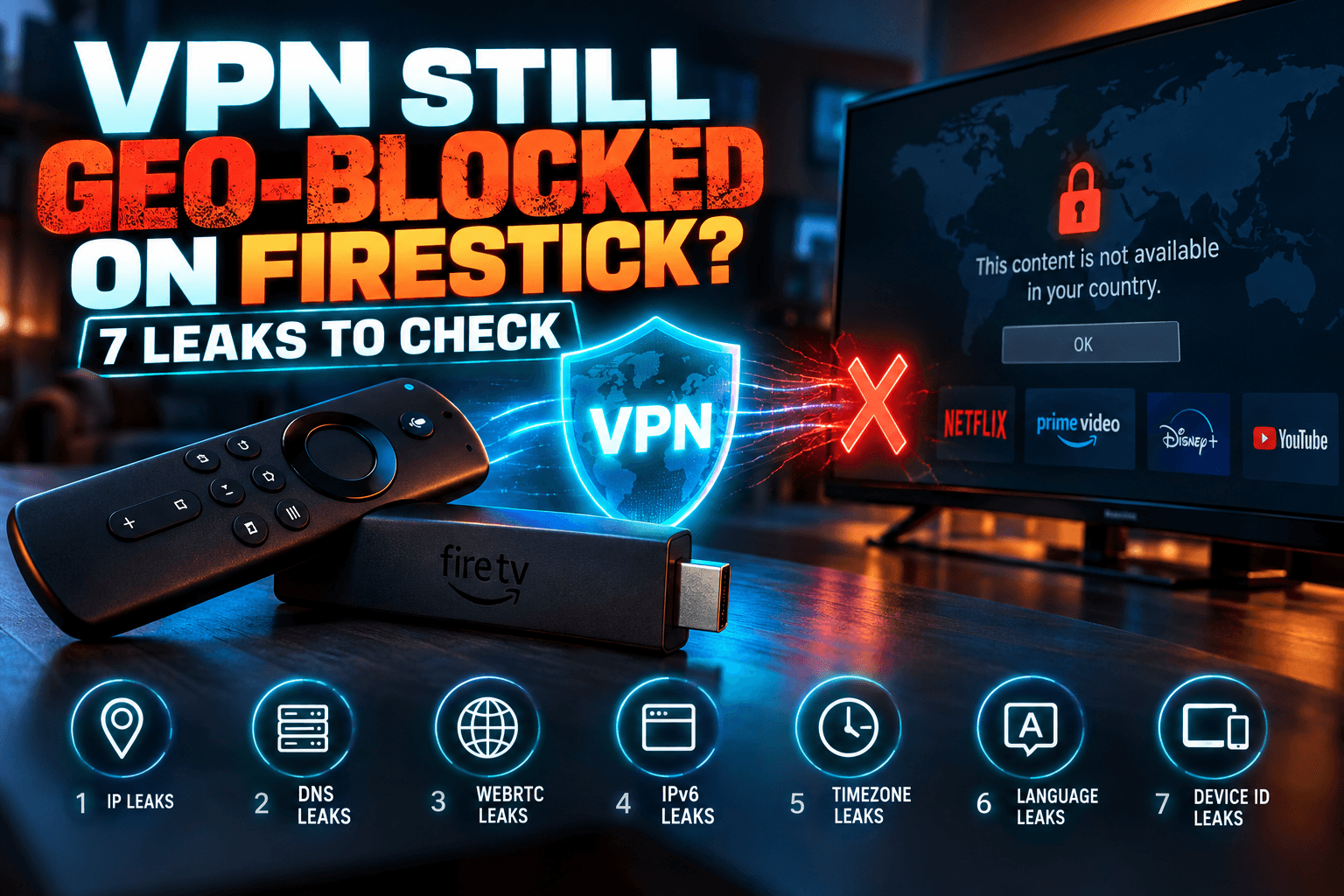
VPN geo-blocked on Firestick even though the app shows a happy green shield? You followed the tutorial, tapped Connect, and the streaming app still says this content isn’t available in your region. That usually isn’t a broken VPN. Something else on the device is still reporting where you actually are. I spent two weekends testing three devices, three VPN apps, and four regional broadcaster apps to find the seven leaks behind it, the order to check them in, and the fixes that held up.
I spent two weekends on this, with three devices, three VPN apps, and four regional broadcaster apps. Lots of coffee. This article covers the seven leaks I found, the order I’d check them in, and the fixes that held up. It also covers the account and terms-of-service risks that most VPN guides leave out.
Why a VPN Geo-Blocked on Firestick Isn’t Really a VPN Problem
“VPN connected” and “location hidden” aren’t the same thing. The connection screen only confirms that a tunnel exists. It says nothing about whether every request your Firestick makes goes through that tunnel, or whether the app is checking things a tunnel can’t change at all.
IP Address Is Only One Signal
Your public IP is the first thing a regional app looks at. It’s also the easiest signal to fake, which is why developers stopped trusting it on its own years ago. A VPN swaps your IP for one in another country. That’s it. Your device’s timezone stays put, so does the country on your Amazon account, and the VPN can’t touch the location data Google Play Services has already built from the Wi-Fi networks around your house.
So when you find your VPN geo-blocked on Firestick with the tunnel up, the app is often trusting a different signal over the IP.
How Regional Apps Layer Their Checks
Take a typical public broadcaster’s catch-up app, the kind run by a national network in the UK, Canada, Australia, or Germany. Licensing deals usually restrict it to one country. So it stacks checks:
- IP reputation: Is this address in a known datacenter range, or one shared by thousands of VPN users?
- DNS resolver location: Is the server resolving the app’s domains in the same country as the IP?
- IPv6 address: Does the device have a native IPv6 address from your real ISP?
- Device locale and timezone: Does a “UK” connection come from a device set to Pacific Time?
- App store account country: Is the app even licensed for this Amazon or Google account?
- Payment region: For paid tiers, does the card on file match the market?
Not every app runs all six. Most run at least three, though, and a single mismatch is enough to leave your VPN geo-blocked on Firestick.
How Bodhi Tested This
Forum threads blame everything. I wanted to know which signals actually leave a VPN geo-blocked on Firestick, so I logged every failure and changed one variable at a time until the app either played or kept refusing.
Devices and VPN Apps Used
- Fire TV Stick 4K Max (2nd gen) running Fire OS 8
- Chromecast with Google TV (4K) running Android TV 12 / Google TV
- NVIDIA Shield TV Pro (2019) on Shield Experience 9.x
The Chromecast has technically been replaced by Google’s newer TV Streamer, but plenty of people still use one, me included. For VPNs, I picked two well-known premium providers with native Fire TV and Android TV apps, plus one budget provider at under $2/month. I’m not naming them. Results shift week to week as IPs get flagged and replaced, and I’d rather you learn the diagnostic process than chase a brand that might stop working by March. On the streaming side, I used four free, ad-supported regional broadcaster apps from four different countries. Everything ran over a 300Mbps fiber line in the US.
What Counted as a Pass or Fail
A pass meant a live or on-demand stream played for at least five minutes without an error. A fail was any region error, any “VPN or proxy detected” message, or a stream that loaded the menu and then refused to play. Watch for that last one. It usually means a second check fires the moment you hit play, which caught me out more than once.
That came to 36 combinations (3 devices × 3 VPNs × 4 apps), with 19 failures. Here’s what left the VPN geo-blocked on Firestick and the Android TV boxes:
| Signal | Leaked in My Tests? | Blocks Caused (of 19 fails) | Fix That Worked |
|---|---|---|---|
| Cached app data from pre-VPN launch | Yes | 6 | Force stop + clear data after connecting |
| Flagged / shared datacenter IP | Yes | 5 | Different server; dedicated IP |
| IPv6 bypassing tunnel | Yes (budget VPN only) | 3 | VPN’s IPv6 protection; disable IPv6 on router |
| DNS going to ISP | Yes (one config) | 2 | VPN DNS on; removed custom DNS |
| Timezone mismatch | Yes | 1 | Set device timezone to target country |
| Location services / Play Services | Yes (Google TV only) | 1 | Location off + permission revoked |
| Account region | N/A (install-level) | 1 (app not listed) | Sideloaded verified APK |
It’s a small sample. Treat it as a field report, not a lab study. Still, the pattern was clear enough to shape the diagnostic order below for any VPN geo-blocked on Firestick.
The 7 Leaks That Keep Your VPN Geo-Blocked on Firestick
For each leak that can keep a VPN geo-blocked on Firestick, you’ll get a way to check it on the TV itself and the fix that worked for me. Some only apply to Fire OS, others only to Android TV / Google TV, and I’ve flagged which is which.
1. DNS Requests Going to Your ISP
Every time an app looks up a domain, your device asks a DNS server for the address. If that request skips the tunnel and lands on your ISP’s resolver, the app’s CDN sees a US resolver paired with a UK IP. Dead giveaway, and one of the most common reasons for a VPN geo-blocked on Firestick. (Wikipedia’s DNS leak article covers the mechanics if you want background.)
How to check (Firestick): Install the Amazon Silk browser from the Appstore, connect your VPN, and open a DNS leak test site such as dnsleaktest.com. Run the extended test, not the standard one. Any resolver belonging to your home ISP, or sitting in your home country, means you’re leaking, and that alone can keep a VPN geo-blocked on Firestick.
How to check (Android TV / Google TV): No built-in browser here, so you’ll need to sideload one. I use TV Bro. Same test, same reading.
Fix: In the VPN app, turn on the provider’s own DNS. It’s sometimes labeled “Use VPN DNS” or “DNS leak protection.” My one DNS leak came from a custom DNS I’d set on the Shield maybe eight months earlier and completely forgotten about. If you’ve ever changed DNS in your network settings, switch it back to automatic while you test.
2. IPv6 Bypassing the Tunnel
This was the budget VPN’s big weakness. Plenty of VPN apps only tunnel IPv4, and if your ISP hands out IPv6 addresses (Comcast, Sky, BT, and many others do), any app that prefers IPv6 can connect straight out over your real connection, tunnel or no tunnel.
How to check: Open Silk or your sideloaded browser, load an IPv6 test like test-ipv6.com with the VPN on, and look at the result. An IPv6 address from your ISP means traffic is escaping.
Fix: Fire OS has no user-facing toggle to disable IPv6. Neither does the Shield or Google TV (yes, it’s annoying). That leaves two options:
- Enable “IPv6 leak protection” in the VPN app if it has one. Both premium apps did, and it was on by default.
- Disable IPv6 in your router’s WAN/LAN settings. This fixed the budget VPN instantly on all three devices.
3. Flagged Datacenter IP Ranges
Streaming services pay for IP intelligence databases that tag address ranges belonging to hosting companies. Picture one VPN server IP shared by 2,000 people, all hitting the same broadcaster app at 8pm on a Saturday. It gets flagged fast.
How to check: If DNS and IPv6 are clean and the app specifically says “VPN or proxy detected,” it’s almost always the IP. Paste your VPN IP into any IP lookup site. Does it list a hosting provider rather than a consumer ISP? Then assume the streaming app sees the same thing.
Fix: Try another server in the same country. With the premium apps, I usually got through within two or three tries. The budget VPN failed on every server I tried for two of the four apps. More on that below.
4. Android Location Services and Google Play Services
Mostly Android TV / Google TV. Google Play Services can estimate your location from nearby Wi-Fi networks, and no VPN can disguise those. If a streaming app has location permission, it can simply ask the OS where you are and get your real city, whatever your IP claims.
How to check (Google TV): Settings → System → Privacy (or Settings → Privacy on newer builds) → Location. On older Android TV: Settings → Device Preferences → Location. Then check each streaming app’s permissions under Apps.
How to check (Firestick): Fire OS doesn’t run Google Play Services, which partly explains why the Firestick sailed through this check in my tests. Amazon does store a location, though, under Settings → Preferences → Location (usually a ZIP code). It’s mostly used for local content and weather. Set it on purpose anyway.
Fix: Turn location off and revoke the streaming app’s location permission. Curious what else your box reports back? My guide on checking whether your Android TV box is phoning home goes much deeper.
5. Timezone and Locale Mismatch
Some apps compare the device’s timezone against the IP’s country. A London IP on a device set to Eastern Time doesn’t prove anything on its own, since travelers exist, but it can push a borderline case into a block.
How to check and fix (Firestick): Settings → Preferences → Time Zone. (Android TV / Google TV): Settings → System → Date & time → turn off automatic time zone and select the target country.
In my testing, this mattered for exactly one app, and only on the Google TV device. Changing it takes about 20 seconds, though. Just do it.
6. Amazon or Google Account Region
This one doesn’t block playback. It stops you from installing the app at all. The Amazon Appstore and Google Play only list apps licensed for your account’s country, so no VPN will make a UK-only app appear in a US account’s store. Your options are in the app store section below.
7. Cached App Data From Before the VPN Was On
Here’s the big one. It was the top cause of failures in my testing, and tutorials skip it almost every time. Many apps check your region on first launch and cache the result, sometimes alongside a session token tied to your real location, which means that if you opened the app even once before connecting the VPN, it may keep reusing that cached “not allowed” verdict no matter which server you pick afterward.
Fix (Firestick): Settings → Applications → Manage Installed Applications → [app] → Force stop, then Clear data (not just Clear cache). (Android TV): Settings → Apps → [app] → Force stop → Clear storage. Not sure which button does what? I explain it in Android TV cache vs. storage vs. RAM.
A 5-Minute Diagnostic Order (Do It in This Sequence)
Order matters. Change the server before clearing app data and you’ll never know whether the new server fixed anything or the app is still reading its old cached verdict. Work from quickest win to most involved:
- Connect the VPN first, then force stop and clear the app’s data. Reopen the app only once the tunnel is up. This alone fixed 6 of my 19 failures.
- Run DNS and IPv6 tests in a browser. Two minutes in Silk or TV Bro. If either leaks, fix that before touching anything else.
- Switch server, then protocol. Try two or three servers in the target country. If they all fail, swap WireGuard for OpenVPN (or the reverse), since some providers route protocols through different IP pools. Clear the app’s data again after every change.
- Align the timezone and turn off location. Set the timezone to the target country and revoke the app’s location permission.
- Check the account region only if the app won’t install or the store calls it incompatible.
Still stuck after all five? The problem is almost always the IP pool itself. At that point you need a structural fix, not more tweaking.
Fixes That Actually Hold Up
Switching Servers vs. Getting a Dedicated IP
Switching servers costs nothing and often works. It just doesn’t last. A server that plays fine today can be flagged next month. A dedicated IP, usually an extra $3–$8/month depending on the provider, gives you an address nobody else uses, so it never builds up the abuse signals that sink shared IPs. The one dedicated IP I tested passed all four apps on all three devices.
The budget VPN never stood a chance with two of the apps. Small IP pool, heavily shared. That’s exactly the tradeoff I break down in Sub-$2 VPNs for Streaming: What You Actually Give Up.
Smart DNS vs. Full VPN for Region Checks
Smart DNS only reroutes DNS lookups for specific streaming domains. It doesn’t encrypt anything, and it doesn’t change your IP for other traffic. It’s fast, and it works on devices that can’t run VPN apps. Its weaknesses showed up quickly in testing:
- It does nothing against IP reputation checks unless the provider also proxies the video traffic.
- Apps that hardcode their own DNS (some call Google’s 8.8.8.8 directly) ignore it completely.
- IPv6 can still leak around it.
Smart DNS got me through on one of the four apps. A full VPN with clean settings got through on all four. For a single older app with light checks, Smart DNS is fine. Anything stricter needs a VPN.
Running the VPN on Your Router Instead
Many smart TVs and a few cheaper Android boxes can’t run VPN apps at all. A router-level VPN covers every device on the network, and if you disable IPv6 at the router while you’re in there, that problem goes away too. You pay for it in speed and convenience. I cover both in VPN on Your Router: What Actually Changes for IPTV.
Split Tunneling Pitfalls
On paper, split tunneling is ideal: route only the streaming app through the VPN. In practice, on Android TV, that app often leans on Google Play Services or a system WebView for login and DRM. When those run outside the tunnel, the app sees two countries in a single session. I watched an app log in fine and then fail at playback for exactly this reason, twice. Turn split tunneling off entirely while troubleshooting. My Kodi VPN split tunneling guide explains what’s safe to exclude.
When the App Isn’t Even in Your App Store
Changing Account Region: What You Lose
Changing your Amazon account country (Amazon.com → Content & Devices → Preferences → Country/Region Settings) touches more than you’d expect. Appstore purchases may become unavailable, Amazon Coins don’t carry over, and some subscriptions tied to the old region can stop working. Installed apps won’t vanish the second you switch. Updates and redownloads, though, may start failing.
Google is stricter. You can only change your Play country once a year, you need a payment method from the new country, and any Play balance stays locked to the old region. Google’s official help page on changing your Play country lists the exact rules. Would I change my main account’s region for one free app? No.
Sideloading Regional Apps Safely
Sideloading the APK is usually cleaner, provided the source verifies signatures. APKMirror, for example, checks that uploads match the developer’s original signing certificate. Before installing, compare the SHA-256 hash or signing certificate against a known-good copy. On a PC, Android’s apksigner verify --print-certs does this in roughly 10 seconds. Skip random mirrors and unknown Downloader codes. My guide to vetting a Downloader code before installing covers the red flags.
One catch: sideloaded apps won’t auto-update, and some regional apps refuse to run if they weren’t installed through an official store. I haven’t tested every broadcaster on this, so your mileage will vary.
Terms of Service, Accounts, and Realistic Expectations
Using a VPN is legal in the US, UK, Canada, and most of Europe. Legal isn’t the same as permitted, though. Most regional broadcasters’ terms limit streaming to their licensed territory, and a VPN doesn’t override those terms. Services can and do suspend accounts, especially paid ones where the payment country doesn’t match the viewing location. Some apps won’t even let you register without a local postcode or card.
The clearest legitimate case is reaching a subscription you already pay for while traveling. Think of a Brit in Florida watching their home broadcaster, or a Canadian on a work trip in Munich. Even then, it’s the service’s call. No VPN works against every app forever, and anyone promising otherwise is selling something.
Bodhi’s Verdict: Fixing a VPN Geo-Blocked on Firestick
After 36 test runs, the honest answer is a bit boring. Most failures weren’t dramatic leaks. Stale app data topped the list, followed by flagged shared IPs. IPv6 leaks only hurt the budget VPN, and timezone and location issues mattered far less than Reddit threads suggest. The biggest single fix? Connecting the VPN first, then clearing the app’s data. For the long haul, a dedicated IP from a reputable provider was the most reliable option I tested.
If you’re still dealing with a VPN geo-blocked on Firestick after all this, screenshot this checklist:
- ☐ VPN connected before opening the app
- ☐ App force stopped + data cleared
- ☐ DNS leak test clean (Silk / TV Bro)
- ☐ IPv6 test shows no ISP address
- ☐ Tried 2–3 servers + alternate protocol
- ☐ Timezone set to target country
- ☐ Location off, app permission revoked (Android TV)
- ☐ Split tunneling off while testing
- ☐ Still failing? Consider a dedicated IP or router VPN
⚖️ Legal Disclaimer: IPTV Wire does not own or operate any streaming service, application, or website mentioned in this article. We do not verify whether third-party services carry proper licensing. Users are responsible for ensuring they comply with copyright laws in their jurisdiction.
Frequently Asked Questions
Why does my streaming app still say it’s not available in my region when my VPN is on?
Usually the app is reading a signal other than your IP. The usual suspects: cached data from before you connected, a flagged shared server IP, or a DNS or IPv6 leak. Clear the app’s data with the VPN on, then run leak tests.
How do I run a DNS leak test on a Firestick?
Install Amazon Silk from the Appstore, connect your VPN, and visit a DNS leak test site. Run the extended test. If any resolver belongs to your home ISP or country, enable your VPN’s DNS protection and remove any custom DNS settings.
Should I disable IPv6 on Android TV when using a VPN?
Only if your VPN doesn’t block IPv6 on its own. Android TV and Fire OS have no IPv6 toggle, so start with your VPN app’s IPv6 leak protection. If an IPv6 test still shows your ISP address, disable IPv6 on your router.
Is Smart DNS better than a VPN for regional streaming apps?
It’s faster and works on devices without VPN support. Against modern checks, though, it’s weaker. In my testing, Smart DNS passed one of four regional apps, while a properly configured VPN passed all four. It doesn’t hide your IP, and apps with hardcoded DNS bypass it entirely.
Will changing my Amazon account country delete my apps?
Installed apps usually stay on the device. You may lose updates, redownloads, Amazon Coins, and some region-tied subscriptions, though. Sideloading a verified APK is often less disruptive than switching your account’s country.
Do I need to clear app data after connecting to a VPN?
Yes, if you’ve ever opened the app without the VPN. Many apps cache your region on first launch. Force stop the app, use “Clear data” (not just “Clear cache”) once the VPN is connected, then reopen it.
Comments
Leave a comment
Your email address will not be published. Comments are moderated before they appear.