


Table of contents
Quick answer: Use app-based split tunneling to route Kodi, Stremio and third-party IPTV players through the VPN. Keep Netflix, other official streaming apps, local Plex/Jellyfin clients and app stores on your direct connection to avoid proxy errors and LAN problems. Keep debrid authorization and streaming on the same route, and leave Android’s “Block connections without VPN” off, since it breaks split tunneling.
Kodi VPN split tunneling is the step most guides skip, and it’s the one that makes a VPN livable on a streaming box. Route Kodi through the tunnel, keep Netflix, Plex and your debrid traffic where they belong, and you avoid most of the proxy errors and local-network problems a full-tunnel VPN causes. This guide skips the install and covers what to configure once your VPN is already running.
Still shopping for a VPN? Pick and install one first, then come back. Everything below assumes you already have a working VPN app on your device and you want it to cooperate with Kodi, your official streaming apps and your debrid account, instead of fighting all three.
Why ‘Just Turn On the VPN’ Isn’t the Whole Kodi Setup
VPN apps usually start with every app inside the tunnel. ExpressVPN’s split tunneling menu, for example, defaults to “All apps use the VPN.” That’s simple, and it’s also where most of the friction comes from.
What a Full-Tunnel VPN Does to Every App on Your Device
A full-tunnel VPN sends traffic from every app through an encrypted server that may be hundreds of miles from your house. Kodi goes through it. So do Netflix, YouTube, your Plex client, the Amazon Appstore and background system updates.
Every detour can add latency and uses tunnel bandwidth. Your device’s processor also has to encrypt and decrypt everything in the tunnel, and a low-power streaming stick has far less headroom for that than a PC, especially with two heavy streams running at once.
Where Kodi Users Notice Problems First
The usual symptoms look like this:
- Official apps break. Netflix shows “You seem to be using a VPN or proxy” (error E106), Peacock refuses to play, or BBC iPlayer decides you’re suddenly not in the UK.
- Local network features vanish. The Plex or Jellyfin server sitting on the same Wi-Fi just disappears.
- Debrid authorization gets flaky. Real-Debrid links resolve one day and fail the next.
- Everything feels sluggish. Streams take longer to start, even in apps that never needed a VPN.
Kodi VPN split tunneling fixes this. You choose which apps use the VPN and which go straight out through your ISP.
How Kodi VPN Split Tunneling Works on Firestick, Android TV and Google TV
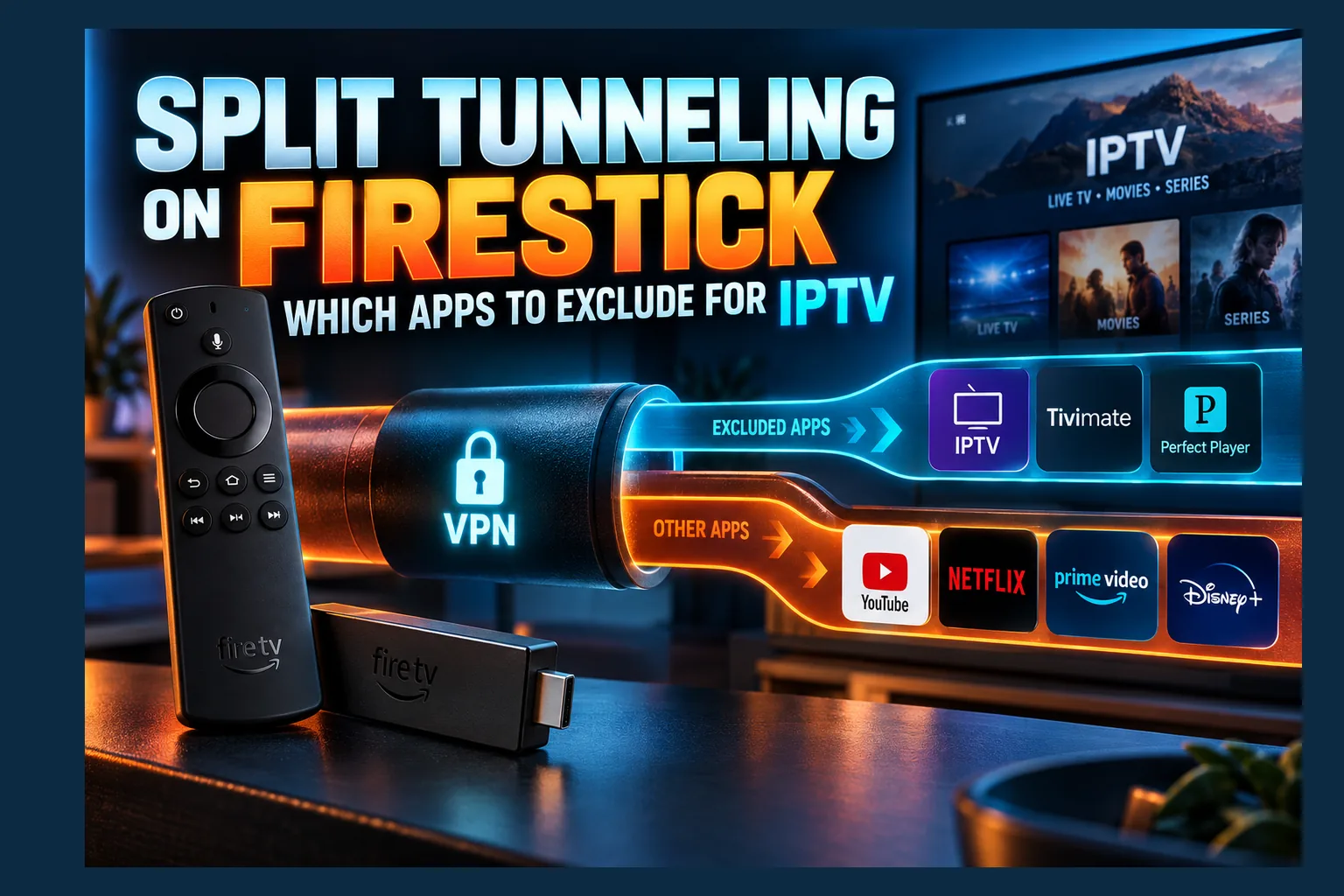
Think of Kodi VPN split tunneling as two lanes. One is encrypted and runs through the VPN. The other is your normal home connection. You decide which traffic takes which lane. If you want the networking theory behind it, Wikipedia’s split tunneling entry covers it well.
On Fire OS, Android TV and Google TV, the split is part of Android itself. Android’s VPN developer guide describes an allowed list, where only the listed apps use the VPN, and a disallowed list, where the listed apps use the normal network as if the VPN weren’t running. Whatever your VPN app calls the feature, it’s setting one of those lists.
App-Based vs. IP/Domain-Based Split Tunneling
VPN apps handle the split in one of two ways:
- App-based: You pick apps from a list, either “only these apps use the VPN” (inclusive) or “everything except these apps uses the VPN” (exclusive). This is what you’ll see on Fire OS and Android TV.
- IP/domain-based: You route by destination, for example by sending traffic for a particular domain or subnet outside the tunnel. You’ll mostly find this on desktop clients and routers.
On a streaming box you’ll use the app-based kind. Inclusive mode is usually easier to live with when your VPN offers it: put Kodi and your other third-party players in the tunnel and leave everything else alone. An exclusion list has to grow every time you install an app that shouldn’t use the VPN. The trade-off is that in inclusive mode, a new player you install isn’t protected until you add it.
Which Platforms Support It (and Where It’s Missing)
| Platform | Split Tunneling Support | Notes |
|---|---|---|
| Fire TV / Firestick (Fire OS) | Yes, app-based, in several major VPN apps | Feature names vary: “Split Tunneling” in most apps, “Bypasser” in Surfshark |
| Android TV / Google TV | Yes, app-based | Some apps offer include and exclude modes; others document exclusion only |
| Apple TV (tvOS) | Check your provider’s tvOS docs | NordVPN’s and Proton VPN’s split tunneling guides don’t list Apple TV |
| Windows / macOS Kodi | Varies by provider | NordVPN documents it for Windows but not macOS; Proton VPN’s macOS version is experimental and exclusion-only |
| LibreELEC / CoreELEC | No per-app option | The LibreELEC WireGuard guide routes all traffic through the tunnel by default; exceptions need manual routing rules or a router-level setup |
Apple TV owners should assume full tunnel unless their provider documents split tunneling for tvOS. The realistic options are toggling the VPN on and off by hand or moving it to your router.
One more wrinkle on Amazon hardware. Amazon’s Vega OS, which started with the Fire TV Stick 4K Select, is built on Linux components rather than Android, according to Amazon’s developer announcement. Kodi on Fire TV is the Android app, so this guide applies to Fire OS models. Amazon still releases Fire OS devices, so check your device’s About screen in Settings if you’re not sure which system you have.
Split Tunneling in Popular VPN Apps for Fire TV and Android TV
Here’s what major providers document for TV devices. Menus change between app versions, so confirm in your own app’s settings.
| VPN | Feature name | Modes documented | TV notes |
|---|---|---|---|
| NordVPN | Split tunneling | Exclude selected apps | Covered in its Android TV and Amazon Fire guides. First- and second-generation Fire TV Sticks and the Fire TV Stick Basic Edition can’t run the app. |
| ExpressVPN | Split Tunneling | All apps, exclude selected apps, or only selected apps | Covered in its Android TV guide. The Fire TV guide doesn’t walk through it, so check the app’s settings on Fire OS. |
| Proton VPN | Split Tunneling | Exclude or Include | Android TV steps are in its split tunneling guide. Paid plans only. An Amazon Appstore build is available for Fire TV. |
| Surfshark | Bypasser | Bypass VPN or Route via VPN (documented on Android) | The Fire TV guide needs Fire OS 7.0 or later and says the interface matches Android TV, but the TV guides don’t cover Bypasser. |
| IPVanish | Split tunneling | Check the app | IPVanish announced split tunneling for its Fire TV app in March 2024. |
Why Router VPNs Handle This Differently
A router VPN works at the network level. It routes by device or IP address, not by app. You could send your whole Firestick through the VPN and keep your smart TV outside it. That’s handy, but unlike Kodi VPN split tunneling on the device itself, it can’t separate Kodi from Netflix on the same box. The router approach is covered in VPN on Your Router: What Actually Changes for IPTV, so this article sticks to device-level Kodi VPN split tunneling.
Kodi VPN Split Tunneling: What Should Go Through the VPN (and What Shouldn’t)
People get this part of Kodi VPN split tunneling wrong more than any other. Use this table as a starting point, then adjust it to the apps you actually run.
| App / Traffic | Route | Why |
|---|---|---|
| Kodi (and forks) | VPN | Addon scrapers and third-party sources are the main privacy concern |
| Stremio | VPN | Same reasoning as Kodi, especially with peer-to-peer addons, which expose your IP to other peers |
| Third-party IPTV players (TiviMate, IPTV Smarters, etc.) | VPN | Hides the traffic from your ISP and can help if your ISP throttles video |
| Netflix, Disney+, Prime Video, Peacock and other official apps | Direct | Avoids VPN/proxy errors and keeps your home region’s catalog |
| BBC iPlayer, ITVX, CBC Gem, Crave | Direct (if you’re in-region) | Location checks can flag VPN addresses, even on servers in your own country |
| Plex / Jellyfin / Emby clients (local server) | Direct | Needs LAN access to find your server |
| Downloader, Appstore, system updates | Direct | Official stores and updates gain little from the tunnel |
| YouTube | Direct | Little privacy benefit for most viewers |
| Debrid-connected addons | Depends (see below) | Must match how you authorized your debrid account |
Route Through the VPN: Kodi, Stremio, Third-Party IPTV Players
These apps connect to sources you don’t control. A single search in a Kodi addon can query many sites at once, and without a VPN your ISP sees every one of those connections. That’s the traffic worth protecting.
Read next: VPN Split Tunneling on Android: What to Exclude & Why
Third-party IPTV players can also benefit if your ISP throttles video, because the tunnel hides what kind of traffic it is. Not every ISP throttles. The comparison method in the speed section below shows how to check yours.
Keep Outside the VPN: Official Streaming Apps, Local Media Servers, Downloader
Official apps gain nothing from a VPN if you’re watching your home catalog, and some actively block VPN traffic. Netflix’s help center covers its VPN or proxy error, and the fix it gives is turning the VPN off. Excluding these apps avoids that screen.
One catch: an excluded app may still use the VPN’s DNS. NordVPN notes that excluded apps keep using its DNS servers, which can make some streaming services misjudge your location. If an excluded app still complains about your region, check your VPN’s DNS settings.
Local media servers are the bigger headache. Your Plex or Jellyfin client reaches the server over your LAN, and pushing it through the tunnel can hide the server entirely unless your VPN lets local traffic bypass the tunnel. NordVPN’s Android TV app lists a “Local network discovery” setting, and Proton VPN says its Android TV app allows LAN connections automatically for paid accounts. If your app has no such option, keep the media client outside the tunnel.
Downloader is minor. Excluding it and the app stores keeps large downloads on your full home connection. If you use Downloader to fetch files you’d rather keep private, leave it in the tunnel instead.
The Gray Zone: Debrid-Connected Addons
Now it gets messy. Your Kodi addons talk to Real-Debrid, and so does the phone or laptop browser you use to authorize the account. If those two take different routes, you’ve created the IP mismatch problem covered in the next section.
Real-Debrid, Premiumize and VPNs: Where the Conflict Comes From
Debrid services and VPNs have a complicated relationship, and split tunneling can make it much better or much worse.
Why Debrid Services Flag Changing IPs
Real-Debrid’s terms say it records connections to your account to detect account sharing, that only the account holder may connect, and that sharing leads to suspension. They also bar using the service from a dedicated server, VPS or cloud service unless you buy its separately sold Remote Traffic.
A VPN changes your IP. Split tunneling can mean you’re running on two IPs simultaneously: your real one in a browser and the VPN one in Kodi. To a system that watches for account sharing, that can look like two people using one account.
Premiumize, AllDebrid and other services set their own rules on VPNs and datacenter addresses, and those rules change. Read each service’s current terms and help pages instead of trusting an old forum thread.
Shared vs. Dedicated IP Considerations
Most VPN servers are shared, with many people exiting from the same address. A shared address can pick up a bad reputation from other users before you ever connect. If debrid links fail on one server and work on another, that’s a likely reason.
Some providers sell a dedicated IP as an extra, which Surfshark describes as a unique IP address only you can use. It removes the shared-address problem and keeps your IP the same between reconnects. Since it costs extra, it’s mainly worth considering if you keep hitting debrid blocks on shared servers. Check the debrid service’s terms before you buy.
Keeping Authorization and Streaming on the Same Route
Consistency is the whole fix. Whatever route Kodi takes, your debrid traffic should take too. Work through it in this order:
- Connect the VPN and confirm Kodi is in the tunnel.
- Pin a specific server. Don’t use “fastest server” auto-selection.
- Start the debrid authorization from inside Kodi. Addons that use Real-Debrid’s device login show a short code.
- Enter the code at real-debrid.com/device on a device that’s also on the VPN, or do it quickly and close the browser right after.
- Avoid streaming from Kodi on two devices with different routes at the same time.
A failed or expired authorization doesn’t always produce a clear error. In addons like Seren or Umbrella, if scrapers return results but cached links never resolve, re-check the debrid authorization first. How Umbrella’s fork handles debrid differently is covered in Infinity vs Umbrella Kodi Addon: What the Fork Changes.
Kill Switch + Split Tunneling: Settings That Fight Each Other
A kill switch is supposed to cut your internet when the VPN drops. Pair it with split tunneling and things get less predictable than most people expect.
How Kill Switches Behave When Apps Are Excluded
On Android-based systems, an excluded app uses the normal network as if the VPN weren’t running, so it keeps working when the VPN drops. That’s usually what you want, since there’s no reason Netflix should stall because your VPN reconnected.
Inclusive mode needs a closer look. The question is what happens to Kodi, the app you did include, when the tunnel goes down. That depends on the VPN app’s own kill switch, and it isn’t always on. ExpressVPN’s Android TV app, for example, has a “Network protection” setting that blocks internet when the app can’t connect or reconnect, and it’s off by default. Turn on your app’s equivalent, then test it with the steps below.
Always-On VPN in Android Settings
Android 7.0 and later support Always-on VPN, which starts the VPN at boot and keeps it running, plus a Block connections without VPN switch that blocks any traffic not using the VPN. Whether you can turn them on depends on your VPN app and device. On phones they’re usually under Settings → Network & internet → VPN, behind the gear icon next to your VPN. Not every TV device exposes them in its settings menus.
“Block connections without VPN” can override your split tunnel. ExpressVPN’s split tunneling guide says split tunneling won’t work while it’s enabled, because Android then blocks every connection outside the tunnel, including excluded apps. The symptom: excluded apps like Netflix spin forever or report no connection.
If you’re splitting traffic, turn on Always-on VPN so the tunnel comes back after a reboot, leave “Block connections without VPN” off, and let the VPN app’s own kill switch do the job.
Testing for Leaks After Configuration
Don’t assume it works. Test it:
- Install a lightweight browser app (TV Bro or similar) and put it in the same routing group as Kodi.
- Visit ipleak.net or a similar checker. You should see your VPN server’s IP and location, and its DNS detection should show the VPN’s resolvers, not your ISP’s.
- Move the browser to the excluded group, reconnect the VPN and reload. You should now see your real ISP’s IP.
- Inside Kodi, go to Settings → System information → Network and note the DNS servers listed. If they’re your ISP’s while the VPN is on, you may have a DNS leak. Confirm with the browser test, since Kodi only reports what the system hands it.
- Test the kill switch: switch servers in the VPN app and keep reloading the IP check in the browser that shares Kodi’s group. You shouldn’t see your ISP’s IP at any point. Some kill switches only act on unexpected drops, not when you disconnect on purpose.
The browser-twin trick isn’t perfect, but it’s a decent stand-in for Kodi’s routing because both apps sit in the same group. Curious what else your box sends out? Read Is Your Android TV Box Phoning Home? How to Check.
Speed and Buffering: How to Compare Full Tunnel and Split Tunnel Yourself
You’ll find claims that a “Kodi VPN slows down streams” all over forums. The real effect depends on your device, ISP, server and protocol, so the only numbers that matter come from your own setup.
How to Set Up a Fair Comparison
- Keep everything else fixed: same device, same connection (wired if you can), same pinned server and protocol.
- Measure each lane: run a speed test app in Kodi’s routing group, then again with it excluded.
- Use a real stream: time how long the same cached link takes to start in Kodi, and note how often it stalls over a fixed playback length.
- Repeat: run each setup several times, off-peak and during the evening peak, and compare averages.
- Change one thing at a time: full tunnel vs. split, then server, then protocol.
What the Results Tell You
| What you see | What it likely means | What to try |
|---|---|---|
| Excluded apps speed up noticeably after you split traffic | The tunnel or the device’s encryption load was holding them back | Keep them excluded |
| Kodi is slow with the VPN on but fine with it off | The server or protocol is the bottleneck | Try a closer server or another protocol your app offers |
| Kodi is slow with the VPN on and off | The VPN isn’t the cause | Check cache settings, scrapers and Wi-Fi |
| Streams slow down at peak hours only with the VPN off | Possible ISP throttling of video traffic | Keep IPTV players and Kodi in the tunnel |
When the VPN Is Actually Causing Your Kodi Buffering
Not every buffering problem is the VPN’s fault. Here’s a quick check: disconnect the VPN and play the same cached link. If the buffering stops, the VPN (or your server choice) is the bottleneck. Try a closer server, or switch to a different protocol in your VPN app’s settings and compare.
Still buffering with the VPN off? Then look elsewhere: cache settings, a slow scraper, or Wi-Fi interference from the neighbor’s router. Those are covered in Kodi Buffering After Setup: What’s Actually Causing It.
Troubleshooting Common Split Tunnel Problems
Kodi Still Shows Your Real IP
Start by confirming Kodi is actually ticked in your VPN’s app list. Next, check for a fork. Official Kodi’s Android package name is org.xbmc.kodi, and a fork that installs alongside it needs its own package name, so your VPN app may list it under a different label. It’s easy to select the wrong one.
Reconnect the VPN and force-stop Kodi after changing split tunnel settings, too. ExpressVPN, for example, applies changes made while connected the next time the VPN connects, and apps that were already running can hang onto their old connections until they restart.
Addons Can’t Reach Scrapers or Debrid
Some sites block VPN address ranges, so switch servers and try again. Scrapers working but debrid links failing? Go back to the debrid section above. A route mismatch during authorization is the first thing to rule out.
DNS can be part of it as well. If your VPN app has a custom DNS option, check what it’s set to and retest. A DNS leak means your ISP’s resolver still answers lookups for apps that should be in the tunnel, and the leak test above will show it.
VPN App Forgets Exclusions After Updates
Re-check your split tunnel list after updates. A VPN app update can change or reset settings, and if you uninstall and reinstall Kodi instead of updating in place, it has to be added to the list again.
The fixes:
- After any update, open your VPN app and re-check the app list.
- If the list looks wrong, force-stop the VPN app and reopen it. If that doesn’t help on Fire OS, go to Settings → Applications → Manage Installed Applications, select your VPN app and choose Clear Cache. Clear Data resets the app completely, so you’d have to sign in and rebuild your list.
- Take a photo of your routing setup so you can rebuild it in two minutes.
Getting Your Kodi VPN Split Tunneling Setup Right
Installing the VPN is the easy part. Getting it to behave takes the real work. A solid kodi vpn split tunneling setup puts Kodi and third-party players in the tunnel, keeps official apps and local servers on your home connection, and holds your debrid account to one consistent IP.
Run a leak test after every major change. Pin your servers. Keep “Block connections without VPN” off if you’re splitting traffic. And if you’re on Apple TV, look at a router-level setup instead. The best VPN settings for Kodi aren’t the defaults. They’re the ones you’ve checked on your own setup.
For official Kodi downloads and documentation, stick with kodi.tv.
⚖️ Legal Disclaimer: IPTV Wire does not own or operate any streaming service, application, or website mentioned in this article. We do not verify whether third-party services carry proper licensing. Users are responsible for ensuring they comply with copyright laws in their jurisdiction.
Frequently Asked Questions
Does split tunneling make a VPN less secure for Kodi?
Not for Kodi itself. Kodi’s traffic stays encrypted inside the tunnel, and only the apps you exclude use your normal connection. The real risk is misconfiguration, like picking the wrong Kodi entry or a DNS leak, so run a leak test once you’re set up.
Can I use split tunneling on an Amazon Firestick?
Yes, on Fire OS models. NordVPN and IPVanish say their Fire TV apps support it, and other providers document it for Android TV. The feature might be called “Split Tunneling” or, in Surfshark’s case, “Bypasser.” Fire TV devices running Vega OS aren’t Android-based, so the Kodi Android app doesn’t apply there.
Why does Real-Debrid stop working when I use a VPN?
Real-Debrid records connections to detect account sharing, so authorizing on one IP and streaming on another can look like two users. A shared VPN address may also carry a poor reputation. Pin a server, keep authorization and streaming on the same route, and consider a dedicated IP if blocks keep happening.
Does the VPN kill switch protect apps excluded by split tunneling?
No. Excluded apps use your regular connection whether the VPN is up or down, which is normally the intended behavior. The exception is Android’s “Block connections without VPN” setting, which blocks excluded apps too. That’s why it breaks split tunneling.
Should Kodi go through the VPN while Netflix stays outside it?
For most people, yes. Kodi addons connect to third-party sources worth protecting, while Netflix gains nothing from a VPN and shows an error when it detects one. Splitting them avoids that error and keeps Netflix traffic off the tunnel.
How do I check whether Kodi is actually using the VPN?
Put a browser app in the same routing group as Kodi and visit an IP-check site. You should see the VPN server’s IP, not your ISP’s. Then check the DNS servers under Kodi’s Settings → System information → Network and run the site’s DNS detection to catch leaks.
Comments
Leave a comment
Your email address will not be published. Comments are moderated before they appear.