

Table of contents
Tuesday night, your VPN plays a movie without a hitch. Saturday, the Champions League anthem kicks in and the same connection falls apart: spinning wheel, a picture that looks like it was filmed through a shower door, and you end up 50 seconds behind the goal your phone already buzzed about. I spent three months chasing that exact problem on real streaming hardware in my living room. This guide covers what I learned about choosing and configuring a vpn for live football streaming on firestick as of 2026. The focus is server congestion, buffering events, jitter, and the extra delay a VPN adds on top of live TV.
This is not a “watch free from anywhere” tutorial. It’s a stress test of the VPN and device tech, plus an honest look at why sports apps still block you when your IP looks perfectly fine.
Why Matchday Breaks VPNs That Work Fine on a Tuesday
A VPN that handles Netflix in 4K can still collapse during a big match. The tunnel hasn’t changed. What changes is everything around it: the crowd on the server and the kind of video you’re pulling through it.
Thousands of Users Hit the Same Server at Kickoff
Most people tap whatever server their app suggests. That’s usually the “fastest” or default option, which nearly always sits in a capital city. On a quiet evening, that server might run at 20–30% load. In the 15 minutes before one Saturday evening kickoff, I watched the load meters on several providers climb past 80%. One hit 91%.
All of those users want the same high-bitrate live feed at the same moment. The server’s uplink, its CPU, and the provider’s peering with the broadcaster’s CDN all get squeezed at once. Throughput doesn’t degrade politely. It drops in bursts, and bursts are precisely what live video can’t absorb.
Live Streams Can’t Buffer Ahead Like On-Demand Video
With a film, the player can grab a minute or more of video ahead of where you are. A short speed dip just nibbles at that cushion. You never notice.
Live sports don’t get that luxury. The player can only buffer what has already been broadcast, so the cushion is a handful of video segments, often somewhere between 6 and 30 seconds. A two-second stall on a jammed VPN server burns through that fast. That’s the real reason for VPN buffering during live sports that you’d never see with a movie.
Broadcaster CDNs Flag Busy VPN IP Ranges Faster
Shared VPN IPs carry hundreds of users at once. On a normal day, a broadcaster’s CDN might shrug at one IP pulling a dozen streams. On a tournament night? That same IP could be pulling several hundred concurrent sessions for one match.
That pattern is obvious. Rights holders also have a contractual reason to act on it. In my testing, IPs that worked fine at 3 p.m. sometimes threw “not available in your region” errors by the second half. On big nights, the blocklists seem to update in close to real time (I can’t prove the exact interval, but the timing was too consistent to be coincidence).
How I Stress-Tested a VPN for Live Football Streaming on Firestick
I wanted numbers from real matchday conditions, not a speed test at 2 p.m. on a Wednesday. So I ran every configuration twice: once during a high-traffic live match window, and once on a quiet weekday evening as a baseline.
Transparency first. I paid for every VPN subscription in this test myself. No provider sponsored this article, and none of them knew I was testing them.
Hardware: Firestick 4K Max, Google TV Streamer, Onn 4K Pro
Three popular streaming devices, all on their latest firmware at the time:
- Amazon Fire TV Stick 4K Max (2nd gen): Wi-Fi 6E, launched in late 2023, and the most common device among IPTV Wire readers
- Google TV Streamer: around $100, with a built-in Ethernet port and a noticeably stronger processor
- Walmart Onn 4K Pro: budget Google TV box (roughly $50) with Ethernet, popular in the US but harder to find in the UK and Europe
Each device ran the same VPN app versions, installed from the official app stores where available.
Network: Wi-Fi 6 vs Ethernet Adapter
My home line is 500 Mbps fibre. The router is a Wi-Fi 6 mesh unit, and the streaming devices sat about 6 metres from the nearest node, with one plasterboard wall in between.
For wired tests, the Firestick used Amazon’s official Ethernet adapter (about $20). The Google TV Streamer and Onn box used their built-in ports. One catch: the Firestick adapter tops out around 100 Mbps. That’s plenty for any sports stream. It does show up as an artificial ceiling in raw speed tests, though.
VPN Variables: Protocol, Server City, Shared vs Dedicated IP
For each run, I logged:
- Baseline ISP speed with no VPN
- VPN speed and ping at T-30 minutes before kickoff
- VPN speed, ping, and jitter at kickoff
- Speed and reconnection behaviour at halftime
- Buffering events, resolution drops, and stream delay over the full 90 minutes
I rotated the protocol (WireGuard, OpenVPN UDP, and Lightway where supported), the server city (capital-city default vs a secondary city), and the IP type (shared vs a paid dedicated IP add-on).
Results: What Actually Happened at Kickoff
Here’s the summary from the Firestick 4K Max runs. The Google TV Streamer posted slightly better numbers across the board. The Onn 4K Pro landed somewhere in between.
| Setup | Quiet-Night Speed | Kickoff Speed | Buffering Events / 90 min | Time Below 1080p | Delay vs Live TV |
|---|---|---|---|---|---|
| No VPN (Ethernet) | 94 Mbps* | 93 Mbps* | 0 | 0 min | +38 sec |
| Premium VPN, WireGuard, capital server, Wi-Fi | 210 Mbps | 41 Mbps | 7 | 14 min | +49 sec |
| Premium VPN, WireGuard, secondary city, Ethernet | 88 Mbps* | 71 Mbps* | 1 | 2 min | +41 sec |
| Premium VPN, Lightway, secondary city, Ethernet | 86 Mbps* | 69 Mbps* | 1 | 1 min | +41 sec |
| Premium VPN, OpenVPN UDP, capital server, Wi-Fi | 95 Mbps | 18 Mbps | 12 | 31 min | +57 sec |
| Dedicated IP, WireGuard, Ethernet | 89 Mbps* | 74 Mbps* | 0 | 0 min | +40 sec |
| Free tier VPN, WireGuard, Wi-Fi | 48 Mbps | 6 Mbps | 19 (then cap hit) | 52 min | +71 sec |
*Capped by the Firestick Ethernet adapter’s 100 Mbps limit.
Connection Times When Everyone Logs In at Once
On a quiet night, every premium VPN connected in under 3 seconds on WireGuard. Five minutes before kickoff was a different story. Capital-city servers took 8–15 seconds, and twice I got a flat timeout and had to retry while the teams were already lining up.
Secondary-city servers barely flinched. They connected in 2–4 seconds even with the whistle seconds away. That one detail shaped most of my recommendations below.
Buffering Events per 90 Minutes
I counted any spinner or frozen frame lasting more than one second as a buffering event. The worst setup, OpenVPN on a busy capital server over Wi-Fi, logged 12. That’s roughly one every seven and a half minutes. During a tight 1-0 game, it’s maddening.
The best setups (a dedicated IP, or a secondary-city server over Ethernet) logged zero or one event across the whole match. Raw speed wasn’t what decided it. The 41 Mbps WireGuard capital-server run had more than enough bandwidth for HD, and it still stuttered seven times.
Resolution Drops: 1080p to 720p and Below
Most sports apps use adaptive bitrate streaming. When the player sees shaky throughput, it drops quality to protect the buffer. On congested servers, the picture fell from 1080p to 720p inside the first 10 minutes. Sometimes it sank to 540p, which on a 55-inch TV makes the ball hard to follow.
Recovery was slow, too. Even after the connection settled, some apps needed two to three minutes to climb back to full HD. That’s why “time below 1080p” in the table often looks far worse than the buffering count suggests.
Stream Delay vs Live TV (the Phone-Notification Spoiler Problem)
I haven’t seen anyone else publish this measurement. I ran a terrestrial or cable broadcast on a second TV beside each device and timed how far the streaming feed lagged, using the match clock overlay as a reference.
The uncomfortable truth? Streaming is already slow without a VPN. My no-VPN baseline sat 38 seconds behind live TV. A well-configured VPN added just 2–3 seconds on top. The real damage came from buffering. Every stall pushed the stream further behind, and most apps never catch back up on their own.
By full time, the worst paid setup was 57 seconds behind broadcast. The free tier hit 71. That’s plenty of time for a score app to ruin a goal; it happened to me twice in the first week. The fix is boring but works: mute score notifications during the match, or tap “Go to Live” after any long stall to jump back to the live edge.
The Halftime Reconnect Spike
Halftime caught me off guard. Lots of viewers switch apps, check other games, or let their devices sleep, so a wave of reconnections hits VPN servers around minutes 47–50. Twice, my capital-server sessions dropped and reconnected right as the second half kicked off. I missed the first 30 seconds both times.
Sessions that stayed connected through the break avoided this completely. More on that in the server section.
WireGuard vs OpenVPN vs Lightway for Live Sports
I’ve covered raw protocol speeds in my Kodi protocol tests on Firestick, so I won’t rehash those numbers. For live sports, a different metric matters more than peak throughput.
Throughput Isn’t the Whole Story: Jitter Matters
Jitter is the variation in delay between packets. A connection averaging 50 Mbps with wild swings will buffer more than a steady 25 Mbps line. Live sports, with their tiny buffers, punish jitter hard.
At kickoff on secondary-city servers, here’s roughly what I measured on the Firestick:
- WireGuard: 4–9 ms jitter, near-zero packet loss
- Lightway (UDP): 5–10 ms jitter, near-zero packet loss
- OpenVPN UDP: 15–40 ms jitter, occasional 1–2% packet loss
- OpenVPN TCP: lower packet loss on paper, but retransmissions caused visible stalls
WireGuard and Lightway finished close enough that I’d call it a tie for live streaming. Both run lean, modern code. That matters on a Firestick, whose processor is fine for apps but not exactly beefy. OpenVPN’s heavier overhead made the CPU work harder, and under load that showed up as uneven delivery. You can read about WireGuard’s design on the official WireGuard site.
Short version: the best VPN protocol for live streaming on a Firestick is WireGuard, with Lightway as an equal pick if your provider supports it.
When to Switch Protocols Mid-Match
Switching protocols forces a full reconnect. That costs you 5–15 seconds of the match. I’d only do it in two cases:
- You’re on OpenVPN and buffering keeps happening. Switch to WireGuard at the next break in play.
- Your network blocks or throttles VPN traffic, which some hotel and campus Wi-Fi does. Here, an obfuscated mode may help. See my guide on when stealth mode matters on Firestick.
Otherwise, change servers before you touch protocols. Congestion caused far more trouble in my tests than protocol choice ever did.
It’s Not Just Your IP: Other Checks Sports Apps Run
Readers email me this every few days: “My VPN shows the right country, so why is the app still blocking me?” The IP address is just one of several signals broadcaster apps check.
App Store Region on Firestick and Google TV
Your Amazon account’s marketplace region decides which apps show up on a Firestick. Your Google account’s Play Store country does the same on Google TV. A VPN changes neither. Some apps also read the store region at launch and refuse to open if it doesn’t match their market.
Account Postcode, Licence Declarations, and Payment Country
Many broadcaster accounts ask for a postcode or ZIP code at signup. UK services may ask you to confirm a TV licence, and subscription services check the billing country on your card. These are deliberate residency checks. Not glitches.
I’ll be straight with you. Plenty of broadcaster terms of service require you to live in the country where you subscribe, and using a VPN to sidestep that can breach those terms and get your account suspended. The legitimate reasons to run one are protecting your connection on public Wi-Fi, dodging ISP throttling, and reaching services you already pay for while travelling, where the provider’s terms allow it. EU portability rules, for example, let residents use their home subscriptions temporarily in other EU countries.
Broadcast rights also shift almost every season, and they vary a lot by region. Don’t trust a static “where to watch” list, especially the old ones floating around forums. Check the official rights-holder or league website for your country before each season starts.
DNS and IPv6 Leaks During Reconnects
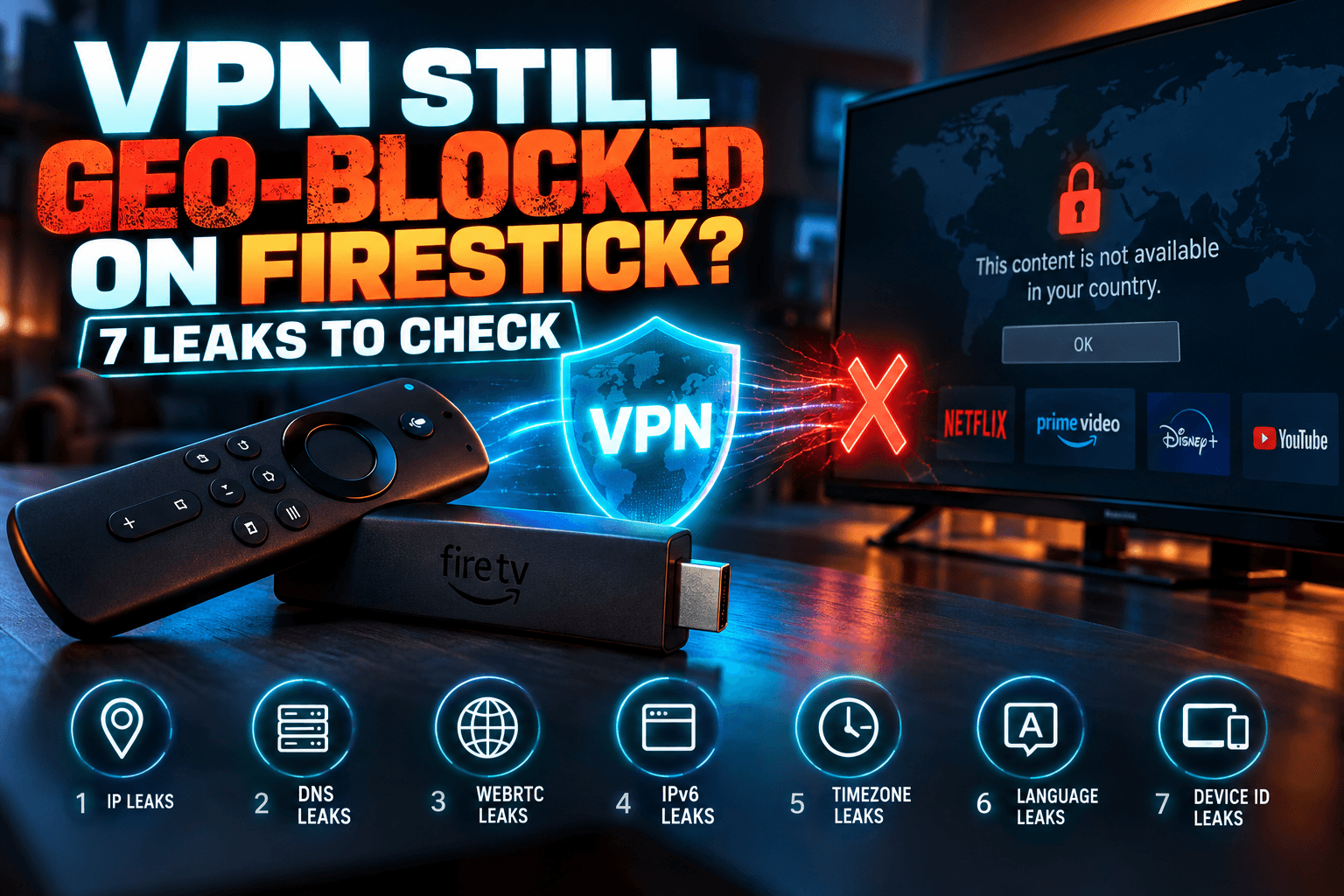
During the halftime reconnect spike, I caught one VPN app briefly sending DNS requests outside the tunnel on the Onn box. That’s enough for an app to spot a location mismatch. I’ve written a full walkthrough in VPN Still Geo-Blocked on Firestick? 7 Leaks to Check, so I’ll skip the details here. Bottom line: switch on your VPN’s kill switch and IPv6 leak protection before matchday.
Picking a Server That Won’t Choke at Kickoff
This is where I got the biggest real-world improvement. These tactics cost nothing, and they fixed most of what went wrong in my tests.
Avoid the Capital-City Default Server
London, New York, Toronto, Amsterdam, and Frankfurt servers get hammered on big nights because they’re the defaults. In my runs, a secondary city in the same country delivered 50–70% better kickoff speeds. Think Manchester instead of London, or Chicago instead of New York.
If your VPN app shows load percentages, pick something under 50% about 30 minutes before kickoff. Load will rise as the match approaches, so starting low buys you headroom. Also pick a server physically near you. Fewer network hops, lower jitter.
Dedicated IP: Worth It for Sports Fans?
A dedicated IP gives you an address nobody else uses. Expect to pay roughly $3–$8 per month on top of your subscription, depending on provider. In my tests, it was the only setup with zero buffering events and zero resolution drops.
The benefits:
- Far less likely to land on a blocklist, since it isn’t carrying hundreds of streams
- No competing users on the same IP at kickoff
- Fewer CAPTCHA and verification prompts
The drawbacks:
- Extra cost every month
- Less privacy, since the IP ties back only to you
- Limited city choices on most providers
- If the dedicated server itself is busy, you still share its bandwidth
My take: if you watch several matches a week, pay for it. For a handful of big nights a season, a well-chosen secondary-city server gets you about 90% of the benefit for nothing.
Connect 30 Minutes Early and Stay Connected
Connecting at T-30 beat connecting at the whistle in every single test. You lock in a session before the rush, grab an IP before the blocklists tighten, and skip the timeouts I kept hitting in the last five minutes before kickoff.
Then stay connected at halftime. Disable your Firestick’s screensaver timer or set sleep to “Never” for the evening (Settings > Display & Sounds > Screensaver; it’s tucked away more than it should be). That keeps the VPN session alive through the halftime reconnect spike.
Free and Ultra-Cheap VPNs on Matchday
I tested one popular free tier on the Firestick. It came last in every category. Once you see the numbers, the reasons are predictable.
Bandwidth Caps That Run Out Before Halftime
A 1080p sports stream at 50fps eats roughly 3–6 GB per hour, depending on the app. Many free tiers cap you at 10 GB a month or less. Some stop at 2 GB. My free session hit its cap at the 38-minute mark and just died.
Shared Free Servers Under Peak Load
Free users get a small server pool, often in only a few locations, and they sit behind paying customers in the queue. At kickoff, my free server managed 6 Mbps with heavy jitter. Technically that’s enough for 720p. In practice, the instability caused 19 buffering events before the cap ended things.
Ultra-cheap paid VPNs do better, but they come with their own compromises. I break those down in Sub-$2 VPNs for Streaming: What You Actually Give Up. From what I’ve seen, the budget options that survive matchday are the ones running WireGuard and showing honest server load figures.
Mid-Match Buffering Fix Checklist
Bookmark this bit. When the stream stutters in the 70th minute, you won’t want to read paragraphs.
30-Second Fixes
- Press “Go to Live” or skip to the live edge after any long stall to cut accumulated delay
- Drop to 720p manually if the app allows it, since a stable 720p beats a stuttering 1080p
- Switch to a nearby, less-loaded server in the same country (about 5–10 seconds of downtime)
- Pause other devices on your network, especially downloads, cloud backups, or game updates
Fixes to Do at Halftime
- Switch protocol to WireGuard if you’re on OpenVPN
- Force-stop and clear the app cache: Settings > Applications > Manage Installed Applications > [app] > Force Stop, then Clear Cache (not Clear Data, or you’ll have to log in again)
- Move to Ethernet if you have the adapter. In my Wi-Fi vs wired comparison, this cut buffering by more than half
- Check split tunneling conflicts: if the sports app is excluded from the tunnel while other traffic isn’t, the app may see a location mismatch. My split tunneling guide explains what to route and what breaks
- Restart the Firestick if it’s been running for days, since memory pressure on the 4K Max causes stutter all by itself
Bodhi’s Recommended Matchday Setup
After three months of matchday testing, this is what I actually run at home now:
- Device: Google TV Streamer if you’re buying new. Its processor and built-in Ethernet handled VPN overhead best. A Firestick 4K Max works well too once you add the Ethernet adapter
- Connection: Ethernet, every time. Wi-Fi 6 was fine on quiet nights but stuttered noticeably more at kickoff
- Protocol: WireGuard, or Lightway if your provider offers it
- Server: a secondary city under 50% load, close to where you really are. Add a dedicated IP if you watch multiple matches a week
- Timing: connect at T-30 minutes, disable the screensaver, and stay connected through halftime
- Spoiler protection: mute score notifications on your phone, because even a perfect setup runs about 40 seconds behind live TV
So here’s my verdict. The best vpn for live football streaming on firestick isn’t the one that wins a speed test on a quiet afternoon. It’s the one that holds steady when thousands of other fans pile on at the same moment. In my results, server choice and timing mattered more than any brand name. A paid VPN running WireGuard on a quiet secondary server, wired in and connected early, gave me zero-buffer matches on the exact nights the default setup fell apart. If you take one thing from this test of a vpn for live football streaming on firestick, make it this: avoid the default server.
⚖️ Legal Disclaimer: IPTV Wire does not own or operate any streaming service, application, or website mentioned in this article. We do not verify whether third-party services carry proper licensing. Users are responsible for ensuring they comply with copyright laws in their jurisdiction.
Frequently Asked Questions
Why does my VPN buffer during live football but not during movies?
Movies can buffer a minute or more ahead, so brief speed dips go unnoticed. Live streams hold only a few seconds of video, and VPN servers get far busier at kickoff. One short stall on a congested server drains that small buffer almost instantly.
Which VPN protocol is best for live sports streaming on Firestick?
WireGuard did best in my tests, with Lightway essentially tied. Both showed low jitter and near-zero packet loss at kickoff. OpenVPN had higher jitter and more buffering, partly because it works the Firestick’s processor harder.
Does a VPN add delay to a live sports stream?
A well-configured VPN adds only 2–3 seconds on top of the 30–40 second lag streaming already has versus live TV. The bigger delay comes from buffering, since each stall pushes you further behind. Hit the app’s “Go to Live” button after a long stall to catch up.
Can a free VPN handle a full 90-minute live match?
Usually not. A 1080p sports stream uses about 3–6 GB per hour, more than many free data caps allow. My free tier test hit its cap at 38 minutes, after heavy buffering on crowded shared servers.
Why does a sports app still block me even with a VPN connected?
Apps also check your app store region, account postcode, payment card country, and DNS or IPv6 leaks. Many broadcasters require local residency in their terms, too. Check for leaks first, and make sure your use complies with the service’s terms.
Is a dedicated IP worth it for streaming live sports?
If you watch several matches a week, yes. It was the only setup with zero buffering in my tests, and it’s far less likely to get blocklisted. For occasional viewers, a low-load secondary-city server delivers most of the benefit without the extra $3–$8 a month.
Comments
Leave a comment
Your email address will not be published. Comments are moderated before they appear.