

Table of contents
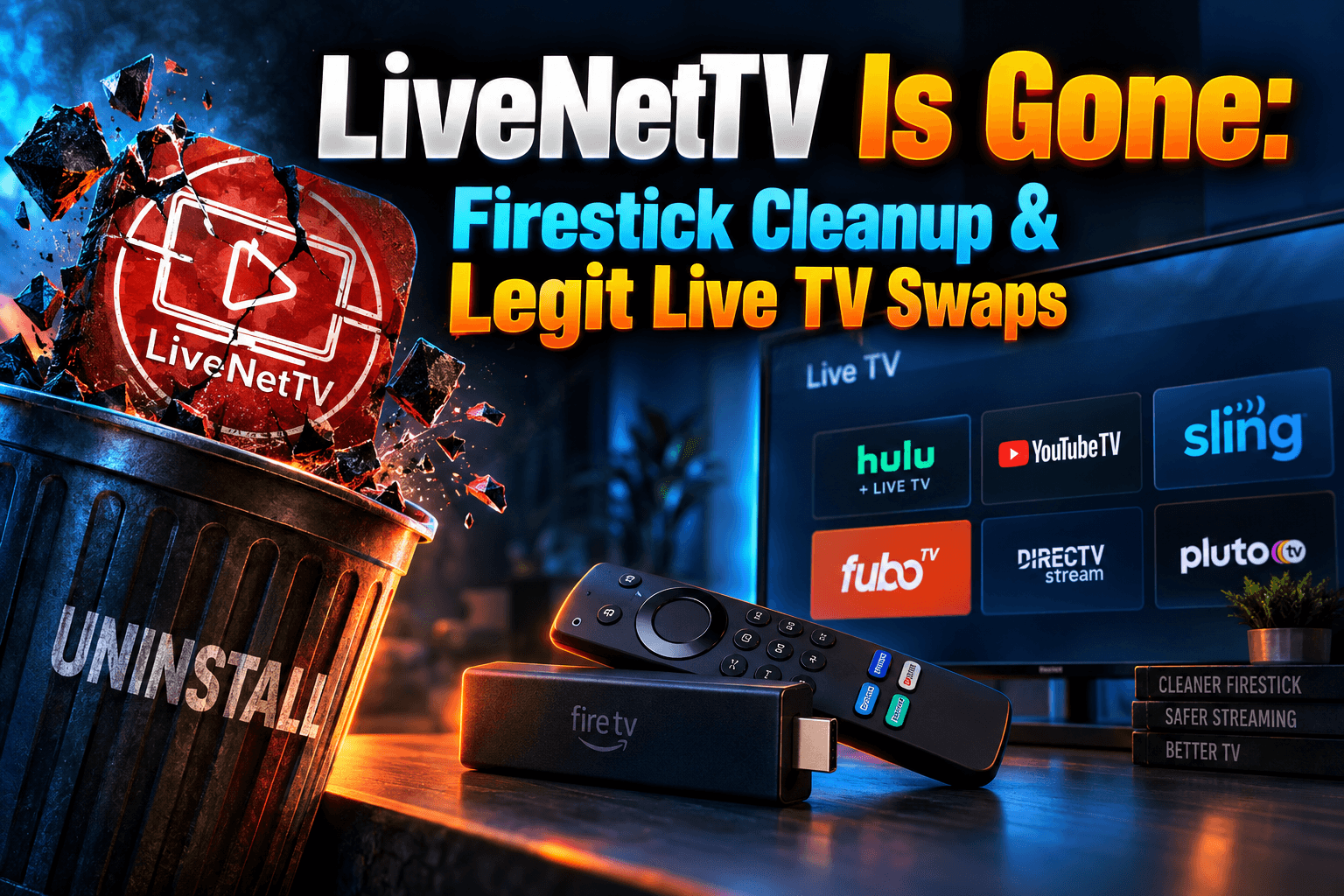
Remove LiveNetTV from Firestick now, even though the app already looks dead. As of 2026 the service is offline for good, but on plenty of Fire TV devices the icon still sits in the apps row, the installer file is still in Downloader, and the app keeps every permission you ever gave it. This guide walks through a complete cleanup, closes the security gaps it leaves open, and swaps in free live TV apps I’ve tested on my own Fire TV Stick 4K Max.
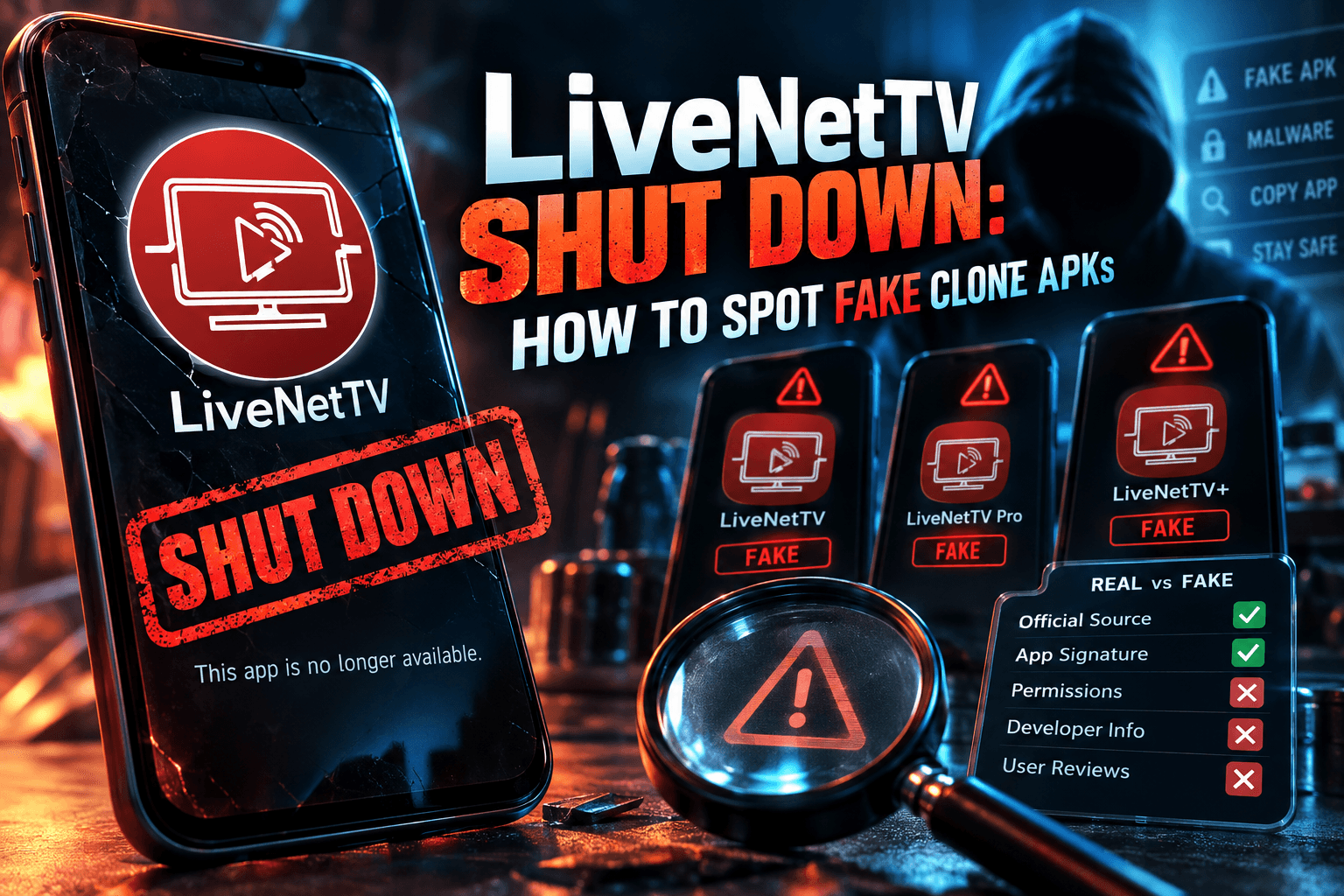
Want the news side of the story and a rundown of the fake versions circulating now? I covered that in LiveNetTV Shut Down: How to Spot Fake Clone APKs. This piece is the hands-on part: cleanup, lockdown, replacement.
What a Dead APK Leaves Behind on Your Firestick
When the streams stopped loading, most people figured the app was just broken and never bothered to remove LiveNetTV from Firestick. Half right. The service behind it is gone, but the software on your device is still installed, still holds its permissions, and in some cases still pings servers that nobody is watching anymore.
Why a Shut-Down App Is Not Harmless
A sideloaded app is only as trustworthy as the person controlling it. While LiveNetTV was running, someone at least had a reason to keep it working. That reason disappears the day a project shuts down. Domains expire. Update servers go quiet. And sometimes a complete stranger buys the old domain for a few dollars.
That last one is why I tell everyone to remove LiveNetTV from Firestick sooner rather than later. If an abandoned app checks a URL for updates or config files, whoever owns that URL now decides what the app downloads. You didn’t install anything new. The app you already trusted did it for you, quietly, probably at 3 a.m. while the stick was “asleep.”
Leftover Data, Permissions, and Auto-Update Hooks
About two weeks after LiveNetTV died, I opened a file manager on my Firestick 4K Max and went poking around. Here’s what was still there:
- The app itself, still installed, with roughly 38MB of cached data and saved settings
- Two old installer APKs in Downloader’s folder, one of them three versions out of date
- A leftover folder in internal storage holding logs and a favorites file
- MX Player, which I’d only installed because LiveNetTV used it as an external player, carrying its own cache
No single item there is dangerous on its own, but together they’re a good reason to remove LiveNetTV from Firestick properly. Together, though, you get clutter plus an app with network access and an update check aimed at domains nobody maintains. Storage matters too. The first-gen 4K Max ships with 8GB, and after Fire OS takes its cut you’re working with a lot less than that.
How to Fully Remove LiveNetTV From Firestick
These steps to remove LiveNetTV from Firestick match current Fire OS 7 and Fire OS 8 builds on the Fire TV Stick 4K, 4K Max, Lite, and Cube. Menu labels shift a little between versions. The layout itself hasn’t really changed in years.
Force Stop, Clear Data, Then Uninstall (Order Matters)
To uninstall LiveNetTV cleanly, go in this order:
- From the home screen, open Settings (the gear icon on the far right).
- Select Applications, then Manage Installed Applications.
- Scroll to LiveNetTV and select it. Got renamed or duplicate copies? Handle each one separately.
- Select Force Stop.
- Select Clear Cache.
- Select Clear Data and confirm.
- Select Uninstall and confirm.
Why the fuss about order? Force stopping kills any background process, so the app can’t rewrite files mid-cleanup. Clearing data wipes its private storage deliberately rather than trusting the uninstaller to do it. Most of the time the uninstaller handles that fine. On my older 2nd-gen Fire TV Stick, though, an uninstall once left a cache entry hanging around until I rebooted. Doing it by hand adds maybe 20 seconds to the job when you remove LiveNetTV from Firestick. Worth it.
Finish with a restart: Settings → My Fire TV → Restart.
Deleting Leftover APK Files in Downloader and File Managers
Downloader keeps every APK you’ve ever pulled through it unless you say otherwise. Those files sit in your Download folder eating space. Worse, if a kid or roommate taps one later, it undoes all your work to remove LiveNetTV from Firestick.
- Open Downloader.
- Select Files in the left-hand menu.
- Highlight any file with “livenet” in the name (or anything you don’t recognize), press the menu button on your remote (three lines), and choose Delete.
- While you’re in there, open Downloader’s Settings and switch on the option that deletes APK files after installation, if your version has it.
I cleared 214MB of old APKs off my 4K Max during this step. Embarrassing. Most came from apps I’d tested once and completely forgotten.
Checking for Orphaned Folders With a File Explorer
Some files live outside the app’s protected storage, so even when you remove LiveNetTV from Firestick, the uninstaller never touches them. You’ll need a reputable file manager to find these. My pick is X-plore File Manager, and since it’s in the Amazon Appstore, you don’t have to sideload anything.
- Check /storage/emulated/0/Download for stray APKs that came from a browser instead of Downloader.
- Check /storage/emulated/0/ and /Android/data/ for folders named after LiveNetTV or its package name. Delete them.
- Leave anything unfamiliar alone unless you can tie it to a specific app. Deleting system folders on a hunch is a fast way to break your stick.
Then deal with the external player. If you installed MX Player or VLC purely for LiveNetTV, uninstall it the same way you removed the main app. Still use it elsewhere? Go to Settings → Applications → Manage Installed Applications → MX Player and hit Clear Data. That resets any default handler or saved stream history tied to LiveNetTV.
Lock Down Your Device After You Remove LiveNetTV From Firestick
Once you remove LiveNetTV from Firestick, you’re roughly halfway there. The permissions you switched on to install it in the first place are almost certainly still active.
Revoke ‘Install Unknown Apps’ Per App
Fire OS handles sideloading permission app by app. Most install guides tell you to flip it on for Downloader and then never mention it again. Here’s how to flip it back:
- Go to Settings → My Fire TV → Developer Options.
- Select Install Unknown Apps.
- Turn OFF every app on the list: Downloader, Silk Browser, file managers, everything.
Next time you genuinely need to install something, turn it on for a minute, then off again. Leaving it on permanently is like leaving the front door unlocked because you’ll “be back later.”
On newer Fire OS builds, Developer Options is hidden by default (annoyingly, nothing on screen tells you this). To reveal it, go to Settings → My Fire TV → About and click your device name seven times. In that same menu, check whether ADB Debugging is enabled. If you don’t use it on purpose, kill it.
Scan for Suspicious Background Activity
Fire OS has no real task manager. Still, you’re not flying blind:
- Scroll through Manage Installed Applications and look for anything you don’t remember installing, especially vague names like “System Update” or “TV Service.”
- Open your router’s device page. Most routers show per-device data usage. A Firestick pulling traffic while it’s supposedly asleep deserves a closer look.
- Turn on DNS-level logging with something like NextDNS or Pi-hole to see exactly which domains the stick contacts.
I walk through all three in more depth in Is Your Android TV Box Phoning Home? How to Check. Personally, the DNS method is the one I trust most. I’ve run NextDNS on my home network for over a year, and it’s caught more weird traffic than anything else I’ve tried.
When a Factory Reset Makes Sense
Most people can skip it. Reset if any of these sound familiar:
- You installed a “LiveNetTV update” or mod from somewhere other than the original site
- Apps you don’t recognize come back after you delete them
- The stick stays slow, runs hot, or keeps making network requests after cleanup
- Pop-ups or redirects show up outside any app
You’ll find it at Settings → My Fire TV → Reset to Factory Defaults. It wipes all apps and logins, but your Amazon purchases return when you sign back in. Full breakdown here: Firestick Factory Reset: What You Actually Lose (and Keep).
Did You Install a Fake ‘LiveNetTV Update’? Red Flags to Check
Scammers love a shutdown. Within days of LiveNetTV going dark, “working versions” popped up on random sites and in YouTube video descriptions. Spotting them is covered in my clone APK article. This section is for anyone who already installed one.
Symptoms of a Malicious Clone
- It asked for permissions the original never needed (accessibility services, account access)
- It wanted you to sign in, “verify,” or pay for a premium tier
- The icon vanished after install, yet the app still appears in Manage Installed Applications
- Your Firestick got noticeably slower or warmer while sitting idle
What to Do If You Entered Personal Info
Typed an email, password, or card number into a clone? Do this, today:
- Change the password on that email account and on every other account that shared it. Use your phone or laptop, not the Firestick.
- Turn on two-factor authentication for your email and your Amazon account.
- Check your Amazon account under Content & Devices for unfamiliar devices, and deregister anything you don’t recognize.
- Call your bank or card issuer if you entered payment details. Ask for a replacement card rather than just “monitoring for fraud.”
- Factory reset the Firestick, based on the criteria above.
In the US, you can also file a report at the FTC’s ReportFraud site. UK readers should go to Action Fraud. Canadians can use the Canadian Anti-Fraud Centre.
Legit Free Live TV Apps That Actually Fill the Gap
This is the part where most people go hunting for a LiveNetTV replacement for Firestick. Honest take: the legal free options are better than you’d expect. I tested each one on my Fire TV Stick 4K Max, plugged into a wired Ethernet adapter on a 300Mbps connection, over roughly a week of evenings. These are app evaluations only. I’m judging how each one works, not what’s playing on it.
Pluto TV, Tubi, and Samsung TV Plus on Firestick
Pluto TV comes closest to LiveNetTV’s channel-grid feel. When I checked, the US guide listed more than 250 live channels. The UK, Canadian, and various European lineups are smaller. It’s in the Amazon Appstore, no account required. I counted about 8 to 10 minutes of ads per hour, which is basically broadcast TV territory. Channel switching took 2 to 3 seconds, and it didn’t crash once all week. Best EPG of the bunch, too: a proper scrollable grid with listings several hours out.
Tubi is better known for on-demand stuff, but it has a live section with news, sports-highlight, and themed channels. It’s available in the US, Canada, the UK, and a handful of other markets. The live lineup is smaller than Pluto’s. The guide is more list than grid. Ads felt a bit lighter, around 7 to 9 minutes per hour, and stability was excellent.
Samsung TV Plus is the awkward one. As far as I can tell, there’s still no native Fire TV app; Samsung keeps it on its own TVs and Galaxy devices. US users can reach the web player through Silk on the Firestick. It works. But you’re driving a web browser with a TV remote (yes, it’s exactly as clunky as it sounds). I’d only bother if a channel you care about is exclusive to Samsung’s lineup.
Plex Live TV and Free FAST Channels
Plex runs its own lineup of free ad-supported channels, which the industry calls FAST channels. During my testing the US lineup ran to several hundred. International versions are smaller but still decent. You’ll need a free Plex account. The guide is clean, and you can pin favorites, something LiveNetTV never handled well.
Ad load landed about level with Pluto. Stability was good overall, though two channels buffered for 5 to 10 seconds on startup before settling. I already run a Plex server at home for my own movie library, and having that plus live channels in one app is genuinely handy.
| App | Approx. Live Channels (US) | Ads/Hour (My Testing) | EPG Quality | Native Fire TV App |
|---|---|---|---|---|
| Pluto TV | 250+ | 8–10 min | Excellent grid | Yes |
| Tubi | 100+ | 7–9 min | Basic list | Yes |
| Plex | Several hundred | 8–10 min | Very good | Yes |
| Samsung TV Plus | Varies | Similar | Web only | No (browser) |
Channel counts shift constantly and vary by region. Treat these numbers as a snapshot from late 2025 and early 2026, not a promise.
Local Channels Over the Air With an Antenna or Tuner
Maybe what you actually miss is local news and network channels. If so, an antenna is the most dependable fix by a mile. It’s legal, free after the hardware purchase, and the picture often beats any stream. In the US and Canada, an HDHomeRun tuner pipes antenna channels into apps on your Firestick. In the UK, Freeview does the same job. Reception depends heavily on where you live, so check a coverage map before buying anything.
I won’t repeat the full setup here. Free Local Channels on Firestick: What Actually Works in 2026 covers tuners, antennas, and the local-channel apps worth installing.
How to Tell When Your Next Free App Is About to Die
LiveNetTV wasn’t the first. It won’t be the last. Once you learn the pattern, you’ll see it coming weeks ahead.
Warning Signs: Domain Changes, Missing Updates, Broken Streams
Before LiveNetTV, OnStream, and a few similar apps went under, I watched the same signs show up every time:
- Domain hopping. The official site moves to a new address, then another, usually with a vague “maintenance” post.
- Update gaps. Regular releases slow down or stop for weeks while unofficial “patched” builds start circulating.
- Shrinking channel lists. Popular channels quietly disappear first. Whole categories follow.
- Buffering everywhere. When LiveNetTV was not working on half its channels, that was the infrastructure collapsing, not your Wi-Fi.
- Social channels going silent. Telegram groups and support pages stop answering anyone.
Spot two or more? Uninstall early. Don’t wait for the app to fully die before cleaning it up.
Why Free Live TV APKs Keep Disappearing
Short version: enforcement pressure. Rights holders and anti-piracy coalitions go after the operators, plus their hosting, domains, and payment processors. Any app rebroadcasting paid channels without a license is living on borrowed time, full stop. I dug into who actually faces legal consequences in IPTV Piracy Investigations: Who Actually Gets Prosecuted?
Thinking about paying for an IPTV service instead? Vet it properly first. My 48-hour test for vetting an IPTV provider shows how to separate legitimate services from the ones that vanish along with your subscription money.
Bodhi’s Post-Shutdown Checklist
Here’s the 10-minute version. I ran through it on my own 4K Max in just under 9:
- ☐ Force stop, clear cache, clear data, then uninstall LiveNetTV
- ☐ Delete leftover APKs in Downloader → Files
- ☐ Remove orphaned folders with X-plore File Manager
- ☐ Uninstall or reset MX Player if it was only there for LiveNetTV
- ☐ Turn off “Install Unknown Apps” for every app in Developer Options
- ☐ Turn off ADB Debugging if you don’t use it
- ☐ Check installed apps and router traffic for anything odd
- ☐ Factory reset only if you installed a clone or see ongoing strange behavior
- ☐ Install Pluto TV, Tubi, or Plex from the Amazon Appstore
- ☐ Optional: use a reputable VPN for general privacy on public or shared networks
One takeaway, if you only keep one: remove LiveNetTV from Firestick properly instead of just ignoring the icon. A dead app with live permissions is a liability. The legal free apps replacing it are stable, actively updated, and not going to disappear overnight.
⚖️ Legal Disclaimer: IPTV Wire does not own or operate any streaming service, application, or website mentioned in this article. We do not verify whether third-party services carry proper licensing. Users are responsible for ensuring they comply with copyright laws in their jurisdiction.
Frequently Asked Questions
Is it safe to keep LiveNetTV installed after the shutdown?
I wouldn’t. The app doesn’t stream anything anymore, but it keeps its permissions and may still contact domains nobody maintains. Uninstalling takes about two minutes and removes that risk entirely.
Does uninstalling LiveNetTV delete all its data on Firestick?
Partly. Uninstalling clears the app’s private data, but not the installer APKs in Downloader or any folders it created in shared storage. You’ll have to delete those yourself through Downloader’s Files tab and a file manager like X-plore.
Can a dead APK still access my network or personal data?
Yes, as long as it’s installed. An abandoned app keeps whatever permissions you granted it. If its update domain ends up in someone else’s hands, it could pull down new code. That’s the main reason to remove LiveNetTV from Firestick rather than leave it sitting there.
Should I factory reset my Firestick after removing LiveNetTV?
Usually not. Reset only if you installed a clone or “update” from an unofficial site, typed personal details into one, or still see unknown apps, slowdowns, or strange network activity after cleanup.
What is the best legal free live TV app for Firestick?
In my 4K Max testing, Pluto TV is the best all-rounder: biggest channel grid, best guide. Plex is a close second, especially if you already use it for your own media. For locals, an antenna plus a tuner is tough to beat, though reception varies by location.
Why did LiveNetTV shut down permanently?
No official explanation has surfaced that I’d call reliable. It does follow the same pattern as OnStream and similar apps: unlicensed live TV services face constant pressure from rights holders on their hosting, domains, and operators, and most eventually fold.
Comments
Leave a comment
Your email address will not be published. Comments are moderated before they appear.