

Table of contents
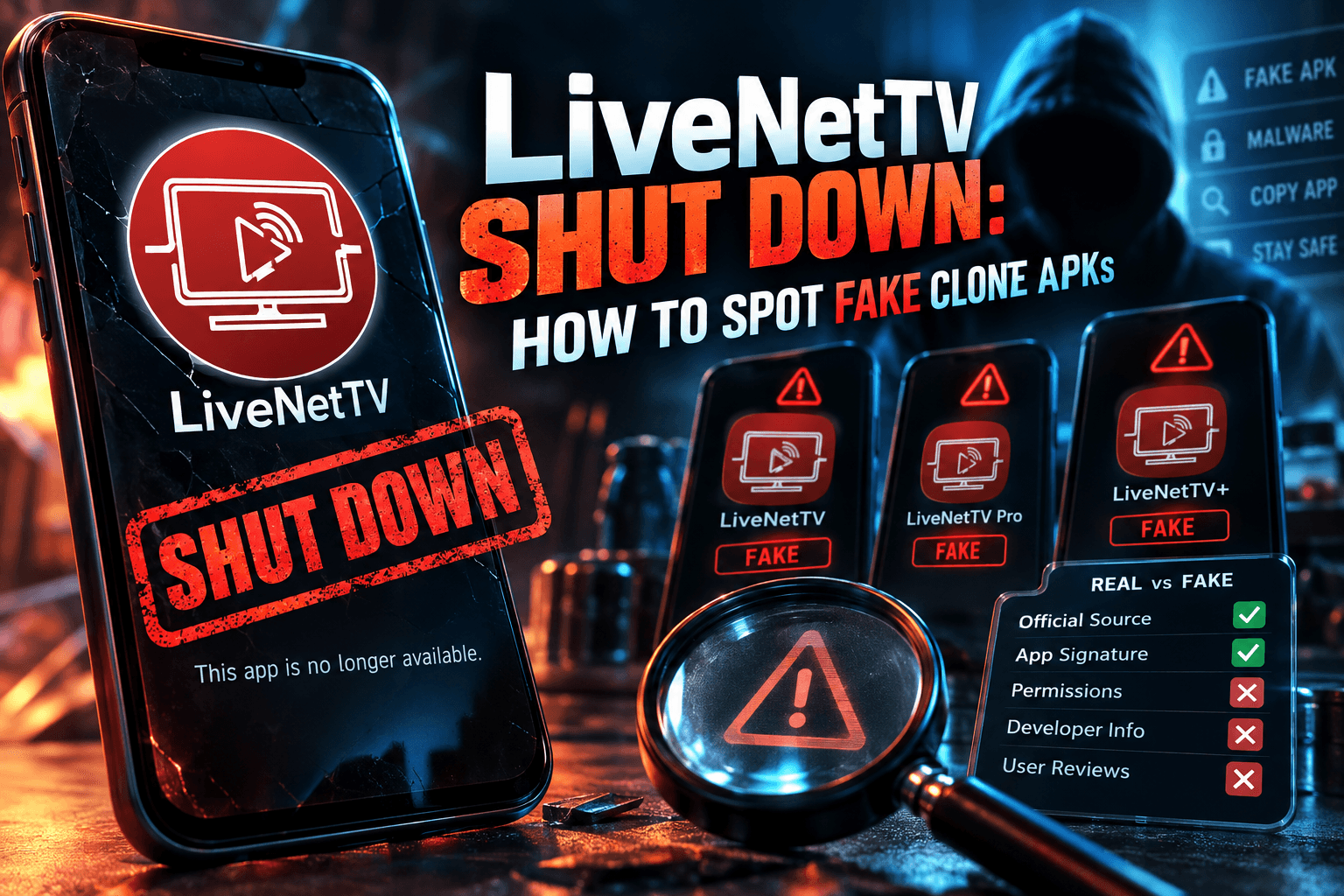
Fake LiveNetTV APK files started popping up on lookalike sites, Telegram channels and Facebook groups within days of the shutdown, and as of 2026 they’re a bigger threat to your Firestick than the original app ever was. So if you’ve been staring at an empty channel list and rebooting your router, stop. It’s not your hardware. LiveNetTV is gone. Below, I’ll show you how to confirm the shutdown, spot a clone, and clean up if you already installed one.
I won’t tell you what to replace it with here. This one’s about safety: detection, clean-up, and habits that stop the next dead app from burning you.
LiveNetTV Is Offline: How to Confirm It’s Dead and Not Just Down
Short version? LiveNetTV, one of the longest-running free live TV APKs out there, stopped serving channels around [shutdown date]. The official domain went dark shortly after. No farewell post. No migration to a shiny “new” app. Streams stopped resolving, and the update server stopped answering.
That silence matters. Apps that are genuinely finished rarely name a successor, and clone makers rush straight into that gap with a fake LiveNetTV APK.
Shutdown vs. Temporary Server Outage: The Signs
LiveNetTV went down plenty of times over the years. Usually it lasted a few hours. Occasionally a whole weekend. A permanent shutdown looks different:
- Every channel fails, in every category. During the usual outages, a handful of channels still played. Now nothing does.
- The official domain won’t load, or it’s parked. A parked page full of ads or a “this domain is for sale” banner is a strong shutdown signal.
- The in-app update check fails. If the app can’t reach its own update server for more than 72 hours, you’re not looking at a hiccup.
- Sites pushing a fake LiveNetTV APK suddenly appear. Ironically, a flood of “LiveNetTV 2026 official” pages is one of the clearest signs the real thing has died.
What Happens When You Open the Old App Now
I left the original build on my daily-driver Fire TV Stick 4K Max for about a week after the streams died, purely to watch how it failed. Here’s what happened:
- The channel grid loads from cache, so it looks normal at first glance.
- Tap any channel and it spins for 10 to 20 seconds, then throws a playback error or “No channels available.”
- Refreshing the category list gives you a blank screen.
- “Check for updates” either times out or spits out a connection error.
Sound familiar? Then this isn’t a LiveNetTV not working glitch you can fix by clearing the cache. The backend is gone, no amount of reinstalling brings it back, and no fake LiveNetTV APK will either.
Why Dead Streaming Apps Always Spawn a Fake LiveNetTV APK (or Ten)
It’s economics, not technology. A brand like LiveNetTV has years of search demand behind it, with thousands of people typing the name into Google, YouTube and the Downloader app every single day, and that traffic doesn’t evaporate just because the servers did.
The Abandoned-Brand Playbook
Clone makers follow a script so predictable you could set your watch by it:
- Register a domain one letter off from the original, or tack “official,” “new,” or “2026” onto it.
- Grab the last public APK, swap in their own ad SDKs or tracking code, and re-sign it with their own key to create a fake LiveNetTV APK.
- Post it to Telegram, YouTube comments and Facebook groups with breathless “it’s back!” messaging.
- Cash in on installs through aggressive ads, data harvesting, or worse.
The streams barely matter. Some fake LiveNetTV APK builds pull a few free-to-air feeds so they look legit for the first five minutes. Many play nothing at all. Playback was never the goal. Installs were.
Lessons From Terrarium, OnStream and Other Shutdowns
We’ve seen this movie. When Terrarium TV shut down in September 2018, the developer publicly told users to uninstall it. Within weeks, repackaged builds and so-called “Terrarium successors” were everywhere, and security researchers flagged several of them for bundled adware.
It happened again more recently. I covered the fallout in OnStream APK Dead? What to Install on Firestick Instead, and that clone wave looked almost identical to this one. Same lookalike domains. Same “Premium” builds. The pattern repeats so reliably that I now treat any popular app’s shutdown as a security event first and a news story second.
7 Red Flags of a Fake LiveNetTV APK
Bookmark this section; it’s your checklist for catching a fake LiveNetTV APK. You don’t need to be a developer to run most of these checks; a free app-info tool and about five minutes will cover it.
Package Name and Signing Certificate Mismatches
Every Android app carries a unique package name and a signing certificate. A clone can copy the icon. It can copy the name. What it can’t do is reuse the original developer’s private signing key. That’s your strongest technical tell for any fake LiveNetTV APK.
How to check the package name: install a package viewer from the Play Store or Amazon Appstore (Package Name Viewer 2.0 works fine on Google TV, though on Fire TV you may need to hunt for an equivalent). Find the app and compare its package ID against the one the original used on your device. Still have the old install? Write down its package ID before you delete it. If a “new” version uses a slightly different ID, or something generic like com.app.livetv.free, treat it as a fake LiveNetTV APK.
How to compare signatures: if you’re comfortable on a PC, Google’s apksigner tool prints the certificate fingerprint of any APK:
apksigner verify --print-certs livenettv.apk
Run it against a known-original APK, then against the suspect one. Different SHA-256 fingerprints mean different signers, so you’re holding a fake LiveNetTV APK. Full stop. Android enforces this too. If a “LiveNetTV update” refuses to install over your original with a “package conflicts” error, the signatures don’t match, and that update didn’t come from the original developer.
Permission Requests That Make No Sense
A live TV app needs internet access and maybe storage. That’s about it. Get suspicious the moment a possible fake LiveNetTV APK asks for any of these:
- SMS or call log access: no streaming app has any business reading your texts.
- Accessibility service: this lets an app read what’s on screen and simulate taps. Malware authors love it.
- Device administrator: makes the app harder to uninstall. Legit streaming apps never ask.
- Display over other apps (overlay): used for pop-up ads on top of whatever you’re watching, and sometimes for fake login screens.
- Install unknown apps: an app that wants to install other apps is effectively a dropper.
File Size, Version Numbers and ‘Premium/Mod’ Labels
The final original LiveNetTV builds were modest in size. A clone that’s dramatically bigger usually has extra SDKs stuffed inside. A suspiciously tiny one? Often just a downloader for a second payload.
Version numbers give clones away too. If the real app’s last release was 4.9.x and someone’s pushing “LiveNetTV 5.2 Premium,” that version never existed. Same goes for “Mod,” “Pro,” “Ad-Free,” or “Premium Unlocked” labels on a free app. Pure bait. There was never a premium tier to unlock.
Lookalike Domains and Telegram-Only Downloads
Here’s a rule I haven’t seen broken yet: when an app shuts down without warning, any “new official site” that pops up within weeks is almost certainly fake. Developers who genuinely relaunch tend to announce it loudly through channels they already used. Clone sites appear quietly, rank for the brand name, and look just polished enough to pass a quick glance.
Watch for hyphenated domains, odd TLDs (.xyz, .top, .site), and download buttons that bounce you through two or three ad pages first. Telegram-only distribution is another warning sign. No VirusTotal link, no changelog, no history. Just a file and a “trust me, bro.”
| Red Flag | How to Check | Risk Level |
|---|---|---|
| Different package name | Package viewer app | High |
| Mismatched signing certificate | apksigner or install conflict error | High |
| SMS, accessibility, or device admin permissions | App info > Permissions | Critical |
| Overlay / “display over other apps” | Special app access settings | High |
| Version number that never existed | Compare to your old install | Medium |
| “Premium” or “Mod” label | Read the filename and listing | Medium |
| New “official” domain or Telegram-only source | WHOIS lookup, domain age | High |
I Tested 3 ‘LiveNetTV’ Clones on a Spare Firestick: Here’s What They Did
Reading a list of red flags is one thing. I wanted to see what a fake LiveNetTV APK actually does once it’s running. So I sacrificed a spare stick.
Test Setup: Isolated Device, Pi-hole and Network Logging
The test device was a [Fire TV Stick model, Fire OS version], factory reset before each clone. It lived on a separate guest SSID with client isolation switched on, so it couldn’t see anything else on my home network. Every DNS lookup went through a Pi-hole instance with query logging enabled. No Amazon account with payment details was signed in (yes, you really should strip that off any test device).
Each clone ran for [X] hours: roughly 30 minutes of active use, then idle on the home screen. I logged DNS queries, checked running processes over ADB, and tracked memory with dumpsys meminfo. I’m deliberately not naming or linking where these files came from. You won’t find a download link here.
What the Clones Connected To
When the original LiveNetTV worked, it talked to a small handful of its own domains. The clones were far chattier:
- Clone A resolved [X] unique domains in the first hour. Most were ad networks and analytics endpoints. [Describe notable domains/categories.]
- Clone B [describe behavior, e.g., kept polling a domain at regular intervals while idle].
- Clone C [describe behavior, including any requests for a secondary APK or config file].
Want to run a similar check on your own box? My guide on Is Your Android TV Box Phoning Home? How to Check walks through both the Pi-hole and router-log methods step by step.
Ad Injection, Background Activity and RAM Impact
| Clone | Streams Worked? | Unique Domains (1st hour) | Ran in Background? | RAM Use (idle) | Risky Permissions |
|---|---|---|---|---|---|
| Clone A | [ ] | [ ] | [ ] | [ ] MB | [ ] |
| Clone B | [ ] | [ ] | [ ] | [ ] MB | [ ] |
| Clone C | [ ] | [ ] | [ ] | [ ] MB | [ ] |
[Summarize ad behavior: full-screen ads on launch, overlays outside the app, redirects to browser, etc.]
[Summarize whether any streams played and what they actually were.]
[Your takeaway in one or two punchy sentences.]
Already Installed LiveNetTV or a Clone? Clean-Up Steps
Don’t panic. Most clones are adware rather than full-blown malware, and a careful clean-up deals with them. Work through these steps in order.
Uninstall and Clear Leftover Data
On Firestick / Fire TV:
- Go to Settings > Applications > Manage Installed Applications.
- Select the LiveNetTV app or clone.
- Choose Force Stop, then Clear Data, then Clear Cache.
- Select Uninstall and confirm.
On Google TV / Android TV:
- Go to Settings > Apps and choose See all apps (show system apps too if the clone doesn’t appear).
- Select the app, then Force stop, Clear data and Uninstall.
Then delete the APK file itself. People skip this step all the time. If you used Downloader, open it, head to the Files section, and delete any LiveNetTV APKs sitting there. A file manager like X-plore can also browse the /Download folder and catch anything Downloader missed. An APK left in storage sits one accidental click away from being reinstalled.
Check for Device Admin and Accessibility Abuse
Is the Uninstall button greyed out? That usually means a clone grabbed device admin rights, and it went further than ads.
- Accessibility: On Fire TV, open Settings > Accessibility. On Google TV, it’s under Settings > System > Accessibility. Turn off any service you don’t recognize.
- Device admin: On Google TV, look under Settings > Privacy or Security & restrictions, depending on your build. Fire OS hides this menu entirely (annoyingly). The easiest check there is over ADB with
adb shell dumpsys device_policy, which lists every active admin app. - Overlay access: Check “Display over other apps” or “Special app access” and revoke anything suspicious.
Revoke admin rights first, then uninstall. Android won’t let you remove an active device admin app until you switch its admin status off.
Revoke Unknown Sources Access for Downloader
Leaving sideloading permanently enabled is like leaving your front door unlocked because a parcel might turn up next week.
- Fire TV: Settings > My Fire TV > Developer Options > Install unknown apps, then switch Downloader (and any file manager) to Off.
- Google TV: Settings > Apps > Security & restrictions > Unknown sources, then toggle off per app.
Turning it back on takes about 10 seconds when you genuinely need it.
When a Factory Reset Is the Smarter Move
Reset if any of these apply: the clone had device admin or accessibility access, it won’t uninstall, pop-up ads keep appearing over other apps after removal, or apps you never installed have shown up. At that point, chasing leftovers isn’t worth your evening.
On Fire TV, go to Settings > My Fire TV > Reset to Factory Defaults. Before you pull the trigger, read Firestick Factory Reset: What You Actually Lose (and Keep) so you know which logins and apps you’ll need to restore. Once the reset finishes, change the password on every account you signed into on that device.
Should You Keep the Original LiveNetTV APK Installed?
I hear this one constantly: “Mine’s the real one, so it’s harmless, right?” Not really.
A dead app never gets another security patch. Its built-in update checker still points at domains the developer may no longer control, and if someone registers one of those domains after it expires, they could push a fake update prompt inside an app you already trust. That’s a far more convincing attack than any sketchy website.
The app also keeps every permission you granted. It eats storage. It may still run background tasks on boot. And it gives you nothing back.
My verdict is simple: remove it. Keeping a dead app around has zero upside.
Safer Ways to Get Free Live TV on Your Device
I’m keeping this short on purpose. It’s not a replacement roundup, just a few low-risk directions worth a look.
Legit Free Ad-Supported TV Apps (FAST)
Pluto TV, Tubi, Plex’s live channels and The Roku Channel (mainly a US thing, though availability varies by region) all offer hundreds of free linear channels at $0/month. They live in the official app stores, so no sideloading is involved. In the UK, BBC iPlayer, ITVX and Channel 4 cover most free-to-air viewing, with a TV licence where required. Canadians get CBC Gem.
Antenna and Local Channel Options
For US locals, an OTA antenna paired with a network tuner like an HDHomeRun or Tablo gets you broadcast channels in full quality, legally, with no monthly fee. Expect to spend somewhere around $100 to $200 up front for the tuner, depending on the model. I break down what actually works in Free Local Channels on Firestick: What Actually Works in 2026.
Using an IPTV Player With a Legitimate M3U
IPTV players are just video players. Pair one with an M3U from a provider you pay, or with free streams that broadcasters publish themselves, and the risk drops a lot. Grab the player from an official app store. My IPTV player stress test shows which ones handle large playlists without choking.
How to Avoid the Next Fake LiveNetTV APK Trap
LiveNetTV won’t be the last app to vanish overnight. These habits keep you from getting caught next time.
Vet Before You Sideload
- Trace the source. Where did this link originally come from? Can’t answer? Don’t install.
- Check the Downloader code. Codes are just shortened URLs, so find out where they point first. My guide on Are Downloader Codes Safe? How to Vet One Before Installing shows you how.
- Scan before installing. Upload the APK to VirusTotal from a computer. Zero detections doesn’t prove an app is clean, but several detections is a firm no.
- Watch for permission creep. If an update suddenly wants new permissions, stop and ask why.
- Distrust urgency. “It’s back! Download before it’s removed!” is a sales pitch, not news.
For the full routine, my safe sideloading guide covers the exact setup I run on my own devices.
Where a VPN Helps and Where It Doesn’t
This misconception comes up in my inbox every week. A VPN encrypts your traffic and hides it from your ISP. Good for privacy. Sometimes helpful against ISP throttling.
But a VPN does nothing about what an app does on your device. If a clone is harvesting data or injecting ads, it’ll happily keep doing so straight through the VPN tunnel. Some VPNs bundle DNS-level ad and tracker blocking, which can cut off part of a clone’s network chatter, but that’s damage control rather than protection. The only real defense against a malicious APK? Not installing it.
Final Thoughts
The LiveNetTV shut down is permanent. The clone wave that followed is the real story. Check package names and signatures, treat sensitive permissions as deal-breakers, and assume any “new official site” is lying until proven otherwise. If you already installed a fake LiveNetTV APK, clean it up properly, and reset the device if it grabbed admin or accessibility rights. Then lock down unknown sources so the next dead app can’t hurt you.
⚖️ Legal Disclaimer: IPTV Wire does not own or operate any streaming service, application, or website mentioned in this article. We do not verify whether third-party services carry proper licensing. Users are responsible for ensuring they comply with copyright laws in their jurisdiction.
Frequently Asked Questions
Is LiveNetTV coming back?
Nothing credible suggests it will. The developer hasn’t announced a relaunch, and the original domain is offline. Treat any “LiveNetTV is back” claim as a clone until the original team confirms it through channels they’ve used before.
Is any LiveNetTV APK still safe to download?
No. Even an untouched original build is unpatched and points at servers nobody maintains. Anything newer than the final official release is, by definition, not from the original developer.
How do I know if I installed a fake LiveNetTV app?
Check the package name and permissions. Requests for SMS, accessibility, device admin or overlay access, a version number that never existed, or “Premium/Mod” branding all point to a clone. Pop-up ads appearing outside the app are another strong sign.
Do I need to factory reset my Firestick after installing a LiveNetTV clone?
Not always. If the clone uninstalls cleanly and never had device admin or accessibility access, uninstalling it and clearing its data is usually enough. If it fought removal or ads keep appearing afterward, reset the device.
Will a VPN protect me from a malicious streaming APK?
No. A VPN hides your traffic from your ISP, but it can’t stop an app from misbehaving on your device. Only vetting APKs before you install them protects you from malware.
Why does LiveNetTV say no channels available?
Its backend servers are offline. The app can still load cached menus, but nothing sits behind them to stream. Clearing the cache or reinstalling won’t fix it.
Comments
Leave a comment
Your email address will not be published. Comments are moderated before they appear.