

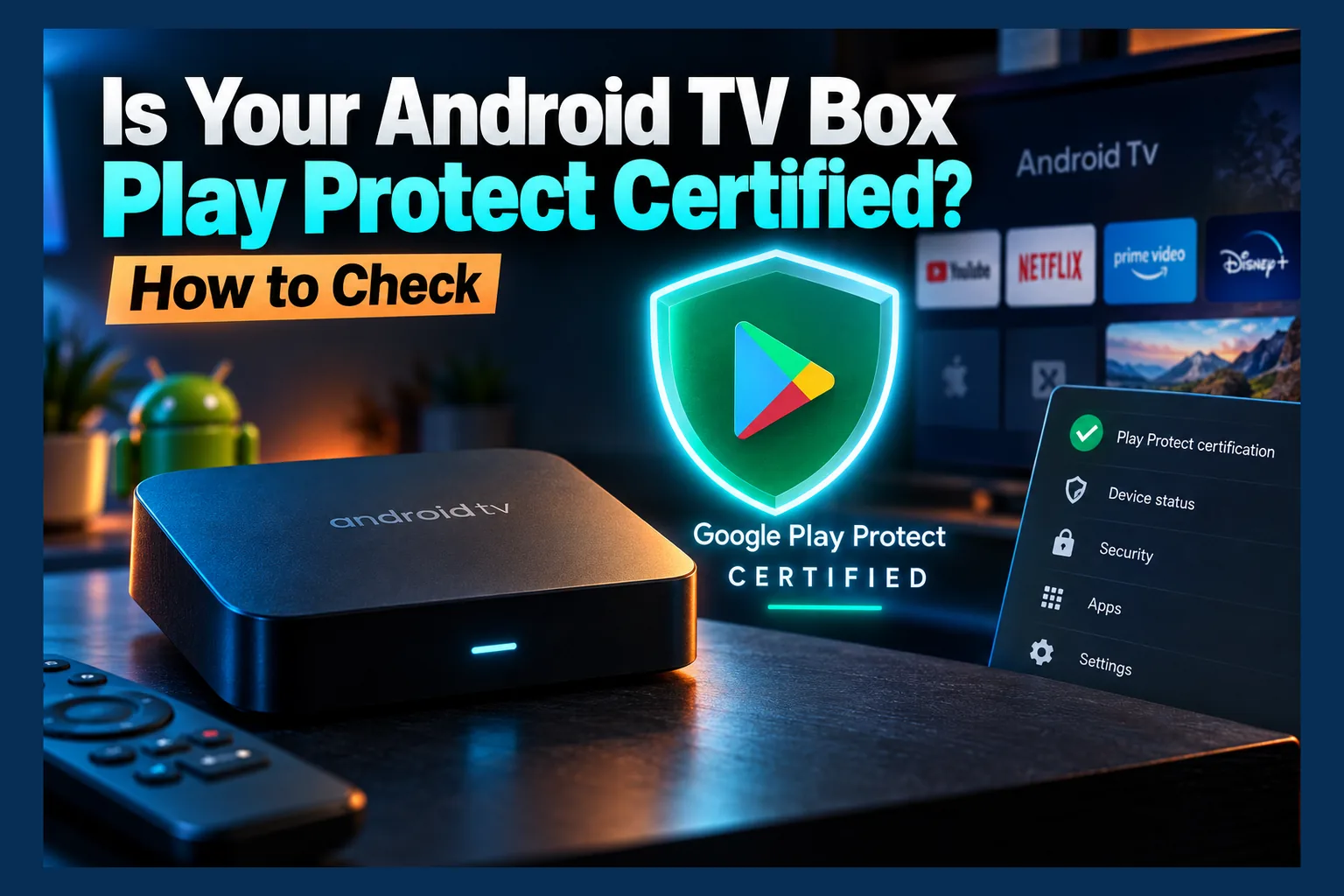
Android TV box Play Protect certified status is the first thing I check on any streaming box now, and confirming it takes about two minutes. Open the Google Play Store, go to Settings, then About, and look for the Play Protect certification field. Then cross-check the exact model on Google’s official certified partners list. If either check fails, treat the box as untrusted, especially since 2025 turned cheap boxes into the subject of a federal warning.
This check matters much more in 2026 than it did a couple of years ago. In 2025, cheap streaming boxes went from “a bit sketchy” to the subject of a federal warning. Confirming your Android TV box Play Protect certified status takes about two minutes, and all you need is a remote and a browser.
Below I’ll cover how to verify a box you already own, how to vet one before you buy, and what to do if yours turns out to be uncertified. Worried your box is already compromised? Start with our separate guide on how to check if your Android TV box is phoning home, because this article is about prevention.
Why Android TV Box Play Protect Certified Status Matters After the BadBox 2.0 Crackdown
For years, uncertified boxes were sold as the budget option. On paper they had more storage and faster chips, and they cost less than a Chromecast.
The supposed tradeoff of skipping an Android TV box Play Protect certified model was a clunkier interface and nothing worse. That assumption didn’t survive 2025.
What Google’s Legal Action Targeted
In June 2025, the FBI issued a public service announcement about the BadBox 2.0 botnet. According to the FBI, it was spreading through streaming boxes, digital projectors, aftermarket car infotainment units and similar low-cost connected gadgets. Some arrived with the malware already installed, and others were infected during setup through apps the setup flow pushed users to install.
A month later, in July 2025, Google sued the unnamed operators behind BadBox 2.0 in New York federal court. Google believed they were based in China. By Google’s count, the botnet had infected more than 10 million uncertified devices, which were used for ad fraud and as residential proxies.
In plain terms, strangers could route their traffic through your home internet connection. You’d never see it happen.
Why Uncertified AOSP Boxes Were the Main Target
One word in Google’s filing matters most for buyers: uncertified. Most of these boxes run the Android Open Source Project (AOSP), the free, open base layer of Android. Any manufacturer can build on AOSP without Google approving or testing anything.
That openness is legitimate, and it’s useful. The catch is that nobody outside the factory reviews what went into the firmware. If a malicious component gets added at the factory or somewhere in the supply chain, no gatekeeper is there to catch it.
That’s why I’d check your Android TV box Play Protect certified status before price, before specs, before anything else.
What Play Protect Certified Actually Means
“Play Protect certified” is Google’s label for devices that passed its compatibility and security testing. Those devices are licensed to ship Google Mobile Services: the Play Store, Google Play services and, on TV hardware, the official Android TV or Google TV interface.
Certified vs Uncertified vs AOSP-Based Boxes
These terms overlap in confusing ways. Here’s how they sort out.
| Box type | Google tested? | Official Play Store | Typical interface | Main risk |
|---|---|---|---|---|
| Certified Android TV / Google TV | Yes | Yes, preinstalled | Android TV or Google TV home screen | Slow or ended updates on older models |
| Uncertified with sideloaded Play Store | No | Modified or unofficial install | Custom launcher made to look like Android TV | Unknown firmware, possible preinstalled malware |
| Pure AOSP box (no Google apps) | No | No, uses a third-party store | Generic launcher or phone-style UI | Unknown firmware, no Google security scanning |
| Amazon Fire TV | Amazon’s own process | No, uses the Amazon Appstore | Fire TV interface | Limited by Amazon’s update and sideloading policies |
To be fair, not every AOSP box is malicious. Some enthusiast hardware runs perfectly clean AOSP builds. The problem is that you can’t easily tell which ones are clean, and the cheapest no-name boxes are where trouble keeps turning up.
What Certification Does and Doesn’t Guarantee
An Android TV box Play Protect certified label tells you three useful things. The firmware passed Google’s compatibility test suite, the Google apps are genuine, and Play Protect scanning is built into the system.
There’s a fourth, softer benefit too. The manufacturer signed an agreement with Google, so it has a business relationship to lose if it ships junk.
What certification doesn’t do is make every APK you sideload safe. It also doesn’t promise long-term security patches, and TV box update schedules tend to be slow. Think of Android TV box Play Protect certified status as the floor, not a guarantee of safety.
Read next: Is Your Android TV Box Phoning Home? How to Check
How to Check Your Android TV Box Play Protect Certified Status
To confirm your Android TV box Play Protect certified status, run two checks, not one. The on-device check is fast, but it relies on what the box says about itself. The partner list check confirms that Android TV box Play Protect certified claim against a source the box can’t touch.
Check Through the Google Play Store Settings
The menu path shifts a little depending on the Play Store version and your box’s launcher, so expect small differences. The general route:
- Open the Google Play Store on the box.
- Select your profile icon (usually top-right) or open the side menu.
- Choose Settings.
- Scroll to About and expand it if it’s collapsed.
- Find the line labeled Play Protect certification.
You’ll see either “Device is certified” or “Device is not certified.” If the field is missing entirely, or the Play Store itself is missing, the box can’t show an Android TV box Play Protect certified status, so treat it as uncertified.
One caveat: a tampered box can fake its Android TV box Play Protect certified status along with other parts of its software identity. That’s exactly why the second check exists.
Cross-Check Google’s Certified Partners List
Google publishes a list of Android certified partners and devices. It’s grouped by brand, and it covers phones, tablets and TV devices.
- On your box, go to Settings > Device Preferences > About (or Settings > System > About on Google TV).
- Write down the brand and exact model name or number.
- On a phone or computer, open Google’s partner page and search for that brand.
- Confirm the specific model appears, not just the brand name.
The model match is the part people skip. Some brands sell one certified model alongside several uncertified ones with nearly identical names, so “Brand X is on the list” proves nothing on its own.
Red Flags You Can Spot on the Box Itself
Even before you dig into menus, a few signs suggest the box isn’t what it claims. None of these is proof alone, but two or more together should worry you.
- The home screen is a generic launcher dressed up to look like Android TV.
- The About screen lists an Android version that seems too new for very cheap hardware (for example, “Android 14” on a $25 box with an unnamed chip).
- The setup wizard asks you to install apps from outside any official store.
- Google apps keep asking you to sign in again or throw “device not certified” errors.
How to Verify an Android TV Box Play Protect Certified Claim Before You Buy
Checking after purchase works, but it means dealing with returns. A few minutes of research beforehand saves that hassle.
Read Listings Skeptically
Marketplace listings throw around “Google certified” and “official Android TV” loosely. If a seller calls an Android TV box Play Protect certified, search Google’s partner list for that exact model before you add it to your cart.
Be especially wary of listings that say “fully loaded,” “unlocked,” or “free channels forever.” Those phrases often signal preinstalled third-party apps, which is the same delivery route BadBox 2.0 relied on.
Certified Options Worth Considering in 2026
Prices below are typical US retail and can shift with sales. Availability varies a lot by region, so I’ve noted where each one is easiest to find.
| Device | Platform | Typical price (USD) | Where it’s easiest to buy |
|---|---|---|---|
| Google TV Streamer | Google TV | $99.99 | USA, UK, Canada, much of Europe |
| Nvidia Shield TV / Shield TV Pro | Android TV | $149.99 / $199.99 | USA, UK, Canada, Europe |
| Onn 4K Streaming Box / Onn 4K Pro | Google TV | About $20 / about $50 | USA only (Walmart) |
| Xiaomi TV Box S (3rd Gen) | Google TV | Roughly $60–$70 equivalent | UK and Europe mainly |
Even with these brands, confirm the exact model on the partner list, because lineups change. Canadian buyers will notice that Onn boxes aren’t sold locally, so the Google TV Streamer or Shield is usually the simpler route there.
What to Do If Your Box Isn’t Certified
Don’t panic, but don’t ignore it either. An uncertified box isn’t automatically infected; you just can’t verify that it’s clean.
Immediate Steps
- Sign out of any Google, streaming or email accounts on the box, then change those passwords from a trusted device.
- Disconnect the box from your network if you aren’t actively using it.
- Check your router’s connected devices list and data usage for unusual activity while the box sits idle.
- If you bought it recently, request a return and cite the missing certification.
Why a Factory Reset Isn’t Enough
A factory reset wipes apps you installed, but it restores the firmware the box shipped with. If the problem was baked in at the factory, the reset brings it straight back.
A VPN won’t fix this either. It encrypts your traffic on the way out, but malware running on the box can still use your connection.
If You Must Keep Using It
Put it on a guest network or a separate VLAN so it can’t reach your other devices. Avoid signing into any account you care about on it. Honestly, though, a certified Onn box at around $20 is cheaper than the risk.
Conclusion
The BadBox 2.0 case showed that a cheap, uncertified streaming box can quietly turn your home connection into someone else’s tool. Spend two minutes confirming your Android TV box Play Protect certified status: check the Play Store’s About section, then match the exact model on Google’s partner list.
If both checks pass, you’ve got a solid baseline. If either fails, replace the box rather than trying to patch around it.
⚖️ Legal Disclaimer: IPTV Wire does not own or operate any streaming service, application, or website mentioned in this article. We do not verify whether third-party services carry proper licensing. Users are responsible for ensuring they comply with copyright laws in their jurisdiction.
Frequently Asked Questions
Is my Android TV box Play Protect certified if it has the Play Store?
Not necessarily. Uncertified boxes sometimes ship with a modified or sideloaded Play Store. Check the “Play Protect certification” field under Play Store Settings > About, and confirm the model on Google’s partner list.
Can I make an uncertified box certified?
No. Certification is granted to the manufacturer for a specific device and firmware build after Google’s testing. Nothing you install or change as a user can add it.
Are Amazon Fire TV devices Play Protect certified?
No, because Fire TV runs Amazon’s own fork of Android without Google Mobile Services. That doesn’t make it unsafe. Amazon controls its own firmware and app store, so it’s simply a different trust model.
Does a factory reset remove BadBox-style malware?
Usually not. If the malware was built into the firmware, a reset reinstalls it along with everything else. Replacing the device is the reliable fix.
Will a VPN protect an uncertified box?
A VPN hides your traffic from your ISP, but it doesn’t stop malware running on the box. It can’t prevent the device from being used as a proxy or for ad fraud.
Comments
Leave a comment
Your email address will not be published. Comments are moderated before they appear.