

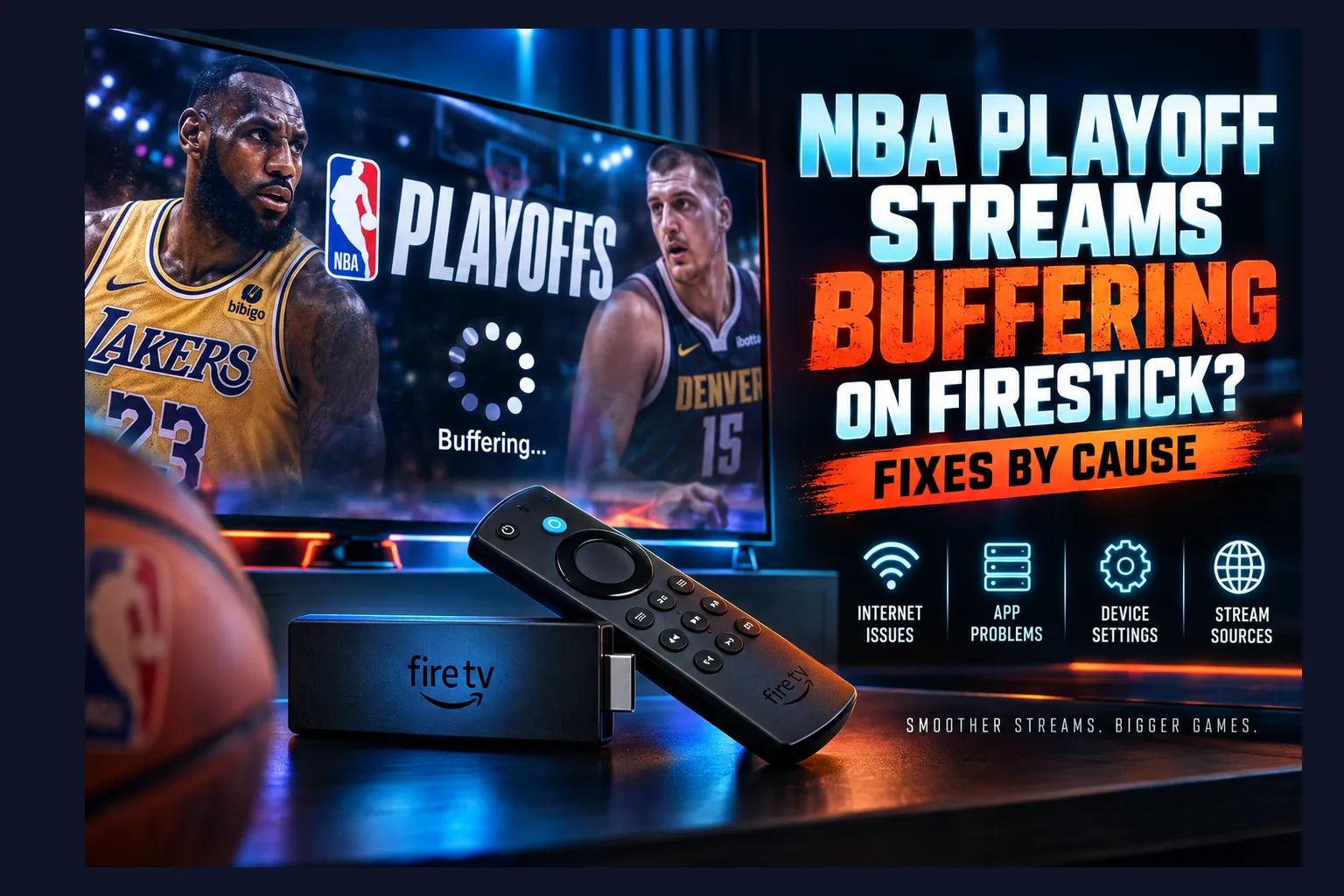
NBA stream buffering on Firestick usually comes down to one of five causes: weak Wi-Fi, a sluggish or overheating device, a struggling app, VPN overhead, or an overloaded stream source. Most of them take minutes to fix once you know which one you’re dealing with. Run a speed test on the Fire TV itself, compare another device on the same network, then apply the fix that matches the cause. Below, I’ll walk through each one so the spinning wheel stops stealing your fourth quarter.
Fourth quarter. Two-point game. The crowd starts to roar, and your screen freezes on a spinning wheel. On paper, Fire TV and Android TV devices handle live sports without trouble as of 2026. In practice, a live broadcast finds every weak link in a home setup, whether that’s an old router in a cabinet, a stick that’s running hot, or a service that’s sold more seats than it has servers.
This guide assumes you already have a way to watch. If you’re still picking a service, start with my roundup of the best apps and devices to stream live sports on Firestick. Everything below tackles NBA stream buffering on Firestick, plus the lag and stutter that ruin the game once it’s actually on.
Why Live NBA Games Buffer More Than Movies
Netflix plays perfectly. The live game stutters. Same Firestick, same couch, same evening. That isn’t bad luck, and it explains most NBA stream buffering on Firestick. Live sports put a heavier load on your network, your device, and the service’s servers than any on-demand movie does.
Live Streams Have Almost No Buffer Cushion
Start a movie and the app quietly grabs 30 seconds or more of video ahead of where you are. A few seconds of Wi-Fi trouble? The stored footage covers it, and you never see a thing. On-demand apps can pre-load like this because the whole file already sits on a server somewhere.
Live video can’t. What you’re watching was captured only seconds earlier, so the player might hold just a few seconds in reserve, and many services shrink that cushion deliberately to keep delay low (nobody wants a neighbor’s text spoiling a buzzer-beater). The trade-off is harsh: even a short dip in speed shows up as NBA stream buffering on Firestick almost instantly.
60fps Broadcasts Need More Bandwidth
Basketball moves fast. Many sports feeds are encoded at 60 frames per second rather than the 24fps most films use, and the camera never stops panning across the court, the bench, and the crowd. Double the frames plus constant motion means the encoder needs a higher bitrate to keep the picture from turning into mush.
Expect a typical HD 60fps sports stream to need roughly 6–10 Mbps of steady throughput. 4K feeds, where a service offers them, generally call for 25 Mbps or more. Notice the word steady. A connection that averages 50 Mbps but sags to 4 Mbps for a few seconds will still cause NBA stream buffering on Firestick.
Playoff Traffic Spikes on Servers and CDNs
Movie viewers spread out across hours and days. Playoff games don’t work that way. Millions of people pile onto the same stream at the same moment, and the tightest stretches of a close game hit hardest. Content delivery networks (CDNs) exist for exactly this, but a local node can still clog up.
Your ISP feels it too. Evening peak hours already squeeze neighborhood bandwidth, cable internet especially, and a Game 7 lands right on top of that. Sometimes the bottleneck behind NBA stream buffering on Firestick is miles from your living room.
Step 1: Find the Cause of NBA Stream Buffering on Firestick
Don’t start flipping settings at random. Spend five minutes figuring out where the bottleneck actually lives. A new router won’t help if the provider is overloaded, and a new stick won’t help if your Wi-Fi is the weak spot. With NBA stream buffering on Firestick, diagnose first, fix second.
Run a Speed Test on the Firestick Itself
A speed test on your phone tells you about your phone. That’s it. On the stick, go to Settings > Network, highlight your connected network, and press the Play/Pause button to see its connection status. You’ll confirm the device is online and see its signal strength.
For real numbers, install a speed test app like Analiti from the Amazon Appstore, or open fast.com in the Silk browser. Run it two or three times. Ideally, test around the hour games usually tip off, say 7–10 p.m. local. Write down the lowest result, because that’s the figure that predicts NBA stream buffering on Firestick during busy moments.
Compare Another App or Device on the Same Network
Next, open a different live app on the Firestick, maybe a free news channel or another live service. Does it stutter too? Then the problem is probably your network or the device, not the sports app. If only one app struggles, look at the app or its source.
Now try the same game on a phone, laptop, or smart TV on the same Wi-Fi. Smooth there? The Firestick is your suspect. If you see NBA stream buffering on Firestick and every other device, blame your connection or the source instead.
Signs It Is the Source, Not Your Setup
Plenty of headroom on the speed test, yet several devices buffer on the same stream? The service is struggling. Another giveaway: Reddit threads and social feeds filling up with complaints mid-game. Once you see that, no local tweak will fully fix NBA stream buffering on Firestick.
| Symptom | Likely Cause | First Fix to Try |
|---|---|---|
| All apps buffer on Firestick, other devices fine | Device or Wi-Fi reception at the TV | Restart stick, check signal, try Ethernet |
| All devices buffer on all apps | Home network or ISP | Reboot router, stop downloads, enable QoS |
| Only one app buffers | App bug or app quality setting | Update app, clear cache, lower quality |
| Buffering starts when VPN connects | VPN overhead or distant server | Switch server or protocol, use split tunneling |
| Same stream fails on every device, speed is fine | Provider or CDN overload | Switch to backup source or alternate channel |
Home Network Fixes for NBA Stream Buffering on Firestick
In my experience answering reader emails, the home network sits behind most complaints about NBA stream buffering on Firestick. Good news, though. It’s also the part you control most directly, and nearly every fix here costs nothing.
Wi-Fi Band, Distance, and Interference
5GHz is faster and less crowded. Its weakness is range: the signal fades through walls and over distance. 2.4GHz reaches farther but runs slower and shares airspace with your neighbors’ routers, Bluetooth gear, and the microwave. If the TV sits within a room or two of the router, pick 5GHz for live sports almost every time.
Placement matters more than most people assume. A router shoved into a cabinet or tucked behind the TV loses a real chunk of range, and the Firestick itself hides behind a metal-backed panel. Plug the stick into the little HDMI extender that ships in the box. It pulls the stick a few inches clear of the TV and often improves reception noticeably.
Newer hardware helps as well. The Fire TV Stick 4K Max (2nd gen), released in 2023, and the Fire TV Cube (3rd gen) support Wi-Fi 6E, while the 1st-gen 4K Max and 2nd-gen Fire TV Stick 4K support Wi-Fi 6. The catch: you only get the benefit if your router speaks the same standard.
Using an Ethernet Adapter on Fire TV
Go wired. A cable takes Wi-Fi interference out of the picture entirely, which makes a Fire TV Ethernet adapter for sports streaming one of the most dependable upgrades around, typically somewhere in the $15–20 range. Amazon sells its own adapter, and third-party versions exist for sticks with different ports.
One honest caveat. Most of these adapters run over a USB 2.0-class connection and top out around 100 Mbps. Sounds like a downgrade, right? It isn’t, because 100 Mbps of stable throughput is far more than even a 4K sports stream asks for. For live video, consistency beats peak speed every time.
Own a Fire TV Cube (3rd gen)? Skip the adapter; it has a built-in Ethernet port. Android TV boxes like the Nvidia Shield include one too. If a cable can reach, use it.
Router QoS and Bandwidth Hogs During the Game
Quality of Service (QoS) lets your router give certain devices priority over others. Log into your router’s admin page or app, find the QoS or device priority section, and mark the Firestick as high priority. Mesh systems from Eero, Google Nest, and TP-Link Deco often reduce this to a single “prioritize device” toggle, though the exact wording and location vary by model and firmware.
Then go hunting for whatever else is chewing through bandwidth. Usual suspects:
- Cloud photo backups on phones (iCloud, Google Photos)
- Game console updates and large game downloads
- Other people streaming in 4K in another room
- Laptops syncing OneDrive or Dropbox folders
- Security cameras uploading footage to the cloud
Pause these for the length of a game and you might be surprised how much headroom comes back. A full router reboot about an hour before tip-off also clears out the memory leaks that cheaper ISP-supplied routers are prone to.
Read next: How to Reset a Firestick: A Step-by-Step Guide
Firestick Device Fixes
Fire TV sticks are tiny, passively cooled, and light on memory. Cluttered storage and a pile of background apps slow them down over time. These fixes go after the device itself.
Clear App Cache Without Losing Logins
Head to Settings > Applications > Manage Installed Applications, pick the streaming app, and choose Clear cache. Temporary files go away. Your login stays. Do it before every big game if you like; it’s harmless.
Leave Clear data alone unless you’re truly stuck. That button resets the app to factory state, wiping your login, your preferences, and any saved playlists in IPTV players. Treat it as the last step before a full reinstall.
Free Up Storage and RAM
Fire TV devices start to struggle once free internal storage drops below roughly 500MB. From the same Manage Installed Applications menu, uninstall anything you haven’t opened in months. Leftover APK files sitting in the Downloader app are easy wins, too.
For RAM, open each app you won’t need and hit Force stop before the game. Still sluggish after all that? A full reset may be worth it, and my guide on how to reset a Firestick walks through it step by step.
Overheating on Older Sticks
Playoff nights can run long. Overtime, then a second game straight after, and suddenly the stick has been working hard for five or six hours. When the processor gets too hot it throttles itself, which shows up as stutter, dropped frames, and laggy menus. Older models like the 1st-gen Fire TV Stick 4K seem more prone to this, at least based on user reports.
Use the HDMI extender to get the stick away from the TV’s warm back panel. Check that the TV isn’t jammed into a tight entertainment center with zero airflow. And if your stick is several years old and throttles constantly, newer hardware is often the real fix.
Display Settings: Frame Rate and Resolution Matching
Under Settings > Display & Sounds > Display, look for Match Original Frame Rate (it’s buried a couple of levels deep, annoyingly). With it on, the stick switches your TV’s output to match the content, which can make 60fps sports look smoother. Some TVs blank out for a second during the switch, so turn it off if that drives you nuts.
On a borderline connection, you can cap output resolution in the same menu. Dropping from 4K to 1080p doesn’t change what the stream sends. It just lightens the processing load on older hardware. If you want to actually cut bandwidth, lower the in-app quality setting instead, covered below.
App-Specific Fixes for Official Streaming Apps
Sometimes the network is fine. The device is fine. The app is the weak point. Apps ship buggy updates, corrupt their caches, and get stuck in broken sessions, and the fixes below work across most official ones.
NBA App and League Pass
NBA League Pass buffering on Fire TV often clears up after a plain sign-out and sign-in, which forces a fresh streaming session. Check the Appstore for updates too, since a bug fix may have shipped right before the playoffs. If the app offers manual quality control, step down one level when stalls keep repeating.
Multi-game viewing looks great. It also multiplies your bandwidth needs. Struggling? Close the extra streams and stick to one game. And remember that League Pass blackout rules typically cover nationally televised playoff games, so confirm where your game actually airs.
Network and Streaming Service Apps Carrying Playoff Games
The NBA’s new media deal, which kicked in with the 2025–26 season, reshuffled the national partners. ESPN/ABC stayed. NBC/Peacock and Amazon Prime Video came in. TNT is out. Which partner gets which playoff round can change year to year, so confirm which app carries your game before tip-off instead of scrambling mid-stream.
The fixes don’t change from app to app: update it, clear the cache, restart it before the game. If the app has picture-in-picture or a multiview mode, switch that off while you’re seeing buffering. Fire TV’s own Data Monitoring setting under Preferences can also cap video quality for some Amazon content, so make sure it isn’t set low by accident.
Live TV Services (YouTube TV, Sling, Fubo)
Live TV services carry the same network channels, yet their Fire TV apps behave differently. YouTube TV generally recommends at least 7 Mbps for one HD stream and 25 Mbps for 4K. Sling and Fubo post similar guidance on their help pages, though their exact numbers shift now and then.
Subscribe to more than one? If one keeps buffering, flip to the other as a quick test. For a broader look at cable-free options, see my guide on how to stream live sports on Firestick without cable.
When a VPN Is Causing the Buffering
Every VPN adds some overhead, because it encrypts your traffic and routes it through a remote server. With a solid provider and sensible settings, that overhead stays small. With bad settings, a VPN slowing down your NBA stream can be the whole problem.
Testing it is easy. Disconnect the VPN and play the same stream. Buffering gone? There’s your cause.
Pick a Nearby Server and a Faster Protocol
Distance adds latency. Crowded servers add congestion. Unless you specifically need another region, connect to a server near your real location, and if the app shows server load, pick one that’s less busy.
Protocol choice matters just as much. WireGuard-based protocols, including NordLynx and similar in-house variants, usually run much faster than OpenVPN on low-powered hardware like a Firestick. ExpressVPN’s Lightway is another lightweight option. Dig into your VPN app’s settings and move off OpenVPN if it’s selected.
Split Tunneling on Fire TV
Split tunneling lets you decide which apps go through the VPN and which connect directly. Several major VPN apps support it on Fire TV, though the menu names differ from one to the next. Send only the apps that genuinely need the VPN through it, and let official sports apps connect normally.
That trims overhead for the stream and sidesteps location conflicts with apps that check where you are. Honestly, it’s one of the most underused settings on Fire TV.
Blackout Detection and Location Mismatch Errors
Lots of official streaming apps actively block known VPN IP addresses. You won’t always get a clean error message. Sometimes it just looks like endless loading or buffering, which is maddening because it sends you chasing a network problem that doesn’t exist. Your account’s billing region, your device location, and your IP may also need to line up.
Keep in mind that using a VPN to dodge blackouts or regional restrictions usually breaks a service’s terms of service. That can mean account warnings or even suspension. If an official app keeps failing with the VPN on, exclude it through split tunneling.
IPTV and Third-Party Player Buffering
Watching through an IPTV service with a player like TiviMate or IPTV Smarters gives you more knobs to turn. It also leaves you completely dependent on the provider’s servers. Here’s what you control, and what you don’t.
Player Buffer Size and Decoder Settings
TiviMate has a buffer size option in its playback settings, running from none up to very large. A bigger buffer adds a few seconds of delay but soaks up short network dips. For live sports, Medium or Large is a sensible place to start.
Most players also let you pick hardware or software decoding. Hardware decoding usually runs smoother on Fire TV. Seeing green frames or stutter, though? Try software, or switch the player’s video engine. Some providers also require a specific user agent string, so check their setup instructions if streams won’t load at all.
Switching Stream Format (TS vs HLS)
Many IPTV providers offer streams in MPEG-TS or HLS (m3u8) format. TS is one continuous stream, and some players handle it with less delay. HLS chops video into small chunks, which can recover more gracefully from brief connection drops.
Neither one wins everywhere. Switch formats in your player or playlist settings and see which runs smoother on your setup. If your Kodi install is the thing acting up, my troubleshooting guide for Kodi installation errors on Firestick covers the usual failures.
When the Provider Is Simply Overloaded
Unlicensed IPTV services often sell far more subscriptions than their servers can carry. Tuesday night in February? Probably fine. A big playoff game, with everyone hitting the same channels at once? The servers buckle, and no buffer setting or router tweak can fix a source that isn’t sending data.
That’s one more reason to stay with legal, licensed options built on real CDN infrastructure. Unlicensed services carry legal risk and tend to collapse exactly when you need them. There are legitimate free choices, too, covered in my guide on how to stream live sports free on Firestick.
Quick Pre-Game Checklist
Run through this about 15 minutes before tip-off. It’s shorter than a pregame show and heads off most of the headaches above.
- Restart the Firestick: Settings > My Fire TV > Restart, or unplug it for 30 seconds.
- Update the app: Check the Appstore for pending updates on the app you’ll watch.
- Clear cache: Clear the streaming app’s cache, not its data.
- Close background apps: Force-stop anything you won’t use during the game.
- Check connection speed: Run a quick speed test on the stick itself.
- Pause bandwidth hogs: Stop downloads, backups, and console updates on other devices.
- Set your VPN: Choose a nearby server and a WireGuard-based protocol, or exclude the sports app with split tunneling.
- Have a backup ready: Keep a second app, device, or phone ready in case the main stream fails.
Final Thoughts on Fixing NBA Stream Buffering on Firestick
Fixing NBA stream buffering on Firestick comes down to one habit: find the real cause before you start throwing fixes at it. Test on the device itself. Compare against another device. Then work through network, device, app, VPN, and provider, in that order. Most people find the culprit in the first two.
My own rule of thumb? If Ethernet is possible, use it, and keep a backup source ready for every big game. A little prep like the checklist above beats staring at a spinning wheel while everyone else is celebrating a game-winner.
⚖️ Legal Disclaimer: IPTV Wire does not own or operate any streaming service, application, or website mentioned in this article. We do not verify whether third-party services carry proper licensing. Users are responsible for ensuring they comply with copyright laws in their jurisdiction.
Frequently Asked Questions
Why does my Firestick buffer during live NBA games but not on Netflix?
Netflix pre-loads a big chunk of video ahead of time, so short speed drops go unnoticed. Live games hold only a few seconds of buffer, run higher-bitrate 60fps video, and deal with massive viewer spikes. Any weakness in your connection shows up right away during live sports.
What internet speed do I need to stream NBA games in HD or 4K on Fire TV?
Plan on at least 10 Mbps of steady speed for HD 60fps and 25 Mbps or more for 4K. Add extra headroom if other people are online during the game. And test on the Firestick itself, not just your phone.
Does a VPN make NBA streams buffer more on Firestick?
It can, particularly with distant servers or the older OpenVPN protocol. A nearby server and a WireGuard-based protocol keep overhead low. Split tunneling lets official sports apps skip the VPN entirely.
Is an Ethernet adapter worth it for streaming live sports on Fire TV?
For most people, yes. Most adapters cap out around 100 Mbps, but a wired connection is far more stable than Wi-Fi, and stability matters more than raw speed for live video. It’s one of the cheapest, most effective buffering fixes you can make.
How do I clear cache on a Firestick without logging out of my apps?
Go to Settings > Applications > Manage Installed Applications, select the app, and choose Clear cache. Temporary files get removed; your login stays put. Avoid Clear data, which resets the app completely.
Why does my IPTV service freeze only during big playoff games?
Many unlicensed IPTV providers oversell their servers, which then can’t cope when huge numbers of subscribers tune into the same game. Local fixes won’t help when the source itself is overloaded. Licensed services running on proper CDN infrastructure handle peak traffic far better.
Comments
Leave a comment
Your email address will not be published. Comments are moderated before they appear.