

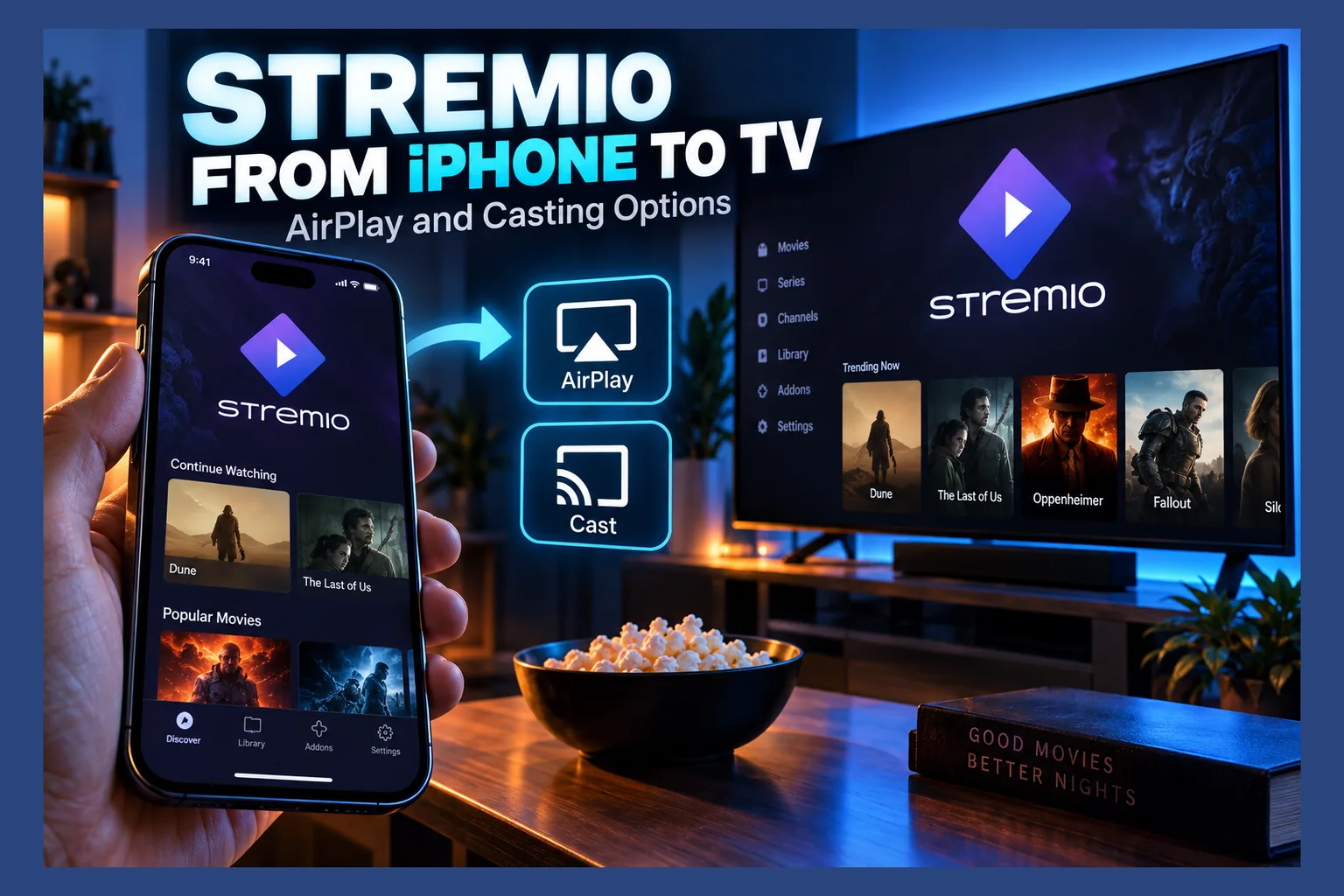
Stremio AirPlay iPhone casting does work, and you can get Stremio from an iPhone or iPad onto your TV. The catch is format. AirPlay is happiest with MP4 and H.264 streams, while MKV files and DTS audio often fail outright. For trickier streams, hand them off to an external player like VLC or Infuse. Installing Stremio directly on the TV device is often the more reliable route.
As of 2026, most of the Stremio iOS questions I get aren’t about installing the app anymore. They’re about what happens next: “It plays on my phone, so why won’t it play on my TV?” Fair question. This guide covers the full Stremio AirPlay iPhone picture, including casting to Chromecast, handing streams off to external players, and the network settings that quietly break all of it without telling you why.
Still need to get Stremio running on iOS? Start with my breakdown of Stremio on iPhone: App Store vs Web vs Sideloading Risks. Everything below, including the Stremio AirPlay iPhone steps, assumes Stremio already works on your phone or iPad.
Stremio AirPlay iPhone and iPad: Can You Cast to a TV?
Usually, yes. How well it works depends on two things: which version of Stremio you’re running, and what kind of file the addon hands back. Stremio’s iOS story has changed several times over the past few years, with App Store listings appearing in stripped-down form while Stremio Web in Safari stayed the reliable fallback.
So before testing any Stremio AirPlay iPhone setup, confirm what you’re actually using first. Check the current App Store listing and the official Stremio website. Features that existed last year may be gone today, or the reverse.
What Changes When Stremio Runs on iOS
On Android and desktop, Stremio ships with a fairly capable built-in player. iOS is different. Playback runs through Apple’s own media frameworks or Safari’s video engine, and both are fussy about file formats.
That fussiness follows you to the TV and shapes every Stremio AirPlay iPhone session. If iOS can’t decode a file natively, it can’t pass that file to an Apple TV either, which is why a stream that plays perfectly on a Windows laptop can fail on the iPhone and then fail again, in exactly the same way, on the big screen.
Casting vs Mirroring vs Handing Off to a TV App
A stream can get from iOS to a TV in three different ways. People mix them up constantly:
- Casting (video AirPlay or Google Cast): The phone sends the stream URL to the TV, and the TV fetches and plays it directly. Quality stays high. Your phone is free for other things.
- Screen mirroring: The phone re-encodes everything on its screen and pushes it over Wi-Fi. It works with almost anything, but quality drops, latency climbs, and the battery drains fast.
- Handing off: You skip the phone entirely and open the same content in a Stremio app on the TV device. Your account syncs addons and library across.
Each one fits a different situation, and Stremio AirPlay iPhone casting is only one of them. Here’s the quick summary before we go through them individually.
| Method | Picture Quality | Format Tolerance | Phone Stays Free? | Best For |
|---|---|---|---|---|
| AirPlay (video) | High | Low (MP4/HLS, H.264/HEVC) | Yes | Apple TV, AirPlay 2 smart TVs |
| AirPlay mirroring | Medium | High (anything the phone plays) | No | Quick one-off viewing |
| Chromecast / Google Cast | High | Medium | Yes | Google TV, Chromecast dongles |
| External player + cast | High | High (player-dependent) | Mostly | MKV, HEVC, multi-track audio |
| Native TV install | Highest | Highest | Yes | Regular, long viewing sessions |
Option 1: Stremio AirPlay iPhone Setup for Apple TV and Smart TVs
For most people, a Stremio AirPlay iPhone setup is the natural first move. When the stream format cooperates, nothing is easier: open a stream, tap the AirPlay icon in the player controls (or swipe down to Control Center), and pick your TV.
No AirPlay icon inside Stremio? Then your version probably doesn’t expose video AirPlay, so true Stremio AirPlay iPhone casting isn’t available. Control Center mirroring still works in that case. It’s a compromise, though, and I’ll explain why below.
Which TVs Support AirPlay 2
You don’t need an Apple TV box for Stremio AirPlay iPhone playback. Several TV makers started building AirPlay 2 receivers into their sets around 2018–2019:
- Samsung: Most smart TVs from 2018 onward, plus some 2017 models after a firmware update.
- LG: 2018 OLEDs and many webOS models from 2019 onward.
- Sony: Select Bravia models running Android TV or Google TV, generally 2019 and later.
- Vizio: Most SmartCast TVs, including plenty of older models that got the update.
- Roku: Many 4K Roku players and Roku TVs (TCL, Hisense, and others) on recent Roku OS versions. AirPlay support first arrived with Roku OS 9.4 back in 2020.
Coverage varies by model and by region. The UK and Europe are the usual trouble spots, since some product lines there ship with different firmware than their US equivalents. Check your exact model’s spec sheet or Apple’s AirPlay page before assuming anything. Standard Google TV and Fire TV devices don’t include AirPlay natively.
Video AirPlay vs Full Screen Mirroring
During video-based Stremio AirPlay iPhone playback, the app passes the stream to the TV and the TV pulls it straight from the source. Full resolution. Lock your phone and playback keeps going.
Mirroring works very differently. Your iPhone decodes the video, then re-compresses the entire screen, status bar and all, and sends it over Wi-Fi in real time, which costs you sharpness and smooth motion during fast scenes. Notification banners show up on the TV too (turn on a Focus mode first, unless you want the whole room reading your group chat).
Why Some Streams Show a Black Screen
This is the single most common Stremio AirPlay iPhone complaint. It almost always comes down to file format, because Apple TV and AirPlay receivers are built around Apple-friendly formats:
- Containers: MP4, MOV, and HLS work. MKV, which a lot of addons return, isn’t supported natively.
- Video: H.264 is the safe bet. HEVC/x265 plays on Apple TV 4K and newer receivers but can fail on older TVs.
- Audio: AAC, Dolby Digital (AC-3), and Dolby Digital Plus are fine. DTS and Dolby TrueHD aren’t supported, which gives you silent playback.
One stream shows black while another plays perfectly? Before you blame your Stremio AirPlay iPhone setup, look at the file details in the stream list. Many addons put resolution, codec, and audio format right in the stream name. Picking an “H.264” or “x264” source with AAC or DD audio often fixes things on the spot.
Option 2: Chromecast and Google TV from an iPhone
Lots of households mix an iPhone with a Chromecast or Google TV streamer. That’s especially common where everyone owns a different phone. Casting from iOS to Google Cast devices does work, but it’s less predictable than AirPlay.
Using the Cast Button When It Appears
A cast button only appears if the app includes Google’s Cast SDK and iOS has granted it Local Network access. Using Stremio Web in Safari? Don’t expect one. Safari simply doesn’t support Google Cast the way desktop Chrome does.
When the button is there, your phone and the Chromecast need to sit on the same network, and the phone has to be able to discover devices on it. A button that appears and then vanishes usually points to a discovery problem rather than a Stremio problem, so jump down to the network section.
Workarounds When There Is No Cast Option
Can’t cast to Stremio Chromecast targets from your iPhone? Three practical workarounds:
- Use an external player that supports Chromecast, such as VLC for iOS (covered in Option 3).
- Install Stremio on the Google TV device itself. Stremio has an Android TV app, so your account and addons come along.
- Mirror via a third-party app. The App Store has screen-mirroring apps for Chromecast, but quality and latency are usually worse than AirPlay mirroring, and many push you toward a subscription.
Honestly, option two is the one I’d point most people toward. If you own a budget Google TV box (the Onn 4K units often sell for around $20 in the US), my guide on sideloading apps on the Onn Google TV covers getting non-Play Store apps onto it if you ever need to.
Read next: Stremio on Apple TV: What Actually Works After Setup
Option 3: Open Streams in a Stremio External Player on iOS
AirPlay chokes on an MKV file or a DTS track. Now what? A dedicated video player can usually rescue the stream, because these apps bundle their own decoders and will play formats Apple’s built-in player refuses to touch.
VLC, Infuse and Outplayer Compared by Features
Here’s how the three most common choices stack up based on their published features. Pricing shifts. Confirm current costs on the App Store.
| Feature | VLC for iOS | Infuse | Outplayer |
|---|---|---|---|
| Cost | Free, open source | Free tier; Pro subscription or lifetime purchase | Free with optional paid upgrade |
| MKV support | Yes | Yes | Yes |
| HEVC/x265 | Yes | Yes | Yes |
| DTS / TrueHD audio | Decodes many formats | Pro tier | Supported |
| AirPlay | Yes | Yes | Yes |
| Chromecast | Yes | No | Check current version |
| Subtitle formats | SRT, ASS/SSA, embedded | SRT, ASS/SSA, PGS, embedded | SRT, ASS/SSA, embedded |
| Native Apple TV app | Yes | Yes | No |
VLC (available from VideoLAN) is the obvious free starting point. It’s also the only one here with documented Chromecast support. Infuse has the most polished Apple ecosystem integration, but advanced audio formats sit behind the Pro tier, which as of late 2025 runs somewhere around $13 a year or roughly $100 for lifetime access. Outplayer lands in between. Worth a shot if VLC’s interface bugs you.
How External Players Improve Codec and Audio Support
Built-in iOS playback handles only what Apple supports. Full stop. External players ship their own decoding libraries, so they can open an MKV container, decode an x265 video track, and convert DTS audio into something your TV or soundbar can actually output.
To use one, look in Stremio’s settings for a player or “external player” option. Depending on your Stremio version, you can choose VLC, Infuse, or Outplayer there, or tap a stream and pick “open elsewhere.” If that option doesn’t show up in your build, it’s a version limitation. You haven’t misconfigured anything.
Casting from the External Player
Once the stream is open in the external player, use that player’s own AirPlay or cast button, not Control Center. Some players convert the stream into an AirPlay-friendly format before sending it. That’s why an MKV that failed from Stremio can succeed from Infuse or VLC.
The catch? That conversion happens on your phone, which means extra battery drain and a noticeably warm iPhone during a two-hour movie. Plug it in for anything longer than an episode.
Option 4: Skip the Phone and Run Stremio on the TV Device
If you watch most evenings, casting from a phone is a workaround, not a setup. A native Stremio install on the TV device sidesteps codec handoffs, discovery problems, and phone battery drain in one go.
Apple TV Options and Limits
Apple TV is where expectations and reality drift furthest apart. Stremio’s tvOS availability has been inconsistent, and what works today depends on current App Store status and whichever workarounds still hold. I’ve covered the details in Stremio on Apple TV: What Actually Works After Setup.
Short take: many Apple TV owners pair Stremio on the phone with Infuse on the Apple TV. Others just rely on AirPlay with carefully picked stream formats.
Firestick, Google TV and Android TV
Android-based TV devices get the strongest Stremio support. Google TV devices can pull the Android TV app straight from Google Play. Fire TV users get it through Amazon’s store or by sideloading, depending on region.
For iPhone users, the real win is account sync. Sign in with the same Stremio account on the TV device and your installed addons, library, and watch progress show up automatically, so you can browse on the phone during the day and pick up on the couch at night. For platform differences, see Stremio Firestick vs Google TV: What Changes After Install.
Roku is the outlier. No official Stremio app exists for it, so Roku owners are stuck with AirPlay (on supported models) or plugging a cheap Google TV stick into a spare HDMI port.
Using the iPhone as a Remote Instead
You can keep your phone’s convenience without casting at all. The Apple TV Remote in Control Center controls an Apple TV. On the Google side, the Google TV app for iOS doubles as a remote and keyboard.
Typing search terms on a phone keyboard beats a TV remote by a mile. If on-screen typing is the only reason you cast, this middle ground might be all you need.
Network Settings That Break Stremio AirPlay and Casting
When the AirPlay or cast button doesn’t appear at all, blame the network before the stream. Check these three areas, in order.
iOS Local Network Permission
Since iOS 14, apps have had to ask permission before they can find devices on your network. Tap “Don’t Allow” when that prompt shows up, and casting quietly stops working. No error message, nothing.
The fix lives in Settings > Privacy & Security > Local Network. Switch on Stremio and any external player you use. You can also open Settings > Stremio and flip the Local Network toggle there. Then force-close the app and reopen it (yes, you really do need to do this, or the change may not take).
VPNs and AirPlay Discovery
A full-tunnel VPN on your iPhone routes all traffic through a remote server. That can hide your TV from your phone entirely, since discovery traffic never reaches your local network.
Many VPN apps include a setting called something like “Allow LAN access,” “Local network sharing,” or “Allow LAN connections.” Turn it on. Local discovery usually comes back while internet traffic stays tunneled. Also check the VPN’s kill switch, because strict modes that block all non-VPN traffic can override LAN access completely.
One more thing. When you cast, the TV fetches the stream itself, so your phone’s VPN does nothing for the TV’s connection. If that matters to you, run the VPN on the TV device or on your router instead.
Guest Wi-Fi, Mesh Networks and Client Isolation
Guest networks typically use client isolation, which stops devices from seeing each other. Phone on guest Wi-Fi, TV on the main network? They’ll never find each other.
Mesh systems cause similar headaches when the 2.4GHz and 5GHz bands use different network names, or when “AP isolation” is switched on (this is often buried a few menus deep in the router app, annoyingly). Put both devices on the same SSID, disable isolation, and make sure multicast or mDNS isn’t being blocked.
Troubleshooting Common iPhone-to-TV Problems
Below is a symptom-to-fix rundown for the issues that come up most. Several overlap with general Apple device streaming problems, which I’ve also covered in Snappier IPTV Not Working? Apple TV & iPhone Fixes.
No Sound on AirPlay
- Symptom: Video plays on the TV. Total silence.
- Likely cause: The stream uses DTS, DTS-HD, or TrueHD audio, none of which AirPlay supports.
- Fix: Pick a stream labeled AAC, DD, or DD+ instead. Or open it in an external player that converts the audio before sending.
Stream Buffers Only When Casting
- Symptom: Smooth on the phone, stuttering on the TV.
- Likely cause: The TV has a weaker Wi-Fi connection than your phone, or you’re mirroring instead of casting.
- Fix: Connect the TV device via Ethernet if you can, switch from mirroring to video AirPlay, or choose a lower-bitrate stream, such as 1080p instead of a 4K remux that might push 40–60 Mbps.
Subtitles Missing on the TV
- Symptom: Subtitles show on the phone but disappear after casting.
- Likely cause: Many receivers won’t render external subtitle files sent alongside the stream. Image-based formats like PGS are poorly supported too.
- Fix: Mirror for that session, try an external player that burns subtitles into the output, or play natively on the TV device.
Addon Returns No Streams
- Symptom: Stremio shows the title, but the stream list is empty.
- Likely cause: The addon is down, misconfigured, or blocked on your network, or a VPN is interfering with its requests.
- Fix: Reinstall or reconfigure the addon from its official page, retry with the VPN toggled, and check the addon’s community channels for outage reports. This one is an addon problem, not a casting problem. Fix it on the phone first.
Safety and Legal Notes Before You Stream
Stremio itself is just a media center. The addons decide where streams come from, and that’s exactly where the legal and security risks live.
Vet every addon before installing it. Who maintains it? Does its configuration page ask for anything unusual? Has the community flagged problems? Never paste debrid or account credentials into addons you can’t verify.
The cleanest route is sticking with licensed sources. Plenty of official services work through Stremio or have their own TV apps, and they dodge every format and legality headache covered above.
Final Thoughts on Stremio AirPlay iPhone Casting
Getting a Stremio AirPlay iPhone setup working comes down to matching the method to the stream. AirPlay shines with MP4 and H.264 sources carrying standard audio. External players like VLC and Infuse handle the MKV and DTS cases, while Chromecast owners usually do best by installing Stremio on the Google TV device directly.
Casting keeps failing? Check Local Network permission, VPN LAN access, and client isolation before you blame the app. And if you watch often, move Stremio onto the TV itself. Your phone battery will thank you.
⚖️ Legal Disclaimer: IPTV Wire does not own or operate any streaming service, application, or website mentioned in this article. We do not verify whether third-party services carry proper licensing. Users are responsible for ensuring they comply with copyright laws in their jurisdiction.
Frequently Asked Questions
Does Stremio support AirPlay on iPhone?
Yes, in most cases. Depending on your Stremio version, you can use the in-player AirPlay button or Control Center mirroring. Video AirPlay works best with MP4/HLS streams that use H.264 or HEVC video and AAC or Dolby Digital audio.
Why does Stremio play video but no sound over AirPlay?
The stream almost certainly uses DTS or Dolby TrueHD audio, and AirPlay supports neither. Pick a stream with AAC, DD, or DD+ audio, or open it in an external player like VLC or Infuse that can convert the audio.
Can I cast Stremio from an iPad to a Chromecast?
Only if your Stremio build shows a cast button and has Local Network permission. Stremio Web in Safari doesn’t support Google Cast. The usual workarounds are casting through VLC for iOS or installing Stremio on the Google TV device.
Does a VPN on my iPhone stop AirPlay from working?
It can. A full-tunnel VPN may hide your TV from the phone. Turn on your VPN app’s “Allow LAN access” or local network sharing option, and make sure a strict kill switch isn’t blocking local traffic.
Is it better to install Stremio on the TV instead of casting from iOS?
For regular viewing, yes. A native install on Google TV, Android TV, or Fire TV avoids codec handoffs and discovery issues, and your account syncs addons and progress from the phone automatically.
Which external video player works best with Stremio on iOS?
VLC is the best free choice and supports both AirPlay and Chromecast. Infuse offers the best Apple TV integration, though advanced audio formats need Pro. Outplayer is a solid middle option. Choose based on your TV hardware and the formats your addons return.
Comments
Leave a comment
Your email address will not be published. Comments are moderated before they appear.