

Table of contents
AI features on streaming devices privacy risks are something most buyers never think about when they grab a Firestick or Roku stick off the shelf — but they absolutely should. These risks are baked into the operating system itself, and data starts leaving your home network the moment you plug in and connect your account. This isn’t a security flaw someone uncovered in a lab; it’s how these platforms were deliberately designed to work. I’ve spent years testing streaming devices for IPTV Wire, and I want to walk you through exactly what’s leaving your network — and what you can realistically do to slow it down.
Why AI Features on Streaming Devices Privacy Risks Are Bigger Than You Think
The shift from passive streaming to active data harvesting — and why AI features on streaming devices privacy risks now start at the OS level
Streaming devices used to be dumb pipes. You pressed play, video came out. That era is gone. Every major platform — Amazon Fire OS, Roku OS, Google TV, Android TV — now ships with AI-driven recommendation engines, voice assistants, and continuous usage profiling running at the OS level. The AI features on streaming devices privacy risks this creates are not optional add-ons you can uninstall — they are baked into the core OS, which means opting out is far harder than most users expect.
The key difference between this and a browser tracking cookie is persistence. A browser cookie you can delete in about three clicks. The telemetry layer in Fire OS or Google TV runs as a system service — it sees every app you open, how long you spend in each one, what content you hover over, when you pause, and in some cases what your microphone picks up. You can’t remove it the way you’d ditch a browser extension, because it isn’t an extension. It’s part of the operating system itself.
What ‘personalization’ really means on these platforms
When Amazon or Roku says their AI is personalizing your experience, that’s technically accurate — but it’s also a very incomplete description of the AI features on streaming devices privacy risks that sit underneath that promise. Personalization requires data. That data gets stored, profiled, and in most cases sold or shared with advertising partners — the “personalized recommendation” is the output you see. The data harvesting underneath is the actual product.
Roku’s Audience Insights program connects your viewing behavior directly to third-party ad buyers. Google TV merges your streaming habits into your broader Google account profile. Amazon correlates what you watch on Prime Video with what you shop for on Amazon.com. None of this is hidden exactly — the AI features on streaming devices privacy risks are disclosed in privacy policies that run to dozens of pages and that almost nobody reads. Recognizing these cross-platform data flows is essential if you want to get a handle on your exposure.
Firestick: What Amazon’s AI Layer Actually Collects
Alexa voice data and what stays on-device vs. what leaves
Alexa on the Firestick sits in a semi-passive listening state by default. It’s not recording continuous audio and uploading it wholesale — I’ll address that myth properly later — but the moment you press the voice button or trigger the wake word (if you’ve enabled it), your query gets processed on Amazon’s servers, not locally on the stick.
That means voice searches, content requests, and even throwaway commands like ‘turn up the volume’ get logged to your Amazon account. It’s one of the most tangible ways AI features on streaming devices privacy risks show up in everyday use — far removed from abstract policy language and sitting right inside your living room. You can review and delete these at alexa.amazon.com under Voice History, but the default is to retain them indefinitely. In my own Fire OS 7 setup, I found 14 months of saved queries I’d completely forgotten about — timestamped, transcribed, stored.
To tighten this up: go to Settings → Alexa → Alexa Privacy → Manage Your Alexa Data on the device itself, or handle it through the Alexa app. Set deletion to auto-delete every 3 months at minimum. (This is buried in settings, annoyingly — it should be surfaced during first-run setup, but it isn’t.)
App usage tracking and cross-app data correlation
Here’s the part most Firestick users miss entirely. Even with Alexa muted and voice history cleared, Fire OS still logs app launch events, session durations, and content metadata across every app on the device — a layer of AI features on streaming devices privacy risks that persists even after you’ve done the obvious opt-outs. Including sideloaded APKs.
Yes, even sideloaded apps. Amazon’s OS-level telemetry sees the application package name open and close. It doesn’t necessarily see what you watched inside a third-party app, but it does know you launched it, how long it ran, and when you closed it. That data feeds into Amazon’s advertising ID system, which connects to ad targeting across Amazon’s network.
To limit this: head to Settings → Preferences → Privacy Settings and turn off Device Usage Data, Collect App and Over-the-Air Usage Data, and Interest-Based Ads. Resetting your Advertising ID here also helps break historical data correlation, though it doesn’t stop future collection from starting fresh.
How connected accounts expand the data surface
Every app you log into on a Firestick with a third-party account adds another separate data collector. This stacking effect is precisely why AI features on streaming devices privacy risks compound so quickly — each new login extends the data surface in ways that aren’t obvious from the outside. Netflix, YouTube, Disney+, and your IPTV app all run their own telemetry pipelines on top of Amazon’s OS layer. Amazon’s layer sees the app open; the app itself sees everything you do inside it. You’re dealing with layered collection from multiple independent sources — not one single pipe you can cap.
Roku AI Recommendations: The Algorithm Behind the Curtain
What Roku’s Audience Insights program sends to advertisers
Roku is unusually transparent about monetizing viewer data — not out of ethical compulsion, but because their ad business is publicly disclosed to investors. Understanding this ad-business model is central to grasping the full scope of AI features on streaming devices privacy risks that Roku’s approach creates — because the privacy trade-off isn’t incidental to Roku’s business, it is the business. The Roku Audience Insights program lets brands target viewers based on content consumption patterns, streaming session length, and genre preferences. That data is anonymized in aggregate form, but it’s built from your individual viewing log first — the anonymization happens after the collection, which is exactly why AI features on streaming devices privacy risks don’t disappear just because a platform claims to anonymize data.
I covered the mechanics of how Roku’s recommendation engine actually works over at Roku AI Recommendations: What the Algorithm Actually Does — but the short version is that what you watch, when you watch it, and for how long is continuously logged and used for both on-platform recommendations and off-platform ad targeting across Roku’s ad network.
Smart Guide data: ACR and what it fingerprints
ACR — Automatic Content Recognition — is the technology that lets Roku (and most smart TVs) identify what’s playing on screen, even from external HDMI sources. Small samples of the video signal get captured and matched against a reference database. If you plug a cable box or a laptop into your Roku TV and watch anything through it, ACR can identify and log what you were watching.
That’s the part that catches most people off guard. It’s not just Roku channel activity that gets tracked. Any content displayed through the panel — including an IPTV stream running through an external box connected via HDMI — is potentially fingerprinted if ACR is active. The TV itself is doing the logging, not the streaming app.
Limiting Roku’s data reach in Channel and Privacy settings
Go to Settings → Privacy → Advertising and enable Limit Ad Tracking. Then go to Settings → Privacy → Smart TV Experience and turn off Use Info from TV Inputs — that’s the ACR toggle (yes, you really do need to do this separately from the ad tracking setting). Also check Settings → Privacy → Channel permissions to review what each individual channel can access on your device.
These settings don’t eliminate data collection. But they do meaningfully reduce what Roku can sell to its ad partners.
Android TV and Google TV: The Most Expansive Data Collectors
Google account integration: why it amplifies data exposure
Of all the major streaming platforms, Google TV and Android TV carry the highest data exposure risk — not because of a flaw, but because of the deliberate integration of your streaming device into your full Google account ecosystem. Sign into a Chromecast with Google TV or a Sony Android TV with your Google account, and you’re giving Google a direct window into your viewing habits that connects to your search history, YouTube watch history, location data from Maps, and even purchase signals pulled from Gmail receipts.
That cross-signal profile is orders of magnitude richer than anything Amazon or Roku can build independently. Google’s AI recommendation engine isn’t just working from what you watched last Tuesday — it’s drawing on a years-long behavioral graph tied to a verified identity. That’s a different scale of data collection entirely.
Assistant queries tied to your broader Google profile
Every voice query to Google Assistant on your TV gets logged in your Google My Activity dashboard at myactivity.google.com. I pulled mine once and found a two-year history of TV voice searches sitting alongside my phone searches and Maps queries — all timestamped, transcribed, and fully searchable by Google and, in some cases, by third-party developers whose apps use the Assistant API.
To audit yours: visit myactivity.google.com, filter by “Assistant,” and see what’s there. You can set auto-delete on a 3-month rolling basis from the Activity Controls panel. It takes about four minutes and it’s worth doing.
NVIDIA Shield and Mecool boxes: same OS, same risks
Running an NVIDIA Shield TV Pro (around $199 as of late 2025) or a Mecool KM2 Plus doesn’t get you out of this. Both run Android TV or Google TV and require a Google account at setup. The Shield is a genuinely excellent device for IPTV and Plex, but its data exposure profile is essentially identical to a budget $30 Chromecast. One practical workaround: create a secondary Google account used only for your TV, with no personal data attached. It sandboxes your streaming behavior from your main profile — not a perfect solution, but meaningfully better than signing in with your primary account.
How Third-Party IPTV and Streaming Apps Add Another Data Layer
What IPTV apps can see even when the OS is locked down
Here’s the angle most privacy guides skip entirely. Say you’ve gone through every setting on your Firestick or Android TV and disabled every data-sharing toggle you can find. You’re still running an IPTV player — TiviMate, IPTV Smarters, or something else — and that app has its own outbound traffic that OS-level privacy settings don’t touch.
IPTV apps can see your device’s IP address, local network information, which playlists you load, which channels you play, and session duration. The more capable ones also send crash reports and usage analytics to their developers’ servers. Whether that data gets stored, shared, or sold depends entirely on the app developer’s privacy policy — which, for many IPTV apps, is either minimal or simply nonexistent.
Stremio and Kodi addons: data transmitted to addon servers
Stremio and Kodi users have an additional concern that’s worth understanding separately. When you install a third-party addon in either platform, that addon makes direct outbound connections to its own servers when you browse or play content. Stremio addons communicate via a documented API — but what each addon developer logs on their end is outside Stremio’s control and entirely outside yours.
I’ve written before about how fake software updates on streaming devices can compromise a device at a deeper level than most people expect — and third-party addon distribution is one of the vectors used for exactly that. Even legitimate addons can phone home with more detail than you’d anticipate. A basic packet capture on a Kodi box running one popular third-party addon revealed outbound connections to three separate servers, none of them disclosed in any privacy policy I could locate. Not necessarily malicious — but definitely worth knowing.
Why sideloaded APKs bypass platform-level privacy controls
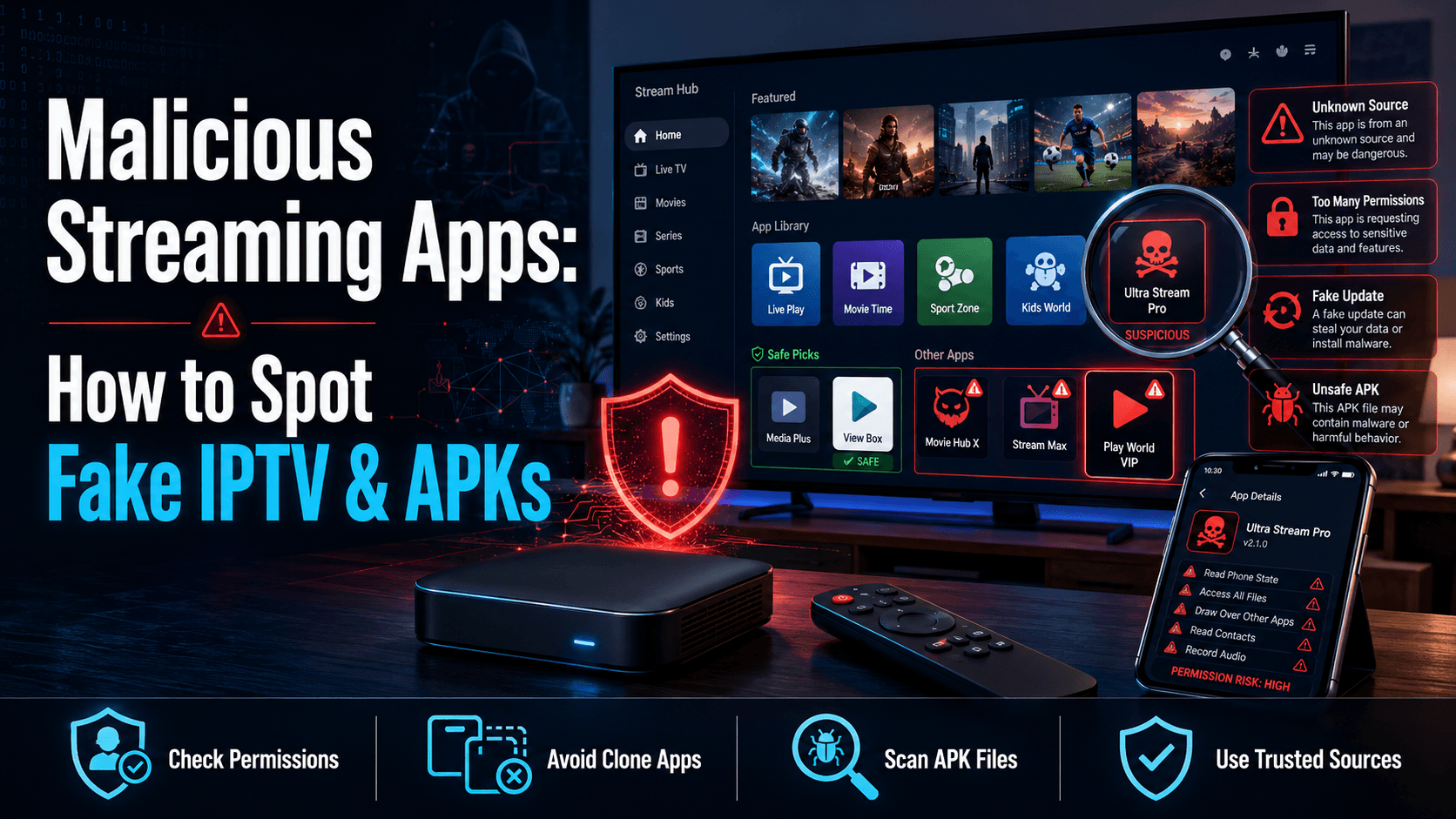
Sideloading an APK onto a Firestick or Android TV means installing software outside the Play Store or Amazon Appstore review process. No platform-level privacy disclosure review. No sandboxed permission enforcement. No forced compliance with data handling rules. The APK requests permissions at install time, and most users tap through without reading them.
An APK with network access permission — which virtually every streaming app requests — can make arbitrary outbound connections to any server it likes. Your OS-level “Limit Ad Tracking” toggle does nothing to stop that traffic.
How to Actually Audit and Limit Data Leaving Your Streaming Device
Using a VPN to mask streaming device traffic at the router level
The single most effective step you can take is running a VPN at your router rather than on the device itself. Roku doesn’t support native VPN apps at all. Apple TV only added proper VPN support relatively recently. But if your router is running a VPN connection, every device on your network — your Roku, your smart TV, your Firestick — gets its traffic encrypted and its IP address masked before it ever leaves your home.
This won’t stop a device from sending telemetry data (that data still leaves, just encrypted differently), but it does prevent your ISP and any network-level observers from seeing which streaming services you’re hitting. For per-device control on Android devices specifically, our breakdown of VPN split tunneling on Android is worth reading — it covers how to route specific apps through the VPN while leaving others on your standard connection.
Network-level blocking with Pi-hole or DNS filtering
Pi-hole is a DNS sinkhole you run on a Raspberry Pi (a Pi 4 runs about $35–$45) or even a spare old PC sitting on your local network. It intercepts DNS queries from every device and blocks known telemetry and advertising domains before the connection is ever made. Amazon’s telemetry endpoints, Roku’s analytics servers, Google’s logging APIs — many of these appear on public blocklists that Pi-hole can import automatically.
I run Pi-hole on my own home network and it blocks around 18–22% of all DNS queries across my streaming devices, most of them telemetry or ad-related. It’s not a complete solution, but it’s one of the most effective passive controls available without breaking normal device functionality. Some streaming apps will throw errors if you block too aggressively — availability of specific blocklists varies, so expect some trial and error.
Per-device settings checklist: Firestick, Roku, Google TV
Firestick:
- Settings → Preferences → Privacy Settings → turn off Device Usage Data, App and OTA Usage Data, and Interest-Based Ads
- Reset your Advertising ID
- Settings → Alexa → Alexa Privacy → set auto-delete on voice history
- Review connected app accounts for third-party services you no longer use
Roku:
- Settings → Privacy → Advertising → enable Limit Ad Tracking
- Settings → Privacy → Smart TV Experience → disable Use Info from TV Inputs (the ACR toggle)
- Settings → Privacy → Channel permissions → review per-channel access
- Consider a router-level VPN since Roku has no native VPN support
Google TV / Android TV:
- Settings → Privacy → Ads → opt out of Ads Personalization
- Settings → Privacy → Usage and Diagnostics → disable
- Review myactivity.google.com and set Assistant auto-delete to 3 months
- Consider a secondary Google account dedicated to the TV only
- Review app permissions individually under Settings → Apps
What These Devices Are NOT Doing (Clearing Up the Myths)
Balance matters here. There’s real fear-mongering online about streaming devices that goes well beyond what the evidence actually supports, and an accurate picture is more useful than a scary one.
Your Firestick is not recording ambient audio around the clock. Alexa requires a wake word or a physical button press to activate. The microphone sits in a low-power passive state otherwise. Amazon has published technical documentation on this, and independent researchers who have captured the device’s audio traffic over time confirm it: bulk ambient audio is not being continuously uploaded. Specific triggered voice queries are — and that’s worth managing — but it’s a fundamentally different thing from a surveillance microphone pointed at your living room.
Your IPTV viewing is not being individually reported to studios or rights holders in any systematic way. The data these platforms collect is used for ad targeting and product development. There is no industry pipeline where Amazon informs a studio that a specific person at a specific address watched a particular live stream last Thursday. The data operates at aggregate and pseudonymized levels. Availability of data-sharing arrangements does vary by region and by individual service agreements, so I can’t speak to every scenario — but this is the general picture.
The actual concern is more subtle than that: persistent behavioral profiling that builds a detailed picture of your habits over months and years, tied loosely to an identity, and sold to advertisers. That’s worth taking seriously. It’s just a different kind of problem than “someone is listening through your TV.”
⚖️ Legal Disclaimer: IPTV Wire does not own or operate any streaming service, application, or website mentioned in this article. We do not verify whether third-party services carry proper licensing. Users are responsible for ensuring they comply with copyright laws in their jurisdiction.
Frequently Asked Questions
Does Firestick’s Alexa listen to you even when you’re not using it?
Not in the way most people fear. Alexa on Firestick stays in a passive low-power state until triggered by the wake word or the physical voice button on your remote. It does not continuously record and upload ambient audio. Once triggered, though, your queries are processed on Amazon’s servers and stored to your account by default — which you can manage through Alexa Privacy settings at alexa.amazon.com or through the Alexa app.
Can a VPN stop my streaming device from sending data to advertisers?
Partially. A VPN encrypts your traffic and masks your IP address, which prevents ISP-level observation and stops advertisers from correlating your traffic by IP. It does not stop the device itself from sending telemetry — that data travels over the encrypted tunnel rather than being blocked at the source. For more complete control, combine a router-level VPN with Pi-hole DNS blocking to intercept known telemetry domains before the connection is even established.
What is ACR and does my Roku or smart TV use it?
ACR stands for Automatic Content Recognition. It captures small samples of whatever is displayed on screen — including content from external HDMI inputs — and matches those samples against a reference database to identify what you’re watching. Roku TVs use ACR through the “Use Info from TV Inputs” setting. Most major smart TV brands including LG, Samsung, and Sony also use some form of ACR, though the exact implementation and menu path to disable it varies by manufacturer and firmware version.
Do sideloaded IPTV apps collect personal data on Android TV?
They can, and many do. Sideloaded APKs bypass the app store review process entirely, meaning there’s no platform-enforced privacy disclosure requirement. IPTV apps with network access permissions can send your IP address, device identifiers, playlist data, and session information to their developers’ servers. The extent varies significantly by app. Checking the app’s privacy policy — if one exists — and monitoring outbound traffic with a packet capture tool are the most reliable ways to assess what a specific app is actually doing.
How do I stop my Google TV from sharing my viewing history with Google?
Start at myactivity.google.com and set your Activity Controls to auto-delete on a 3-month cycle. On the device itself, go to Settings → Privacy → Usage and Diagnostics and disable it, then go to Settings → Privacy → Ads and opt out of Ads Personalization. For more complete separation, set up a secondary Google account used only on the TV — this keeps your streaming behavior from merging with your primary Google profile. It won’t eliminate data collection entirely, but it meaningfully limits cross-service data correlation between your TV habits and the rest of your Google activity.
Comments
Leave a comment
Your email address will not be published. Comments are moderated before they appear.