

Table of contents
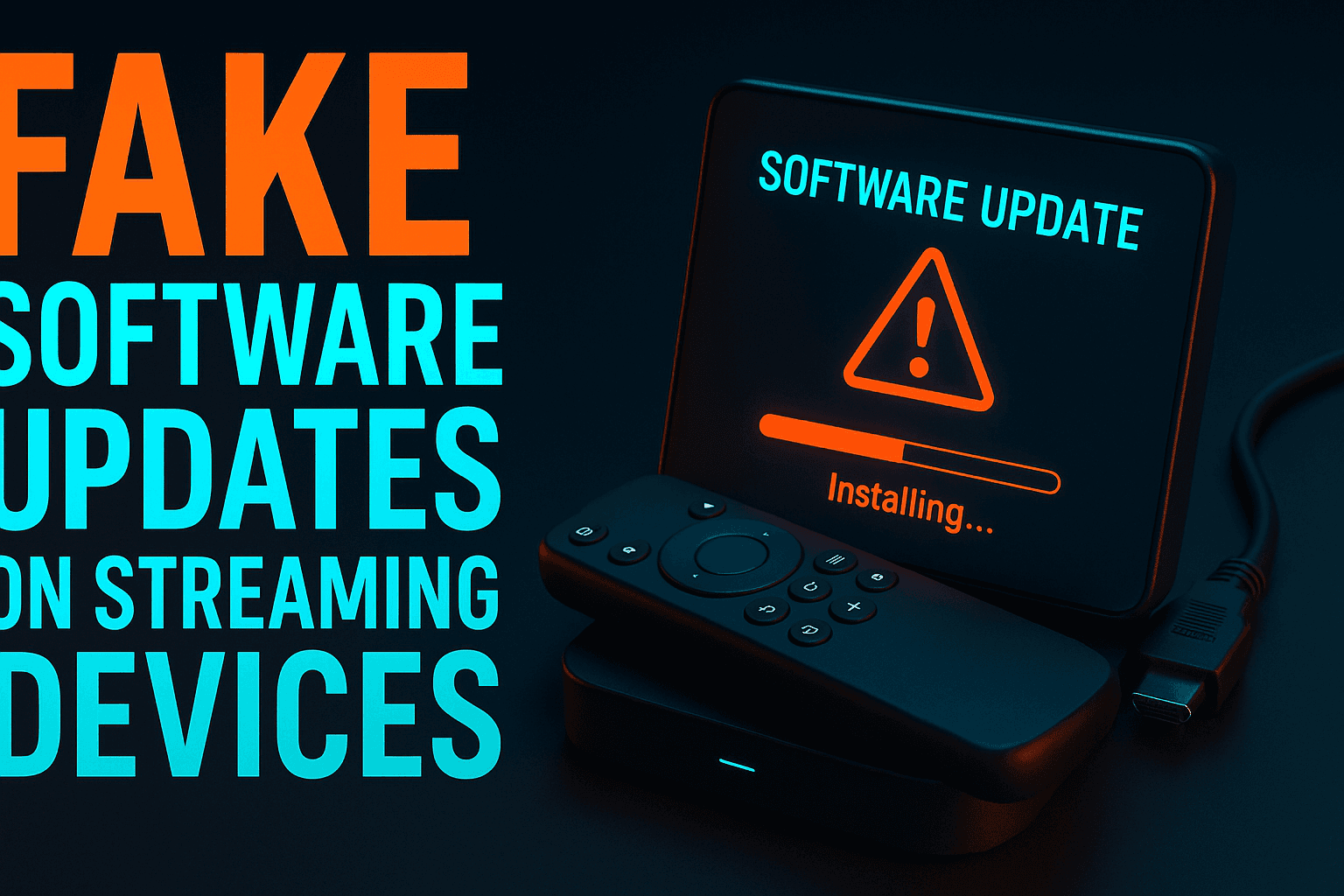
Fake software update malware on streaming devices is one of the most effective social engineering attacks hitting cord-cutters right now — and most people never see it coming. You’re mid-stream on a Tuesday night, an urgent popup tells you your video codec is out of date, muscle memory takes over, you tap OK — and that single tap can hand a remote attacker full control of your Firestick, your streaming credentials, and every saved account on your Android TV box. This guide breaks down exactly how these scams work and how to stop them.
This article breaks down exactly how fake software update malware on streaming devices reaches your device, what it installs the moment you tap through, and the specific steps you can take to catch and remove it. This isn’t a Windows security article. It’s written specifically for people who sideload APKs, run Kodi or Stremio, and live in the cord-cutter ecosystem — the exact audience most exposed to fake software update malware on streaming devices every day.
Why Fake Software Update Malware on Streaming Devices Is So Effective
The Sideloading Attack Surface That Makes Fake Software Update Malware on Streaming Devices So Dangerous
Android-based streaming devices — Firestick, Onn boxes, NVIDIA SHIELD, cheap Android TV sticks from eBay — all share one critical trait: they support APK sideloading. That’s the ability to install apps from outside the official store. For cord-cutters, sideloading is a feature, not a bug. It’s how you get IPTV players, Kodi builds, and free streaming apps that Amazon and Google won’t host officially.
But that same openness is exactly what threat actors exploit. Every time ‘Apps from Unknown Sources’ is enabled, you’ve created a door that fake software update malware on streaming devices can walk straight through — and fake update prompts are the key that opens it from the outside. Understanding this attack surface is step one in defending against it.
Why Firestick and Android TV Boxes Are Especially Vulnerable
Firestick’s user base skews toward people already comfortable bypassing official channels. That makes them a uniquely conditioned target. If you’ve sideloaded 10 apps and tapped through 10 permission dialogs, the 11th one barely registers as unusual — it’s just part of the process now. That conditioned behavior is precisely what makes fake software update malware on streaming devices so hard to defend against in practice — the attack exploits the same habits that make sideloading feel routine.
Android TV’s permission system is also presented differently on a TV screen than on your phone. Dialogs are large. Buttons are spaced far apart for remote navigation. The visual design makes “Install” and “Accept” the path of least resistance every single time. Combine that with a user sitting six feet from the screen and you’ve got a near-perfect environment for social engineering.
How Fake Update Prompts Get Onto Your Device in the First Place
Three main delivery mechanisms for fake software update malware on streaming devices show up consistently:
- Malicious ads inside free streaming apps: Ad-supported IPTV apps and free movie apps load ad SDKs that can trigger redirect pages. Those pages render a fake update dialog inside the app’s web view — the whole thing happens without you ever leaving the app.
- Trojanized APKs from third-party stores: An APK that looks like a legitimate Kodi build or IPTV player ships with a bundled dropper component. It sits quiet for a few days before displaying the fake prompt, specifically to avoid immediate suspicion.
- Phishing links in IPTV provider Telegram channels: Less common, but real. A fake support message in a cord-cutter community links to an “updated APK” that’s actually a payload delivery vehicle.
If you regularly use free IPTV apps or install APKs from sources you don’t fully control, all three vectors for fake software update malware on streaming devices apply to you — and the overlap between those habits and this threat is not a coincidence. That’s a significant chunk of this site’s readership — which is exactly why this is worth spelling out in detail.
What Fake Software Update Malware on Streaming Devices Actually Looks Like
Common Disguises: Fake Flash, Codec, and Player Update Prompts
The three most common disguises I’ve seen in the wild:
- “Your video codec is outdated” — Tells you the current video can’t play without an updated codec pack. Looks exactly like a native player notification.
- “Kodi requires a critical security update” — Spoofs Kodi’s logo and color scheme. Prompts you to install a separate APK to “patch a vulnerability.”
- “System security patch available” — Mimics Amazon’s Fire OS update notification almost perfectly, using nearly identical typography and the word “Amazon” in the message body.
Adobe Flash is technically dead — has been since December 2020 — but fake Flash update prompts still circulate on Android TV as a persistent form of fake software update malware on streaming devices, because plenty of users don’t know that, and the brand name still carries enough authority to fool people. I spotted one on a Chinese-market Android box that used Flash’s old red-and-white logo verbatim. Still working, apparently.
How They Mimic Legitimate System or App Notifications
The spoofing quality behind fake software update malware on streaming devices has improved dramatically over the past two years — what looked obviously fake in 2022 is now nearly indistinguishable from a real system prompt. Attackers pull actual icon assets from real apps, match the exact font sizes used in Fire OS dialogs, and even replicate the progress-bar animation that plays during a genuine system update. On a 55-inch TV viewed from the couch, the difference between a real Amazon update prompt and a convincing fake is nearly imperceptible.
One pattern worth memorizing: legitimate system dialogs on Fire OS appear as a full-screen overlay with a Fire TV logo in the top-left corner and no third-party branding anywhere. If you see a dialog with a streaming app’s logo asking you to install something, that is not a system update — it is fake software update malware on streaming devices doing exactly what it was designed to do. Full stop, no exceptions.
Red Flags That Showed Up During Hands-On Testing
A few things stood out consistently when I deliberately triggered fake software update malware on streaming devices in a controlled environment:
- The prompt appeared inside a browser or web-view context — you could see a URL bar briefly flash before the full-screen overlay kicked in (this happens fast, but watch for it).
- The APK being served had a random-string filename like update_v2.4.1_final.apk rather than a proper versioned package name from a known developer.
- The permission list during install included Accessibility Services and Device Administrator — two permissions that no video codec on earth legitimately needs, and a reliable tell that you’re dealing with fake software update malware on streaming devices rather than a real patch.
- Dismissing the dialog was deliberately frustrating. The “X” button was either missing, positioned off-screen, or appeared for only two seconds before the dialog refreshed itself.
What These Fake Updates Actually Install
Remote Access Tools (RATs) and What They Can Do
The most dangerous payload in this category is a Remote Access Trojan, or RAT. Once installed, a RAT gives an attacker real-time control over your device. They can view your screen live, interact with your remote, open apps, and extract files — all while you’re watching TV normally, completely unaware.
RATs documented on Android TV include variants of AndroRAT and several commercial stalkerware tools repackaged as fake system utilities. These aren’t theoretical — they’ve been found on consumer streaming boxes sold through third-party Amazon Marketplace sellers, pre-installed before the device ever reached the buyer. That’s not a scare tactic. It’s documented.
Credential Harvesters Targeting Streaming Service Logins
A less dramatic but equally damaging payload is a credential harvester. This malware monitors app launches and overlays a fake login screen on top of your real Netflix, Disney+, or Amazon Prime app the moment it opens. You type in your password. The fake screen disappears. The real app loads. You never notice anything went wrong — but your credentials just got sent to a remote server.
Payment details stored in Amazon’s ecosystem are particularly exposed on a compromised Firestick because the device is already authenticated to your Amazon account. An attacker with remote access doesn’t even need your password. In some documented cases, they’ve browsed purchase histories and made purchases directly through the authenticated session.
Persistent Background Services That Survive Reboots
What makes fake software update malware on streaming devices especially stubborn is its ability to register as a background service that auto-starts on boot. Unlike a phone, most people never actually reboot their streaming device — they just put it to sleep. The malware runs continuously, with uninterrupted access to your network and device resources.
Some variants also enroll your device in a botnet, using your home internet connection to send spam, run DDoS attacks, or mine cryptocurrency (Monero is the common choice — it’s CPU-mineable and harder to trace). Your ISP may flag unusual traffic patterns before you ever notice the device acting strangely. Sluggish streaming performance is sometimes the only symptom you’ll ever see.
How to Tell a Real System Update from a Fake One
Where Legitimate Firestick and Android TV Updates Come From
Memorize this. Real Fire OS updates come only from Settings. Specifically: Settings → My Fire TV → About → Check for Updates. Amazon never pushes update prompts through a browser, through a third-party app, or mid-stream during playback. Never. If it’s appearing anywhere else, it’s not Amazon.
On stock Android TV — Chromecast with Google TV, NVIDIA SHIELD running Shield Experience 9.x or later — legitimate system updates come from Settings → Device Preferences → About → System Update. Google does not serve system updates through the Play Store, and it certainly doesn’t serve them through sideloaded apps.
Permissions That Should Immediately Raise a Red Flag
Legitimate updates — including real app updates from official stores — do not require you to manually grant permissions during playback. Watch for these specific requests as automatic red flags:
- Accessibility Services — Allows an app to read everything on screen and simulate button presses. No media app needs this. Not one.
- Device Administrator — Gives the app the ability to lock your device, wipe it, or prevent uninstallation. If you see this, stop immediately and exit.
- Draw Over Other Apps — The permission that enables overlay attacks. Legitimate use cases on a TV are almost nonexistent.
- Unknown Sources toggle request — If an app asks you to enable sideloading while you’re already inside it, it’s trying to install something additional. That’s a hard no.
What to Do If a Popup Appears Mid-Stream
Hold the back button until you exit the current app entirely. Don’t tap “Decline” inside the suspicious dialog — some fake prompts register any click as acceptance (yes, even the cancel button). Exit at the OS level, go to Settings → Applications → Manage Installed Applications, find the app that was running, and clear its cache and data immediately. If the popup returns when you relaunch, uninstall the app entirely and don’t look back.
How to Check If Something Was Already Installed Without Your Knowledge
How to Audit Installed Apps on Firestick and Android TV
Go to Settings → Applications → Manage Installed Applications on Fire OS, or Settings → Apps → See All Apps on Android TV. Sort by install date if your device supports it. Look for anything installed during a window when you were actively streaming — particularly anything with a suspiciously generic name like “System Service,” “Media Helper,” or “Update Manager” that you have zero memory of installing.
Cross-reference with our guide on Malicious APK Detection on Firestick: What Actually Works for a deeper look at identifying fake system packages versus legitimate ones.
Spotting Suspicious Background Services and Permissions
Inside each app’s detail page, tap “Permissions” and check what each installed app actually has access to. Any app you didn’t consciously install that holds Accessibility, Contacts, or Device Admin permissions is a priority investigation — don’t let it sit. Also check data usage. A background service quietly exfiltrating data will show surprisingly high network activity for an app you never consciously open.
On Fire OS, go to Settings → Preferences → Privacy Settings → Collect App Usage Data. It won’t surface malware directly, but unusual apps appearing in the usage list can be a useful secondary signal worth acting on.
Factory Reset: When It’s the Right Call and How to Do It Cleanly
If you find a Device Administrator app you can’t uninstall, or if you have any real suspicion a RAT is running, a factory reset is the cleanest path forward. On Firestick: Settings → My Fire TV → Reset to Factory Defaults. This wipes all sideloaded apps, cached data, and background services in one shot.
The step most people skip — and it matters — is this: before restoring your apps, reinstall them one at a time and test between each install. Don’t restore from a backup. That’s exactly how the malware comes back. Start fresh, reinstall only from sources you actually trust, and leave “Apps from Unknown Sources” disabled until you specifically need it for something.
Hardening Your Streaming Device Against Fake Update Attacks
Disabling ‘Apps from Unknown Sources’ When Not Actively Sideloading
The sideloading toggle on Firestick lives at Settings → My Fire TV → Developer Options → Install Unknown Apps. You can enable it per-app — so only Downloader or ES File Explorer has sideload permission, not every app on the device. After you finish installing what you need, go back and flip it off (this is buried in settings, annoyingly, but worth the 30 seconds).
This single habit eliminates an entire class of fake update attack. If sideloading is disabled, a fake prompt trying to push an APK simply can’t execute. Before sideloading anything new, also check out our Firestick APK Safety Check: How to Vet Apps Before Install — it walks through verifying APK signatures and sources before anything touches your device.
Using a VPN to Block Malicious Ad Networks That Serve Fake Prompts
A VPN with built-in malware and ad-blocking — NordVPN with Threat Protection or Surfshark with CleanWeb, both around $2–5/month depending on the plan you grab — can intercept the ad network requests that serve fake update dialogs before they ever render on your screen. This isn’t foolproof against malware bundled inside a trojanized APK you’ve already installed. But it cuts off the ad-redirect delivery vector almost entirely.
Running a VPN on your streaming device also masks your traffic from your ISP, which matters if you’re using any gray-area IPTV services alongside mainstream subscriptions.
Network-Level Protection: DNS Filtering on Your Router
The most thorough protection happens at the router level, before any request reaches your device. NextDNS and AdGuard DNS both maintain constantly updated blocklists for malware-serving domains, including many of the ad networks known to deliver fake software update malware on streaming devices specifically.
Setting your router’s DNS to a filtering service takes around five minutes and protects every device on your network simultaneously — not just your Firestick, but your smart TV, phone, and laptop too. Our detailed walkthrough in Router Security for Streamers: What You Must Lock Down covers the exact setup steps for the most common router interfaces.
⚖️ Legal Disclaimer: IPTV Wire does not own or operate any streaming service, application, or website mentioned in this article. We do not verify whether third-party services carry proper licensing. Users are responsible for ensuring they comply with copyright laws in their jurisdiction.
Frequently Asked Questions
Can a Firestick get a remote access virus from a fake update?
Yes, absolutely. Tap through a fake update prompt, grant Accessibility or Device Administrator permissions, and a Remote Access Trojan can be installed that gives an attacker live control of your device — screen viewing, app interaction, access to stored credentials, the works. This is a documented real-world attack pattern, not a hypothetical scenario invented to scare you.
How do I remove a fake update app from my Android TV box?
Go to Settings → Apps → See All Apps, find the suspicious app, and select Uninstall. If the Uninstall button is greyed out, the app has claimed Device Administrator rights. Go to Settings → Device Preferences → Security → Device Admin Apps, revoke its administrator status, then return to the app list and uninstall it. If it still resists, a factory reset is your cleanest option — don’t keep wrestling with it.
Does factory resetting a Firestick remove malware?
Yes. A full factory reset wipes all sideloaded APKs, cached data, and any background services the malware registered. Go to Settings → My Fire TV → Reset to Factory Defaults. The important caveat: don’t restore from a full backup afterward, since that can reintroduce the same infected apps. Reinstall only what you need, from trusted sources, one at a time.
Will a VPN protect my streaming device from fake update popups?
A VPN with malware-blocking features — NordVPN Threat Protection, Surfshark CleanWeb — can block the ad-network domains that serve fake update dialogs via web redirects. It won’t stop malware that’s already bundled inside a trojanized APK you’ve already installed. That’s already past the network layer entirely. Think of a VPN as blocking the delivery truck, not removing the package already sitting in your hallway.
How do I turn off unknown sources on Firestick after sideloading?
Go to Settings → My Fire TV → Developer Options → Install Unknown Apps. You’ll see a list of apps that have been individually granted sideload permission. Tap each one and toggle it off. There’s no single master switch in newer Fire OS versions — you disable it per-app, which is mildly tedious but more granular than the old system. Make it a habit every time you finish a sideloading session.

Comments
Leave a comment
Your email address will not be published. Comments are moderated before they appear.