

Table of contents
Why Router Security for Streaming Devices Starts With Your Weakest Link
Router security for streaming devices is the one topic most cord-cutters skip entirely — and it’s exactly why so many home networks end up compromised. Your router is the single gateway every Firestick, Android box, and smart TV on your network depends on, and a misconfigured one hands attackers a free pass to everything connected to it. This guide covers the specific settings, habits, and network architecture choices that actually matter for streamers.
Router vulnerabilities made serious headlines throughout 2025 and into 2026. Virtually every major brand issued critical patches — patches a large chunk of home users never applied. If you’re a cord-cutter running an IPTV player, a Kodi box, or a stack of sideloaded APKs, that exposure matters more than you’d probably expect.
How Streaming Devices Expose Your Network — and Why Router Security for Streaming Devices Is Your First Defense
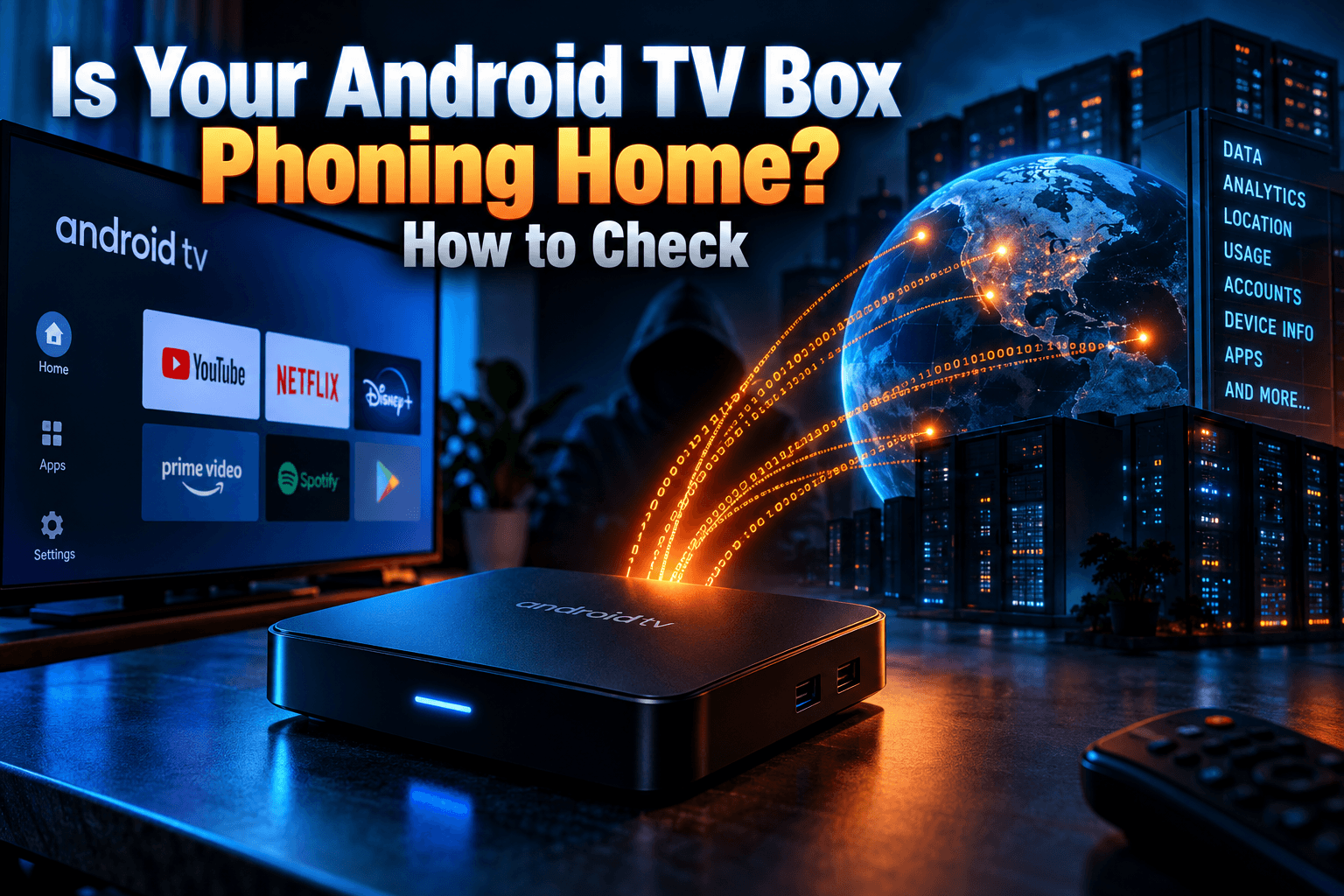
Streaming boxes aren’t passive, which is exactly why router security for streaming devices can’t be an afterthought. Many ping home servers constantly, pull update files from third-party CDNs, and — if you’ve sideloaded apps — execute code that was never reviewed by Google or Amazon. Every one of those outbound connections is also an inbound attack surface your router has to manage.
An Android TV box that reaches out to a sketchy update server is essentially opening a door from inside your network. If your router isn’t configured to contain that traffic, one compromised device can start probing everything else on the same subnet — your NAS, your work laptop, your kids’ tablets. The blast radius is bigger than most people realize.
What Attackers Actually Target on a Home Network
Credential harvesting is the big one. Your router’s admin panel accessible from the internet with a default username and password? An automated scanner finds it in roughly 90 seconds. From there, an attacker can reroute your DNS, intercept unencrypted traffic, or install persistent firmware backdoors — none of which you’d necessarily notice for weeks.
The secondary target is lateral movement. Using one low-security device (say, a budget Android box running an unvetted APK) as a jumping-off point to reach higher-value devices on your network. Router security for streaming devices isn’t just about protecting the streaming experience. It’s about protecting everything else on the same router — your NAS, your work machine, your kids’ tablets, all of it.
Why Firmware Vulnerabilities Hit Streamers Hardest
Power users running enterprise gear tend to stay on top of patches. The average cord-cutter does not. Streaming setups often mix older devices — a first-gen Fire TV Stick still plugged into a spare bedroom TV, a budget TP-Link router from 2021, and a handful of apps sideloaded from sources that weren’t exactly rigorously vetted.
That combination of outdated firmware, default settings, and mixed-trust apps is exactly the environment attackers look for — and it’s why router security for streaming devices demands more attention than most cord-cutters give it. Good news: fixing most of it takes under an hour.
The First Five Router Security for Streaming Devices Settings to Change Right Now
I burned myself skipping the basics once — a reminder that router security for streaming devices starts with fundamentals, not advanced configs. I’d set up a home lab router in a rush — left UPnP on, kept the default admin credentials, never checked for firmware updates. About six months later I noticed outbound traffic patterns I couldn’t explain. The culprit turned out to be a compromised Android box quietly participating in a botnet. Here’s what I’d tell myself back then.
Change Default Admin Credentials Immediately
Every router ships with a default username and password — usually something like admin/admin or admin/password. These are publicly documented for every model. Automated attack tools cycle through them constantly. Log into your router admin panel right now (usually 192.168.1.1 or 192.168.0.1), find the administration settings, and change both the username and password to something unique.
Use a passphrase of at least 16 characters with mixed characters. Store it in a password manager. This single step wipes out a huge percentage of opportunistic attacks targeting home routers, and it’s the cheapest win available when you’re tightening router security for streaming devices.
Disable Remote Management Unless You Need It
Remote management lets you access your router’s admin panel from outside your home network. Unless you’re actively using it — and most home users aren’t — turn it off. Look under “Remote Management,” “WAN Access,” or “Remote Administration” depending on your router brand (this is buried in settings, annoyingly, and the label varies even between firmware versions on the same brand).
Leaving it on with weak credentials is the equivalent of putting your house key under the doormat and posting the address online. Disable it. If you genuinely need remote access later, set up a proper VPN instead — that’s the right approach to router security for streaming devices without sacrificing convenience.
Enable WPA3 (or at Least WPA2-AES)
Your Wi-Fi encryption standard matters. WPA3 is the current benchmark and is supported by most routers manufactured in the last three years or so. If your router predates that, make sure you’re on WPA2 with AES encryption — not TKIP, which is broken, and certainly not WEP, which is completely useless at this point. Don’t select WEP for any reason.
Check your wireless settings and confirm the encryption standard. Older Firesticks and Android boxes connect fine to WPA2-AES networks. The extra authentication overhead is negligible on any device made after around 2018.
Keep Router Firmware on Auto-Update
Most modern routers from ASUS, TP-Link, Netgear, and similar brands now support automatic firmware updates. Enable it. Router security vulnerabilities that get exploited in the wild almost always have patches available — the problem is that nobody installs them. Keeping firmware current is one of the highest-leverage moves in router security for streaming devices. Auto-update removes that friction entirely.
If your router doesn’t have auto-update, set a quarterly calendar reminder to check the manufacturer’s support page. It takes five minutes. It matters more than most people think.
Turn Off UPnP — Streamers Rarely Need It
UPnP (Universal Plug and Play) lets devices on your network automatically open ports in your router’s firewall. Some streaming apps abuse this to punch through your firewall without your knowledge. Malware uses it too. Disable UPnP in your router settings, then test whether your streaming apps still work — most IPTV players, Kodi builds, and standard streaming services function perfectly without it.
The rare exception: if you’re self-hosting a Plex or Jellyfin media server and haven’t set up manual port forwarding. In that case, configure static port forwarding for those specific ports rather than leaving UPnP wide open for everything.
Network Segmentation: Put Your Streaming Devices on Their Own VLAN
Most home users never touch this setting. It’s one of the most effective things you can do for home network security for streamers. The concept is simple: your streaming devices go on their own isolated network segment, completely cut off from your computers, NAS drives, and phones.
What a Guest Network vs. VLAN Actually Does
A guest network is the simplified version — it creates a separate Wi-Fi network that can’t see devices on your main LAN. Built into almost every consumer router, it works reasonably well for isolating untrusted devices. A VLAN (Virtual Local Area Network) is the more powerful option, giving you fine-grained control over which devices can communicate with which others, including wired connections.
The practical upshot for streamers: even if a sideloaded APK on your Firestick turns out to be malicious, it cannot reach your laptop, NAS, or home office computer if those are on a separate segment. The compromised device is stuck in its own sandbox.
Which Routers Support VLAN for Free (No Subscription)
ASUS routers running ASUSWRT support guest networks and basic VLAN features straight out of the box — no subscription, no extra software. TP-Link’s Omada line handles full VLAN configuration if you run the free Omada controller software. Routers flashed with OpenWrt or DD-WRT have full VLAN support built in. Eero, on the other hand, requires an Eero Plus subscription (around $10/month as of late 2025) for advanced network segmentation, which is a real drawback.
For a simpler approach that works on almost any router: create a guest Wi-Fi network, enable “client isolation” on it, and connect all your streaming devices exclusively to that network. Not as thorough as a full VLAN, but dramatically better than a flat network where everything talks to everything.
Step-by-Step: Isolating Your Firestick, Android TV Box, and IPTV Player
- Log into your router admin panel and go to wireless settings.
- Create a new guest network with a separate SSID — something like “Streaming-Devices” works fine.
- Enable “client isolation” or “AP isolation” to prevent devices on this network from communicating with each other or with your main LAN.
- Reconnect your Firestick, Android TV box, and IPTV player to this new network.
- Leave your laptops, phones, and NAS drives on your main Wi-Fi.
Your streaming devices still reach the internet normally. They just can’t probe the rest of your home network anymore.
VPN at the Router Level vs. VPN on the Device
Running a VPN shields your traffic from your ISP, protects your IPTV activity from monitoring, and masks your location for geo-restricted content. The question is whether you run it on each device individually or push it through the router so everything gets protected automatically. Both approaches have genuine trade-offs for streamers — there’s no clearly superior answer here.
Pros and Cons of Router-Level VPN for Streaming
The biggest advantage of a VPN router setup for streaming is blanket coverage. Every device that connects — including smart TVs that don’t support VPN apps, budget Android boxes, and older Fire TV Sticks — gets protection without any extra configuration. Set it once, forget it.
The downside is throughput. VPN encryption adds processing overhead, and most consumer routers don’t have the CPU to push VPN traffic at full gigabit speeds. Expect a 30–60% throughput reduction on budget hardware. For IPTV streams at 4K (typically 15–50 Mbps depending on the provider), this is usually manageable. Gaming and large file transfers, though, will feel the hit noticeably.
Which Streaming Devices Need a Per-Device VPN Instead
If router-level VPN slows things too much, some devices are better off running their own VPN client. Firesticks with VPN apps installed directly can be toggled on and off per session — handy if you only need VPN coverage for specific IPTV apps. The same applies to Android TV boxes running ExpressVPN, Surfshark, or similar apps natively.
Devices that genuinely benefit from router-level VPN are the ones that can’t run apps at all. Older smart TVs, game consoles, certain budget IPTV hardware players. These also tend to be the most vulnerable devices on a home network because they receive the least security attention from their manufacturers.
Recommended Router Firmware for VPN Support
OpenWrt is the gold standard for open-source router firmware — excellent WireGuard and OpenVPN support, actively maintained, genuinely strong security defaults. DD-WRT is more widely compatible across older hardware and has a large community behind it. Tomato by Shibby is another solid option specifically for Broadcom-based routers. All three are free, though flashing custom firmware voids most warranties and carries a small brick risk if you’re not careful (yes, you really do need to read the device-specific installation guide before you start).
If you’d rather not touch the firmware at all, ASUS routers on stock ASUSWRT have built-in OpenVPN and WireGuard client support — no third-party firmware needed. Check out our full VPN Setup for Streamers: Device-by-Device Walkthrough for detailed configuration steps.
DNS Settings That Protect Your Entire Streaming Household
Your DNS resolver translates domain names into IP addresses every time you visit a website or a streaming app connects to a server. By default, your router uses your ISP’s DNS servers — often slow, unencrypted, and logging your queries. Changing this one setting protects every device on your network without installing anything on the devices themselves.
Switching to a Private Encrypted DNS Resolver
Cloudflare’s 1.1.1.1 is the easiest starting point — fast, privacy-focused, and free. Quad9 (9.9.9.9) adds built-in blocking of known malicious domains on top of the privacy angle. NextDNS gives you a configurable filtering dashboard, custom blocklists, and per-device analytics for around $2/month or free with a query cap. I run NextDNS on my own router and it catches a surprising number of shady outbound connections from streaming devices — more than I expected when I first set it up.
To apply this network-wide, log into your router admin panel, find the DNS settings (usually under WAN or Internet settings), and replace the default DNS entries with your chosen resolver’s IP addresses. Every device on your network — including ones that don’t allow manual DNS changes — immediately starts using the new resolver.
How DNS Filtering Blocks Malicious Streaming Sites
Services like Quad9 and NextDNS maintain constantly updated lists of known malware domains, phishing pages, and scam streaming sites. When any device on your network tries to connect to one of those domains, the DNS resolver returns a blocked response instead of the real IP address. The connection never happens at all.
Particularly valuable for protecting against fake streaming sites designed to push malware. Even if someone clicks a bad link on a TV browser, DNS filtering adds an extra catch layer before anything malicious loads.
Setting Custom DNS on Popular Router Brands
- ASUS: Advanced Settings → WAN → WAN DNS Setting → Enable DNS-over-TLS and enter your resolver IPs
- TP-Link: Advanced → Network → Internet → DNS Server → manually enter primary and secondary DNS
- Netgear: Advanced → Setup → Internet Setup → Domain Name Server (DNS) Address
- Eero: Settings → Network Settings → DNS → Custom DNS
Checking If Your Streaming Devices Have Already Been Compromised
Run a network scan right now. I did one last month and found three devices I’d completely forgotten about — including a smart plug that hadn’t been touched in two years and was running firmware with a documented CVE. Knowing what’s actually on your network is the first step to spotting anything that shouldn’t be there.
Signs Your Network Has Been Accessed Without Permission
Unexplained slowdowns — especially late at night when nobody’s streaming — can mean a device is doing something it shouldn’t. Check your router’s connected devices list and traffic logs. Most routers have a basic traffic monitor somewhere under Administration or Logs. Look for devices you don’t recognize, unusual outbound connections to foreign IP ranges, or data usage spikes that don’t match your household’s actual activity.
Other red flags: your router admin password suddenly stops working (someone changed it), DNS settings differ from what you configured, or Wi-Fi devices appear that you can’t account for by brand or MAC address. Any one of those is worth investigating immediately.
Free Tools to Scan Your Home Network for Rogue Devices
Fing (Android and iOS, free tier) scans your entire home network and identifies every connected device by manufacturer, IP address, MAC address, and hostname. Takes about 60 seconds and gives you an instant inventory. Advanced IP Scanner is a solid free Windows option. For router-native scanning, most ASUS routers have a built-in network map right on their dashboard.
Find a device you can’t identify? Isolate it immediately by blocking it at the router’s MAC address filter, then investigate. It might be a neighbor accidentally connected to your Wi-Fi — or it might be something worse.
What to Do If You Find Something Unexpected
Block the unknown device’s MAC address in your router settings. Change your Wi-Fi password. If you suspect an actual compromise — especially if router admin settings have been altered — perform a factory reset on the router and reconfigure from scratch. Yes, it’s tedious. It’s still better than leaving a backdoor open indefinitely.
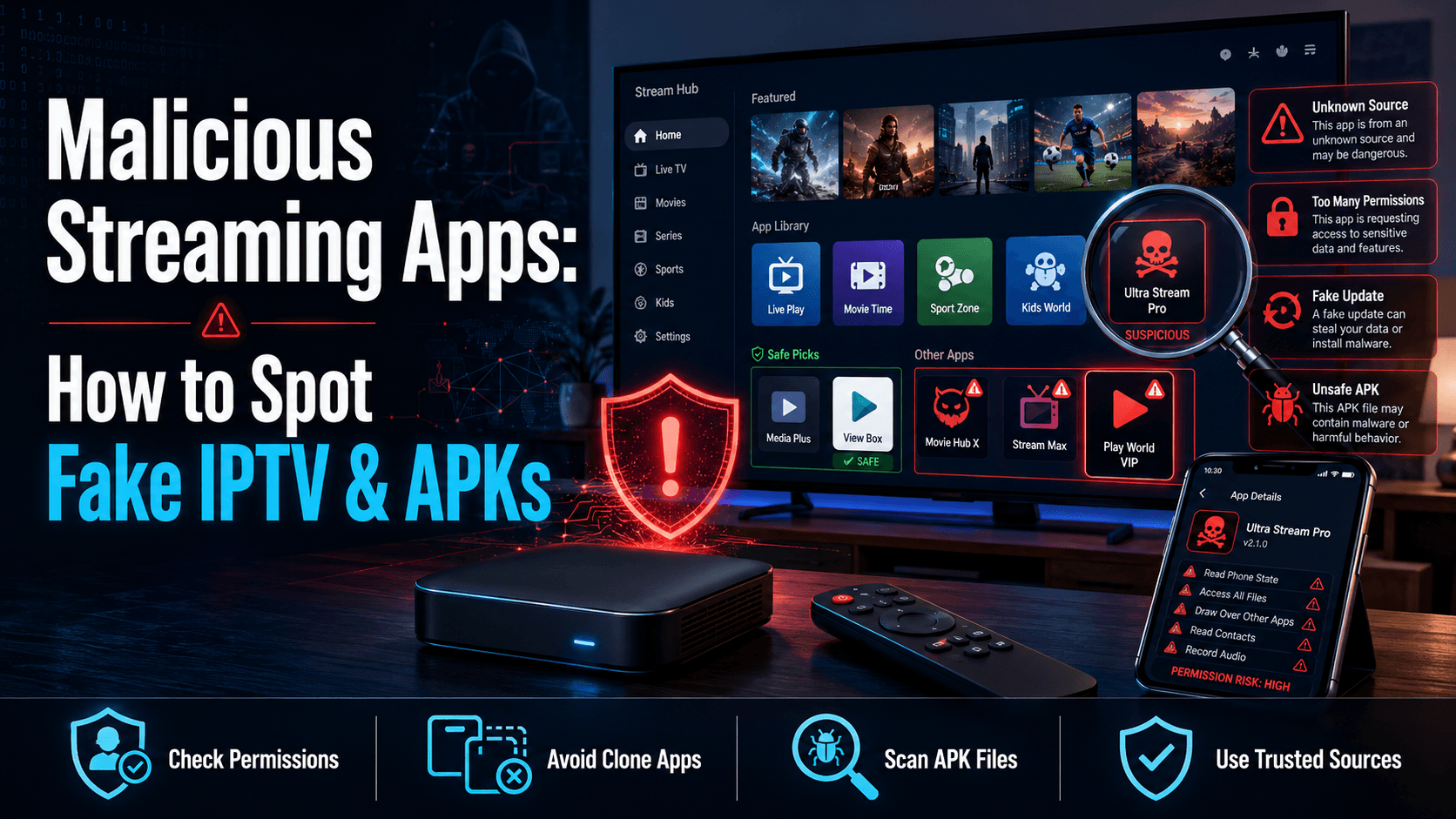
Also review any recently sideloaded APKs on your Android TV boxes or Firesticks. If you’ve installed apps from outside official stores, cross-reference them against known malicious APK reports. Our article on fake VPN apps for streamers covers several real-world cases where sideloaded apps turned out to be credential stealers.
Router Brands Streamers Actually Use: Security Tiers Ranked
Not all consumer routers treat security the same way. Firmware update frequency, default security posture, and vulnerability response time vary significantly across brands. Here’s an honest look at what the typical streaming household is actually working with.
Budget Routers (TP-Link, Netgear) — What They Get Right and Wrong
TP-Link has improved meaningfully in recent years. Most current models ship with a setup wizard that forces a custom password before the router goes live — a real improvement over the “admin/admin” days of the early 2020s. Firmware updates are reasonably frequent on current-gen hardware, though support for older models drops off quickly. Main weakness: TP-Link’s cloud services (the Tether app) have had their own security incidents, so disable cloud management if you’re not actively using it.
Netgear has a mixed track record. Their Nighthawk line gets solid update support. Budget models under roughly $60 often lag on patch cycles, sometimes significantly. Netgear has also drawn criticism for pushing users toward their Armor subscription service (powered by Bitdefender, around $100/year) as a security feature rather than just shipping better security defaults out of the box. It’s not a bad add-on, but you shouldn’t need a paid subscription to have a reasonably secure router.
Mid-Range Options with Solid Update Track Records
ASUS consistently leads on firmware responsiveness for home users, typically releasing security patches quickly after disclosure. Their ASUSWRT interface is feature-rich without requiring third-party firmware, and current models support WireGuard natively. For a secure router for Firestick households, the ASUS AX55 (around $80 street price) or AX86U (around $200) both hit a solid balance of features, price, and update reliability.
GL.iNet is worth a mention for technically inclined streamers. These compact travel routers ship with OpenWrt pre-installed and have excellent VPN client support out of the box. Not the fastest hardware for large households, but the security defaults are genuinely strong and the community around them is active.
Is a Mesh System More or Less Secure for a Streaming Home?
Mesh systems like Eero, Google Nest WiFi Pro, and TP-Link Deco handle firmware updates automatically and tend to push patches more consistently than traditional routers where the user has to manually trigger updates. The trade-off is configurability. Eero’s advanced features are paywalled behind Eero Plus. Google’s mesh hardware gives you virtually no access to advanced DNS or VLAN settings at all.
For a streaming household that values easy maintenance over granular control, a mesh system with automatic updates is a legitimate and reasonably secure choice. For anyone who wants VPN at the router level, custom DNS filtering, or proper network segmentation, a traditional router running ASUSWRT or OpenWrt gives you the tools to actually do those things. Availability and pricing for mesh systems varies by region, so factor in local support when deciding.
⚖️ Legal Disclaimer: IPTV Wire does not own or operate any streaming service, application, or website mentioned in this article. We do not verify whether third-party services carry proper licensing. Users are responsible for ensuring they comply with copyright laws in their jurisdiction.
Frequently Asked Questions: Router Security for Streaming Devices
Does a VPN on my Firestick also protect my router?
No. A VPN installed on your Firestick only encrypts traffic from that specific device. Your router, and every other device connected to it, operates completely outside that VPN tunnel. To protect all devices at once, you need to configure the VPN at the router level — either through built-in firmware options like ASUSWRT’s WireGuard client, or by flashing the router with DD-WRT or OpenWrt.
How often should I update my router firmware for streaming security?
Enable auto-update if your router supports it — that’s the simplest answer. If it doesn’t have auto-update, check the manufacturer’s support page at least once every three months. Critical security patches should be applied within days of release. Running firmware that’s more than six months old without checking is a real, meaningful security risk, not a theoretical one.
Can a sideloaded APK on my Android TV box infect other devices on my network?
Yes, it’s possible — particularly if all your devices share the same network segment. A malicious APK could scan your local network, attempt to access shared drives, or try to exploit vulnerabilities in other connected devices. Network segmentation (putting your streaming devices on a guest network or separate VLAN) limits this risk significantly by preventing the compromised box from reaching anything else on your network in the first place.
What is the safest DNS setting for a home streaming network?
For most households, Quad9 (9.9.9.9) is a strong default — free, fast, privacy-respecting, and includes automatic blocking of known malicious domains. If you want more control and don’t mind a small monthly fee, NextDNS lets you customize filtering rules and review per-device query logs. Apply the DNS setting at the router level so it covers every device on your network automatically, including ones you can’t configure individually.
Do I need a separate router if I run an IPTV service at home?
Not necessarily, but your existing router needs to be properly configured. The main concern with IPTV is that many services require specific ports or benefit from QoS (Quality of Service) settings to prioritize streaming traffic. More importantly, if you’re accessing IPTV through apps that require sideloading, network segmentation becomes valuable — keeping those devices isolated from the rest of your home network. A modern mid-range router with VLAN support handles this without needing a second router at all.

Comments
Leave a comment
Your email address will not be published. Comments are moderated before they appear.