

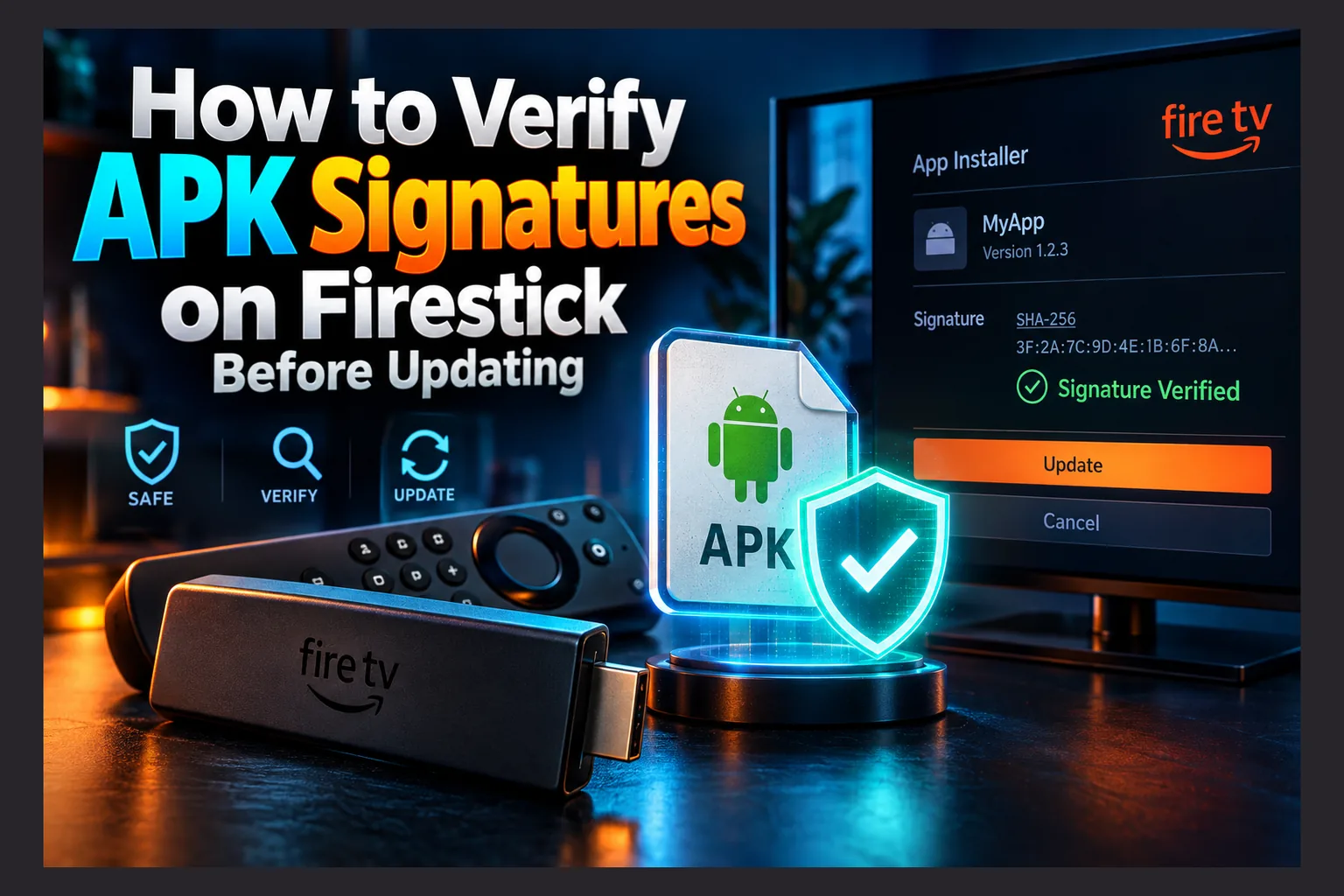
Verify APK signature on Firestick before every sideloaded update, and you close the one door most people leave wide open. The short version is to compare the SHA-256 signing certificate fingerprint of the new APK with the one on the app you already have installed. If they match, the same developer key signed both. If they don’t, or Fire TV throws its unhelpful ‘App not installed’ error, stop right there, because the update may have been tampered with. Here’s how to check it properly.
Most sideloading advice in 2026 focuses on the first install, and almost none of it tells you to verify APK signature on Firestick when an update lands. Is this app legit? Is the site real? Does VirusTotal flag anything? Very few guides cover the update, and that’s a real gap, because an update arrives inside an app you already trust and is the moment you’re least likely to look closely.
This guide shows you how to verify APK signature on Firestick and Android TV boxes, step by step. It covers how update channels get hijacked, which checks prove something, and which ones only look reassuring. There’s also a cleanup plan in case something shady is already installed.
Why You Should Verify APK Signature on Firestick Before Every Update
The first sideload makes most people cautious. They read reviews, check the source, and maybe upload the file to a scanner. Six months later the same app shows an update prompt during a regular evening of watching, and they tap “Install” without a second thought.
Attackers count on that, because hardly anyone stops to verify APK signature on Firestick at that moment. Compromising a source people already trust is much easier than persuading them to try something new.
What a Supply Chain Attack Means for Streaming Apps
A supply chain attack targets the delivery pipeline instead of the user. The corporate world learned this the hard way. In 2020 a trojanized SolarWinds Orion update reached roughly 18,000 customers. In July 2021 the Kaseya VSA incident spread ransomware through managed service providers to somewhere around 1,500 downstream businesses. In both cases the poison arrived as a routine, trusted update.
The same idea works on a much smaller scale in your living room. A sideloaded app supply chain attack doesn’t need a fake app with a convincing name. The attacker only has to control one link in the chain you already rely on.
For a typical Fire TV setup, that chain usually includes some mix of these:
- The developer’s website or download page
- A Downloader short code that points to the APK
- A URL shortener used in Reddit posts or Telegram groups
- A Kodi repository that pushes addon updates automatically
- An in-app update checker that fetches a file from a server
If an attacker takes over any one of those, a hijacked APK update reaches thousands of devices. None of those users went looking for anything new, and few of them thought to verify APK signature on Firestick first.
Why Sideloaded Apps Skip Store-Level Checks
Apps from the Amazon Appstore or Google Play go through automated scanning, and both stores require updates to come from the same developer account. The system has flaws, but it is still a gate.
Sideloaded apps get no gate beyond Android itself. Nobody screens the file on its way from the developer’s server to your Fire TV Stick 4K Max (or Lite, or that old Cube in the spare room). Once Downloader fetches the file, the only automatic protection left is Android’s signature check. That’s why it’s worth learning how that check works and how to verify APK signature on Firestick yourself.
How Android Signing Protects Installed Apps
Android won’t install an APK unless it’s cryptographically signed. The developer keeps a private key, signs the app with it, and the resulting certificate is embedded in the APK. Without that private key, nobody can forge the signature.
What an APK Signing Certificate Is
A signing certificate works like a wax seal on a letter. Anyone can write a letter and claim the developer sent it, but only the developer owns the stamp. The certificate’s SHA-256 fingerprint is a 64-character hex string that identifies that one stamp.
The fingerprint also stays constant across every release. Version 4.2 and version 5.0 of a legitimate app should show the same signer fingerprint. That consistency is exactly what lets you verify APK signature on Firestick with confidence.
Why Android Blocks Updates Signed With a Different Key
Android only installs an update over an existing app when both are signed with the same key. If the keys differ, the install fails. Fire TV usually reports this with a blunt “App not installed” message and no reason given (Amazon has never made this error helpful).
Most people assume it’s a glitch and uninstall the old version to get the new one in. That’s the wrong move. An App not installed signature mismatch means Android is telling you that whoever built this new file is not whoever built the app you trust.
There can be harmless explanations. The developer may have lost their key, or your original install may have been a repackaged build from some mirror. Even so, a mismatch should prompt you to verify APK signature on Firestick manually, not trigger an automatic uninstall.
Key Rotation: When a Legitimate Developer Changes Keys
Developers do have one legitimate way to change keys without breaking updates. APK Signature Scheme v3, supported from Android 9 onward, lets a developer sign a “proof of rotation” that links the old key to the new one. Fire OS 7 is based on Android 9 and Fire OS 8 on Android 11, so most current Fire TV hardware supports it. Amazon’s newer Vega OS devices, such as the Fire TV Stick 4K Select launched in late 2025, are a different story. Reports so far say they don’t support Android APK sideloading at all, but check before assuming either way.
With rotation in place, Android accepts the new key because the old key vouched for it. Tools like apksigner display that signing lineage when you inspect the APK. If a developer announces a key change and the APK has no rotation lineage, be suspicious. Treat the announcement as unconfirmed until something independent backs it up, and verify APK signature on Firestick before installing.
Hash vs Signature: What Each Check Proves
People often confuse file hashes with signature fingerprints. Both are long hex strings that are easy to skim past, but when you verify APK signature on Firestick, they answer very different questions.
SHA-256 File Hashes
A file hash is a fingerprint of the whole APK. Change a single byte and the hash changes completely. A matching hash proves that your download is the same file the publisher listed.
The catch is that whoever controls the website also controls the published hash. An attacker can upload a malicious APK, post its hash next to it, and your check will pass perfectly. A hash only helps when it comes through a separate channel the attacker can’t reach, such as a signed GitHub release or a developer account that has posted consistently for years.
Signing Certificate Fingerprints
The signer fingerprint tells you who built the file, not just which file it is. Each new version has a different file hash but the same signer fingerprint. An attacker can’t produce a matching one without stealing the developer’s private key.
The best reference you have is the app already on your device. You installed it months ago, it has worked fine since, and its fingerprint is readily available. Compare the update against that, not against anything the download page claims.
| Check | What it proves | Changes between versions? | Fooled by a compromised site? |
|---|---|---|---|
| SHA-256 file hash | File wasn’t altered after publishing | Yes, every version | Yes, if hash is on the same site |
| Signer certificate fingerprint | Same developer key built the app | No (unless rotated via v3) | No, unless the private key was stolen |
| VirusTotal scan | Known malware patterns weren’t detected | N/A | Often, with new or custom malware |
How to Verify APK Signature on Firestick and Android TV
You have three realistic options: an inspector app on the device, ADB from a computer, or full analysis on a PC. Each involves trade-offs, and none is foolproof by itself. If you have a laptop, the PC route is the most trustworthy.
Finding the Certificate of an Installed App
The simplest on-device option is an inspector such as App Manager, an open-source package viewer for Android, distributed through GitHub and F-Droid. Its app details screen has a signatures section that shows the signer’s SHA-256 digest. You’ll need to sideload it, and because the interface is designed for touchscreens, moving around with the remote’s D-pad takes some patience.
Read next: SStream APK: Honest Review Before You Sideload It
Basic steps:
- Install the inspector app via Downloader from its official source.
- Open it and find the app you want to check in the installed list.
- Open the signatures or certificate section.
- Write down or photograph the SHA-256 digest of the signer.
Keep in mind that the inspector is also software you’re trusting. Download it from its official repository and verify its own signer if you can, otherwise you’ve only moved the problem somewhere else.
The ADB route doesn’t add anything to the stick. Turn on ADB debugging under Settings > My Fire TV > Developer Options. If Developer Options isn’t visible, go to About and click your device name seven times (Amazon hid this menu in 2023, and many people still miss it). Then, from a computer on the same network:
adb connect 192.168.1.50:5555(use your Firestick’s IP from About > Network)- Accept the debugging prompt on the TV.
adb shell pm list packages | grep kodito find the exact package name, for exampleorg.xbmc.kodiadb shell pm path org.xbmc.kodito get the APK’s locationadb pull /data/app/.../base.apk installed-kodi.apkusing the path from step 4
You now have an exact copy of the installed APK on your computer, ready for proper analysis.
Checking a Downloaded APK Before Installing
Don’t let Downloader install the update immediately. When the download finishes, choose “Done” rather than “Install” so the file stays in storage. Then open it with your inspector’s APK-viewing feature, or move it to a PC.
Compare its signer SHA-256 with the one you recorded from the installed version. Ideally check every character. At minimum, compare the first 8, the last 8, and a chunk from the middle. If they match, Android’s own check will agree, and you can install with reasonable confidence.
Using a PC With apksigner or Android Studio’s APK Analyzer
The most reliable tool is apksigner, Google’s official signing utility, included with the Android SDK Build Tools. Run it against both files:
apksigner verify --print-certs --verbose installed-kodi.apk
apksigner verify --print-certs --verbose new-kodi.apk
Look for the line “Signer #1 certificate SHA-256 digest.” The two values must match. The verbose output also lists which signature schemes (v1, v2, v3) validated and whether a rotation lineage is present.
Android Studio’s APK Analyzer (Build > Analyze APK) is better suited to a different job. It lets you open the manifest and compare package names and requested permissions between the old and new versions. Use apksigner for the certificate and APK Analyzer to spot suspicious new permissions.
Matching signatures have one clear limit. They prove the same key signed the update. They don’t prove the developer is honest, and they don’t prove the key wasn’t stolen. That’s why the red flags below still matter.
Red Flags That an Update Path Has Been Hijacked
Signature checks catch most hijacks. Context catches the rest. Here’s what to watch at each link in the chain.
Downloader Codes and Short Links That Change Destination
A Downloader code is just a redirect controlled by whoever registered it. If that account is compromised, or the code gets reassigned, the same five or six digits you’ve typed for years can quietly start serving a different file. Short links from bit.ly-style services carry the same risk, and maybe more, because nobody remembers who created them.
Before installing, look at the URL Downloader actually fetched. If the domain doesn’t match the developer’s known site, stop and confirm through their official channels.
Expired or Re-Registered Developer Domains
Small streaming-app developers sometimes let domains lapse, and squatters often grab them within days. The new owner inherits all the accumulated trust: old forum threads, YouTube tutorials with hundreds of thousands of views, and saved bookmarks. If a WHOIS lookup shows a registration date from last month on a supposedly “established” site, treat it as a serious warning.
This matters most in the UK, Italy, and parts of the EU, where ISP-level blocking pushes people toward mirror domains. Each mirror adds another unverified link, and the situation varies a lot by country and by ISP.
Kodi Repositories Taken Over by New Owners
Kodi addons are ZIP files, not APKs, so Android’s signature protection doesn’t apply to them. Kodi checks addon files against checksums listed by the repository, but the repo supplies those checksums too. Whoever controls the repo controls both the files and the numbers used to check them.
When a maintainer disappears and the domain changes hands, auto-updates can push anything. Be wary when a familiar repo that has been quiet for months suddenly releases a burst of updates in one week.
In-App Update Prompts That Point Off-Site
Many IPTV players include built-in updaters. If an update prompt downloads from a domain you don’t recognize, or the app suddenly asks for permission to install unknown apps when it never needed that before, stop and look into it.
Quick red-flag checklist for any update:
- File size jumps sharply without a matching feature announcement
- New permissions like Accessibility Service, Device Admin, or “display over other apps”
- Package name differs from the installed app
- Signer fingerprint doesn’t match
- Developer’s Telegram, Reddit, or X account has gone quiet
- Domain WHOIS shows a recent ownership change
For a broader look at vetting apps before a first install, our Firestick APK safety check guide covers the groundwork this article builds on.
Safer Update Habits for Sideloaded Streaming Apps
You don’t need to become a security analyst. A short, repeatable routine catches most problems, and it’s simple enough that people looking for safe sideloading updates Firestick advice will actually keep doing it.
Keep a Known-Good Fingerprint List
Record the signer SHA-256 for every app you depend on: TiviMate, Stremio, Kodi, IPTV Smarters, or whatever else is in your rotation. A plain text file works, and so does a notes app on your phone. Include the date and the version you took it from.
| App | Package name | Signer SHA-256 (first/last 8) | Recorded from version |
|---|---|---|---|
| Kodi | org.xbmc.kodi | (fill in yours) | (e.g. 21.x) |
| TiviMate | (check with pm list packages) | (fill in yours) | — |
| Stremio | (check with pm list packages) | (fill in yours) | — |
Check each new update against this list. After the first couple of times it takes about a minute.
Turn Off Unknown Sources After Installing
On Fire OS 7 and later, the “install unknown apps” permission is granted per app. When you’re done installing, go back to Developer Options > Install unknown apps and switch it off for Downloader and any browser. Turn off ADB debugging as well.
Switching these back on every time is a chore. Even so, it prevents a compromised app from quietly pulling in other APKs weeks later, and that protection is worth thirty seconds of menu clicking.
Back Up Working APKs Before Updating
Before each update, pull the current APK with ADB or keep the original installer file. If the new version misbehaves, you can roll back right away. You’ll need to uninstall first, which may wipe your settings, so back up app data wherever the app supports it. TiviMate, for example, offers a backup option in its settings.
If you have a spare Fire TV Stick or an old Android box, use it as a staging device. Install updates there first, ideally on a guest Wi-Fi network kept separate from your main devices, and watch it for a few days before touching your main setup. The same “wait and watch” approach works for brand-new apps, as we explain in what to test before you trust a new streaming APK.
What to Do If You Already Installed a Suspicious Update
If you’ve already tapped install and something seems off, act quickly. Working calmly and in order is better than clicking around in a panic.
Immediate Containment Steps
- Disconnect the device from your network by unplugging Ethernet or forgetting the Wi-Fi network.
- Uninstall the suspicious app under Settings > Applications > Manage Installed Applications.
- Check Settings > Accessibility and any device admin settings for entries you didn’t enable.
- Turn off ADB debugging and revoke “install unknown apps” for every app.
If an app won’t uninstall, it probably has device admin rights. Revoke those first, then try the uninstall again.
Cleaning Up and Reinstalling From a Verified Source
Using a different, clean device, change the passwords for anything you entered in that app. That includes IPTV portal logins, Xtream Codes credentials, Real-Debrid or Trakt accounts, and your Amazon account if you reuse passwords anywhere. Turn on two-factor authentication wherever it’s offered. Real-Debrid and Amazon both support it.
If you saw any accessibility or admin abuse, a factory reset is the safer choice: Settings > My Fire TV > Reset to Factory Defaults. It’s tedious but thorough. Afterward, reinstall only from verified sources and confirm each signer matches your recorded fingerprint. Our look at what happens after you install an APK covers post-install behavior worth monitoring.
Make Verification Part of Every Update
Sideloading isn’t going away, and neither are attackers looking for the easiest way in. The update stage is that way in, because it relies on trust you’ve already given.
Learning to verify APK signature on Firestick takes maybe 20 minutes the first time. After that, it’s about a minute per update. Record your fingerprints, keep your old APKs, and treat “App not installed” as a warning rather than an annoyance. Doing that closes the biggest gap in most cord-cutters’ setups.
⚖️ Legal Disclaimer: IPTV Wire does not own or operate any streaming service, application, or website mentioned in this article. We do not verify whether third-party services carry proper licensing. Users are responsible for ensuring they comply with copyright laws in their jurisdiction.
Frequently Asked Questions
How can I tell if an APK update is from the real developer?
Compare the signer certificate’s SHA-256 fingerprint in the new APK with the one from the version you have installed. If they match, the same key signed both. You can use apksigner on a PC or an inspector app like App Manager on the device.
Why does my Firestick say ‘App not installed’ when I try to update an app?
Usually it’s a signature mismatch: the update was signed with a different key than the installed app. That could mean a tampered file, a repackaged mirror build, or a developer who lost their key. Check the signer before you uninstall anything.
Is checking an APK on VirusTotal enough to know it’s safe?
No. VirusTotal only detects known malware patterns, and new or custom malicious code often scans clean. Treat it as one signal alongside signature verification, permission checks, and source verification.
Can a Downloader code be hijacked to deliver a different app?
Yes. A Downloader code is a redirect controlled by whoever registered it, so a compromised account or a reassigned code can serve a different file. Always check the final URL and verify the APK’s signer before installing.
Do Kodi addon updates have the same signature protection as APKs?
No. Kodi checks addon ZIP files against checksums supplied by the repository itself, which proves the file is intact but not who made it. If someone takes over a repo, they can push malicious addon updates that pass Kodi’s checks.
Should I turn off automatic updates in sideloaded IPTV apps?
If the app lets you, yes. Manual updates give you time to inspect the file, verify its signature, and back up the working version. Automatic updates take that opportunity away.


Comments
Leave a comment
Your email address will not be published. Comments are moderated before they appear.