

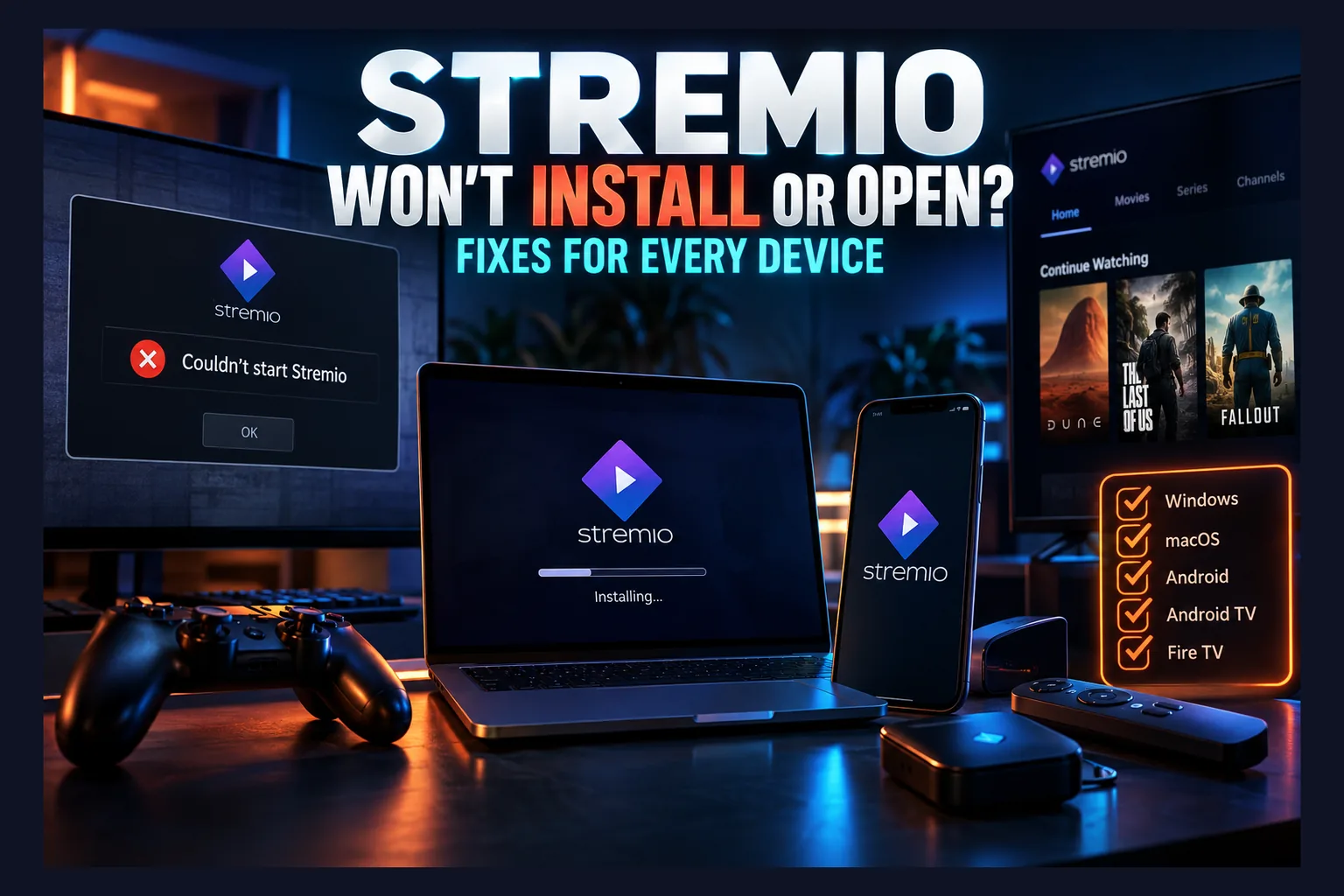
Stremio won’t install? You’re not alone, and it’s rarely as mysterious as it feels. In my testing, almost every failed setup comes down to a handful of culprits: the wrong APK architecture, blocked unknown sources, a nearly full drive, or an old version getting in the way. If it installs but won’t open or just shows a black screen, that’s fixable too. Find your symptom below, jump to your device, and you’ll usually be streaming again in minutes.
Most Stremio guides assume the happy path: download, tap install, done. This one covers what to do when that path breaks. As of 2026, a small set of failures explains most “Stremio won’t install” complaints, and they look much the same on Firestick, Android TV, Google TV, Windows, Mac and Linux. Once you know which symptom you have, most of them take a few minutes to fix.
The guide is organized by symptom first, then by device. Find your error in the table. Jump to that section. Skip the rest.
Quick Diagnosis: Match Your Stremio Error to the Fix
Nearly every case where Stremio won’t install or launch traces back to one of four causes. The APK doesn’t match your processor, or your device blocks installs from outside its app store. You’re low on storage, or system components like firmware and WebView have fallen behind.
Start here:
| Symptom | Most likely cause | Jump to |
|---|---|---|
| “App not installed” on Firestick | Wrong APK architecture, old version conflict, low storage | Fire TV install errors |
| Install button greyed out or blocked | Unknown apps permission not granted | Enabling Install Unknown Apps |
| “Your device isn’t compatible” in Play Store | Device certification, region, or hardware flags | Android TV and Google TV |
| Play Protect warning during install | APK from outside the Play Store | Handling Play Protect Blocks |
| SmartScreen or Gatekeeper warning | Operating system security prompt | Windows, Mac and Linux |
| App icon appears but nothing happens | Corrupt cache or data, outdated system components | Won’t Open or Black Screen |
| Black screen or crash on launch | WebView, firmware, player settings, or a broken addon | Won’t Open or Black Screen |
| Ads on launch, strange permissions | Fake or modded build | Make Sure You Installed the Real Stremio |
Install Fails or ‘App Not Installed’
This is the classic Stremio won’t install failure, and it happens at the package level. Android inspected the APK and refused it. Usually that’s because the file targets a different processor type, or because an existing Stremio install signed with a different key already sits on the device.
Storage comes third on the list of reasons Stremio won’t install. Android needs room for the downloaded APK and the unpacked app at the same time, so a nearly full Firestick can reject an install even when the free-space number looks just about okay.
Installs but Won’t Open
The icon shows up. You tap it. Nothing happens, or you land straight back on the home screen. In that case the app’s stored data is often corrupted, though old device firmware that can’t handle the current Stremio release produces the same symptom.
Opens but Black Screen or Crashes
A crash on startup or a black screen that never goes away points to a rendering or configuration problem. The usual suspects are an outdated Android System WebView, hardware decoding conflicts, and profiles stuffed with so many addons that loading takes forever.
Stremio Won’t Install on Firestick or Fire TV? Here’s the Fix
Firestick produces the most “Stremio won’t install” reports I see. That’s mostly because you have to sideload through Downloader, and each step in that process can fail without telling you.
Amazon Appstore availability has changed by region and over time. If a search on your Fire TV turns up nothing, sideloading is the normal route. It doesn’t mean something is broken.
Enabling Install Unknown Apps for Downloader
Fire OS blocks APK installs by default, which is why Stremio won’t install for so many first-timers. It also grants the permission per app, not system-wide. If Downloader doesn’t have that permission, the install either never starts or fails without showing an error.
- Go to Settings > My Fire TV.
- If Developer Options is missing, open About, highlight your device name, and press the select button seven times until a message says you’re now a developer.
- Go back and open Developer Options > Install unknown apps.
- Find Downloader and switch it to On.
Used a different file manager or browser to grab the APK? That app needs the same toggle. Check the setting again after any Fire OS update (yes, updates sometimes reset it, and it isn’t obvious when they do).
Choosing the Right APK: ARMv7 vs ARM64
Stremio’s official downloads page usually lists two Android builds: ARMv7 (32-bit) and ARM64 (64-bit). Choosing the wrong one is the biggest single cause of “stremio apk wrong architecture” errors and the familiar “App not installed” message.
Fire TV has a catch here, and it explains a lot of cases where Stremio won’t install. Many models run 32-bit Fire OS software even though the chip inside can handle 64-bit. Android only looks at which instruction sets the operating system supports. What the hardware could theoretically do doesn’t count. Newer Fire OS 8 devices may behave differently from older Fire OS 6 and 7 sticks, so check your own model instead of trusting a forum post about someone else’s.
If Stremio won’t install, checking takes about two minutes. Install a free system info app like CPU-Z or AIDA64 from the Amazon Appstore, then look for “Supported ABIs” or “Instruction sets.” See arm64-v8a in the list? The 64-bit build should work. Only armeabi-v7a? Use ARMv7.
If you’re unsure and Stremio won’t install on your Firestick, choose ARMv7. It runs on both 32-bit and 64-bit Android systems, while a 64-bit APK will never install on a 32-bit-only system. I’d take that trade every time.
Clearing Storage Space Before Installing
You’ll find free space under Settings > My Fire TV > About > Storage. Base Firestick models ship with just 8GB, and Fire OS plus the preinstalled apps take up a large share of it. On some older sticks, only around 5GB is usable to begin with.
Aim for at least 500MB free before you install, since a cramped stick is a common reason Stremio won’t install. Quick wins:
- Delete old APK files sitting in Downloader’s download folder. Downloader usually offers to delete them after an install, so accept.
- Clear the cache of heavy apps under Settings > Applications > Manage Installed Applications.
- Uninstall anything you haven’t opened in months.
Also remove any previous Stremio version before you reinstall, especially one from an unofficial source. Android won’t overwrite an app signed with a different key. It just shows the same vague “App not installed” error, which tells you almost nothing.
Downloader Changes That Can Break the Install
Downloader has had some significant updates, including its 2.0 redesign. That release changed the interface and how the built-in browser handles downloads. Some users report that after updating Downloader, they had to grant the unknown apps permission again.
Two more things trip people up. A short code or URL that points to a mirror instead of stremio.com can hand you a stale or tampered file. And if the browser saves a web page instead of the actual APK, you’ll get a parse error.
Downloader still failing? Open the official downloads page directly in its browser, choose the correct build, and let the download finish completely. Once Stremio is installed, my guide to getting Stremio working right on Firestick covers setup from there.
Android TV and Google TV: ‘Not Compatible’ and Play Protect Warnings
On Android TV and Google TV, Stremio normally installs straight from the Play Store, which should make things easy. When it doesn’t, you’ll usually see a “stremio app not compatible android tv” message or a Play Protect prompt.
Why the Play Store May Hide Stremio
The Play Store filters every listing by device certification, region, Android version, and declared hardware features. If any one of those doesn’t match, Stremio either disappears from search or shows as incompatible.
Certified hardware generally passes. That includes the Chromecast with Google TV (2020 onward), the Google TV Streamer released in 2024, and Walmart’s Onn 4K boxes. Uncertified boxes are less predictable. Some Mecool models and many generic Android boxes sold on Amazon or AliExpress run modified Android builds that the Play Store handles inconsistently.
Read next: IPTV Smarters Pro Won’t Install? Fixes by Device (2026)
Region can cause this too. If your Google account region and device region disagree, listings can vanish. That’s common for people who’ve moved between the UK, US, or EU. Check Play Store > Settings > General > Account and device preferences to see which country Google thinks you’re in.
Sideloading the Official APK Safely
If the Play Store won’t cooperate, sideload the APK from the official Stremio downloads page. Don’t take it from random APK mirror sites, forums, or Telegram channels.
- Install Downloader or a file manager from the Play Store.
- Go to Settings > Apps > Security & restrictions > Unknown sources (the exact path varies a little by manufacturer).
- Turn on the toggle only for the app you’ll install from.
- Download the build that matches your device’s architecture, then install it.
The ARMv7 vs ARM64 rules from the Firestick section apply here as well, so confirm your supported ABIs before downloading. Moving between platforms? My Firestick vs Google TV comparison for Stremio explains what behaves differently once it’s installed.
Handling Play Protect Blocks
Play Protect may flag a sideloaded APK only because it didn’t come from the Play Store. For the official Stremio build, you’ll usually see “Install anyway” or “More details.”
Use that one-time option. Don’t turn Play Protect off entirely. Disabling it globally stops scanning for every app you install from then on, including anything malicious that ends up on the device months later.
There’s one exception. If Play Protect calls the app harmful, not just unrecognized, stop there. That strongly suggests a modified file. Delete it and download a fresh copy from stremio.com.
Windows, Mac and Linux Install Problems
Desktops fail for different reasons than TV boxes. Usually the operating system’s built-in security tool steps in. That’s the system working as designed, not a bug.
Windows SmartScreen and Antivirus False Positives
On Windows 10 and 11, SmartScreen shows “Windows protected your PC” for software it hasn’t seen downloaded widely yet. A brand-new Stremio release can trigger this for a few days after launch.
Before you click through, right-click the installer and open Properties > Digital Signatures. Confirm a valid signature is there. If it checks out and the file came from stremio.com, click More info > Run anyway.
Antivirus tools sometimes flag streaming apps because of their networking components. To separate a false positive from a real threat, upload the installer to VirusTotal, which checks it against roughly 70 engines. One or two obscure engines flagging it is normal noise. A dozen major vendors flagging it means you should delete the file.
macOS Gatekeeper ‘Can’t Be Opened’ Message
Gatekeeper may say Stremio “can’t be opened,” or that Apple “cannot check it for malicious software.” First, make sure you downloaded the right build for your Mac: Apple Silicon (M1 through M4) or Intel.
To allow the app, open System Settings > Privacy & Security, scroll down to the blocked-app notice, and click Open Anyway. Since macOS 15 Sequoia, the old right-click-and-Open shortcut no longer gets past the prompt (this change caught a lot of people out), so use the Settings route.
If macOS says the app is “damaged,” the download probably got corrupted. Delete it, empty the Trash, and download it again. Don’t bother with Terminal workarounds.
Linux: Flatpak vs Package Install Issues
On Linux, most people install Stremio through Flatpak from Flathub (com.stremio.Stremio) or through a distro-specific package. Running both at once causes confusion, because you can end up launching an old version while the new one sits there unused.
Pick one method and remove the other. Flatpak avoids most dependency headaches, although you may need to adjust its permissions with a tool like Flatseal if Stremio can’t reach local files or audio. Native packages can break after a distro upgrade if the libraries they depend on change.
Stremio Installed but Won’t Open or Shows a Black Screen
This one is especially annoying. The install worked. Now Stremio sits on a black screen, crashes on startup, or won’t open on your Firestick at all.
Work through these fixes in order. They go from least destructive to most destructive, so you won’t wipe your setup without needing to.
Clearing Cache and Data the Right Way
- Force stop Stremio from the app settings menu, then reopen it.
- Fully restart the device. On Firestick, use Settings > My Fire TV > Restart. Turning the TV off with the remote only puts the stick to sleep.
- Clear cache in the app’s settings. This removes temporary files and keeps your login.
- Clear data if clearing the cache didn’t help. This returns the app to a fresh-install state, so you’ll have to sign in again.
If you use a Stremio account, your addons sync back after you sign in. If they only exist locally, write down your addon URLs before you clear data. It’s easy to forget this step.
Updating Android System WebView and Device Firmware
On Android-based devices, an outdated Android System WebView and old firmware cause a lot of black screens and blank menus. On Android TV and Google TV, update WebView from the Play Store, where it may be listed under system apps.
Fire TV bundles WebView updates into Fire OS. Go to Settings > My Fire TV > About > Check for Updates and install anything waiting. Uncertified boxes may never get these updates at all, and there’s no good fix for that.
Hardware Acceleration and Video Player Settings
Does the interface load but video goes black, or the app crashes the moment playback starts? Open Stremio’s player settings. Toggling hardware decoding, or switching to an external player like VLC or MX Player, often resolves codec conflicts on older chips.
Then look at your addons. A profile with dozens of them can slow startup until the app looks frozen, and one broken addon can hang the home screen entirely. My Nuvio setup troubleshooting guide shows how to isolate addon-specific problems, and the Firestick setup guide explains how to undo configuration changes.
Make Sure You Installed the Real Stremio
Plenty of “Stremio crashing on startup” reports come from builds that were never official to begin with. Modified APKs spread because they promise extras. In practice they often run poorly or carry hidden payloads.
Red Flags of a Fake or Modded Stremio APK
- Unusual permissions: requests for contacts, SMS, accessibility services, or device admin rights.
- Bundled “premium” addons: preinstalled content addons or features the official app doesn’t offer.
- Ads on launch: pop-ups or full-screen ads. Official Stremio doesn’t show these.
- Odd names: “Stremio Pro,” “Stremio Mod,” or version numbers that don’t match the official release.
- In-app update prompts that point to a non-Stremio domain.
Fake update prompts are a common way malware gets onto streaming devices. My breakdown of fake software updates and what they install covers the warning signs and how to clean up afterward.
Where the Official Builds Come From
Official Stremio builds come from four places: stremio.com, the Google Play Store, Apple’s App Store on supported devices, and Flathub on Linux. Wikipedia has a short summary of the project if you want background on who develops it.
Can’t remember where your current copy came from? Uninstall it and reinstall from one of those sources. It takes about five minutes and rules out a whole category of problems.
When to Use Stremio Web Instead
Some devices can’t run the native app. That includes many Samsung (Tizen) and LG (webOS) TVs and other smart TVs without Android or Fire OS. Locked-down work laptops and school Chromebooks that block installs belong in this group too.
Stremio Web runs in a browser at web.stremio.com and uses the same account and synced addons. It works well as a fallback for browsing your library, and it’s useful for checking whether an addon problem is limited to one device.
It has downsides. Playback depends on which formats the browser supports, so some streams won’t play and others may be missing certain audio tracks. TV browsers are also awkward to use with a remote, and external player support isn’t available.
If your IPTV app is giving you similar install trouble, my IPTV Smarters Pro install fixes use the same device-by-device approach.
Last-Resort Reset Checklist When Stremio Won’t Install
Nothing worked? Run this full reset in order. Don’t skip steps, because each one rules out a specific cause.
- Fully uninstall Stremio, including any unofficial or older versions.
- Restart the device from its settings menu, not just the power button.
- Free up storage to at least 500MB on TV devices, and delete leftover APK files.
- Update firmware and WebView where your device allows it.
- Confirm your CPU architecture with a system info app.
- Install the correct official build from stremio.com or your platform’s store.
- Sign in and make sure the app opens cleanly before you add anything.
- Re-add addons one or two at a time, restarting the app after each batch, so a broken addon shows itself.
A quick word on legality. Stremio itself is a legal media center app. Third-party addons are another matter, since some link to content without proper licensing, and the rules on VPN use depend on where you live. If you’re thinking about paying for a service instead, my guide on how to pick an IPTV service that won’t let you down covers what to check first.
Wrapping Up
When Stremio won’t install, the cause is almost always one of the same four: the wrong APK build, blocked sources, too little storage, or outdated system components. Fix those, stick to official downloads, and add addons gradually. That approach solves the large majority of install, launch, and black-screen problems without a factory reset. Your results will vary on obscure uncertified boxes, which have their own problems.
⚖️ Legal Disclaimer: IPTV Wire does not own or operate any streaming service, application, or website mentioned in this article. We do not verify whether third-party services carry proper licensing. Users are responsible for ensuring they comply with copyright laws in their jurisdiction.
Frequently Asked Questions
Why does my Firestick say ‘App not installed’ for Stremio?
The usual causes are the wrong architecture (an ARM64 build on a 32-bit system), a leftover older or unofficial Stremio version, or low storage. Remove the old copy, free up space, and try the ARMv7 build.
Is Stremio available on the Amazon Appstore?
It depends on region, and availability has changed over time. If a search on your Fire TV doesn’t find it, sideload the official APK from stremio.com with Downloader.
Why does Stremio open to a black screen on Android TV?
An outdated Android System WebView or old firmware is the most common cause. Corrupted app data, hardware decoding conflicts, or a broken addon can do it too. Update system components first, then clear cache and data.
Should I download the 32-bit or 64-bit Stremio APK?
Check your device’s supported ABIs with a system info app. If arm64-v8a appears, the 64-bit build works. If it doesn’t, use ARMv7. On Firesticks, ARMv7 is the safer default.
Can a bad addon stop Stremio from opening?
Yes. A broken or slow addon can hang the home screen or make startup look frozen. Clear data, sign back in, and re-add addons one at a time until you find the one causing it.
Is it safe to disable Play Protect to install Stremio?
You don’t need to. Use the per-install “Install anyway” option for the official APK. Turning Play Protect off globally means no future app on the device gets scanned.
Comments
Leave a comment
Your email address will not be published. Comments are moderated before they appear.