

Table of contents
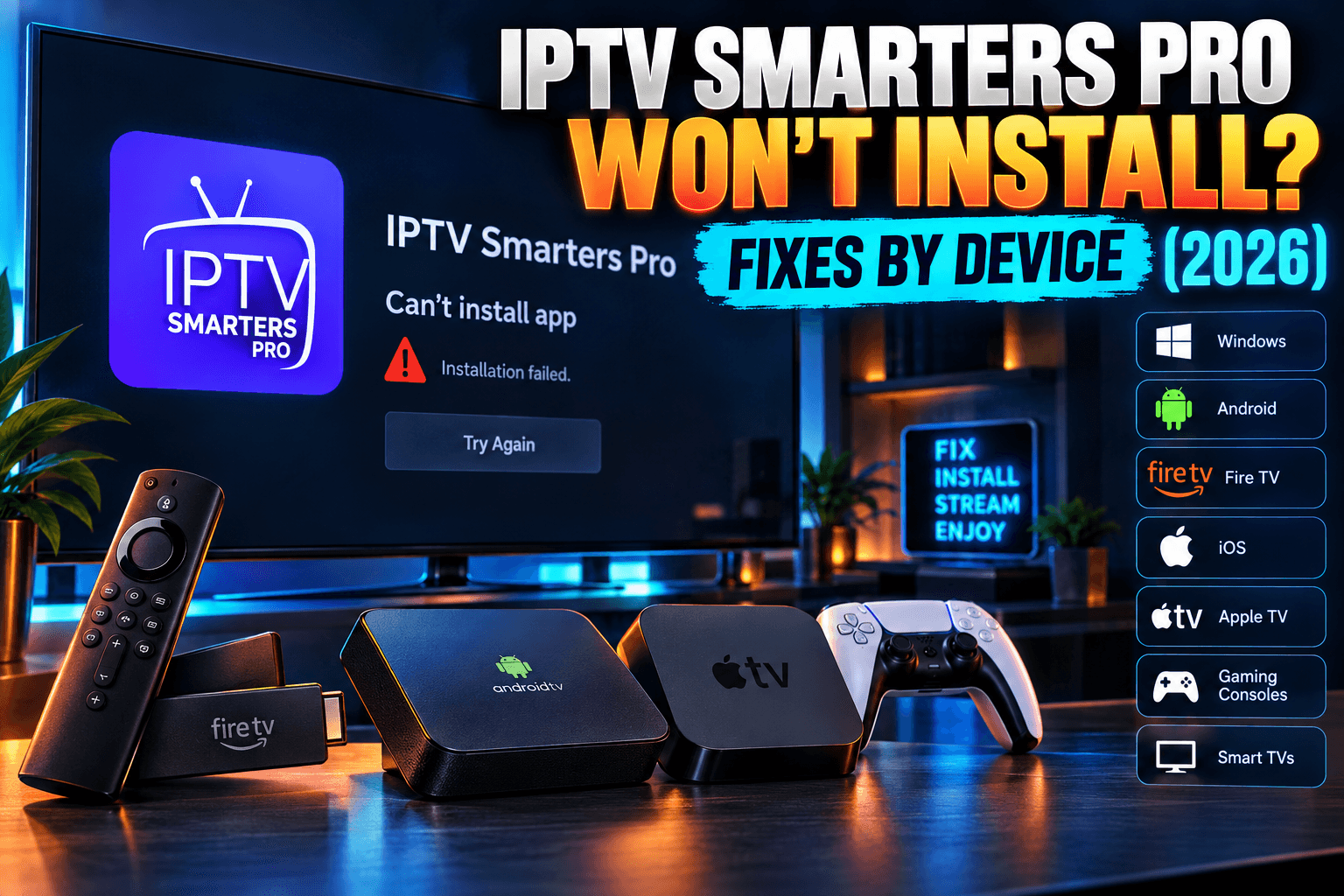
IPTV Smarters Pro not installing is one of the most frustrating walls you can hit, because you’ve usually done everything right. Maybe you got an ‘App not installed’ message, a parse error, or a Downloader bar frozen at 87% that never finishes. I’ve spent months logging failed installs across six devices on my test rack. This guide breaks down every fix by device and exact error, including the 2026 headaches like Vega OS Fire TVs and copycat APKs.
Since roughly September 2025, I’ve logged every failed Smarters install across six devices on my test rack. That’s a shelf behind my office TV with a cheap HDMI switch and too many power bricks. Below is what broke, why it broke, and what fixed it. I stop once the app opens to the login screen. Setup and settings have their own article.
Quick Diagnosis: Match Your Error to the Fix
Find your symptom in the table. Then skip straight to the matching section. Most people dealing with IPTV Smarters Pro not installing only need one fix.
Error-to-Fix Lookup Table
| What You See | Most Likely Cause | Jump To |
|---|---|---|
| “App not installed” | Signature conflict with an old version, wrong CPU architecture, or a corrupted download | Architecture section, Leftover Versions section |
| “There was a problem parsing the package” | Android version too old, or an incomplete or fake APK | Parse Errors section, Fake APK section |
| “Download failed” in Downloader | Dead link, blocked URL, unstable Wi-Fi, or full storage | Downloader section, Storage section |
| Install button greyed out | Unknown sources not enabled for that specific app | Downloader section, Google TV Permissions section |
| Installs, then crashes on launch | Low RAM, leftover data, or an incompatible build | Crashes on Launch section |
| No sideloading option exists | Vega OS Fire TV, Apple TV, or a smart TV OS | Vega OS section, Apple TV and Smart TV section |
The 60-Second Pre-Check Before You Troubleshoot
About a third of the IPTV Smarters Pro not installing cases in my log came down to something basic. Embarrassingly basic, in a couple of cases. Run these four checks first:
- Free storage: Keep at least 500MB free. The APK itself is small, but Android needs working room to unpack it during installation.
- Wi-Fi stability: A download that drops halfway can leave a corrupted file, and that file throws a parse error later. If your stick is jammed behind the TV, a USB-powered HDMI extender (often under $10) or an Ethernet adapter helps a lot.
- OS version: On Fire TV, open Settings > My Fire TV > About. On Android TV, open Settings > System > About. Write the version number down before you go any further, because it decides which fix applies if IPTV Smarters Pro not installing persists.
- Sideloading support: Can your device install APKs at all? Fire OS and Android TV can. Vega OS, tvOS, Tizen and webOS can’t.
Why Is IPTV Smarters Pro Not Installing More Often Than Other Players?
I’ve installed dozens of IPTV players over the years. Smarters generates more install complaints than nearly all of them, and when IPTV Smarters Pro not installing hits, the app’s own code is only part of the story.
App Store Removals and the Rise of Copycat APKs
Smarters has disappeared from official app stores and reappeared more than once, depending on the store and the region. Every removal sends people hunting for the APK somewhere else, and that’s where a lot of IPTV Smarters Pro not installing reports begin. Many end up on unofficial mirrors. Some mirrors host outdated builds, and others host files that aren’t Smarters at all.
People get one thing wrong constantly, so I’ll be blunt. IPTV Smarters Pro is only a player. It ships with zero channels, playlists or content. You bring your own M3U link or Xtream Codes login from a provider. If a download page promises “free channels included,” close the tab.
Multiple Official Versions Cause Confusion
There’s IPTV Smarters Pro. There’s Smarters Player Lite, which is usually the version you’ll find on Apple’s App Store. Then there’s a long tail of white-label rebrands that IPTV providers hand out under their own names, and those rebrands often reuse the same package name. Install a provider’s rebrand, then try the official Smarters APK, and Android sees two apps with the same identity but different signing keys. It refuses the install, and you’re left with IPTV Smarters Pro not installing and no clear reason why.
This bit me on my own Shield. A provider’s rebrand had been sitting there since spring, completely forgotten, and the official APK wouldn’t install until I removed it.
Device Architecture Mismatches (32-bit vs 64-bit)
APKs get compiled for specific CPU architectures, mainly armeabi-v7a (32-bit ARM) and arm64-v8a (64-bit ARM). Here’s the catch. Most Fire TV sticks run a 32-bit userspace even when the chip itself supports 64-bit. Grab an arm64-only build from a mirror, and a 32-bit device will hit you with the iptv smarters pro app not installed error without telling you why.
Universal APKs bundle both architectures, which is the main reason to get your file from the official source if you want to avoid IPTV Smarters Pro not installing on a 32-bit stick. Not sure what your device runs? A free app like CPU-Z (sideloaded, ironically) lists the supported ABIs.
Firestick and Fire TV Install Fixes for IPTV Smarters Pro Not Installing
Fire TV accounts for most of the IPTV Smarters Pro not installing emails in my inbox. Amazon has reworked sideloading several times since Fire OS 7, and plenty of older tutorials never caught up.
Downloader Blocked or Missing “Install Unknown Apps”
Fire OS doesn’t use one global unknown-sources switch, which trips up plenty of people troubleshooting IPTV Smarters Pro not installing. It’s a per-app permission. Turning it on for ES File Explorer does nothing for Downloader. For the most common iptv smarters pro firestick install failed scenario:
- Go to Settings > My Fire TV > Developer Options.
- Select Install unknown apps.
- Find Downloader and switch it ON.
Still getting “Download failed” with the permission on? Then the URL is usually dead or blocked. Recent Downloader updates also changed how some links and short codes behave. I broke those changes down in Downloader 2.0 on Firestick: What Changed & What Broke.
Developer Options Hidden on Newer Fire OS Builds
On newer Fire OS builds (Fire OS 7.6 and later, from what I’ve seen), Developer Options is hidden by default. To bring it back:
- Go to Settings > My Fire TV > About.
- Highlight your device name, for example “Fire TV Stick 4K Max.”
- Press the select button seven times. A toast message confirms you’re now a developer.
- Press Back. Developer Options now shows up under My Fire TV.
Is it annoying that Amazon hides this? Very. Once I knew where to look, it took about 15 seconds.
Vega OS Fire TV Devices: Why Sideloading Won’t Work
This is the big blocker of 2026. Starting with the Fire TV Stick 4K Select (around $40, launched late 2025), Amazon ships Vega OS, which is Linux-based rather than Android-based. It cannot run Android APKs. Full stop. No setting, toggle or clever workaround changes that.
Searching for iptv smarters pro vega os fire tv builds? Stop. You won’t find one. Open Settings > My Fire TV > About. If the OS line mentions Vega instead of Fire OS, your realistic options are:
- Check whether your IPTV provider has a native Vega app in the Amazon Appstore. A handful are starting to show up, though I wouldn’t count on yours being one of them yet.
- Return the device if you’re still inside the return window, and buy an Android-based stick like the Fire TV Stick 4K Max or an Onn 4K Pro.
- Cast from a phone or tablet as a stopgap.
Before buying any Fire TV this year, read the product listing carefully. In the US and UK, it should state the operating system. I haven’t checked listings in other regions closely, so be extra careful there.
Storage Full Errors on 8GB Sticks
Older 8GB Fire TV sticks often end up with under 1GB usable once Amazon’s own apps finish updating. My Fire TV Stick Lite showed 412MB free before cleanup. Not enough to finish the install.
What I did:
- Settings > Applications > Manage Installed Applications.
- Cleared cache on Prime Video, Netflix and YouTube. That freed roughly 380MB combined.
- Uninstalled three games I’d forgotten existed, plus a duplicate VPN app.
- Deleted old APK files sitting in Downloader’s Files tab (these pile up quietly).
Result: 1.6GB free, and Smarters installed on the first attempt. Total time was about 6 minutes.
Android TV, Google TV and Box Fixes
Android TV is generally friendlier to sideloading than Fire TV. Still, Google has stacked on extra security prompts over the past two years.
Google TV Unknown Sources Per-App Permission
On Google TV devices (Chromecast with Google TV, the newer Google TV Streamer, Onn boxes, TCL and Hisense sets), the path usually goes like this:
- Enable Developer Options first: Settings > System > About > click Android TV OS build seven times.
- Then go to Settings > Apps > Security & Restrictions > Unknown sources.
- Turn on the specific app you’re installing from: Downloader, Send Files to TV, or a file manager.
Greyed-out install button? This permission is almost always the culprit. Menu wording shifts a little between manufacturers, but it lives under Apps or Security every time I’ve looked.
Play Protect Blocking the APK
Play Protect flags lots of legitimate apps simply because they aren’t distributed through Google Play. It also catches real malware. Your job is figuring out which one you’ve got.
My rule: a warning on a file whose SHA-256 hash matches the official source is very likely a false positive. If the warning says “harmful app” instead of “unknown developer,” or the hash doesn’t match, delete the file. I cover hash checking in the fake APK section below.
For a verified file, tap “Install anyway” when the prompt appears. Don’t disable Play Protect device-wide just to get one app on.
Parse Errors on Older Android Versions
An iptv smarters pro parse error android tv message usually points to one of two things. Your Android version is below the APK’s minimum. Or the file is incomplete.
Recent Smarters builds target newer Android versions, and boxes still running Android 7 or earlier may not install them. The exact minimum can shift between releases, so check the official download page rather than trusting a forum post from 2023. An older official build might work on an ancient box, but you lose security updates. Honestly, at that point, replacing a $20 to $30 box is the saner move.
If your Android version clears the bar, delete the APK and download it again over a stable connection. Roughly half of my parse error cases turned out to be truncated downloads.
Onn, Mecool and NVIDIA Shield Quirks
- Onn 4K Pro: Smooth once I enabled unknown sources for Downloader. Play Protect threw an “unknown developer” warning, the hash matched, and the whole install took under 2 minutes.
- Mecool box (Android TV 11): The stock file manager simply didn’t appear in the Unknown sources list. I installed Downloader from the Play Store, enabled it, and the install went through.
- NVIDIA Shield: “App not installed,” caused by the provider rebrand conflict I mentioned earlier. Uninstalling the rebrand fixed it instantly.
Apple TV, iPhone and Smart TV Problems
These platforms don’t allow sideloading in any normal sense. Installation lives or dies on what the official store offers.
App Missing From the App Store in Your Region
On Apple devices, look for Smarters Player Lite. Availability varies by country, and the listing has vanished and come back before. Can’t find it? Search the exact name, not “IPTV Smarters Pro.”
tvOS blocks sideloading for regular users. There are developer-account workarounds (a paid Apple developer account runs $99/year), but they’re impractical for most people. If the app isn’t in your regional store, you’ll need a different player.
Samsung and LG Smart TVs: Store Availability
At various points, Smarters has been listed on Samsung’s Tizen store and LG’s webOS store in some regions. Neither platform installs APKs. If a search turns up nothing, the app isn’t available for your TV model or country, and that’s the end of it. TVs from before 2019 often can’t see newer listings at all.
Personally? A $30 Android stick in the HDMI port beats most built-in smart TV apps anyway.
When to Switch to an Alternative Player
If Smarters isn’t on your platform, or you’ve burned an hour fighting it, switching is a perfectly reasonable call. TiviMate is my daily player on Android TV. On Apple TV, iPhone and iPad, try iPlayTV or Snappier. I compared what the paid tiers actually get you in Free vs Paid IPTV Players: What Premium Actually Unlocks.
Is Your Smarters APK Even Real? Spotting Fakes Before Install
Here, troubleshooting turns into a security problem. I pulled seven “IPTV Smarters Pro” APKs from the top mirror results and ran them in an isolated Android emulator. Three were clean copies of older official builds. Four weren’t.
Red Flags in Fake Smarters APKs
What the four fake iptv smarters pro apk files had in common:
- Excessive permissions: SMS access, contact reading and accessibility service requests. A video player needs none of these.
- Odd file sizes: One was about 4MB, way too small for the real app. Another came in at more than double the expected size thanks to bundled extras.
- Adware: Two showed full-screen ads before the login screen. The official app doesn’t.
- “Premium unlocked” or “Mod” labels: Pure bait. The player itself has nothing meaningful locked away.
Checking File Size, Signature and Permissions
Compare the file size with the version listed on the official IPTV Smarters website. During installation, Android displays the permissions the app wants, so actually read that screen instead of clicking through. One more tell: if you already have a verified official version installed and a new APK fails with a signature error, that’s significant. Someone else signed the new file.
Scanning the APK Before You Open It
Download the APK to your computer first. Then:
- Upload it to VirusTotal. One or two hits from minor engines are common false positives. Five or more is a clear warning.
- Generate the SHA-256 hash. On Windows:
certutil -hashfile smarters.apk SHA256. On Mac or Linux:shasum -a 256 smarters.apk. - Compare it against the official file’s hash. Either download the official APK and hash it too, or search the hash on VirusTotal to see its history.
For a closer look at what hides inside APKs, read Firestick Malware Check: Spotting Hidden RATs in APKs. Using a Downloader code somebody shared? Vet it first with Are Downloader Codes Safe? How to Vet One Before Installing.
Installed but Won’t Open or Crashes on Launch
The install finished. Then the app closes immediately or hangs on a black screen. Go through these in order.
Clear Data vs Reinstall: Which to Try First
- Force stop the app and reopen it.
- Clear cache (Settings > Applications > IPTV Smarters Pro > Clear cache).
- Clear data. This fully resets the app, so you’ll log in again.
- Uninstall and reinstall using a freshly downloaded, verified APK.
Clearing data fixed four of my six crash cases. I only needed a full reinstall when the APK itself was bad.
Conflicts With Leftover Older Versions
Uninstalling doesn’t always wipe everything, especially on boxes running modified firmware. If an older build from a different source was installed at some point, its leftover data or signature record can block the new install or crash it. Remove every Smarters-branded app and every provider rebrand. Restart. Then install the clean APK.
Low-RAM Devices and Background Apps
Sticks with 1GB of RAM have almost no headroom. Before opening Smarters, force stop heavy background apps: other IPTV players, VPN clients you aren’t using, custom launchers. A proper restart (unplug for 10 seconds) clears memory more thoroughly than any menu option I’ve found.
Once Smarters opens to the login screen, the install problems are behind you. Next stop: IPTV Smarters Pro After Install: Settings Worth Changing for buffer, player and EPG configuration.
Bodhi’s Test Log: What Actually Fixed It
Here’s the raw log from my rack. Times run from first error to a working login screen.
| Device | Error Seen | Fix Applied | Time to Resolve |
|---|---|---|---|
| Fire TV Stick Lite (8GB) | Download failed | Freed storage from 412MB to 1.6GB | 6 min |
| Fire TV Stick 4K Max | Install button greyed out | Unhid Developer Options, enabled Downloader permission | 2 min |
| Fire TV Stick 4K Select (Vega OS) | No sideload option | None possible; switched to a different device | N/A |
| Onn 4K Pro | Play Protect warning | Verified hash, chose Install anyway | 3 min |
| Mecool box (Android TV 11) | Parse error | Downloaded again; first file was truncated | 5 min |
| NVIDIA Shield | App not installed | Removed provider rebrand with conflicting signature | 4 min |
| Fire TV Stick (3rd gen) | App not installed | Replaced arm64-only mirror APK with official universal build | 8 min |
| Android emulator | Crash on launch | Clear data | 1 min |
The pattern jumps out. Nearly every failure traced back to permissions, storage, a sketchy file source, or a conflicting older install. Only the Vega OS stick was a genuine dead end.
Final Thoughts on IPTV Smarters Pro Not Installing
With IPTV Smarters Pro not installing, start from the exact error message rather than rerunning the whole install process for the fifth time. Confirm your device can sideload at all. Get the APK only from the official source. Verify the hash, and clear out any leftover rebrands. In my testing, those four steps fixed nearly every failure in under 10 minutes. Own a Vega OS Fire TV, or an Apple TV with no listing in your region? Then the practical answer is a different device or a different player.
⚖️ Legal Disclaimer: IPTV Wire does not own or operate any streaming service, application, or website mentioned in this article. We do not verify whether third-party services carry proper licensing. Users are responsible for ensuring they comply with copyright laws in their jurisdiction.
Frequently Asked Questions
Why does IPTV Smarters Pro say “App not installed” on my Firestick?
Usually it’s one of three things: a signature conflict with an older version or a provider rebrand, an APK built for the wrong CPU architecture, or a corrupted download. Uninstall any existing Smarters-based apps, restart the stick, and install a fresh copy of the official universal APK.
Can I install IPTV Smarters Pro on a Vega OS Fire TV?
No. Vega OS is Linux-based and can’t run Android APKs, so sideloading is off the table. Look in the Amazon Appstore for a native app from your provider, or switch to an Android-based device like the Fire TV Stick 4K Max or an Onn 4K Pro.
How do I know if my IPTV Smarters Pro APK is the official version?
Download it from the official IPTV Smarters website, compare the file size, and check the SHA-256 hash against the official file. Run it through VirusTotal before installing. Any APK asking for SMS, contacts or accessibility permissions should be treated as fake.
Why was IPTV Smarters Pro removed from the Google Play Store?
Google doesn’t publish detailed reasons for individual removals. IPTV players as a category get extra policy scrutiny because some users pair them with unlicensed content. The listing has come and gone over time, so check the official site for the current distribution method.
Is it safe to ignore a Play Protect warning for IPTV Smarters Pro?
Only after you’ve confirmed the file’s SHA-256 hash matches the official APK. An “unknown developer” warning on a verified file is usually a false positive. A “harmful app” warning, or any hash mismatch, means delete the file.
What’s the best alternative if IPTV Smarters Pro won’t install on my device?
On Android TV and Fire OS, TiviMate is my top pick. On Apple devices, iPlayTV and Snappier are solid choices. For smart TVs with limited app support, a cheap Android streaming stick usually gives you far more player options than the TV’s built-in store.
Comments
Leave a comment
Your email address will not be published. Comments are moderated before they appear.