

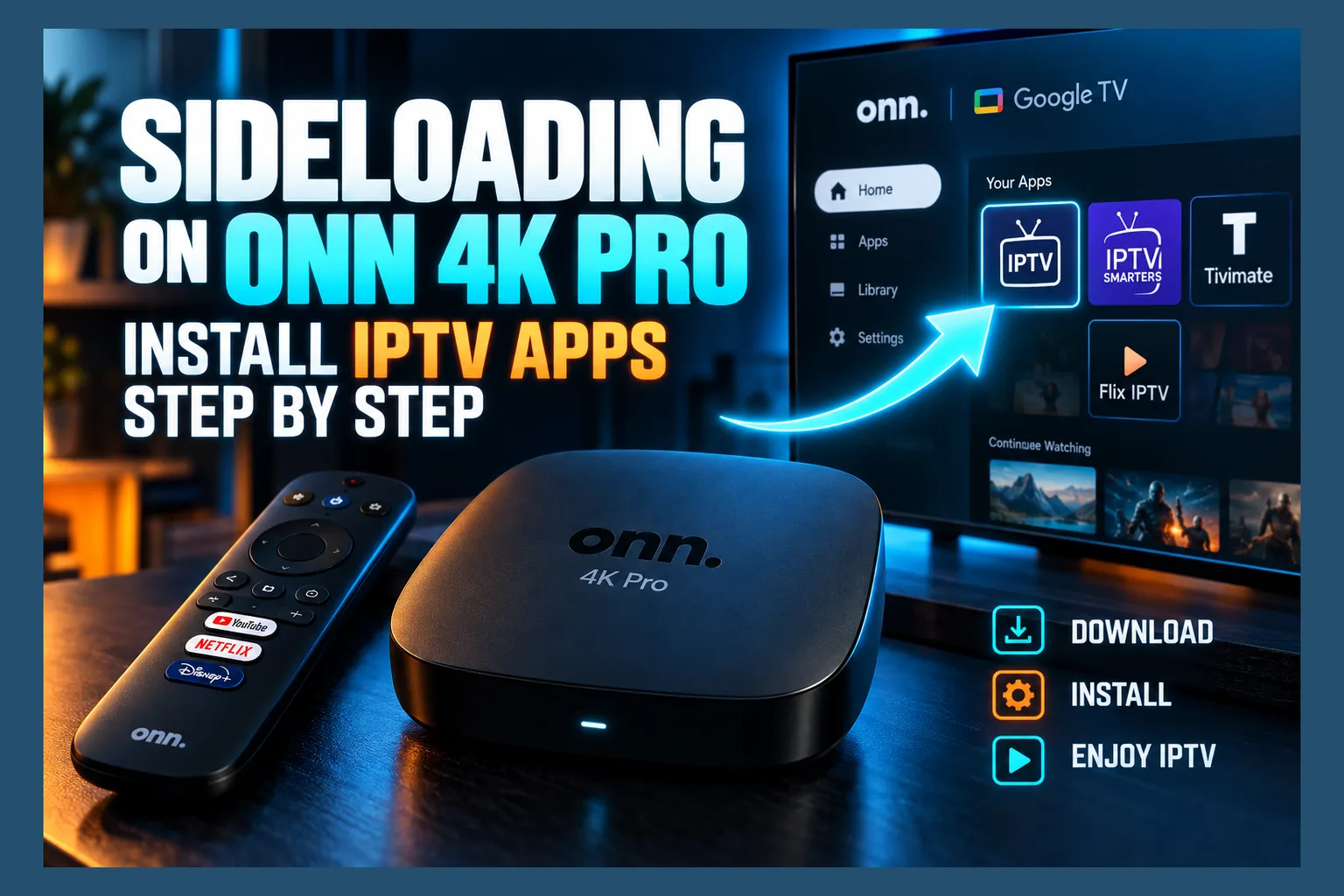
Sideload apps on Onn 4K Pro boxes and you can run IPTV players that aren’t in the Play Store. It just takes a few switches Google tucked out of sight. The short version: enable Developer Options, give Downloader or a file manager its own unknown sources permission, then install the APK. Check the Play Store first, though, because plenty of IPTV players are already listed there and will update themselves without any of this fuss.
At around $50 at Walmart, the Onn 4K Pro is one of the cheapest Google TV boxes you can buy in the US. Once you find the switches Google tucked away, it’s easy to sideload apps on Onn 4K Pro hardware. This guide is current as of 2026 and covers three install methods, the Google TV errors you’re most likely to hit, and what to lock down after every install.
Coming from a Firestick? Expect differences when you sideload apps on Onn 4K Pro boxes. The menus sit in other places, Google TV grants install permissions app by app instead of system-wide, and Play Protect runs its own scans on top of all that.
Why Sideloading on the Onn 4K Pro Works Differently Than on a Firestick
Walmart’s Onn 4K Pro runs Google TV. That’s an interface layer on top of Android TV OS. Amazon’s Fire OS also starts from Android, but Amazon rearranged the settings and stripped out Google services entirely, so Firestick tutorials only half-apply here.
Check Walmart’s product page before you buy or follow any guide. Launch-era reviews listed roughly 3GB of RAM and 32GB of storage, but specs and the Android TV OS version can shift between hardware revisions and updates. The OS version matters when you sideload apps on Onn 4K Pro units, because it decides which install errors you’ll run into.
Google TV vs Fire OS: Where the Settings Live
A quick map of the key settings on each platform:
| Task | Fire OS (Firestick) | Google TV (Onn 4K Pro) |
|---|---|---|
| Unlock developer menu | Settings > My Fire TV > About > tap device name | Settings > System > About > tap Android TV OS build |
| Allow APK installs | My Fire TV > Developer Options > Install unknown apps | Settings > Apps > Security & restrictions > Unknown sources |
| Malware scanning | Amazon’s own checks | Google Play Protect |
| App store | Amazon Appstore | Google Play Store |
If you’re switching from Amazon hardware, our guide to sideloading APKs on Firestick without Downloader makes a handy side-by-side reference. A lot of its file-transfer tricks carry over to Google TV.
What the Google Play Store Already Covers
Most tutorials skip this part: before you sideload apps on Onn 4K Pro, check whether you need to at all. TiviMate, IPTV Smarters and Kodi have all, historically, been listed on the Play Store for Android TV. Listings come and go, and availability can vary by region. Search the store on your own box before you sideload apps on Onn 4K Pro from an APK.
Store installs update themselves. They also skip every permission step in this article. Start with our list of the best apps to install on Onn Google TV, and sideload only what genuinely isn’t there.
Before You Sideload Apps on Onn 4K Pro: Prep Checklist
Five minutes of prep heads off most failed installs when you sideload apps on Onn 4K Pro devices. Three checks.
Free Up Storage Space
Open Settings > System > Storage and see what’s left. Each install needs room for the APK file plus the unpacked app, so budget about double the APK’s size. Some IPTV players run well past 50MB.
Tight on space? Uninstall apps you never open, or clear cached data under Settings > Apps. Streaming apps with bloated caches are usually to blame.
Update the System Software
Go to Settings > System > About > System update and install anything pending. Updates tend to bundle security patches and Play Protect changes, and they can tighten how the box treats older APKs.
Let it finish. Reboot. Only then touch developer settings, because a restart mid-session can wipe out changes you’ve just made.
Decide Whether You Need a VPN First
Some people connect a VPN before downloading APKs. It hides download activity from your internet provider, and in some regions it’s the only way to reach certain developer sites. You don’t need one to sideload apps on Onn 4K Pro boxes, though. And a VPN won’t make a dodgy file safe.
If you want one, grab the VPN app from the Play Store first, then connect before opening Downloader.
Enable Developer Options on the Onn 4K Pro
Developer Options is hidden by default, so unlock it before you sideload apps on Onn 4K Pro. You need it for ADB, and unlocking it now saves fiddling later when you’re troubleshooting.
Tapping the Android TV OS Build Number
- Open Settings (the gear icon at the top right of the home screen).
- Select System > About.
- Scroll down to Android TV OS build.
- Press the center button on your remote seven times.
- You’ll see a message saying “You are now a developer!”
Press Back. Developer options now shows up under Settings > System. If you’ve set a PIN, the box may ask for it.
Settings You Should Leave Alone
Developer Options holds dozens of toggles, and nearly all of them have nothing to do with sideloading. Leave animation scales, background process limits, USB debugging and “Don’t keep activities” untouched unless a later step in this guide says otherwise.
Poke at them randomly and you can end up with a sluggish interface, apps closing on their own, or ADB exposed to your whole network. Things acting weird? Switching Developer Options off resets the menu.
Allow Unknown Apps on Onn 4K Pro (Per-App Permission)
Older Firesticks had one master “allow unknown sources” switch. Google TV doesn’t. To sideload apps on Onn 4K Pro, every installer app gets its own permission, which is more tedious but noticeably safer.
Granting Permission to Downloader
- Install Downloader first (covered in Method 1).
- Go to Settings > Apps > Security & restrictions > Unknown sources.
- Find Downloader in the list and switch it on.
Downloader can now open the APK files it downloads. Everything else on that list stays blocked.
Granting Permission to a File Manager
Repeat those steps for a file manager like X-plore or FX File Explorer, or a transfer app such as Send Files to TV. Each one needs its own toggle. When an Install button does absolutely nothing, this list is the first place to look (it’s almost always the culprit).
Some apps prompt you the first time you try to install. That prompt just jumps you to the same toggle.
Turning Permissions Back Off Afterwards
Once the install’s done, go back and flip the permission off. Then if a compromised app or a hijacked webpage tries to push an install down the line, the system blocks it. Re-enabling it next time takes maybe ten seconds.
Method 1: How to Sideload Apps on Onn 4K Pro With Downloader
Most people go the onn 4k pro downloader app route, and for good reason: the whole thing happens on the TV with just the remote. No computer. No phone.
Getting Downloader From the Play Store
- From the home screen, open Search or the Apps tab.
- Search for Downloader (the publisher is AFTVnews).
- Select Install, then open it.
- Allow storage access if prompted.
- Turn on its Unknown sources permission using the path above.
Look at the publisher name before hitting Install. Copycats with near-identical names pop up in search results every so often.
Entering a URL or Code
On Downloader’s home tab, select the URL field and type either a full web address or a short numeric code. Developers register those codes through AFTVnews so you’re not pecking out a 60-character URL on a remote.
When the download completes, Downloader hands off to the Android installer automatically. Select Install, wait for the confirmation, then pick Done instead of Open so you land back in Downloader.
Read next: Onn Google TV 4K: Best Apps to Install After Setup
Downloader’s interface has been redesigned a few times, so labels may not match this guide word for word. The flow hasn’t changed: address, download, install.
Cleaning Up the APK File After Install
After installing, Downloader usually offers to delete the APK. Select Delete, then Delete again to confirm. Missed it? Open Downloader’s Files tab and clear out old APKs by hand.
Left alone, old installers can quietly eat hundreds of megabytes over a few months, and on a box with limited storage that’s space you’ll miss.
Method 2: Send Files to TV and File Managers
Sometimes an app is simply easier to grab on your phone or computer. This method suits that, and it also bails you out when a developer site refuses to load in Downloader’s built-in browser.
Sending an APK From Your Phone
- Install Send Files to TV on both your Android phone and the Onn 4K Pro from the Play Store.
- Make sure both devices are on the same Wi-Fi network.
- Download the APK on your phone from the developer’s official site.
- Open Send Files to TV on the TV and choose Receive.
- On your phone, choose Send, pick the APK, then pick the Onn box.
- On the TV, open the received file and select Install.
Everything stays on your local network, so transfers are fast. Just don’t forget that Send Files to TV needs its own Unknown sources toggle too.
Installing From a USB Drive
Check your unit’s ports first. A free USB port means you can plug a flash drive straight in. No free port, or power hogging the only USB-C? Then you’ll need a powered USB-C hub or an OTG adapter, usually $10 to $20 online.
Copy the APK to the drive on your computer and plug it in. Open X-plore or FX File Explorer on the TV, browse to the drive, select the APK, install. Both file managers live on the Play Store and have been around for years.
Method 3: Installing Over Wi-Fi With ADB
ADB (Android Debug Bridge) lets you push apps from a computer over your network. It’s the most flexible option, and it’s the only one that gets past certain install blocks. It’s also the easiest to misconfigure. Advanced users only.
Turning On Network or Wireless Debugging
Open Settings > System > Developer options and turn on USB debugging. Some Android TV OS versions also show Wireless debugging, which pairs using a code. Note the box’s IP address from Settings > Network & Internet.
Then install Google’s platform tools on your PC. The official Android ADB documentation covers setup for Windows, macOS and Linux.
Basic adb install Commands From a PC
For classic network debugging, open a terminal in the platform-tools folder and run:
adb connect 192.168.1.50:5555
Swap in your box’s IP address. The TV will ask whether to allow debugging from this computer. Only tick “Always allow from this computer” if it’s your own PC, then select Allow.
If your box uses Wireless debugging instead, choose “Pair device with pairing code” on the TV and run adb pair IP:PORT with the port and code it displays. Once paired, connect using the second port listed on the Wireless debugging screen (yes, there are two ports, and yes, that trips people up).
Connected? Install with:
adb install C:\path\to\app.apk
“Success” means you’re done. Run adb disconnect afterward and switch debugging off on the TV, because an open ADB port on your network is a genuine security hole.
Comparing the Three Methods
| Method | Needs | Difficulty | Best for |
|---|---|---|---|
| Downloader | Remote only | Easy | Quick installs from a known URL or code |
| Send Files / USB | Phone or USB drive | Easy | Sites that won’t load on the TV |
| ADB | PC with platform tools | Advanced | Bypassing SDK blocks, batch installs, troubleshooting |
Fixing Blocked or Failed Installs
Nearly every failure on Google TV lands in one of four buckets. Figure out which, and the fix is usually quick.
‘App Not Installed’ and Package Conflicts
Usually it’s a signature mismatch. Say you already have a version of the app from the Play Store. Android will refuse any APK signed with a different key, full stop. Uninstall the existing copy first, and back up its settings if you care about them, since they’ll be lost.
Low storage, a corrupted download, or installing an older version over a newer one can cause the same error. Delete the APK, download it fresh, and recheck free space. Our piece on fixing IPTV Smarters Pro installation errors by device digs into these cases further.
Play Protect Warnings
Play Protect scans sideloaded apps and may throw up “Blocked by Play Protect” or “Unsafe app blocked.” Sometimes that’s just because the app isn’t on the Play Store. Sometimes it’s a real problem.
If you trust the source and the file clears VirusTotal, select More details > Install anyway. You can disable scanning entirely in the Play Store’s Play Protect settings. I’d leave it on, though. It’s free protection that only occasionally gets in the way.
Old APKs Blocked by Newer Android Versions
Android 14 and later won’t install apps targeting very old SDK levels, specifically anything below API 23 (Android 6.0, released back in 2015). If your box has picked up a newer Android TV OS update, abandoned apps may fail with an unhelpful, vague error. Your best bet is a newer build from the developer.
No newer build? ADB can override the block with adb install --bypass-low-target-sdk-block app.apk. Only do this if you accept the risk, because apps targeting ancient SDKs also miss out on modern privacy protections.
Wrong Architecture (ARM64 vs ARMv7)
Plenty of developers publish separate APKs for arm64-v8a and armeabi-v7a. Some Android TV boxes pair a 64-bit chip with a 32-bit system, and on those, 64-bit-only APKs simply fail. A free device info app from the Play Store will tell you which ABIs your box supports.
Not sure? The armeabi-v7a build is usually the safer pick on TV boxes. Stremio, Kodi and several IPTV players offer both on their download pages.
Staying Safe When Sideloading
Sideloading skips the store’s review process. That makes you the reviewer. Three habits cover most of the risk.
Vetting an APK Before You Install It
Download only from the developer’s official website or official GitHub releases. Skip mirror sites, and steer well clear of “modded” or “premium unlocked” builds, a favorite delivery method for malware and remote-access trojans.
Before installing, upload the file or its URL to VirusTotal. One or two vague flags from obscure engines are normal for sideloaded apps. A dozen detections naming a specific trojan? Hard no.
Reviewing App Permissions After Install
Head to Settings > Apps > [app name] > Permissions. An IPTV player needs network and storage access, and that’s about it. Microphone, location, contacts? Deny anything that doesn’t match what the app does.
Pay extra attention to the microphone, since the Onn 4K Pro has one built in for hands-free Assistant. Once you’re set up, the guide to IPTV Smarters Pro settings worth changing walks through in-app privacy and performance tweaks.
Putting the Box on a Guest Network
Most routers can run a guest network that walls devices off from your main computers and phones. Park the streaming box there and a bad app that slips through can do far less damage. The catch: Send Files to TV and casting from your phone may stop working while the two devices sit on different networks.
Getting Sideloaded Apps on the Home Screen
This one trips up a lot of people. The install succeeds. Then the app is nowhere on the home screen.
Customizing the Google TV Home Screen
Google TV’s “Your apps” row mostly shows apps built for TV, the ones with a TV-style banner. Phone-style APKs can install perfectly and still never appear there. To launch them, go to Settings > Apps > See all apps, select the app, and choose Open.
For apps that do show up, long-press the tile and choose Move to bump it into the first few slots. Our broader guide to sideloading apps and getting more from Onn Google TV has more layout tips.
Using a Launcher or ‘Apps-Only Mode’
Sick of recommendations? Go to Settings > Accounts & profile, select your Google account, and turn on Apps only mode. The home screen gets much cleaner, but you lose some Google TV features, including the watchlist.
A third-party launcher like Projectivy Launcher from the Play Store lists every installed app, phone-style APKs included. If you run several sideloaded apps, it’s a solid add. Google TV doesn’t make swapping the default launcher easy, though, and Reddit users report needing workarounds that can break after system updates.
Building something bigger with a media server? See our guide on setting up IPTV in Plex.
Final Thoughts on Your Onn 4K Pro IPTV Setup
Once the per-app permission model clicks, it’s genuinely simple to sideload apps on Onn 4K Pro hardware. Check the Play Store first. Use Downloader for quick installs, Send Files or USB when the TV can’t reach a site, and keep ADB for the stubborn cases.
Whatever method you pick, run the same routine every time: vet the file, install it, delete the APK, switch off the permission, then check the app’s access rights. Stick to that and your onn 4k pro iptv setup stays both fast and secure.
⚖️ Legal Disclaimer: IPTV Wire does not own or operate any streaming service, application, or website mentioned in this article. We do not verify whether third-party services carry proper licensing. Users are responsible for ensuring they comply with copyright laws in their jurisdiction.
Frequently Asked Questions
Can you sideload apps on the Onn 4K Pro?
Yes. Google TV allows APK installs once you grant a specific app, like Downloader or a file manager, permission under Settings > Apps > Security & restrictions > Unknown sources. ADB over Wi-Fi also works once Developer Options is enabled.
Is the Downloader app available on the Onn 4K Pro?
Yes. Downloader by AFTVnews is on the Google Play Store for Android TV devices. Install it from the store, then turn on its Unknown sources permission before using it to install APKs.
Why does my Onn 4K Pro say ‘App not installed’?
Usually it’s one of five things: a signature conflict with an existing version, low storage, a corrupted download, an APK built for the wrong architecture, or an app targeting an SDK too old for your Android TV OS version. Uninstall any existing copy, re-download the file, and try the armeabi-v7a build.
Does sideloading void the Onn 4K Pro warranty?
Sideloading relies on built-in Android features. It doesn’t root or modify the system, so it’s not the same as hardware tampering. Walmart’s warranty terms have the final say, though. If something breaks, a factory reset under Settings > System puts the box back to stock.
Where do sideloaded apps appear on Google TV?
TV-optimized apps show up in the Apps tab and the “Your apps” row. Phone-style APKs often don’t, so launch them from Settings > Apps > See all apps, or install a third-party launcher that lists everything.
Is it safe to turn on unknown sources on the Onn 4K Pro?
Reasonably, yes, as long as you allow it only for trusted apps, install from official developer sources, scan files on VirusTotal, and switch the permission off afterward. Google TV grants the permission per app, so enabling it for Downloader doesn’t throw open the whole system.


Comments
Leave a comment
Your email address will not be published. Comments are moderated before they appear.