

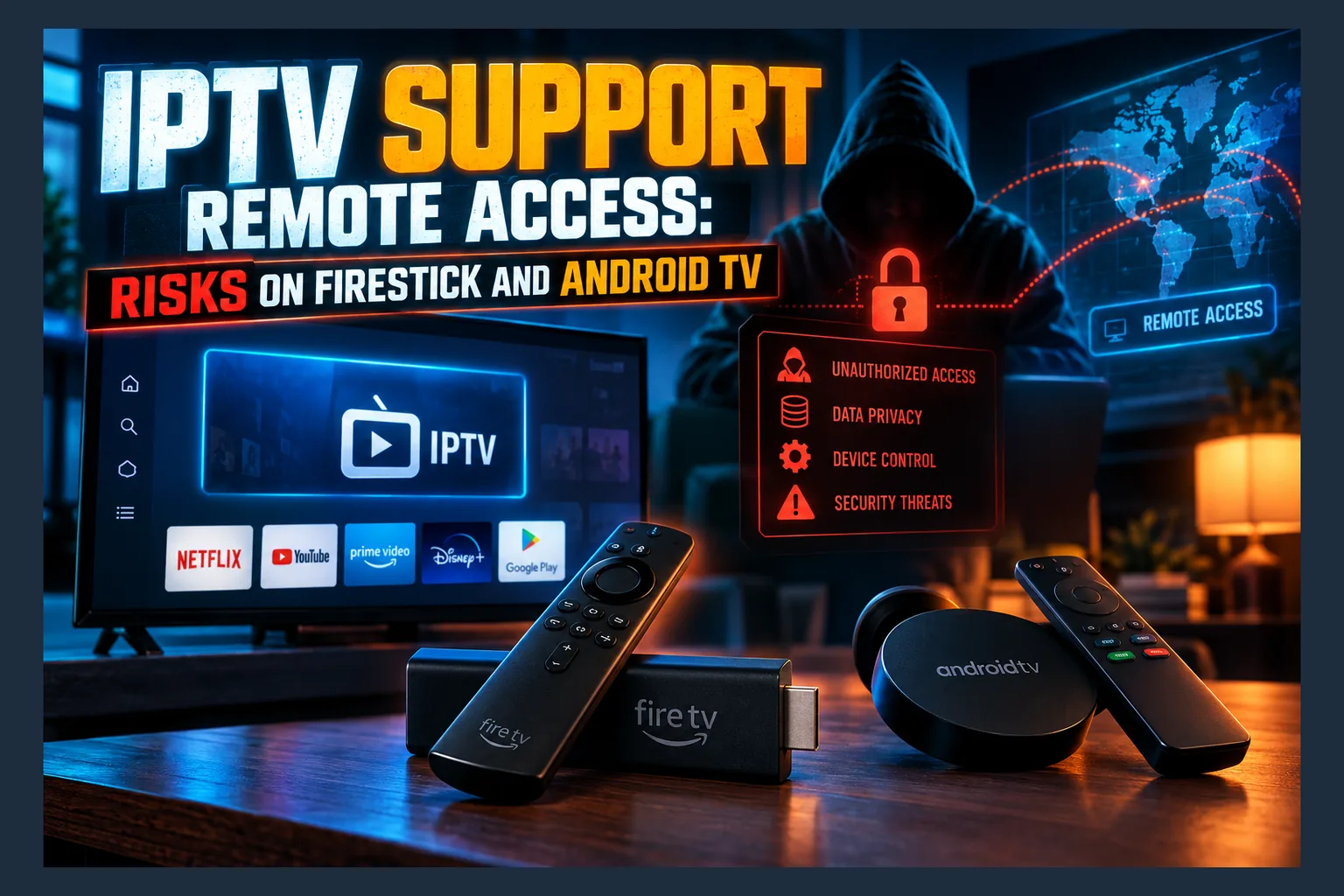
IPTV support remote access sounds harmless when a seller offers it: install an app, read out a code, tap Accept, and a ‘technician’ sets everything up for you. But on a Firestick or Android TV, that session hands a stranger control of a device signed into your Amazon or Google account and sitting on your home network. You can enter M3U or Xtream Codes details yourself in a few minutes instead. If you’ve already allowed a session, uninstall the remote app and check permissions.
“We’ll set it up for you.” As of 2026, that’s one of the most common sales lines in the IPTV reseller world, usually tacked onto a subscription costing somewhere around $10 to $20 a month. It sounds helpful, especially if you’ve never sideloaded an app before. But handing over IPTV support remote access is a bigger decision than most cord-cutters realize, because the box under your TV is more than a video player. This guide covers what’s at stake, how to spot the warning signs, and how to clean up if you’ve already said yes.
Why Sellers Ask for IPTV Support Remote Access
Most small IPTV resellers have no office, no phone line, and no ticketing system. They run the whole operation through Telegram, WhatsApp or a Discord server. Support means a chat window. Increasingly, it also means a request for IPTV support remote access through a remote control app on your TV box, because for the seller that’s far quicker than explaining, step by step, which button on a Fire TV remote opens which menu.
The ‘we’ll set it up for you’ pitch
Timing matters here. The pitch usually lands right after payment, or occasionally before it, dressed up as part of a “free 24-hour trial.” You’re told setup is complicated. A technician will “connect and configure everything in 5 minutes,” and all you need to do is install an app, read out a code, and tap Accept.
That’s the whole trick. You aren’t downloading a channel list. You’re giving someone you’ve never met, and probably never will, live control of your screen and often the ability to tap through any menu on the device.
Legitimate reasons vs convenient excuses
Remote support tools are real software, and IPTV support remote access isn’t automatically a scam. IT departments rely on them daily. Plenty of honest people use them to help a parent who can’t find the Wi-Fi settings. The tool isn’t the problem. With IPTV support remote access, who sits on the other end is.
Security agencies have already flagged how attackers abuse trusted remote tools. In January 2023, the US Cybersecurity and Infrastructure Security Agency published a joint advisory on malicious use of remote monitoring and management software, naming products like ScreenConnect and AnyDesk. More recent reporting has described malware campaigns that piggyback on ScreenConnect installs. For home users, the takeaway is blunt: a “support channel” can become an attack path.
Honestly? A well-run IPTV service shouldn’t need IPTV support remote access at all. A player needs three things: a server URL, a username and a password. When a seller insists that only remote control will work, that’s a convenient excuse, not a technical requirement.
Remote Access Apps You’ll Be Asked to Install
The list of tools named in IPTV support remote access chats is fairly short. Knowing what each one actually does tells you exactly what you’re agreeing to.
AnyDesk and TeamViewer QuickSupport
AnyDesk is a cross-platform remote desktop app. On Android-based devices (and Fire OS is Android underneath), it can mirror the screen to a remote viewer and, with an extra plugin or permission, accept remote input too. People searching “anydesk on firestick” usually end up with a sideload link or an APK mirror rather than an official Amazon Appstore listing, which is its own small red flag.
TeamViewer QuickSupport was built for precisely this scenario: a helper connects using a one-time ID. TeamViewer has reshuffled its Android lineup several times over the years, so the app name you’re told to grab may not match what you find. On Android TV, “teamviewer quicksupport android tv” instructions often involve granting accessibility or screen capture permissions so the helper can click around freely.
ScreenConnect, RustDesk and lesser-known clients
ScreenConnect, owned by ConnectWise for roughly a decade now, targets businesses. Its client, though, can be packaged and handed out by anyone with an account. RustDesk is open source, which is great for transparency. It also means a seller can run a private relay server you know nothing about.
Then comes the long tail. Rebranded clients with bland names like “Support Helper” or “TV Assist.” These are the ones I’d be most wary of in any IPTV support remote access request, because there’s simply no way to tell whether the APK is the genuine product or a modified build carrying extra code.
Downloader codes that bundle remote tools
Lots of sellers send a short numeric code for the Downloader app. A code is just a shortcut to a URL, and that URL can point anywhere, including a page that serves an IPTV player and a remote client in one go. Our guide to Downloader codes for Firestick and Android TV explains how to preview where a code leads before you install anything.
Some “setup packs” chain two or three APKs in sequence. Expected one app but got three install prompts? Stop. Read each one.
What Someone Can Do With Access to Your Streaming Device
Let’s keep the IPTV support remote access risks grounded. A remote session won’t turn your Fire TV Stick 4K Max into a spy camera (most streaming sticks don’t have one anyway). But a streaming box has more access than people assume, and a careless or malicious helper with IPTV support remote access can do real damage in a few minutes.
Install or replace APKs silently
With control of your screen, a helper can enable unknown sources, open a browser or Downloader, and install whatever they want. One common risk: swapping a legitimate player for a modified copy that looks identical but carries adware or tracking code. If you want something to compare against, see our list of the best IPTV player apps for Firestick and Android TV.
Persistent adware is the likeliest outcome of a bad IPTV support remote access session. Symptoms include random pop-ups, a sluggish home screen, and apps launching on boot that you never opened.
Change DNS, proxy and VPN settings
Network settings on Android TV and Fire OS take a few taps to change. A helper could point you at a custom DNS server or proxy that routes traffic through infrastructure they control. Or they could install a VPN profile you never chose, quietly funneling everything through a third party you can’t see.
Reach other devices on your home network
Think about what else is on your Wi-Fi. Laptop, phone, maybe a Synology NAS, a couple of smart cameras. A compromised box can serve as a foothold for scanning those devices and poking at weakly protected services. Security teams worry about exactly this pattern on corporate networks; it just shrinks down to fit your living room.
Access logged-in accounts and saved payment methods
Your Firestick is signed into your Amazon account. A Chromecast with Google TV or Google TV Streamer is tied to your Google account. Without a purchase PIN, anyone in control can buy apps, rentals or subscriptions in a couple of clicks, and logged-in streaming apps expose your profiles and sometimes your email address too.
Red Flags Before You Grant IPTV Support Remote Access
Before tapping Accept on any session, run through this checklist. Two or more apply? Walk away.
Read next: Best IPTV Players for Android TV & Firestick in 2026
- The seller only talks through anonymous Telegram or WhatsApp accounts, with no website or business details anywhere.
- Payment is limited to crypto, gift cards or PayPal “friends and family” transfers with no buyer protection.
- You’re told the service “only works” if they configure it remotely.
- The remote app comes from a random link instead of the developer’s official site.
- They ask for your Amazon, Google or email password “to verify the account.”
- They want the session left open, or ask you to keep the TV on overnight.
Pressure tactics and ‘expiring’ offers
“The discount ends in 10 minutes.” “The tech is only online now.” Urgency exists to stop you thinking. Real help can wait an hour while you read the instructions properly.
Requests to enable ADB or developer options
ADB, short for Android Debug Bridge, lets a computer send commands to your device, install apps and pull data without anyone touching the screen. The official Android developer documentation on ADB makes clear just how much control that is. Anyone asking you to switch on ADB or network debugging is asking for a back door that doesn’t even need a visible session.
Asking you to approve accessibility or device admin permissions
Accessibility services can read what’s on your screen and press buttons on your behalf. Device admin rights can block an app from being uninstalled. Playing an M3U playlist needs neither. A request for either one is a serious warning sign, full stop.
Safer Ways to Get IPTV Setup Help
You can absolutely get a working setup without surrendering control. Here’s how the main options stack up.
| Setup method | Who controls the device | Risk level | Best for |
|---|---|---|---|
| Enter M3U / Xtream Codes yourself | You | Low | Almost everyone |
| Send screenshots or phone photos for advice | You | Low | Troubleshooting errors |
| View-only screen share | You (helper watches) | Medium | Guided walk-throughs |
| Full remote control session | The helper | High | Trusted friends or family only |
| Permanent / unattended access | The helper, anytime | Very high | Never for IPTV sellers |
Enter M3U or Xtream Codes details yourself
Nearly every IPTV player asks for the same handful of fields: server URL, username, password, or one long M3U link. Get the seller to send those as text. Then type them in yourself. Our roundup of IPTV players for Android TV and Firestick covers which apps make this easiest.
Tip: many players let you scan a QR code or open a web page on your phone to paste credentials. That spares you typing a 60-character URL with a TV remote (yes, it’s still painful in 2026).
Share screenshots instead of screen control
Got an error code? Snap a photo of the TV with your phone and send it. A competent support person can diagnose most login or playlist errors from one picture, and you never give up control.
Use one-time, view-only sessions if unavoidable
If someone truly needs to watch what you’re doing, stick to these rules:
- Install the remote app only from the developer’s official site or a reputable store.
- Pick view-only mode, or decline any “remote control” or input permission.
- Stay in front of the TV for the entire session, remote in hand.
- Never enable unattended access, set a permanent password, or let the app start on boot.
- End the session from your side, then uninstall the app immediately.
Already Allowed IPTV Support Remote Access? Clean-Up Steps
Don’t panic. Most sessions really are just someone typing a playlist URL. Still, set aside 15 minutes to check your device, because there’s no easy way to know what happened while you weren’t watching.
Revoke and uninstall the remote client
Fire OS: go to Settings > Applications > Manage Installed Applications, select AnyDesk, TeamViewer or whichever client was used, then choose Force Stop and Uninstall. That’s the standard answer to “remove remote access app firestick” searches.
Google TV / Android TV: go to Settings > Apps, select the remote app, then Force Stop and Uninstall. Is Uninstall greyed out? The app probably holds device admin rights, so skip to the device admin step below first.
Audit installed apps and ‘Install unknown apps’ permissions
Scroll the full app list. Look for anything unfamiliar, particularly generic names or two copies of the same player. Next, check which apps are allowed to install other apps:
- Fire OS: Settings > My Fire TV > Developer Options > Install unknown apps. Turn it off for everything except tools you actively use.
- Google TV / Android TV: Settings > Apps > Security & restrictions > Unknown sources (menu names vary by manufacturer and firmware, so a Sony Bravia won’t look exactly like an Nvidia Shield).
Unsure whether a third-party store on your box is trustworthy? Our article on whether Aptoide TV is safe walks through how to vet an app source. The same checks apply to any player you sideload, as covered in our SStream APK review.
Check device admin and accessibility services
On Android TV, look under Settings > Apps > Special app access > Device admin apps, then under Settings > System > Accessibility. Disable anything you didn’t knowingly turn on. Firestick owners should check Settings > Accessibility for any unfamiliar service that’s active.
An unknown accessibility service is one of the clearest signs something persistent got left behind. Take it seriously.
Change passwords and review account purchases
Change your Amazon or Google password from a phone or computer. Not from the TV box. Then go through recent orders, digital purchases and active subscriptions on that account. On Fire TV, set a purchase PIN under Settings > Preferences > Parental Controls; on Google TV, require authentication for purchases in your Google Play settings (this one’s buried, annoyingly).
Shared any streaming logins or email credentials during the chat? Change those as well.
When to factory reset
If the session was short, you watched the whole thing, and your audit turned up nothing strange, uninstalling the remote app is enough. A full reset is the safer move when any of these apply:
- An app won’t uninstall, or it comes back after a reboot.
- You find unknown accessibility, device admin or VPN entries.
- ADB or network debugging is on and you don’t know why.
- You left the session unattended or allowed unattended access.
On Fire TV, use Settings > My Fire TV > Reset to Factory Defaults. On Google TV, it’s usually Settings > System > About > Factory reset. Afterward, reinstall only the apps you need, from sources you trust.
Hardening Your Firestick or Android TV Box
A handful of settings changes make your streaming device a much harder target, whether or not you ever touch remote support again.
Turn off ADB debugging and unknown sources when not needed
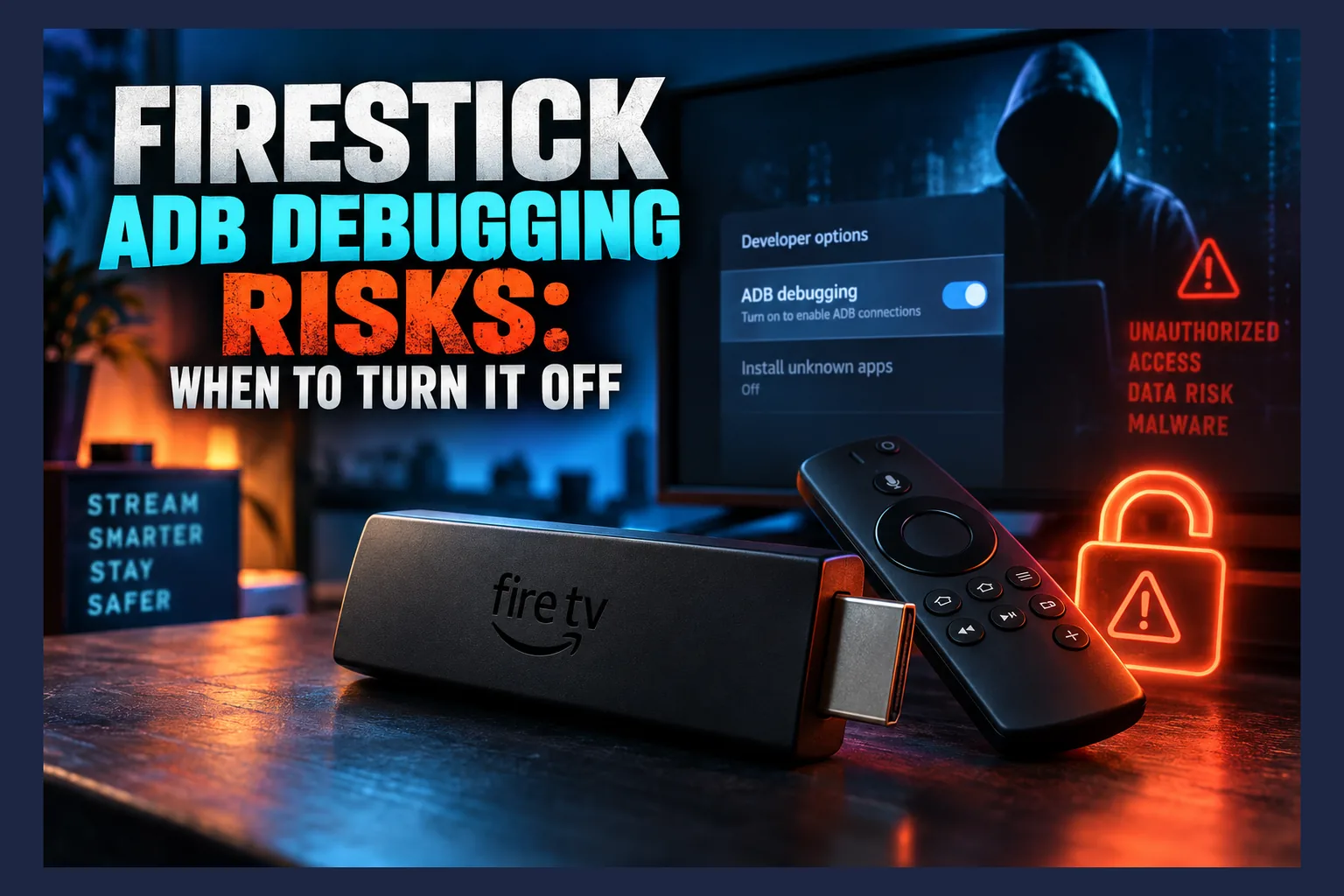
To disable ADB debugging on a Firestick, go to Settings > My Fire TV > Developer Options and switch ADB Debugging off. Newer Fire OS builds hide Developer Options entirely; you reveal it by selecting your device name under About seven times (yes, really, seven). On Android TV, turn off USB debugging plus network or wireless debugging under Developer options.
Treat unknown sources the same way. Switch it on to install an app, then off again straight after. It takes about 20 seconds and shuts the most common door.
Isolate streaming devices on a guest network
Most routers sold in the last five or so years support a guest Wi-Fi network that can’t see devices on your main one. Move your Firestick, Android TV box and smart TV onto it. If one ever gets compromised, your laptop and NAS stay out of reach.
One catch. Some routers isolate guest devices so strictly that phone-to-TV casting stops working, so check that before committing, and expect to tweak a setting or two depending on your router brand.
Why a VPN doesn’t stop remote access abuse
A VPN encrypts your traffic and hides it from your ISP. Useful for privacy, and our VPN kill switch setup guide for Firestick and Android TV explains how to stop leaks when the connection drops. Against a remote session you approved yourself, though, it does nothing.
The remote client simply connects through the VPN tunnel like any other app. Once someone controls your screen, they can switch the VPN off entirely. A VPN is a privacy tool, not a security guard for your device.
Final Thoughts on IPTV Support Remote Access
My view is simple. IPTV support remote access is almost never necessary, and the downside dwarfs the convenience. A player only needs a URL and login details, which you can type yourself or paste from your phone in under five minutes. Keep control of your device, leave ADB and unknown sources switched off, and park streaming boxes on a guest network.
Already said yes to a session? Run the clean-up steps above today. Fifteen minutes of checking is a small price next to a hijacked Amazon account or a compromised home network.
⚖️ Legal Disclaimer: IPTV Wire does not own or operate any streaming service, application, or website mentioned in this article. We do not verify whether third-party services carry proper licensing. Users are responsible for ensuring they comply with copyright laws in their jurisdiction.
Frequently Asked Questions
Is it safe to let an IPTV provider use AnyDesk on my Firestick?
Generally, no. AnyDesk is legitimate software, but it hands the other person control of a device signed into your Amazon account. Ask for your M3U or Xtream Codes details in text and enter them yourself.
Can a remote access app stay hidden on Android TV after the session ends?
Yes. If unattended access was enabled, it can keep running in the background, and other apps installed during the session may stick around too. Check your full app list, accessibility services and device admin apps, then uninstall anything you don’t recognize.
How do I remove TeamViewer or AnyDesk from a Firestick?
Go to Settings > Applications > Manage Installed Applications, select the app, then choose Force Stop and Uninstall. After that, turn off unknown sources and ADB debugging under Developer Options.
Can someone access my home network through a hacked streaming box?
It’s possible. A compromised box shares your Wi-Fi with laptops, phones and storage devices, so it can be used to probe them. Moving streaming devices to a guest network limits that risk considerably.
Does a VPN protect me if I gave someone remote access?
No. A VPN encrypts your traffic, but the remote session runs through the tunnel like any other app. Whoever is in control can even disable the VPN.
Should I factory reset my Firestick after a remote support session?
Reset if you left the session unattended, found unknown apps or permissions, or noticed ADB debugging switched on. If you watched a short session and your audit came back clean, uninstalling the remote app and changing your Amazon password is usually enough.
Comments
Leave a comment
Your email address will not be published. Comments are moderated before they appear.