

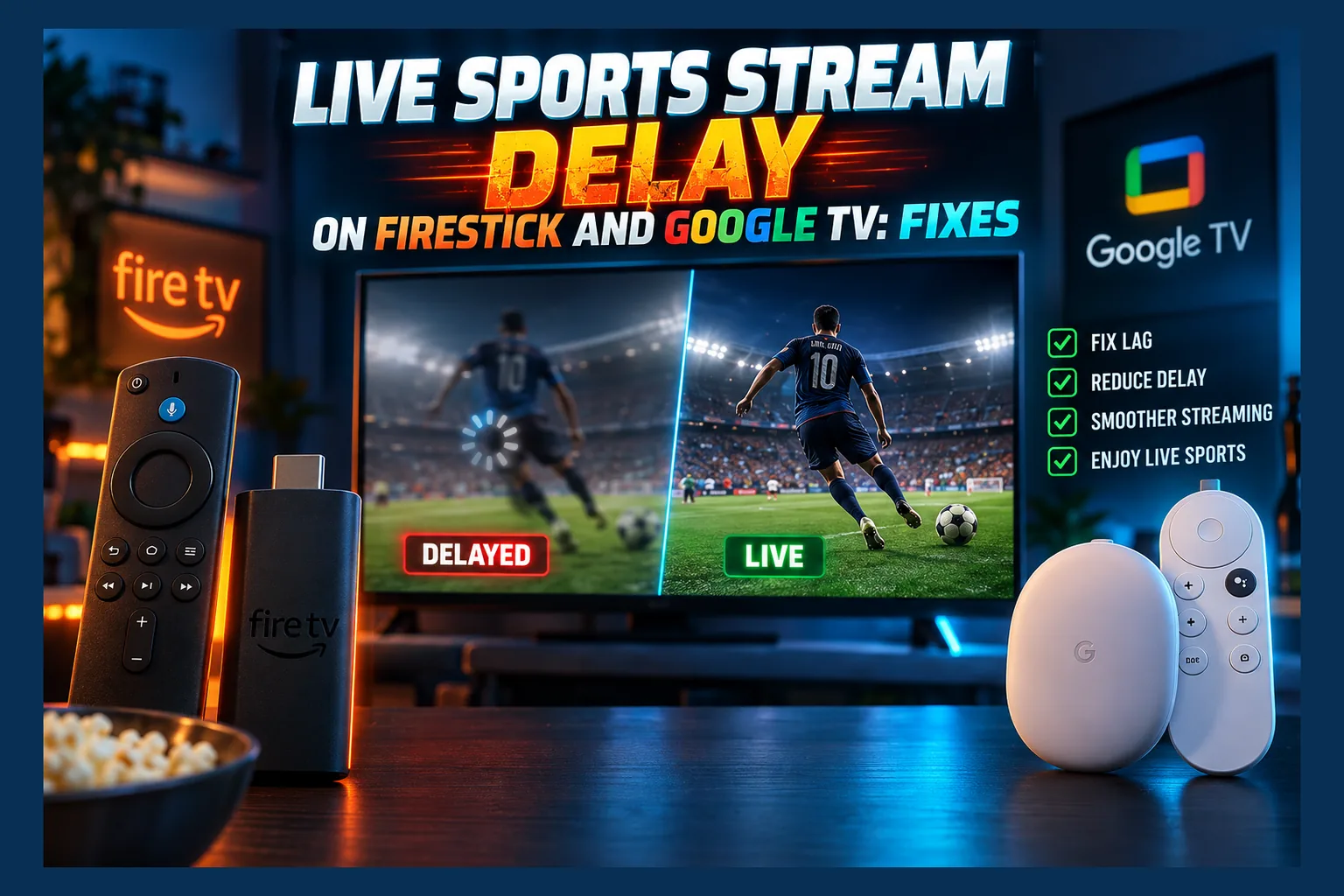
Live sports stream delay is the reason your phone buzzes with a touchdown alert while your TV still shows the huddle. As of 2026, it’s the most common complaint I hear from cord-cutters on Firestick and Google TV. Most of that lag comes from how streams are encoded, segmented and buffered, not from your device. Below, I’ll break down where the seconds go, which settings trim the extra drift, and why nothing on your end can fully match an antenna.
Your phone buzzes with a touchdown alert. On your TV, the team is still in the huddle. That gap is live sports stream delay, and as of 2026 it’s still the most common complaint I hear from cord-cutters on Firestick and Google TV. So where does the lag actually come from? And which fixes are worth your Saturday afternoon? This guide covers both.
One note first. This isn’t a ranking of sports services. If you’re still choosing where to watch, start with our guide on how to stream live sports on Firestick without cable. Then come back here when live sports stream delay starts spoiling your games.
Why Live Sports Stream Delay Leaves You Behind Cable and Antenna
People who search “why is my live stream behind cable” usually blame their internet speed for live sports stream delay. It’s rarely that simple. The delay builds up in small pieces, a couple of seconds here and a few more there, all the way from the stadium camera to your living room.
The Latency Chain: Encoding, Segments, CDN and Player Buffer
Here’s the path a live feed takes before it reaches your TV:
- Production and contribution: The broadcast truck mixes cameras, graphics and audio, then sends the feed to a central facility. Cable and antenna viewers pay this cost too. It isn’t a streaming-only penalty.
- Encoding: The feed gets compressed into several quality tiers, from low-bitrate mobile versions up to 1080p or 4K. Good compression takes time. Usually a few seconds.
- Segmenting: Most streaming apps use HTTP Live Streaming (HLS) or MPEG-DASH. Both chop video into chunks, often 2 to 6 seconds long (Apple’s HLS guidance has recommended 6-second segments since around 2016), and a chunk can’t ship until it’s finished.
- CDN distribution: Chunks get copied out to content delivery network servers across the US, UK, Europe and beyond. Every hop between the origin server and the edge server near you adds a bit more time.
- Player buffer: Your app downloads several chunks before it plays anything. Three 6-second segments means you’re about 18 seconds behind before any other factor even counts.
Stack those up and the usual live sports stream delay ranges start to make sense. Industry estimates generally put an OTA antenna a few seconds behind the live action, with cable or satellite slightly behind that, while many app-based streams land somewhere around 20 to 60+ seconds back. These are broad, commonly cited ranges, not our own measurements. They shift by service, by event and by region.
Why Streaming Apps Trade Delay for Fewer Buffering Stalls
Services build in live sports stream delay deliberately. A bigger buffer gives the player room to absorb Wi-Fi hiccups and evening network congestion without freezing on a fourth-down play. For most viewers, a stream that’s 40 seconds late but smooth beats one that’s 10 seconds late and spins every few minutes. I’d make that trade too, honestly.
Low-latency formats do exist. Apple introduced LL-HLS around 2019, and low-latency DASH has been around for a similar stretch; both use smaller “partial” segments so players can start sooner. Adoption is patchy, though. Many services only switch on low-latency delivery for certain marquee events or certain devices, and they don’t always say which.
How Live Sports Stream Delay Differs by Delivery Method
How a game reaches you sets the floor for your live sports stream delay. Below is a conceptual comparison. No specific services named, no rankings.
| Delivery method | Typical delay vs. live action (broad estimate) | Main sources of delay | How much you can reduce it |
|---|---|---|---|
| OTA antenna | A few seconds | Broadcast encoding, TV processing | Very little needed |
| Cable / satellite box | A few seconds, often slightly behind OTA | Re-encoding, satellite uplink, box decoding | Minimal |
| Official streaming apps / live TV services | Roughly 20–60+ seconds | Segmenting, CDN, player buffer | Moderate (resync, network fixes) |
| IPTV services / M3U playlists | Highly variable, often similar or longer | Restreaming, re-encoding, middle servers, player buffer | Moderate (player buffer, format, server choice) |
OTA Antenna and Cable Boxes
An antenna grabs the signal almost straight from your local transmitter. No segmenting. No big download buffer. That’s why antenna viewers rarely notice live sports stream delay or get spoiled by their phones. Cable and satellite add some processing, but they still deliver a continuous signal rather than a pile of chunks.
Official Streaming Apps and Live TV Services
Official apps pull directly from the rights holder’s encoders and CDNs, which keeps the chain shorter than any restream. Live sports stream delay still swings quite a bit, depending on the event, which CDN serves your area, and how cautious the app’s buffer is.
Same app, different city, different result. In the US, UK, Canada and Europe, a service can behave noticeably differently depending on which regional CDN picks up your connection, so a friend across the state watching the identical app might be 10 seconds ahead of you or 15 seconds behind.
IPTV Services and M3U Playlists
Many IPTV providers don’t have a direct feed from the broadcaster. They capture a channel, re-encode it, then push it through their own servers. Each step stacks more live sports stream delay on top of the original broadcast’s lag.
Load matters as well. During a Champions League final or a Super Bowl, thousands of people may hit the same IPTV server at once, and players react by buffering more. That’s why any IPTV stream delay fix tends to center on player settings and server choice, both covered below.
Firestick and Google TV Settings That Reduce Lag
Expectations first. Device fixes mainly cut extra buffering and the rebuffer drift that piles up over three hours of football. They can’t touch the live sports stream delay a service builds in on its own servers.
The menu names below match current Fire OS and Google TV builds. Wording does shift between models and updates, though, so if something isn’t exactly where described, look for the closest match.
Use Ethernet or 5GHz Wi-Fi
Want the most reliable way to reduce streaming latency on Firestick? Plug in a cable. Wi-Fi drops and interference force the player to rebuffer, and every stall shoves you further behind.
On Fire TV:
- Plug in an Ethernet adapter. Amazon’s Ethernet Adapter for Fire TV usually runs around $15–$20, and third-party adapters with USB power passthrough work too.
- Go to Settings > Network and confirm the wired connection is active.
- The Fire TV Cube has a built-in Ethernet port. No adapter needed.
On Google TV:
- The Google TV Streamer (launched in 2024 at roughly $99) has a built-in Ethernet port. Chromecast with Google TV needs a USB-C hub or power adapter with Ethernet.
- Go to Settings > Network & Internet and check that Ethernet shows as connected.
Can’t run a cable? Connect to your router’s 5GHz band instead of 2.4GHz. Pull the router out of the TV cabinet and away from the back panel, or add a mesh node closer to the TV. You can check signal strength on Fire TV by holding the Home button, or in the Network menu on either platform.
Match Frame Rate and Resolution Settings
Frame rate matching mostly fixes judder, not latency. It can still help. Some devices stutter or briefly drop frames when converting 60fps sports to a different output rate, and that hitching isn’t doing your buffer any favors.
Read next: How to Stream Live Sports Free on Firestick in 2026
- Fire TV: Settings > Display & Sounds > Display > Match Original Frame Rate (newer models only, such as the Fire TV Stick 4K Max). Set resolution under Video Resolution.
- Google TV: Settings > Display & Sound > Advanced display settings > Match content frame rate. Set resolution under Settings > Display & Sound > Resolution.
Also switch on your TV’s Game Mode, assuming you can live with the picture. It trims display processing lag by a fraction of a second. Small gain, but free.
Clear App Cache and Close Background Apps
Budget sticks are short on RAM. The Fire TV Stick Lite, for example, ships with around 1GB. Background apps and a swollen cache can slow decoding and trigger extra buffering right when the play gets fast.
Fire TV: Settings > Applications > Manage Installed Applications > [your app] > Force stop, then Clear cache. Don’t tap “Clear data” unless you’re ready to log in all over again (and dig up that password).
Google TV: Settings > Apps > See all apps > [your app] > Force stop, then Clear cache. Restart the device before kickoff for a clean memory slate.
Keep Fire OS or Google TV Updated
System updates often bundle video decoder and Wi-Fi driver fixes. Old firmware can also block newer app versions, which may carry their own latency tweaks.
- Fire TV: Settings > My Fire TV > About > Check for Updates, then install.
- Google TV: Settings > System > About > System update.
Update the sports apps themselves too, through the Amazon Appstore or Google Play. For app picks that run well on current hardware, see our list of the best Firestick apps for live sports streaming in 2026.
Jump Back to the Live Edge Inside Apps
This is the fix almost everyone skips. If you’re 90 seconds behind while your friends sit at 30, drift is the likely culprit.
Using ‘Go to Live’ and Restarting the Stream
Most live TV apps give you a way to jump to the live edge in a streaming app. Look for a Live, Go to Live or Jump to Live button in the playback controls. Plenty of apps also flip a red dot or “LIVE” label to gray once you’ve fallen behind, which is a handy tell.
No button? Try this:
- Press Back to exit playback.
- Reopen the channel or event from the guide, not from “Continue Watching.”
- Still lagging? Force stop the app (menu paths above) and relaunch.
That “Continue Watching” row is sneaky. It can resume exactly where you stopped instead of jumping to live, which catches a lot of people coming back from a halftime snack run.
Why Pausing or Rebuffering Pushes You Further Behind
Stall for 5 seconds, resume 5 seconds later. Simple math. Most players don’t speed up playback to catch back up, so every stall stacks, and three short buffering hiccups plus one quick pause for the doorbell can easily leave you a minute or more behind the real game.
Some services and apps offer a lower-latency mode, sometimes only for specific events. Check the app’s playback or settings menu and its help pages to see whether yours does. If it exists, expect a slightly higher chance of buffering as the trade-off.
IPTV Player Settings That Affect Live Sports Stream Delay
IPTV players hand you more control than official apps do. Useful. Also risky, because you can make things worse. Change one setting at a time, then watch a full quarter or period before judging.
Buffer Size in TiviMate and Other IPTV Players
Buffer size is the most direct lever you have. Smaller buffer, less delay, but more stuttering risk whenever your connection or the provider’s server wobbles.
- TiviMate: Buffer size typically lives under Settings > Playback. Options run from none or small up to very large.
- IPTV Smarters and similar players: Check Settings for player or buffer options. Some let you swap between a built-in player and an external one like VLC, and each buffers differently.
- Kodi PVR clients: Buffering is handled in Kodi’s own cache settings or the advancedsettings.xml file, which is more technical.
My suggested order: drop from large to medium first. If the game plays cleanly on a wired connection, try small. Freezes showing up? Step back one notch.
HLS vs MPEG-TS Stream Formats
Many IPTV providers deliver channels in two formats. HLS (.m3u8) is chunk-based, so it inherits all the segment delay described earlier. MPEG-TS (.ts) usually arrives as a continuous stream, which can start faster and stay closer to the source.
Some players, IPTV Smarters among them, offer a stream format toggle for Xtream Codes logins. With M3U playlists, the URL your provider hands you decides the format. Ask whether a .ts version is available.
TS isn’t automatically the winner, though. On some networks and VPN setups, HLS recovers from hiccups more gracefully, so test both during a game you don’t care much about.
Choosing a Closer or Less Loaded Server
Some providers offer multiple servers or backup links for the same channel. A server in your region usually means fewer network hops. And during big events, a less popular backup link can outrun an overloaded main server.
Use your player’s channel info overlay to check bitrate and buffering behavior after each switch. Stick with whichever link stays stable longest.
How a VPN Affects Sports Stream Delay
A VPN doesn’t add 30 seconds on its own. What it does is add network latency and trim throughput, which can cause more buffering. Buffering, in turn, causes drift.
Server Distance and Protocol Overhead
Every packet passes through the VPN server before reaching the streaming CDN. Choose a server across the Atlantic and you add real round-trip time, plus you may get routed to a distant CDN as well. Pick the nearest server unless you specifically need another location.
Protocol matters too. WireGuard and WireGuard-based protocols such as NordLynx tend to be lighter on CPU than OpenVPN, which counts for a lot on low-power sticks where encryption overhead can cap your speeds.
Some official apps block VPN traffic outright. That shows up as errors rather than lag. Our guide to Frndly TV VPN errors on Firestick and Google TV walks through that kind of problem.
Split Tunneling Sports Apps That Don’t Need a VPN
Many VPN apps for Fire OS and Google TV support split tunneling. It lets you route only certain apps through the VPN while the rest connect directly. If your official sports app works fine without a VPN, excluding it removes the extra hop completely.
Look for “Split tunneling” or “App exclusions” in the VPN app’s settings (the exact label differs by provider, annoyingly).
Avoiding Spoilers When Your Stream Is Behind
Even with every fix in place, you’ll probably still trail an antenna. These habits keep the surprise intact.
Mute Score Alerts and Social Notifications
- Turn off push notifications in sports, news and fantasy apps on your phone during games.
- Use Focus or Do Not Disturb on iOS and Android, allowing only calls from favorites.
- Mute group chats where friends react in real time. Or ask them to hold off.
- Stay off social media timelines until the final whistle.
- On Fire TV, check Settings > Preferences > Notification Settings so app alerts don’t pop up mid-game.
For locally broadcast games, an OTA antenna remains the best spoiler shield there is. If your market carries the game over the air, it’ll run close to live. Our guide to streaming live sports free on Firestick covers free options that pair nicely with an antenna setup.
Syncing Local Radio Commentary
Plenty of fans love pairing TV video with their hometown radio call. Here’s the catch. AM/FM radio runs close to real time, so it’ll be well ahead of your stream, and most AV receivers’ audio delay settings only stretch to fractions of a second, nowhere near enough to cover a 40-second gap.
The practical workaround is a radio app or device with a pause button. Pause the audio until the call lines up with your picture, then let both run. Expect to readjust after any rebuffering on the video side.
Quick Troubleshooting Checklist
When lag gets bad mid-game, work through these in order. The early steps are quickest and fix most drift problems.
- Resync to live: Tap “Go to Live” or reopen the channel from the guide.
- Check the network: Confirm Ethernet or 5GHz Wi-Fi is active and nobody else is saturating your bandwidth with a 4K download.
- Review VPN settings: Switch to a nearby server, use WireGuard, or split-tunnel the sports app.
- Clear cache: Force stop the app, clear its cache and relaunch.
- Adjust the player buffer: For IPTV players, lower buffer size one step or try a different stream format or server.
- Update the device: Install pending Fire OS, Google TV and app updates before the next game.
Final Thoughts on Live Sports Stream Delay
Live sports stream delay is mostly baked in at the source. Encoding, segments, CDNs and player buffers all add time before your Firestick or Google TV sees a single frame. What you actually control is the extra lag stacked on top.
So go wired. Keep apps lean and updated, resync after stalls, and tune your IPTV player and VPN with some patience. Then mute the alerts. For more on device and app choices, see our roundup of the best apps and devices to stream live sports on Firestick.
⚖️ Legal Disclaimer: IPTV Wire does not own or operate any streaming service, application, or website mentioned in this article. We do not verify whether third-party services carry proper licensing. Users are responsible for ensuring they comply with copyright laws in their jurisdiction.
Frequently Asked Questions
Why is my sports stream 30 seconds behind cable?
Streaming apps split video into chunks, push them through CDNs and buffer several chunks before playing. Each step adds seconds. A 20–60+ second gap behind cable is common for app-based streams, according to general industry estimates.
Can a VPN make live sports streams more delayed?
Yes, indirectly. A distant server or a heavy protocol adds network latency and can trigger buffering, and every stall pushes you further behind. Use a nearby server, a WireGuard-based protocol, or split tunneling for apps that don’t need the VPN.
Does Ethernet reduce streaming delay on Firestick?
It cuts buffering and the drift that comes with it, which keeps you closer to the live edge. It can’t remove the delay the service builds in on its own servers. Still, an Ethernet adapter is one of the most effective upgrades for sports, and it costs about $15–$20.
Is IPTV usually more delayed than official streaming apps?
Often, but not always. Many IPTV services restream and re-encode channels through middle servers, which adds time. Player buffer size, stream format and server load all shape the final gap.
How do I get back to the live point in a streaming app?
Press the “Live” or “Go to Live” button in the playback controls. If there isn’t one, exit and reopen the channel from the guide rather than “Continue Watching,” or force stop and relaunch the app.
Can I eliminate live stream delay completely?
No. Some delay is simply part of how internet streaming works. An OTA antenna gets closest to real time for local broadcasts, while streaming fixes can only trim the extra lag your own setup adds.
Comments
Leave a comment
Your email address will not be published. Comments are moderated before they appear.