

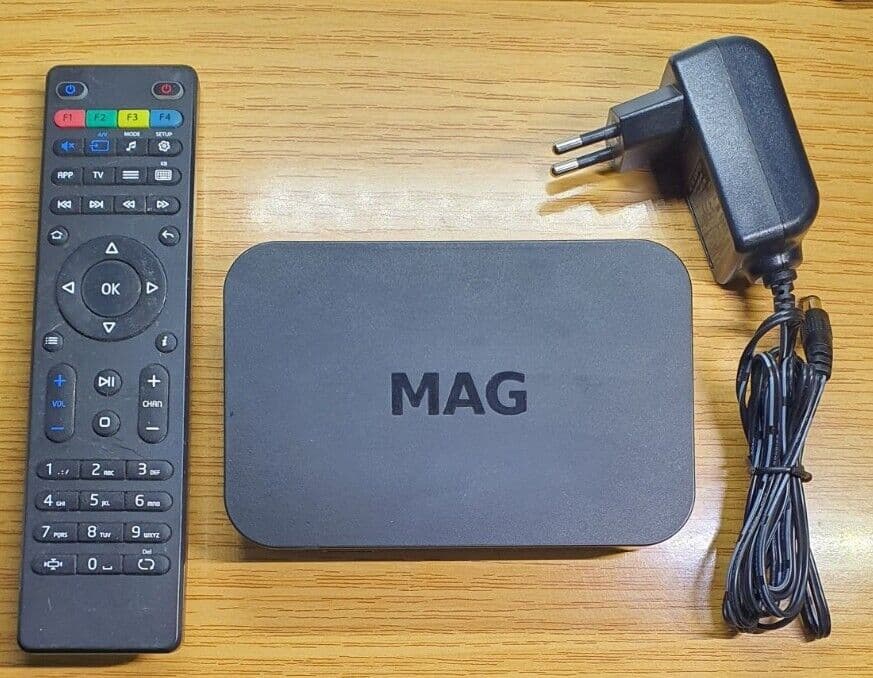
The MAG box is a popular IPTV set-top box that provides access to a wide variety of streaming channels and on-demand content. Known for its reliability and ease of use, the MAG box is a great choice for those looking to enjoy IPTV services. Whether you’re setting up a MAG box for the first time or simply need a refresher, this guide will walk you through the setup process step by step.
What You’ll Need
- A MAG box (e.g., MAG 322, MAG 324, MAG 420, etc.)
- A TV with an HDMI port
- An active internet connection (either via Ethernet or Wi-Fi, depending on your MAG box model)
- The MAG box remote and batteries (typically included)
- Your IPTV service provider’s portal URL (you’ll need this to access IPTV content)
Step 1: Unbox and Connect Your MAG Box
- Unbox Your MAG Box: Inside the box, you’ll find the MAG box, a remote control, an HDMI cable, a power adapter, an Ethernet cable (optional), and batteries for the remote.
- Connect the MAG Box to Your TV:
- HDMI Connection: Plug one end of the HDMI cable into the MAG box and the other end into an available HDMI port on your TV.
- Power Connection: Connect the power adapter to the MAG box and plug it into a power outlet.
- Connect to the Internet:
- Ethernet: If you’re using a wired connection, plug one end of the Ethernet cable into the MAG box and the other end into your router or modem.
- Wi-Fi: If your MAG box supports Wi-Fi, you’ll be able to connect wirelessly during the setup process.
- Turn on Your TV: Switch on your TV and select the HDMI input that corresponds to the port you used for the MAG box.
Step 2: Set Up the Remote
- Insert Batteries: Open the back of the remote and insert the included batteries.
- Power On the MAG Box: Use the remote to turn on the MAG box. You should see the loading screen on your TV.
Step 3: Initial Configuration
- Language Selection: Once the MAG box is powered on, you’ll be prompted to select your preferred language. Use the remote to navigate and select your choice.
- Network Configuration:
- Ethernet: If you connected via Ethernet, the MAG box should automatically detect the connection and move on to the next step.
- Wi-Fi: If you’re connecting via Wi-Fi, the MAG box will scan for available networks. Select your Wi-Fi network from the list, enter your password using the on-screen keyboard, and select “Connect.”
- Time Zone and Display Settings:
- Set your time zone to ensure the correct time is displayed on the device.
- Adjust the display settings if necessary. You can usually skip this step unless the screen doesn’t fit properly or the resolution is off.
Step 4: Configure the IPTV Portal
- Enter the Portal URL:
- The IPTV portal is where you access your TV channels and on-demand content. Your IPTV service provider will supply you with a specific portal URL.
- To enter this URL, go to “Settings” > “System Settings” > “Servers” > “Portals.” Here, you’ll find fields to enter the portal name (you can name it anything) and the portal URL provided by your IPTV provider.
- Save and Restart:
- After entering the portal details, save the settings. The MAG box will usually prompt you to restart the device to apply the changes.
- Once restarted, the MAG box will connect to the portal, and you should see the IPTV interface, which allows you to browse channels and content.
Step 5: Explore and Customize
- Browse Channels: Use the remote to navigate through the channel list, which should now be populated with the content available through your IPTV service.
- Customize Settings:
- You can adjust various settings by navigating to “Settings” on the main menu. Here, you can fine-tune video output, audio settings, and more.
- Set up favorites or create channel groups for easier navigation, depending on what your IPTV service allows.
- EPG (Electronic Program Guide):
- If your IPTV service supports it, you can access the EPG to see upcoming programs and schedule recordings (if supported by your service).
- Parental Controls: Set up parental controls to restrict access to certain channels or content. This is particularly useful if children will be using the MAG box.
Step 6: Troubleshooting and Tips
- No Signal or Blank Screen: Ensure the HDMI cable is securely connected and that the correct input is selected on your TV.
- Network Issues: If the MAG box isn’t connecting to the internet, check your Ethernet or Wi-Fi connection. Restart your router and the MAG box if necessary.
- Portal Loading Issues: If the IPTV portal doesn’t load or you encounter errors, double-check that you’ve entered the portal URL correctly. Contact your IPTV service provider for further assistance if needed.
- Remote Not Working: Replace the batteries or try re-pairing the remote if it’s unresponsive.
Final Thoughts
Setting up a MAG box is a relatively simple process that opens up a vast array of IPTV channels and on-demand content. With the correct portal settings and a stable internet connection, you can start enjoying your favorite shows, movies, and live TV in just a few minutes. Whether you’re a seasoned IPTV user or new to the platform, the MAG box offers a reliable and customizable streaming experience.
Enjoy your new IPTV setup!


Comments
Leave a comment
Your email address will not be published. Comments are moderated before they appear.