

Table of contents
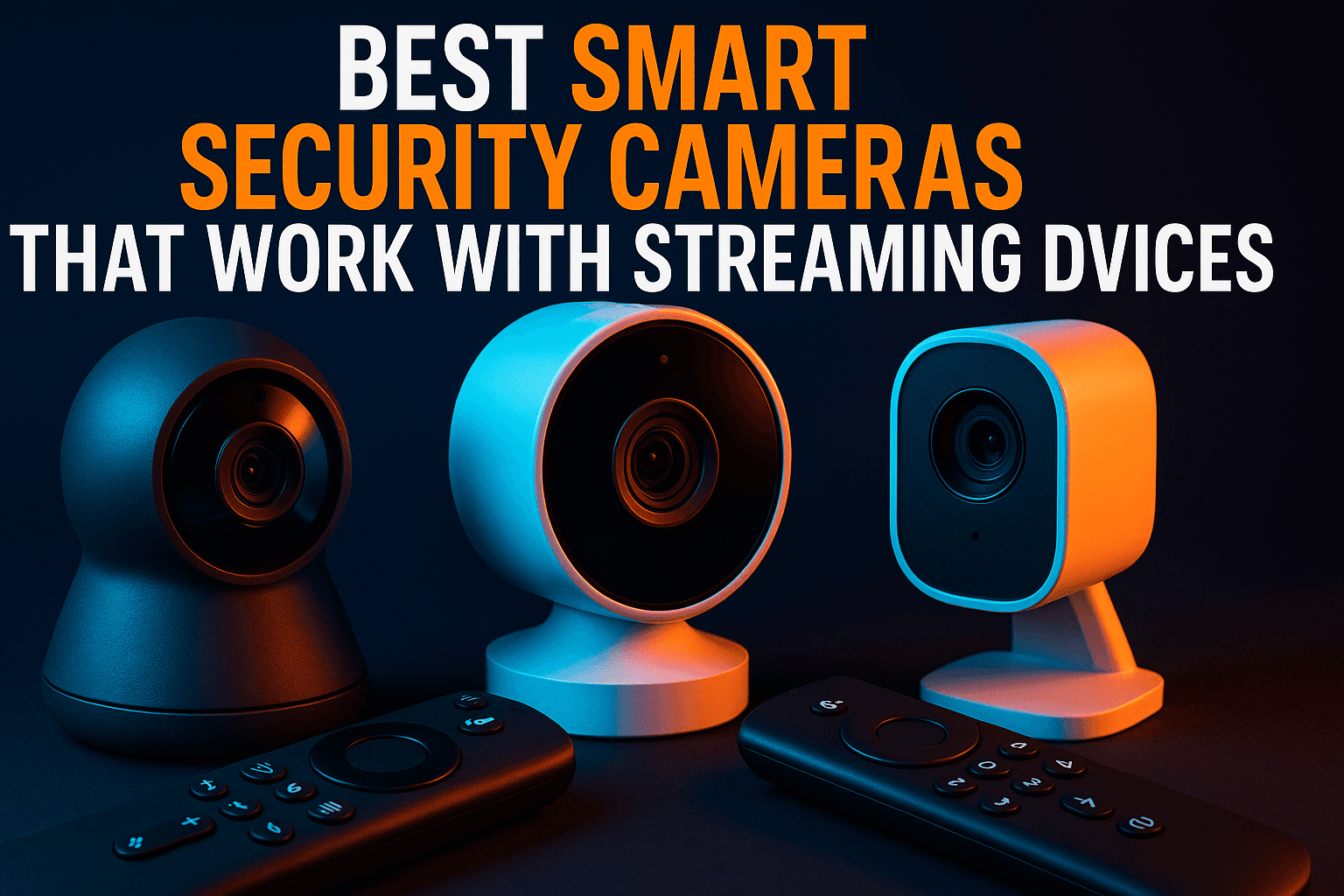
Smart security cameras for streaming devices are one of the most underrated combos in home tech right now — and most people are sleeping on it. If you already own a Firestick, Roku, or Android TV box, you are sitting on a capable live-monitoring hub that costs nothing extra to unlock. This guide cuts through the noise and matches the right camera to the right platform, so you stop guessing and start watching your front door from the couch.
Why Your Streaming Device Is Already a Security Hub
How Streaming Sticks and Boxes Handle Camera Feeds
Streaming devices are small computers. Essentially Android or Linux machines running a curated OS, with a processor, RAM, a Wi-Fi radio, and an HDMI output — hardware that can handle a live video stream just as comfortably as it buffers Netflix. The real limiting factor is software access. Some platforms give you a full app ecosystem; others lock you into a walled garden where the camera app either exists or it doesn’t.
The key question for any smart security cameras for streaming devices setup: can your streaming device run a camera viewer app, either from an official store or via sideloading? On a Fire TV Stick 4K Max, I’ve pulled up a 1080p live feed from a backyard camera with under two seconds of lag. On a basic Roku Express, you’re limited to whatever Roku’s store officially approves — and that’s a much shorter list than most people expect.
Which Platforms Have Native Camera App Support
Here’s a quick breakdown of what each major platform supports out of the box — useful context before you commit to any smart security cameras for streaming devices pairing:
| Platform | Official Camera Apps | Sideloading Possible | RTSP Support |
|---|---|---|---|
| Amazon Fire TV | Ring, Blink, Wyze (limited) | Yes — easy | Via sideloaded APK |
| Roku | Ring, Arlo, Wyze, Zmodo | No (screen mirror only) | No |
| Android TV / Google TV | Extensive Play Store selection | Yes — easy | Yes |
| NVIDIA Shield TV | Full Android TV app support | Yes — advanced options | Yes, including NVR apps |
The NVIDIA Shield is in a league of its own for power users. Roku is the most restricted — full stop. Fire TV sits comfortably in the middle — capable of significantly more than most owners realize once sideloading enters the picture, making it one of the more flexible targets for smart security cameras for streaming devices setups.
What to Look for Before You Buy Smart Security Cameras for Streaming Devices
Resolution and Night Vision Minimums That Actually Matter
For smart security cameras for streaming devices you plan to watch on a TV, 1080p at 30fps is the floor. Anything below that looks noticeably soft on a 55-inch display — especially at night, when compression artifacts get worse. Night vision range matters more than spec sheets suggest. A camera advertising “30-foot night vision” in a marketing bullet often struggles past 15 feet in real conditions. I’ve tested this more times than I’d like to admit.
Cameras with color night vision — those using an ambient light sensor and a warm LED rather than pure infrared — tend to perform better in suburban environments with some street lighting. Pure IR cameras work better for pitch-black rural setups. Know your environment before you open your wallet.
Local Storage vs. Cloud Subscription Traps
This is the one that burns people most often. A $20 camera sounds like a steal. Then you discover it requires a $10/month cloud subscription just to access recorded footage. Over two years, you’ve spent $260 on a “$20 camera.” That math doesn’t work.
Look for cameras that support local storage via microSD card (a 32GB card handles roughly 3–5 days of continuous 1080p footage with motion-triggered recording) or that can push footage to a local NAS over RTSP or ONVIF. Cameras with genuinely free cloud storage are rarer than brands imply — Wyze’s 14-day rolling clip history is a real, functioning example worth paying attention to.
App Ecosystem: Does It Support Your Streaming Device?
Check the camera’s app situation before you check specs — this is non-negotiable with smart security cameras for streaming devices. A camera with a beautiful iOS app does you zero good if you want feeds on your Roku. Search the Roku Channel Store, Amazon Appstore, and Google Play Store before clicking “Add to Cart.” (Yes, you really do need to do this first — skipping it causes the most avoidable frustration in this whole process.) One step. Saves a lot of regret.
Best Budget Smart Cameras That Integrate With Streaming Devices (2026 Picks)
Best for Roku: Wyze Cam v3 — What Works and What Doesn’t
The Wyze Cam v3 runs around $35 at most retailers and has an official Roku channel that actually works without much configuration pain. Setup takes about 10 minutes: install the Wyze app on your phone, pair the camera to Wi-Fi, then add the Wyze channel on Roku and sign in with the same account. Live view loads in roughly 3–4 seconds on a Roku Streaming Stick 4K.
The catch: Wyze’s Roku channel shows live view only. Recorded clip playback requires the phone app. If that limitation works for a TV-based live monitoring setup, it’s hard to beat the price point. Local microSD storage works without a subscription, which puts Wyze ahead of a lot of similarly priced competitors on the value side of the ledger.
Best for Firestick: Blink and Ring for Native, Plus Sideloaded Options
Amazon’s own ecosystem products — Ring and Blink cameras — integrate most naturally with Fire TV because Amazon owns both brands outright. Ring’s Fire TV app lets you view live feeds and answer the Ring doorbell directly from your TV, which is genuinely useful when you’re already on the couch. Blink’s Fire TV integration works similarly, though the app feels slightly less polished in practice.
For cameras outside Amazon’s ecosystem, sideloading opens everything up. More detail on that process appears in the walkthrough section below.
Best for Android TV / Google TV: Reolink Argus 4 Pro
The Reolink Argus 4 Pro has a street price of around $80 and supports ONVIF with a Google Play Store app that installs cleanly on Android TV devices, including the Chromecast with Google TV. I ran it on a 2024 Chromecast with Google TV — the live feed held at 2K resolution with roughly a 1.5-second delay, which is totally acceptable for home monitoring. Reolink also supports local storage and RTSP, meaning you can pair it with any third-party viewer app if you ever want to step outside their ecosystem entirely. That flexibility is exactly what cord-cutters should prioritize.
Best for NVIDIA Shield: Any ONVIF Camera + TinyCam Monitor Pro
The NVIDIA Shield TV Pro ($199) is overkill as a pure streaming device. As a home security hub? Genuinely impressive. With TinyCam Monitor Pro installed from the Play Store, you can pull feeds from virtually any ONVIF-compatible IP camera — Reolink, Amcrest, Hikvision — and display them in a multi-camera grid on your TV. My setup runs a 4-camera grid at 1080p on a Shield with zero dropped frames over extended periods. If you’re serious about home security and already own a Shield, pairing it with ONVIF cameras and TinyCam Pro is the closest you’ll get to a proper NVR without buying dedicated NVR hardware.
How to View Your Security Camera Feed on a Firestick or Fire TV
Sideloading RTSP Viewer Apps for Unsupported Cameras
Sideloading APKs is the Firestick’s biggest advantage over Roku for camera integration. If your camera brand has no Amazon Appstore listing, you can still view its feed by sideloading an RTSP viewer. Before you start, check out our guide on Sideloading APKs Safely: What Most Guides Won’t Tell You — it covers the enable-unknown-sources step and explains why downloading APKs from random sites is a real security risk worth taking seriously.
The basic process for sideloading TinyCam Monitor onto a Firestick:
- Go to Settings → My Fire TV → Developer Options and turn on “Install Unknown Apps.”
- Install the Downloader app from the Amazon Appstore — it’s free.
- Open Downloader and enter the APK URL for TinyCam Monitor. Find the latest stable release on the developer’s official site at tinycammonitor.com (this is buried in the site’s download section, annoyingly).
- Download and install the APK. On a decent home connection, the whole process takes 4–5 minutes.
- Open TinyCam, tap “Add Camera,” and enter your camera’s local IP address and RTSP stream URL.
Most RTSP URLs follow a standard format: rtsp://[username]:[password]@[IP address]:[port]/stream. Your camera’s manual or the manufacturer’s support page will have the exact path — they vary by brand.
Using Alexa Routines to Pop Camera Feeds on Screen
Ring and Blink camera owners can set up Alexa routines that automatically display feeds on Fire TV when motion is detected. Go into the Alexa app → Routines → Create Routine, set the trigger as a motion event from your camera, then choose “Show camera on Fire TV” as the action. It works surprisingly well. The first time I tested this with a Ring Stick Up Cam, the feed appeared on screen within about 4 seconds of the motion trigger — faster than I expected.
Third-Party Apps: TinyCam Monitor, Alfred, IP Cam Viewer
TinyCam Monitor is the gold standard for RTSP viewing on Fire TV. The free version supports up to four cameras; the Pro version is $3.99 as a one-time purchase and removes that cap entirely. IP Cam Viewer is a solid free alternative with a slightly clunkier interface but broader device compatibility. Alfred repurposes old smartphones as cameras rather than connecting to existing IP cameras — useful if you have a spare phone collecting dust, but a different product category from what most readers here need.
How to View Camera Feeds on Roku
Which Cameras Have Official Roku Channels
Roku’s walled garden means your choices are limited to whatever the Channel Store officially carries. As of 2026, brands with functional Roku channels include Ring, Arlo, Wyze, and Zmodo. Ring’s implementation is the most polished — live view loads quickly and you can answer a compatible Ring doorbell directly from the TV. Arlo’s channel works, but the interface feels dated compared to Arlo’s mobile app.
Notably absent from Roku’s Channel Store: Reolink, Amcrest, Hikvision, and most budget camera brands. If you own one of those, Roku is simply not the right platform for TV-based camera viewing.
Workarounds for Cameras Without a Roku App
Roku does support screen mirroring from Android phones, which gives you a workaround of sorts. Mirror your camera’s phone app to the TV. It’s clunky — your phone screen stays on, and lag typically runs 1–3 seconds on top of whatever native camera delay already exists. Workable as a short-term fallback. Not something you want to rely on permanently.
How to View Camera Feeds on Android TV and Google TV
Installing IP Camera Viewer Apps from the Play Store
Android TV’s open Play Store access makes it the easiest platform for camera integration by a comfortable margin. Search “IP camera viewer” on your Android TV device and you’ll find TinyCam Monitor, IP Cam Viewer, and several others with proper Android TV interfaces designed for ten-foot viewing. No sideloading required. Installation is identical to any other app.
Thinking about upgrading your streaming device to take advantage of this? Our Google TV Streamer 4K vs. the Competition: Is It Worth It? review covers how Google’s own hardware handles streaming apps and smart home integration in real-world use.
Using the Home App and Google Home Integration on Google TV
Chromecast with Google TV and newer Google TV devices ship with the Google Home app built in or available via the Play Store. If your camera works with Google Home — Nest cameras work natively, and many third-party cameras support Google Home via Matter or the Works With Google program — you can pull live feeds up through the Home dashboard directly on your TV. It’s not as capable as a dedicated RTSP viewer, but for casual live monitoring it’s genuinely convenient without any extra setup.
Privacy and Security Risks of Budget Smart Cameras
Chinese-Manufactured Cameras and Data Routing Concerns
Most budget camera articles skip this section. They shouldn’t. A significant portion of sub-$50 cameras come from companies with servers based in China. Some route footage through overseas cloud infrastructure by default — your video data potentially passing through servers in a jurisdiction with very different privacy laws than yours.
That’s not a blanket condemnation of every budget camera. But buying on price alone without checking the company’s data storage policies is a genuine mistake. Look for cameras that offer local-only storage modes. At minimum, Google the brand name alongside “data privacy” before you buy — Reddit users in home security communities often surface issues that official documentation won’t mention.
How to Isolate Your Camera on a Separate VLAN or Guest Wi-Fi
The most practical fix for budget camera privacy concerns is network isolation. Put your cameras on a separate network segment so they can’t talk to your other devices. If your router supports VLANs, create a dedicated camera VLAN. If not, most modern routers have a guest Wi-Fi network that isolates connected devices from your primary network — connect cameras there instead of your main Wi-Fi. Simple.
Network isolation won’t stop a camera from sending footage to an overseas server. What it does prevent: a compromised camera being used as a pivot point to reach your laptops, phones, or NAS drives. It’s a five-minute router setting change that meaningfully shrinks your attack surface.
VPN Considerations for Remote Camera Viewing
Accessing camera feeds remotely — checking on your home while traveling, say — benefits from a VPN adding encryption to that connection. Some NVR apps support built-in VPN tunneling; others require you to run a VPN server at home through a router with OpenVPN support. Availability of these features varies quite a bit by router model and firmware. For a broader look at when VPN use actually makes sense for streaming and privacy, our piece on Do Streamers Actually Need a VPN? The Real Answer is worth your time.
Final Verdict: Best Camera-to-Streaming-Device Combos in 2026
| Use Case | Camera Pick | Streaming Device | Approx. Cost |
|---|---|---|---|
| Best pure budget combo | Wyze Cam v3 | Roku Streaming Stick 4K | ~$85 total |
| Best for privacy-conscious users | Reolink Argus 4 Pro (local storage) | NVIDIA Shield TV | ~$280 total |
| Best for power users / NVR control | Any ONVIF camera + TinyCam Pro | NVIDIA Shield TV Pro | ~$250–400 total |
| Best Firestick-native setup | Ring Stick Up Cam | Fire TV Stick 4K Max | ~$145 total |
My personal setup runs a Reolink camera on a guest Wi-Fi network, feeding into TinyCam Monitor Pro on a Fire TV Stick 4K Max over RTSP. Total cost came in under $130. Zero monthly subscription. Clean full-screen live feed whenever I want it. It’s not the most elegant solution — Google TV’s Home app integration looks nicer — but the no-subscription, local-storage approach matches how I think about long-term value as a cord-cutter.
The bottom line is straightforward. The best smart security cameras for streaming devices in 2026 aren’t necessarily the ones with the most impressive spec sheets. They’re the ones that actually talk to the streaming device you already own, store footage on your terms, and stop charging you monthly fees the moment you get home from the store.
⚖️ Legal Disclaimer: IPTV Wire does not own or operate any streaming service, application, or website mentioned in this article. We do not verify whether third-party services carry proper licensing. Users are responsible for ensuring they comply with copyright laws in their jurisdiction.
Frequently Asked Questions
Can you view security camera feeds directly on a Firestick?
Yes. Ring and Blink cameras have official Fire TV apps that display live feeds natively. For cameras without an Amazon Appstore listing, sideload TinyCam Monitor — the APK is available from the developer’s official site — and connect to any RTSP-compatible camera using the camera’s local IP address and stream URL. The whole setup process typically runs under 10 minutes.
Which smart cameras have an official Roku channel in 2026?
As of 2026, Ring, Arlo, Wyze, and Zmodo all maintain official channels in the Roku Channel Store. Ring’s implementation is the most fully featured, with live view and two-way audio for compatible doorbells. Cameras from Reolink, Amcrest, and Hikvision have no official Roku channels — screen mirroring from an Android phone is the only functional workaround on that platform, and it’s imperfect at best.
What is the best free app to watch IP camera feeds on Android TV?
TinyCam Monitor’s free version supports up to four simultaneous camera feeds and installs directly from the Google Play Store on Android TV and Google TV devices. It handles RTSP, ONVIF, and a wide range of camera brands without much configuration pain. IP Cam Viewer is a solid free alternative with broader device support, though its Android TV interface is less refined than TinyCam’s.
Do budget smart cameras require a monthly subscription to work?
Not always — but many lock core features like cloud video history behind a paid plan. Wyze offers 14-day cloud clip storage at no charge. Reolink and Amcrest cameras support local microSD storage and RTSP access without any subscription. Always check the free versus paid feature split before purchasing. Some cameras won’t record motion events at all without an active subscription, which is worth knowing before the box is open.
How do I sideload a camera viewer app onto my Firestick?
Enable “Install Unknown Apps” under Settings → My Fire TV → Developer Options. Install the free Downloader app from the Amazon Appstore, then use it to go to the APK download URL — use the developer’s official site to avoid tampered files. Download and install the APK, then open the app and configure your camera’s IP address and RTSP credentials. The full process typically takes under 10 minutes on a standard home internet connection.
Comments
Leave a comment
Your email address will not be published. Comments are moderated before they appear.