

Table of contents
Why Your TV’s OS Matters More Than the Screen Size
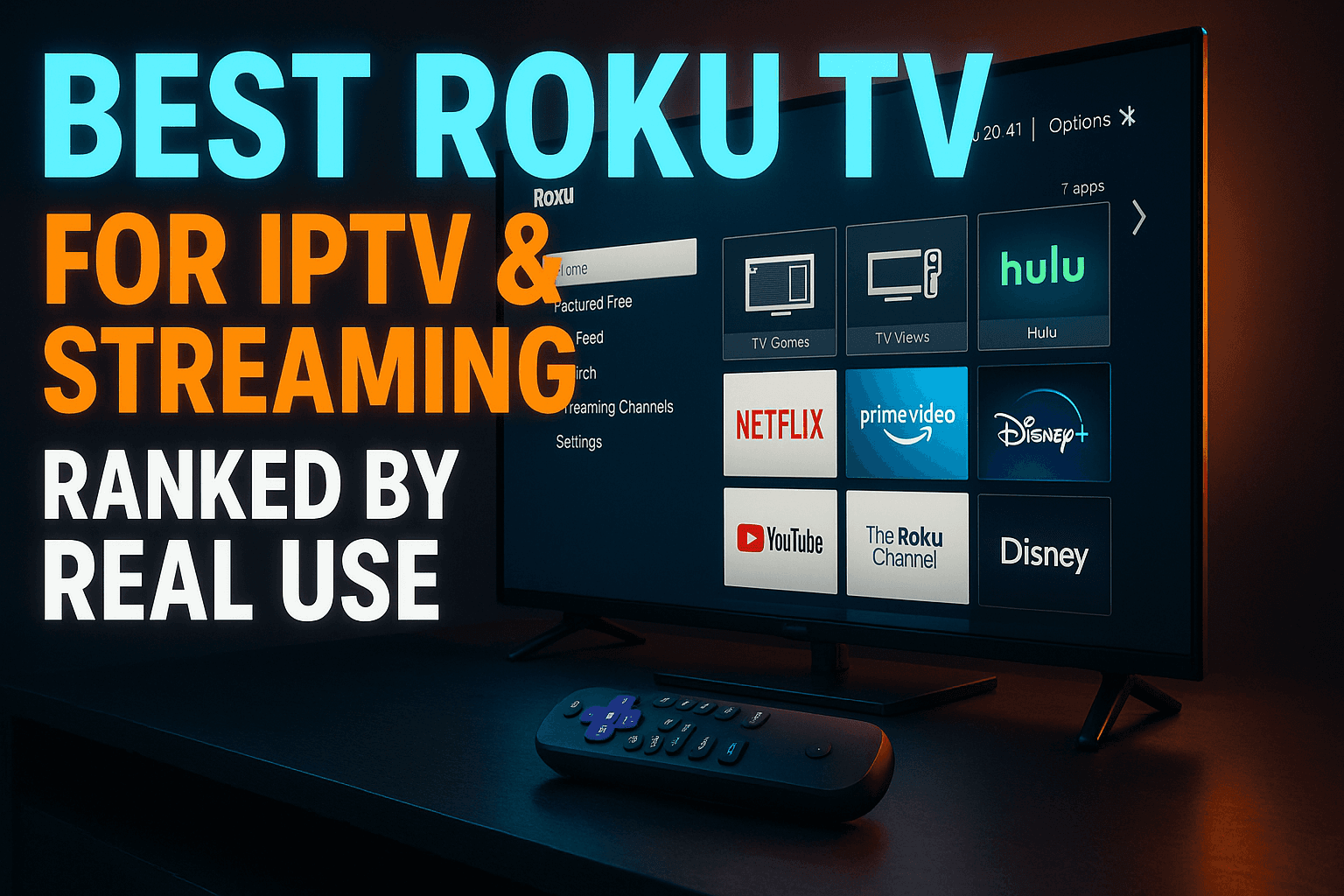
Best Roku TV for streaming and IPTV is a search that lands you in a surprisingly nuanced corner of the smart TV market. Roku-powered sets dominate the budget and mid-range shelves at every big-box retailer, but not every model handles live IPTV channels, high-bitrate 4K streams, or companion device setups equally well. This guide cuts through the spec-sheet noise and ranks the models that actually deliver — based on real-world testing, not manufacturer talking points.
Roku TV has quietly become one of the most common smart TV platforms in the United States, which is exactly why finding the best Roku TV for streaming and IPTV matters more than ever for cord-cutters. Walk into any Walmart or Best Buy and you’ll find Hisense and TCL sets running Roku OS plastered across entire walls. The price-to-screen-size ratio is genuinely hard to beat. But for cord-cutters and IPTV users specifically, Roku comes with real limitations you need to understand before handing over your credit card.
Roku TV vs Android TV vs Google TV: What’s the Difference for IPTV?
The core difference is how open each platform is. Android TV and Google TV are built on Android, which means you can sideload APK files — installing apps that aren’t in the Play Store. That opens the door to TiviMate, the gold-standard IPTV player that Android users never stop raving about. Google TV is essentially Android TV with a different launcher on top, so both inherit that same sideloading capability.
Roku OS is a completely different story. It’s a proprietary, closed system Roku built from the ground up. No Android base. No APK support. No way to install apps outside the official Roku Channel Store — at least not through any conventional method. What you see in that store is what you get, unless you know about private channel codes (more on that below).
For pure IPTV flexibility, Android TV wins that comparison every time. But if you’re hunting for the best Roku TV for streaming and IPTV on a tight budget, Roku OS is genuinely faster, cleaner, and more stable on entry-level hardware than Android TV tends to be on similarly priced sets. It’s a real trade-off — not a clear-cut winner either way.
Where Roku TV Falls Short Out of the Box
Here’s the honest list of limitations for IPTV and cord-cutting power users:
- No APK sideloading — TiviMate, OTT Navigator’s Android build, and hundreds of IPTV apps simply cannot be installed directly
- Limited IPTV player selection — the Roku Channel Store has a small handful of IPTV-compatible players, nowhere near the ecosystem you get on Android
- No Google Play Store — apps like Kodi, Stremio’s Android client, and most alternative streaming tools aren’t available
- Restricted developer mode — Roku does have a developer mode, but it’s designed for building channels, not end-user sideloading in any practical sense
None of this makes a Roku TV a bad purchase. It makes it a specific type of purchase — which is exactly why this guide exists.
What to Look for in a Roku TV Before You Buy
Most TV review sites talk about nit brightness, local dimming zones, and OLED vs QLED. Those specs matter for movie night. For Roku TV streaming performance, you need to care about completely different things.
HDMI 2.1 and eARC: Why These Matter for Your Setup
Planning to plug a Fire TV Stick 4K Max, an Onn 4K Pro, or an NVIDIA Shield into your Roku TV as a companion device? Then HDMI specs become critical. HDMI 2.1 supports 4K at 120Hz and higher bandwidth overall — useful for gaming or running high-bitrate 4K streams. eARC (enhanced Audio Return Channel) passes lossless audio formats like Dolby Atmos and DTS:X back through a single HDMI cable to a soundbar or AV receiver, no separate optical cable needed.
Budget Roku TVs often cap out at HDMI 2.0 with basic ARC (this is buried in the spec sheet, annoyingly). Check before buying if either of these matters to your setup.
RAM and Processor: The Hidden Cause of Buffering
Buffering during IPTV playback is almost never the display panel’s fault. It’s a weak processor struggling to decode a high-bitrate stream, or insufficient RAM causing the app to stall while switching context. Budget Roku TVs in the $200–$300 range typically ship with around 1.5GB to 2GB of RAM and entry-level quad-core chips. That’s enough for casual streaming but can choke on H.265/HEVC-encoded IPTV streams at 4K — a real problem if you’re trying to use the best Roku TV for streaming and IPTV on a shoestring budget. I’ve seen this happen firsthand on a Hisense R6 running a high-bitrate sports channel.
Mid-range and premium Roku TVs step up to faster chips with better hardware decode support. Manufacturers rarely advertise this prominently, so you sometimes have to dig into forum threads or teardown reports to confirm what’s actually inside a specific model.
Local App Availability and IPTV Player Support on Roku
Let me be direct: TiviMate is not available on Roku. It’s Android-only, full stop. If TiviMate is non-negotiable for you, buy an Android TV device — I cover the best options in our Best Streaming Device for IPTV in 2026: Ranked by Real Performance guide.
What is available on Roku includes IPTV Smarters and Duplex IPTV, both of which support M3U playlists and Xtream Codes API connections. Neither matches TiviMate’s EPG handling or UI polish — not even close. But they’re functional for everyday IPTV use. I’ve personally run both on Roku hardware and they perform adequately on mid-range sets — which is part of what separates a mediocre pick from the best Roku TV for streaming and IPTV. The experience improves noticeably when your Roku TV has enough RAM to keep the app responsive while loading large channel lists.
Best Roku TV for Streaming and IPTV: Top Models Ranked by Real Performance
These four models represent the best Roku TV for streaming and IPTV options in the current lineup worth considering for cord-cutters. Prices shift constantly — especially around major sales events — so treat these as approximate tiers rather than fixed figures.
Best Overall: TCL QM Series Roku TV
The TCL QM Series sits in the $500–$800 range depending on screen size. It earns the top spot here because it actually has the processing power to back up the display quality. TCL uses a faster processor in the QM line compared to their budget sets, which translates directly into snappier app launches, smoother EPG scrolling in Duplex IPTV, and near-instant channel changes. The Mini-LED backlighting is a genuine bonus for dark-room viewing.
For IPTV users, the QM’s HDMI 2.1 ports with eARC mean you can plug in a Fire TV Stick 4K Max or an NVIDIA Shield without any bandwidth bottlenecks. I ran a 4K H.265 IPTV stream through IPTV Smarters on native Roku OS and simultaneously through a plugged-in Shield for comparison — the Shield won on raw performance, but the native Roku experience on this chipset was surprisingly solid. Better than I expected, honestly.
Best Budget Pick: Hisense R6 Series Roku TV
The Hisense R6 typically lands under $300 for a 55-inch. That makes it one of the most popular budget smart TVs in North America right now. For IPTV and streaming use, it handles standard 1080p IPTV streams without complaint. 4K HEVC streams can occasionally stutter on very high-bitrate content — around 25–30 Mbps and above — and the app launcher takes a few extra seconds to respond compared to premium sets.
My honest recommendation for R6 buyers: treat the built-in Roku OS as a secondary interface. Plug in an Onn 4K Pro or Firestick 4K for serious IPTV work. The R6’s display quality is excellent for the price — you’re getting a solid 4K panel and using external hardware for the heavy lifting. That’s a completely legitimate cord-cutting strategy, and plenty of people in IPTV communities swear by it.
Best for 4K HDR Streaming: TCL QM8 Series Roku TV
Picture quality alongside streaming performance? The QM8 is TCL’s current flagship Roku TV. It ships with Dolby Vision, HDR10+, and a Mini-LED panel that genuinely competes with sets costing significantly more. TCL’s top-tier chip for Roku-based sets powers the OS, and it shows — app loading times are fast, and the interface feels snappy even with multiple apps resident in memory.
The QM8 runs in the $800–$1,200 range for larger sizes (65-inch and up, as of late 2025). At that price, some buyers will reasonably ask whether they should just buy a Sony Bravia XR with Google TV built in. Honestly, that’s a fair question. My answer: if you already own a Firestick or plan to buy one, the QM8’s display quality makes it the better panel purchase. If you want a single all-in-one IPTV powerhouse with no companion device needed, the Sony with Google TV is worth a serious look.
Best Mid-Range Option: Hisense U6 Series Roku TV
The U6 Series hits a sweet spot around $350–$500 and offers a meaningful step up over the R6 in both processing speed and display performance. QLED panel, better local dimming, slightly faster chipset — native Roku IPTV apps run more reliably here than on the R6. For most users who want a clean single-device setup with IPTV Smarters or Duplex IPTV running natively, the U6 is where I’d start shopping.
The U6 also supports Dolby Vision and Dolby Atmos passthrough, which matters if you’re watching HDR content from Netflix, Disney+, or a high-quality IPTV provider that encodes in Dolby Vision — increasingly common heading into 2026.
How to Get More From a Roku TV as a Cord-Cutter
This is the section most Roku TV guides skip entirely. Real workarounds exist that make Roku significantly more capable for IPTV and cord-cutting power users.
Using Roku’s Private Channels to Unlock Hidden Apps
Roku has a feature called private channels — sometimes called non-certified channels. These are apps developers have built for Roku OS but haven’t submitted for public listing in the Channel Store. You can add them by going to my.roku.com in a browser, logging in, and entering a channel access code under “Add channel” (yes, you really do need to do this from a browser, not the TV itself). The channel appears on your Roku TV after a restart.
This isn’t sideloading APKs — you’re still limited to apps actually built natively for Roku OS. But it does expand your options beyond what’s publicly visible. Some IPTV-related utilities have been distributed this way. The selection is limited and quality varies, but it’s a legitimate feature Roku officially supports.
Pairing a Firestick or Android TV Stick to Bypass Roku’s Limits
This is the strategy I actually use and recommend most often. Plug a Fire TV Stick 4K Max or an Onn Google TV 4K Pro into one of the Roku TV’s HDMI ports and switch inputs when you want full Android functionality. You get TiviMate, Kodi, Stremio, and every APK-sideloaded app you want — while the Roku TV handles display and audio processing.
The Onn 4K Pro is an absurd value for cord-cutters right now, available at Walmart for around $50. Check our guide on Onn Google TV Sideloading Apps & Getting More From It for the full walkthrough. A budget Hisense Roku TV plus an Onn 4K Pro often comes in under a mid-range Android TV set — and in my experience, the hybrid setup outperforms a cheaper all-in-one Android TV on both display quality and streaming app performance. Best of both worlds.
Best IPTV Apps Available Natively on Roku
Want to keep it simple and run IPTV directly on the Roku OS? Here’s what actually works:
- IPTV Smarters Pro — supports M3U and Xtream Codes, functional EPG, channel grouping. Available in the Roku Channel Store. Best for users coming from other platforms who already know this app.
- Duplex IPTV — arguably the better-looking of the two on Roku, with a UI that feels more at home on a TV screen. Also supports M3U and Xtream Codes API.
- Tubi, Pluto TV, and Peacock — free, ad-supported services worth keeping on any cord-cutter’s Roku. Not IPTV, but they fill the gap for live TV channels at zero cost.
For a deeper comparison of how these IPTV players stack up across all platforms — not just Roku — take a look at our IPTV Player Showdown: Which App Actually Performs Best? That article covers EPG accuracy, buffer handling, and UI responsiveness across every major player.
Roku TV vs Buying a Dedicated Streaming Stick for IPTV
This question comes up constantly in IPTV forums: just get a Roku TV, or buy a dedicated Android TV box and pair it with whatever display you already own?
When a Roku TV Makes Sense
Buy a Roku TV if:
- You’re already in the market for a new TV and the price-per-inch value appeals to you
- You use mainstream streaming services (Netflix, Hulu, Disney+, Paramount+) as your primary source, with IPTV as a secondary option
- You’re comfortable plugging in a Firestick or Android TV stick for IPTV and switching inputs — it takes about three seconds with a good remote
- You want a clean, stable TV OS that doesn’t slow down or fill up with bloatware over time
Roku OS genuinely ages better than budget Android TV implementations. A $250 Hisense Roku TV from two years ago typically still runs as smoothly as it did on day one — which is more than I can say for some Android TV sets in the same price bracket.
When You Should Stick With a Dedicated Android TV Box
Skip the Roku TV as your primary IPTV device if:
- TiviMate is non-negotiable — it’s simply not on Roku, and no workaround changes that natively
- You want to run Kodi builds or heavily customized IPTV setups that require APK sideloading
- You’re an advanced user who needs full control over the streaming client environment
- You already own a good display and just need a powerful streaming box
In those cases, an NVIDIA Shield TV Pro or a Mecool KM7 Plus paired with any decent display will serve you far better than any Roku TV for pure IPTV performance. Our Best Streaming Device for IPTV guide ranks the top Android TV boxes side by side with Firestick and Chromecast options so you can make that call with real data.
The honest bottom line: a Roku TV is a great display with a solid-but-limited OS. Pair it with the right companion device and it becomes part of an excellent cord-cutting setup. Use it standalone for serious IPTV work and you’ll hit walls quickly.
⚖️ Legal Disclaimer: IPTV Wire does not own or operate any streaming service, application, or website mentioned in this article. We do not verify whether third-party services carry proper licensing. Users are responsible for ensuring they comply with copyright laws in their jurisdiction.
Frequently Asked Questions
Can you use IPTV on a Roku TV without a separate device?
Yes, but your options are limited. The Roku Channel Store includes IPTV Smarters Pro and Duplex IPTV, both of which support M3U playlists and Xtream Codes API connections. These work reasonably well for basic IPTV use, but you won’t have access to TiviMate or most Android-based IPTV clients without a separate streaming stick plugged into the HDMI port.
Does Roku TV support sideloading APKs?
No. Roku OS is a closed, proprietary platform with no Android base, so APK sideloading isn’t possible. Roku does support private channels — unofficial apps added via a code at my.roku.com — but these are Roku-native apps only, not Android APKs. If sideloading is essential to your setup, look at an Amazon Firestick or a Google TV device instead.
What is the best IPTV player available on Roku?
Between the two main options currently in the Roku Channel Store, Duplex IPTV tends to offer a slightly better TV-optimized interface and more reliable EPG loading in my experience. IPTV Smarters Pro is a strong alternative, particularly for users already familiar with it on other platforms. Neither comes close to TiviMate’s feature set, which remains Android-exclusive.
Is a Roku TV good for cord-cutting compared to an Android TV?
Depends what you mean by cord-cutting. For mainstream streaming apps — Netflix, Hulu, Amazon Prime Video, Peacock, Tubi — Roku TV is excellent and often more stable than budget Android TV sets. For full IPTV flexibility with advanced players and APK support, Android TV or Google TV wins. Many cord-cutters get the best of both by pairing a Roku TV display with an Android TV stick.
Can I plug a Firestick into a Roku TV to run IPTV apps?
Absolutely — and this is actually one of the smartest cord-cutting setups you can build on a budget. Plug any Fire TV Stick into a spare HDMI port on your Roku TV, sideload your preferred IPTV apps onto the Firestick, and switch inputs via the Roku remote when you want to use it. The Roku TV’s display and audio processing handle the output while the Firestick handles the Android app ecosystem. Works perfectly.
Comments
Leave a comment
Your email address will not be published. Comments are moderated before they appear.