Table of Contents
IPTV device compatibility is the first thing you need to nail before you spend a single dollar on a subscription — get it wrong and you are in for a world of buffering, broken apps, and wasted cash. In this guide I break down exactly which devices play nicely with IPTV services, how to verify your hardware before you commit, and what to do when things go sideways. Let’s make sure your setup is rock-solid from day one.
Why IPTV Device Compatibility Matters for a Smooth Stream
IPTV device compatibility is crucial for a smooth streaming experience. Unlike traditional cable TV, which requires specific hardware, IPTV can run on a wide range of devices, provided they meet certain requirements. If your device isn’t compatible, you may face issues such as the inability to install necessary apps, poor streaming quality, or frequent buffering. Sorting out IPTV device compatibility before you subscribe will save you time and frustration, allowing you to enjoy seamless streaming from day one.
Common Devices That Support IPTV
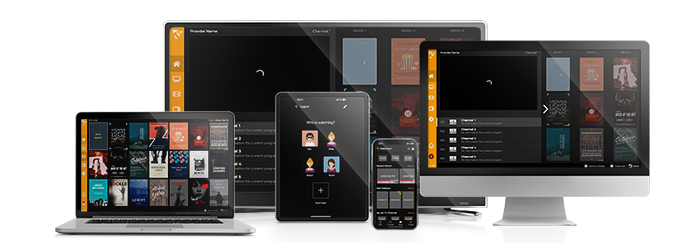
IPTV is incredibly versatile, and a wide range of devices can support it. Here’s a list of some of the most common devices:
- Smart TVs: Most modern smart TVs, such as those from Samsung, LG, and Sony, support IPTV through dedicated apps available on their app stores.
- Streaming Devices: Devices like Amazon Firestick, Roku, Apple TV, and Google Chromecast are popular for running IPTV apps.
- Mobile Devices: Smartphones and tablets running Android or iOS can easily stream IPTV using apps like IPTV Smarters or GSE Smart IPTV.
- PCs and Laptops: Windows and Mac computers can run IPTV through software like VLC Media Player or dedicated IPTV apps.
- Set-Top Boxes: Devices like MAG boxes or Android TV boxes are designed specifically for IPTV and offer a stable and user-friendly experience.
How to Check if Your Device is Compatible
Before purchasing an IPTV subscription, it’s important to verify that your device can support the service. Here’s how you can do it:
- Research Your Device: Look up your device model online to confirm IPTV device compatibility — manufacturer forums are a goldmine for this. Check the manufacturer’s website or forums where users discuss IPTV on specific devices.
- Visit Your Device’s App Store: Open the app store on your device and search for popular IPTV apps like “IPTV Smarters,” “GSE Smart IPTV,” or “TiviMate.” If these apps are available for download, that is a strong signal that IPTV device compatibility is not going to be an issue for you.
- Check Software Requirements: Ensure your device’s operating system is up-to-date. IPTV apps often require recent versions of iOS, Android, or other operating systems to function properly.
- Test with a Free Trial: Many IPTV providers offer free trials. Use this opportunity to test the service on your device to ensure compatibility before committing to a subscription.
Tips for Setting Up IPTV on Various Devices
Once you have confirmed IPTV device compatibility, the next step is getting everything set up and running. Here’s a quick guide for different devices:
- Smart TVs:
- Download an IPTV app from your TV’s app store.
- Install the app and enter your IPTV service credentials or M3U URL.
- Adjust settings like screen resolution and buffering options to optimize performance.
- Streaming Devices (e.g., Firestick, Roku):
- Search for and install a recommended IPTV app from the device’s app store.
- Configure the app by entering your IPTV credentials.
- Use a VPN if necessary to bypass geo-restrictions.
- Mobile Devices:
- Install an IPTV app from the Google Play Store or Apple App Store.
- Input the M3U playlist link provided by your IPTV service.
- Customize settings for data usage and quality to match your network.
- PCs and Laptops:
- Download VLC Media Player or a dedicated IPTV app.
- Open the app and go to “Media” -> “Open Network Stream” to enter your IPTV URL.
- Save the playlist for quick access in the future.
- Set-Top Boxes:
- Install the IPTV app compatible with your box, usually pre-installed or available from the provider.
- Enter the IPTV subscription details.
- Adjust settings to match your TV’s capabilities, ensuring smooth playback.
Troubleshooting Common Compatibility Issues
Even after confirming IPTV device compatibility, you may still hit a few snags during setup or while streaming. Here are a few troubleshooting tips:
- App Not Available in App Store: If the IPTV app you want isn’t available in your device’s app store, try searching for alternative apps or sideload the app if your device allows it.
- Buffering or Lagging: Ensure your internet connection is stable and fast enough for IPTV streaming. You may need to upgrade your internet plan or switch to a wired connection.
- App Crashes or Doesn’t Open: Check for software updates for both the app and your device. Reinstalling the app or resetting your device might resolve these issues.
- Video Quality Issues: Adjust the app’s video settings to match your internet speed and device’s screen resolution.
Conclusion: Recommended Devices for IPTV
To avoid any issues, it is best to choose hardware with proven IPTV device compatibility and strong overall IPTV performance. Smart TVs from brands like Samsung and LG, streaming devices like Amazon Firestick and Apple TV, and dedicated IPTV set-top boxes like MAG boxes are highly recommended. Always ensure your device’s software is up-to-date and that you’re using a reliable IPTV service for the best experience.
By following this guide, you’ll be well on your way to enjoying all that IPTV has to offer, without the headaches of compatibility issues. Happy streaming!

Leave a Comment