
Reset a Firestick and you can wipe out sluggish performance, free up clogged storage, and return your device to a clean factory state — all in just a few minutes. Whether your Fire TV is freezing mid-stream, you’re handing it off to someone else, or you just want a fresh start, knowing how to reset a Firestick is one of the most useful tricks in any streamer’s toolkit. Let’s walk through every method, step by step.
Method 1: Using the Firestick Settings
- Navigate to Settings: On the Firestick home screen, go to the top menu and select “Settings.”
- Select My Fire TV: Scroll and click on “My Fire TV” or “Device & Software” (depending on your model).
- Choose Reset to Factory Defaults: Scroll down and select “Reset to Factory Defaults.”
- Confirm the Reset: A prompt will appear asking you to confirm. Select “Reset” to proceed. Your Firestick will restart and begin the reset process.
Method 2: Using the Remote Control
If your Firestick is unresponsive or the screen is frozen, you can reset a Firestick using just the remote:
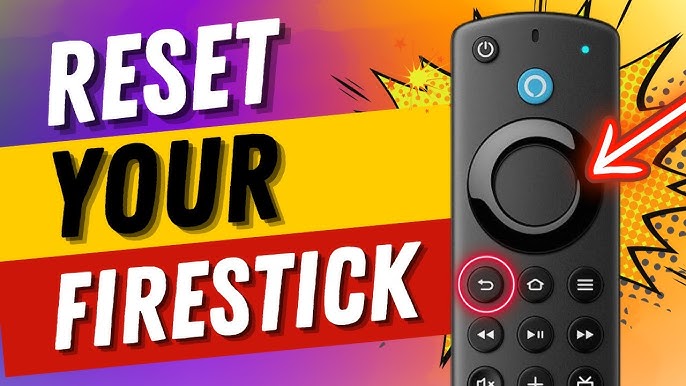
- Press and Hold: Simultaneously press and hold the Back button and the Right side of the navigation circle on the remote for about 10 seconds.
- Select Reset: On the screen that appears, select “Reset.”
What Happens After You Reset a Firestick?
Once you reset a Firestick, the device will restart and return to its factory settings. This means all your installed apps, accounts, and settings will be erased, and you’ll need to set up the device as if it were new.
When Should You Reset your Firestick?
- Performance Issues: If your Firestick is lagging, freezing, or has connectivity issues, a reset might resolve these problems.
- Preparing to Sell or Gift: Resetting ensures all your personal data is wiped before transferring ownership.
- Starting Fresh: Sometimes, starting over with a clean slate can improve overall device performance.
Final Thoughts
Knowing how to reset a Firestick is a straightforward skill that can solve many common streaming issues. However, remember that this process will erase all your data, so only proceed with a reset if necessary. By following the steps outlined above, you can quickly and easily reset a Firestick and restore it to its original condition.
