
[TOC]
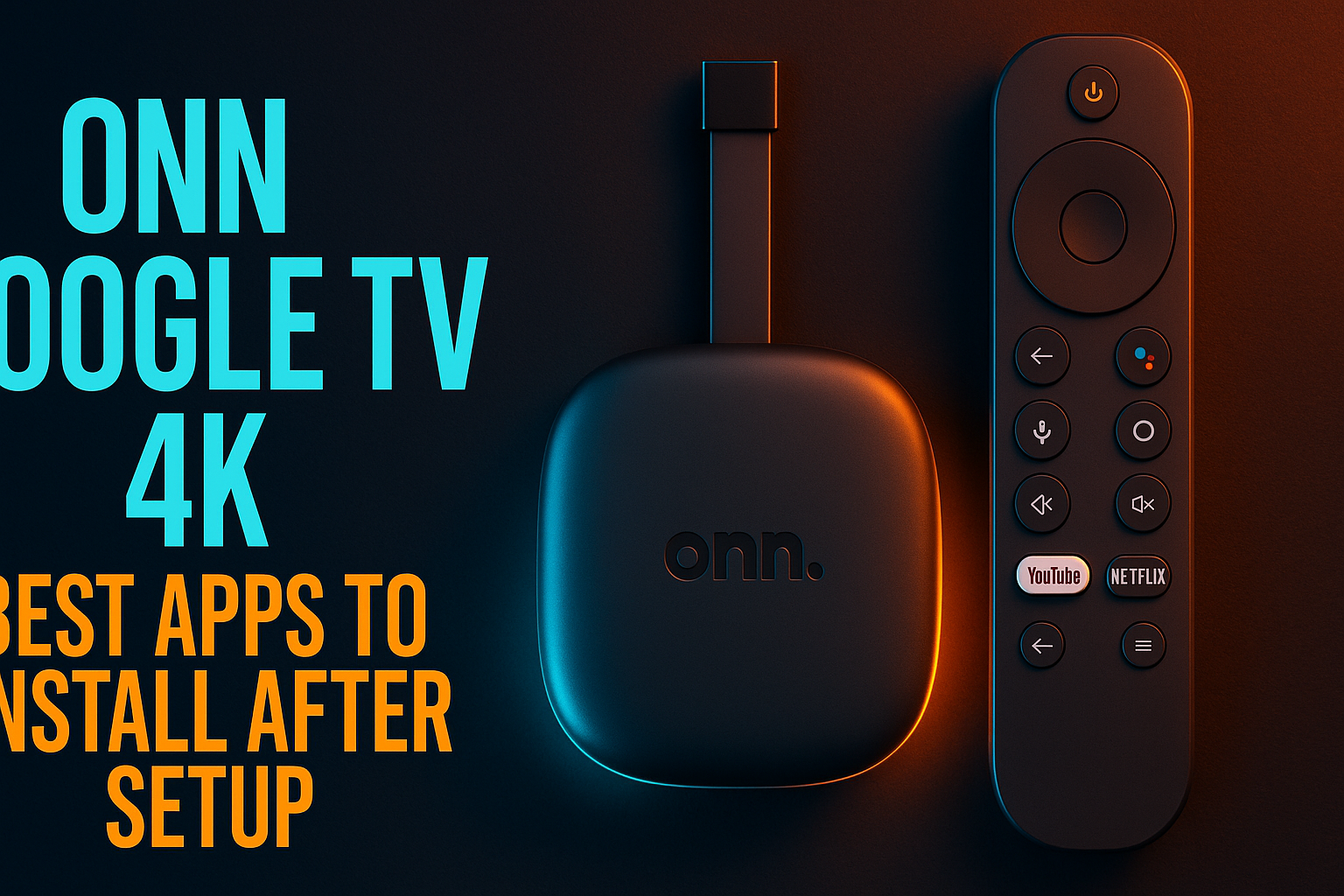
Best apps to install on Onn Google TV after setup — that single question is what turns a $30 Walmart impulse buy into a genuinely capable streaming hub. The Onn 4K runs full Google TV OS, hits 4K HDR, and supports sideloading, which means your options go well beyond whatever the Play Store surfaces first. This guide covers exactly what I have running on mine after eight months of daily use, and why each pick earns its spot on the home screen.
This isn’t a jailbreak walkthrough. It’s a post-setup optimization guide built around the best apps to install on Onn Google TV for people who actually bought the thing and want to use it well.
Why the Onn Google TV Is Worth Optimizing
What You Get Out of the Box
The Onn Google TV 4K runs Google TV OS — built on top of Android TV, but with a content-first launcher layered over it. You get 4K HDR10 output, Dolby Audio support, Chromecast built-in, and full access to the Google Play Store. For a device that routinely drops below $30 on sale, that’s a serious spec sheet.
Google TV handles voice search well. It integrates cleanly with Google Home devices and surfaces content from across all your streaming subscriptions on one unified home screen. That last part is genuinely useful once you have more than three services active — you stop hunting and start watching.
Where Google TV Limits You (And Why That Matters)
Here’s where it gets real. Google TV’s default launcher doesn’t show you a traditional app drawer. Apps you install — especially ones sideloaded outside the Play Store — don’t automatically appear on your home screen. They end up buried in a “Your Apps” section that takes several button presses to reach (this is more annoying than it sounds after the third time).
There’s also no built-in file manager for running APKs, and some streaming APKs require you to enable developer options before the system will even acknowledge them. None of this is hard to fix. But it’s the kind of friction that makes new owners assume the device is more locked-down than it actually is.
Native Apps Worth Pinning First
IPTV Players Available Directly on Google TV
Before you sideload anything, check the Play Store first. Several excellent IPTV players are available natively on Google TV, and installing through the official store means automatic updates and zero security warnings. TiviMate is on the Play Store and works perfectly on Onn hardware — I’ve tested it with half a dozen different M3U playlists and had zero performance issues at 1080p. The companion app approach for the premium unlock is slightly clunky, but it’s a one-time thing and takes under two minutes.
For a broader breakdown of what’s available, check our Best IPTV Players for Android TV & Firestick in 2026 — that list covers Google TV-compatible options specifically.
Kodi: Still Available and Still Useful
Kodi 21 (Omega) is on the Google Play Store and installs cleanly on the Onn 4K. It’s not the flashiest option. But if you run a media server, have a large personal library, or want to use specific add-ons, nothing else comes close for flexibility. The Estuary skin works fine at 10-foot viewing distance once you’ve worked through the initial configuration — give it 20 minutes and it clicks.
One honest caveat: Kodi is heavier on RAM than most apps on this list. On the Onn’s budget Amlogic chipset, running Kodi alongside other background apps is asking for trouble. Close what you’re not using before launching it. Seriously.
Stremio: The Cleanest All-in-One Option
Stremio is genuinely underused on Google TV, and I can’t fully explain why. It’s free, it’s on the Play Store, and the interface was practically built for TV remotes. Pair it with a Real-Debrid subscription (around $3–4/month depending on the plan) and the right add-ons, and you end up with one of the most capable streaming setups on any Android-based device.
Haven’t explored that combination yet? Our Stremio With Real-Debrid: Full Setup Guide walks through the entire process. Setup took me under 15 minutes on the Onn, and the app runs noticeably smoother here than on an older Firestick 4K I tested it against side by side.
Sideloading Apps on Onn Google TV: The Right Way
Enabling Unknown Sources Without Breaking Anything
Google TV requires you to flip a single permission toggle before any sideloaded APK will install. Go to Settings → Privacy → Security & Restrictions → Unknown Sources, then enable it for whichever app you’re using to download the APK — usually Downloader. That’s it. One toggle, and nothing else about your device’s behavior changes.
You don’t need to enable developer options for basic sideloading. That’s a separate thing used for ADB installs. A lot of guides conflate these two steps and confuse people who are new to the process — they’re not the same thing.
For a deeper look at what to watch out for when installing third-party APKs, our Sideloading APKs Safely: What Most Guides Won’t Tell You article covers the risk factors most walkthroughs skip entirely.
Best Sideload Method: Downloader vs. ADB
The Downloader app by AFTVnews is the easiest route for most people. Install it from the Play Store, enter a URL or a numeric Downloader code for any APK, and it downloads and prompts you to install. No computer required. No command line. No technical knowledge needed.
ADB sideloading via a computer gives you more control — push multiple APKs at once, manage permissions precisely, and sometimes clear install prompts that Downloader chokes on with certain APKs. For the average Onn owner, though, Downloader handles 95% of what you’ll ever need. I personally use ADB mainly when testing beta builds or pushing apps in bulk to a device I’m evaluating. It’s overkill for everyday use.
For a thorough walkthrough of both methods, see our full guide on Onn Google TV: Sideloading Apps & Getting More From It.
Which APKs Are Actually Worth Sideloading
Not everything justifies the extra friction. Sideloading makes sense when an app delivers something the Play Store genuinely doesn’t offer — a specific streaming client, a media manager, or a service unavailable in your region. It doesn’t make sense when a perfectly functional Play Store version already exists, or when the APK source is sketchy and unverifiable.
Stick to APKs from official developer sites, known repositories like APKMirror for mainstream apps, or services that publish their own APK directly (many IPTV providers do this). Avoid random Telegram links and single-page download sites with no verifiable history. That advice sounds obvious until you’re three months into a clean install and something weird starts happening.
Best Apps to Install on Onn Google TV: The Full Transformation List
Nova TV APK: Is It Stable on Google TV?
Nova TV is a sideloaded streaming APK that’s been around for several years. It works on the Onn Google TV — I’ve tested it personally — but stability is inconsistent depending on the version. Some releases run fine for weeks; others have shown stuttering on the Onn’s Amlogic chipset specifically. If you do install it, grab the latest version from the official Nova TV site and go in with realistic expectations: this is a grey-area app with no official support channel, and update frequency has slowed noticeably over the past 12 months or so.
Better options exist for most use cases. But if you specifically want Nova TV, it does run more reliably on this device than on older 1GB RAM sticks.
Free Live TV Apps Worth Installing
Several legitimate free live TV services deserve a spot on your home screen. Pluto TV, Tubi, and Peacock’s free tier are all on the Play Store and should be among your first installs. For sideloaded free live TV, apps like TVMob occupy a legal grey area that varies by country — availability and legality differ by region, and I’m not going to pretend otherwise. Check what applies in your jurisdiction.
One genuinely underrated option: the Plex free tier includes live TV channels and on-demand content with no subscription required (yes, completely free). It’s on the Play Store, runs well on the Onn, and most people completely overlook it.
Plex and Jellyfin: Local Media Done Right
Got a NAS, a home server, or even a laptop sitting on a home network with a large media library? Plex and Jellyfin are two of the strongest reasons to own any Android TV device. Both apps are available on the Google TV Play Store. Plex has a polished UI and a free tier that handles local media streaming well; Jellyfin is fully open-source and free with zero paywalled features.
On the Onn 4K, both apps handle 1080p transcoded streams without dropping frames on a decent home network. True 4K direct play over Wi-Fi can get choppy if your router is more than a room away — which is exactly why I keep coming back to the ethernet adapter point in the performance section below.
VPN Apps That Actually Work on Google TV
If you’re running sideloaded streaming apps — especially IPTV services — a VPN is worth taking seriously. ExpressVPN and NordVPN both have native Google TV apps on the Play Store that work reliably on Onn hardware. Surfshark is another solid pick at a noticeably lower price point (often under $3/month on longer plans).
Performance impact on the Onn is real if you choose a far-away server. Connecting to a server in your own country or a neighboring one keeps speeds acceptable for HD streaming. One thing to avoid: don’t layer a VPN on top of free-tier services that already throttle bandwidth — you’re just stacking problems.
Customizing the Google TV Launcher for Power Users
Pinning Sideloaded Apps to the Home Screen
This is one of the most useful things you can do after sideloading apps — and somehow it’s not obvious. On Google TV, go to Your Apps, scroll to the sideloaded app, hold the select button, and choose “Move to front” or pin it to your favorites row. It then appears in the app rail at the top of the home screen exactly like any Play Store app.
Some sideloaded APKs don’t register properly in the launcher even after a clean install. If that happens, a free Play Store app called App Shortcuts can create a launcher shortcut manually. It works every time in my experience — a reliable fallback worth knowing about.
Disabling Recommendations and Bloatware
Google TV’s home screen is dominated by content recommendations pulling from your subscriptions — plus a bunch of apps Walmart pre-installed on the Onn specifically. You can’t remove Google’s recommendation rows entirely without a third-party launcher, but you can disable autoplay previews under Settings → Accounts & Sign-In → [your account] → Manage on Google TV.
Pre-installed Walmart and Onn bloatware apps can be disabled (not fully deleted, unfortunately) under Settings → Apps → See All Apps. Disabling apps like the Walmart app and pre-installed promotional shortcuts frees up a small but meaningful amount of background RAM on this budget device. On a 2GB system, every bit counts.
Using a Third-Party Launcher (And the Trade-offs)
FLauncher is the most popular alternative launcher for Google TV devices and it’s free on the Play Store. Clean grid-based app drawer, no recommendation rows, full control over app organization. The trade-off is real, though: you lose Google TV’s content integration, meaning streaming service watchlists and cross-app search no longer surface on your home screen.
I use FLauncher on my Onn office setup because I know what I want to watch and don’t need an algorithm guessing for me. But if you actually appreciate the “what should I watch tonight?” functionality, sticking with the default launcher is the smarter call. It’s a personality choice as much as a technical one.
Performance Tips Specific to Onn Hardware
Managing RAM and Background Apps
The Onn Google TV 4K runs on a budget Amlogic chipset with 2GB of RAM. That’s workable — but RAM management matters here in a way it wouldn’t on a Firestick 4K Max (3GB) or an Nvidia Shield Pro (which is in a completely different price class). Running three streaming apps in the background while launching a fourth is a reliable recipe for buffering and crashes.
Get into the habit of pressing back all the way out of an app rather than hitting the home button. That gives the system a better chance of clearing the app from memory properly. If you’re seeing persistent buffering regardless, our guide on Why Your Streaming Keeps Buffering covers both network and device-side fixes that apply directly to the Onn.
Ethernet Adapter: Is It Worth It for the Onn?
Short answer: yes, if you’re doing anything bandwidth-intensive. The Onn 4K has a USB-C port that accepts a USB-C to Ethernet adapter. A $10–$15 adapter from Amazon — look for one with a USB-C hub that also includes a USB-A port for pass-through power — is genuinely one of the best Onn accessories you can buy. Running a heavy IPTV subscription or 4K direct play through Plex or Jellyfin? Wired beats Wi-Fi every single time on this hardware.
Wi-Fi performance on the Onn is decent for 1080p on a strong signal, but it’s not exceptional. A wired connection removes an entire variable from your troubleshooting equation — and that alone is worth $12.
When to Factory Reset vs. Fix in Place
After six to eight months of heavy sideloading and app installs, the Onn can start getting sluggish from accumulated cached data and fragmented storage. A factory reset gets you back to a snappy baseline. But it wipes everything, so do it intentionally, not as a first response to minor slowdowns.
For gradual sluggishness, try clearing the cache of individual heavy apps first (Settings → Apps → [App Name] → Clear Cache). That handles roughly 80% of cases without a full reset. Only go nuclear on the factory reset when clearing caches and disabling background apps genuinely doesn’t move the needle.
Is the Onn Google TV Worth It Compared to Rivals?
The honest comparison: the Amazon Firestick 4K Max has more RAM (3GB) and handles multitasking noticeably better, but it runs Fire OS, which pushes Prime Video content aggressively and turns sideloading into more of a workaround than it needs to be. The Chromecast with Google TV (the older HD model) is slower and capped at 1080p. The Mecool KM2 Plus is a certified Android TV box with better hardware across the board — but it costs three to four times as much as the Onn.
For most people who want a capable Google TV device under $50, the Onn wins on value. The hardware ceiling is real, but it’s higher than the price tag implies. For a full breakdown across streaming sticks, our Best Streaming Device for IPTV roundup covers the field in detail.
⚖️ Legal Disclaimer: IPTV Wire does not own or operate any streaming service, application, or website mentioned in this article. We do not verify whether third-party services carry proper licensing. Users are responsible for ensuring they comply with copyright laws in their jurisdiction.
FAQ: Onn Google TV App Setup
Can you sideload APKs on the Onn Google TV 4K without a computer?
Yes. Install the Downloader app from the Google Play Store, enable Unknown Sources for Downloader in your privacy settings, then use Downloader to enter any APK URL and install directly on the device. No computer, no command line, no technical knowledge required.
Does TiviMate work on Onn Google TV?
Yes — TiviMate is available directly from the Google Play Store and works well on Onn Google TV hardware. I’ve tested it with multiple M3U playlists at 1080p without running into performance issues. The premium version requires a companion unlock app, also available on the Play Store.
How do I get sideloaded apps to show on the Onn Google TV home screen?
After installing a sideloaded app, go to Your Apps, highlight the app, hold the select button, and choose “Move to front” or add it to your favorites row. If the app doesn’t appear in the app list at all, use a Play Store app called App Shortcuts to create a manual launcher entry — it’s a reliable fix for the apps that refuse to register properly.
Is it safe to install third-party APKs on an Onn Google TV device?
It depends entirely on the source. APKs from official developer websites, verified repositories like APKMirror, or directly from your IPTV provider carry relatively low risk. Random APKs from unverifiable Telegram channels or single-page download sites with no history are a different matter entirely. If you’re unsure about a source, scan the APK with VirusTotal before installing.
What is the best IPTV player for Onn Google TV in 2026?
TiviMate is the top pick for most users — it’s on the Play Store, has a polished TV-optimized interface, and handles EPG data reliably. Stremio is a strong second if you pair it with Real-Debrid. For users who want deeper customization, IPTV Smarters Pro and Kodi 21 (Omega) are both solid alternatives available directly on Google TV.

Leave a Comment