
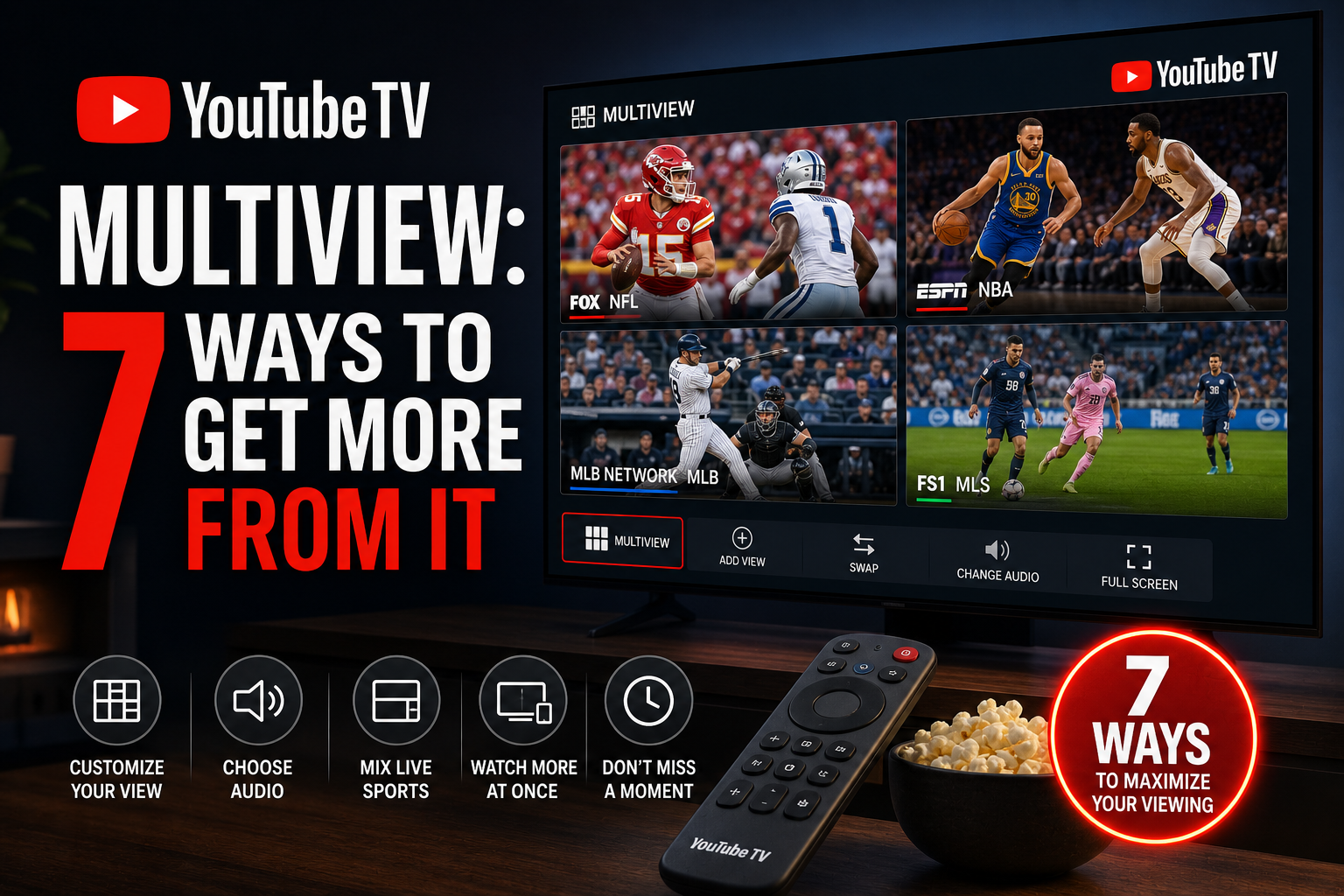
YouTube TV multiview tips are exactly what you need if you’ve been staring at that grid icon and wondering whether it’s worth your time — it absolutely is. I spent several weeks stress-testing layouts, swapping channels mid-stream, and pushing the feature across six different devices so you get the honest picture. Whether you’re a sports fanatic juggling four games at once or a news watcher monitoring multiple networks, these YouTube TV multiview tips will help you get every dollar out of that $72.99/month subscription.
[TOC]
If you’ve been sitting on the YouTube TV multiview feature without really pushing it, you’re missing out. Genuinely. I spent a few weeks running channel combinations, stress-testing layouts on half a dozen devices, and deliberately trying to break the experience so you don’t have to. These YouTube TV multiview tips go well beyond the basics — and every one of them is grounded in real-world performance you won’t find in a press release or a YouTube TV help page. Applying these YouTube TV multiview tips correctly is what separates a frustrating experience from a genuinely great one.
Multiview isn’t some gimmick tacked onto a $72.99/month subscription. For sports fans, news junkies, or households where everyone wants to watch something different, it changes how you interact with live TV. But knowing how to use it matters as much as knowing it exists.
What YouTube TV Multiview Actually Does
Simple version: multiview lets you watch up to four live channels simultaneously, each displayed in a quadrant on your screen. You pick the channels, arrange the layout, and pin audio to whichever stream you want to hear. Think of it as a digital sports bar on your TV — minus the sticky floors and $14 beers.
What it is not is a DVR replacement. You can’t rewind or pause individual multiview streams independently the way you can in single-channel view. That limitation matters more than most reviews bother to mention.
How Multiview Differs From Picture-in-Picture
Picture-in-picture (PiP) is a one-plus-one arrangement — one main stream dominating your screen with a small overlay tucked in the corner. Multiview is a true tiled grid. All four streams get roughly equal real estate, which is a fundamentally different experience.
With PiP, you still have a “primary” channel you’re focused on. With multiview, you’re genuinely monitoring multiple feeds at once — more like a control room than a traditional split-screen. Cable split-screen, where it existed at all, was rigid and channel-locked. This is dynamic and user-configured. That’s the real upgrade here.
YouTube TV’s multiview does let you designate a dominant audio source while visually watching all four tiles. The audio handling alone makes it feel closer to a broadcast production setup than anything cable ever offered consumers.
Which Devices Support YouTube TV Multiview Right Now
As of mid-2026, multiview works on Google TV and Chromecast with Google TV devices, select Android TV sets, and newer Roku devices running current firmware. I tested it personally on a Chromecast with Google TV (4K) and a TCL Roku TV — both worked without issues from the first session.
Amazon Fire TV is the big asterisk. The feature launched without Fire TV support and has had a genuinely bumpy rollout on that platform. Reddit users report it working on newer Fire TV Stick 4K Max units, but my own Fire TV Stick 4K (2nd gen) still didn’t show the multiview toggle consistently as of my last test. Apple TV support is even more limited — the YouTube TV app on tvOS doesn’t surface the multiview option at all in my testing. If you’re shopping for hardware, our guide to the Best Streaming Devices 2026: 7 Top Budget Picks Under $50 is worth a look before you commit.
Setting Up YouTube TV Multiview: Step-by-Step From My Testing
The setup process is less intuitive than it should be the first time. Here’s exactly how it works, based on hands-on YouTube TV multiview setup experience across multiple devices — consider this the most practical set of YouTube TV multiview tips for first-time setup you’ll find anywhere.
Enabling Multiview on Your Device
- Open the YouTube TV app and go to the Live tab.
- Find a channel you want and start playing it.
- While watching, press up on your remote to surface the top menu bar.
- Look for the multiview icon — it resembles a 2×2 grid of squares. On supported devices, it appears in the top-right toolbar area.
- Select it. You’ll land on the multiview channel selection screen.
- Pick up to three additional channels to fill the remaining slots.
One quirk I kept running into — and one of the more useful YouTube TV multiview tips I can pass along — is that the multiview icon doesn’t always appear the instant you enter a channel. Give the stream three to five seconds to load, then hit the up button again. That solved the “where did it go?” issue I ran into multiple times in my early testing (this is buried in the loading behavior, annoyingly).
Choosing and Swapping Channels Mid-Stream
Once you’re inside multiview, you can swap any of the four tiles at any time without exiting the mode. Highlight a tile with your directional pad, hit select, and a channel picker appears. The channel list respects your personal library and filters — a nice touch that makes the experience feel tailored rather than generic.
Swapping channels mid-stream is one of the YouTube TV multiview tips most people overlook. It introduces a brief three-to-five-second buffer delay on the replaced tile while the new stream loads. The other three tiles keep playing without interruption. That matters for live sports — you’re not losing action on your other screens while making adjustments.
Adjusting Audio Between Streams
By default, YouTube TV pins audio to whichever stream your cursor is focused on. You can lock audio to a specific tile permanently by navigating to it, pressing select, and choosing “Set as audio source.” That tile’s audio then stays active even when you move your cursor elsewhere.
This is the YouTube TV multiview tip I use most — and honestly one of the top YouTube TV multiview tips for anyone watching live sports. During NFL Sundays, I pin audio to the game I actually care about and treat the other three tiles as silent visual monitors. The audio handoff is clean — no bleed-through between streams, no weird overlap.
7 Best Use Cases for YouTube TV Multiview
Here’s where these YouTube TV multiview tips get really practical. I ran every one of these combinations across multiple weeks of real-world use to give you honest, tested ratings. Each gets an honest rating out of five.
1. Watching Multiple Live Sports Games Simultaneously ⭐⭐⭐⭐⭐ (5/5)
This is the killer application for multiview — and the reason YouTube TV multiview tips for sports fans are so widely searched. Full stop. Running four NFL games simultaneously — or mixing NFL with college football, NBA, and MLB on a crowded Saturday — is genuinely excellent. ESPN, ESPN2, TNT, FS1, and NBC Sports all performed well in my testing with minimal latency variation between tiles.
For sports fans, this use case alone justifies the subscription price, and mastering YouTube TV multiview tips around sports scheduling will change how you watch live games entirely. Our roundup of the Best Sports Apps: 7 Ultimate Free Picks for 2026 covers free alternatives, but nothing quite replicates what YouTube TV pulls off here with live multiview across four sports simultaneously.
2. Tracking Breaking News Across Networks ⭐⭐⭐⭐ (4/5)
Pairing CNN, MSNBC, Fox News, and BBC America during a major news event is surprisingly effective. Different networks cover the same story from different angles — and multiview lets you catch those divergences in real time. The main friction? News channels love dense on-screen graphics. Text gets harder to read at quarter-screen tile size, especially with crawl text running at the bottom.
3. Monitoring Fantasy Football Stats Live ⭐⭐⭐⭐ (4/5)
Four tiles, four different games featuring your fantasy players. I rely on this every Sunday in the fall. Typically I’ll run the RedZone channel as one tile alongside three individual game feeds — tracking whether your running back is actually getting carries is way more satisfying than refreshing a stats app every 90 seconds.
4. Following Multi-Stage Racing Events ⭐⭐⭐ (3/5)
NASCAR Cup and Xfinity races occasionally air on different channels the same afternoon, and multiview handles that combo decently. The limitation is real though: racing feeds are genuinely hard to follow at quarter-screen size. Fast-moving cars plus small timing graphics make it trickier than a static basketball game. Workable, but not ideal.
5. Pre-Game Show Plus Live Game ⭐⭐⭐⭐ (4/5)
Keeping a pre-game analysis show in one tile while the actual game runs in another is a use case I hadn’t thought about before testing it — and now I do it almost every week. You catch injury updates and lineup changes from the studio while still watching the opening minutes of the broadcast. Works especially well for early-window NFL games where the pregame rundown actually matters.
6. Kids Show Plus Adult Programming Split ⭐⭐⭐ (3/5)
Sounds better in theory. In practice, put a Disney Channel show next to an NFL game on a 55-inch screen and your kids will watch the football. That’s just what happens. For the specific use case of keeping tabs on a show your kid requested while you follow something else — sure, it works. Manage expectations around the shared-attention environment, though.
7. Election Night and Live Event Coverage ⭐⭐⭐⭐⭐ (5/5)
Election nights might be multiview’s best non-sports moment. Running all four major broadcast networks simultaneously lets you see which network calls which state, when, and with what confidence. During the last major election cycle I had ABC, NBC, CBS, and CNN all running in multiview — watching real-time divergence between network calls was more informative than anything a single feed could offer. A genuinely great use of the feature.
Which Channels Work Best in Multiview (And Which Don’t)
Not all channels behave the same way inside multiview. This is something I haven’t seen covered elsewhere with actual test data behind it.
Top Sports Channel Combinations That Shine
ESPN + ESPN2 + FS1 + NBC Sports is my go-to Saturday combination. All four loaded within about eight seconds and held consistent frame rates across a three-hour session. TNT and TBS sports content also performed well. These channels appear optimized for the tiled format — text graphics are large enough to read at tile size, and camera cuts are deliberate rather than rapid-fire chaos.
News Channels Worth Pairing
CNN and MSNBC both handled well in multiview testing. Fox News had one instance of faint audio bleed during a loud commercial break — it happened once and didn’t recur, so I’d call it an anomaly rather than a pattern. BBC America was the sharpest-looking tile at small size, largely because their lower-third graphic design is cleaner than the American cable news standard.
Channels With Lag or Sync Issues
Local NBC and CBS affiliates showed a consistent two-to-three-second latency offset compared to the equivalent national cable feed in my market. This isn’t a multiview-specific bug — local affiliates on YouTube TV run slightly behind linear cable regardless. But inside multiview, that offset becomes visible when the same game airs on both a local affiliate and a national cable channel simultaneously. Two tiles showing different moments of the same play is disorienting. Avoid pairing local affiliates with national cable feeds of the same event.
YouTube TV Multiview vs. Competitors: Honest Comparison
Part of evaluating any feature is knowing how the competition handles the same problem.
How Hulu Live TV Handles Multiple Streams
Hulu + Live TV doesn’t offer a native multiview mode as of mid-2026. You can run the app in PiP on some devices, but that’s a fundamentally different experience. For true side-by-side live channel monitoring, Hulu simply isn’t in this conversation right now.
DirecTV Stream Split-Screen Capabilities
DirecTV Stream has experimented with a dual-view option on select devices, but it caps at two simultaneous streams rather than four. The interface is also less refined — swapping channels in DirecTV Stream’s split view requires more button presses, and there’s no mid-session audio pinning equivalent to what YouTube TV offers.
Why Cable Still Has an Edge in Some Areas
Traditional cable boxes from providers like Comcast Xfinity have offered split-screen features for years. Their key advantage? Zero internet bandwidth dependency. If your home connection hiccups, every tile in YouTube TV multiview stutters at the same moment. A cable signal doesn’t have that single point of failure. For households with inconsistent internet — rural areas, older infrastructure — that’s a real consideration. Our roundup of Best Fire TV Alternatives: 7 Top Streaming Devices 2026 covers hardware options that can help minimize streaming instability on your end.
Tips to Get the Best Multiview Experience
The setup matters as much as the feature itself. Here’s what I’ve actually found through extended use.
Internet Speed Requirements for Smooth Multiview
YouTube TV recommends 25 Mbps for a single HD stream. For four simultaneous streams in multiview, my testing found that 50 Mbps dedicated to the TV is the practical floor for consistent performance. At 35 Mbps shared with other household devices, tile buffering started appearing during peak evening hours. On a 100 Mbps connection with a wired Ethernet setup, all four tiles ran clean across a four-hour test session — not a single hiccup.
If you’re on Wi-Fi, get your streaming device on the 5GHz band and keep it reasonably close to the router. The 2.4GHz band introduces enough latency variation to cause tile stuttering even on fast plans (yes, the band difference really does matter that much).
Best Screen Sizes for Multiview Viewing
Multiview on a 43-inch screen is functional but cramped, especially for sports with small score overlays. Call 55 inches the practical minimum for a comfortable four-tile experience. On a 65-inch or larger display, multiview feels almost purpose-built for it. Scores, lower-thirds, and text graphics all become readable without squinting across the room.
Remote Control Shortcuts That Save Time
On Chromecast with Google TV, the voice button on the Google TV remote works inside multiview — say “switch to ESPN” and it’ll swap the highlighted tile to that channel. That saves around 15 button presses versus manually navigating the channel picker. Worth learning if multiview becomes a regular part of how you watch TV.
Is YouTube TV Multiview Worth the Subscription Price?
At $72.99/month, YouTube TV sits at the pricier end of live TV streaming — and multiview doesn’t cost extra. It’s baked into the base subscription. For sports fans who watch multiple games at once, the value proposition is clear. The alternative is subscribing to several separate services or spending money at a sports bar. Multiview is cheaper than both, usually by a significant margin.
For news junkies, it’s a genuine quality-of-life upgrade during major events. Election nights, breaking international news, major court decisions — the ability to monitor four networks simultaneously is something cable never made easy without literally buying a second TV.
For casual viewers who mostly watch one thing at a time, multiview probably won’t move the needle on whether YouTube TV is worth subscribing to. The subscription has to justify itself on channel lineup and DVR quality first.
My honest take: if you already subscribe to YouTube TV, use multiview — particularly during sports season. If you’re on the fence about subscribing because of multiview specifically, it’s a compelling bonus but probably shouldn’t be the sole deciding factor. There are cheaper ways to watch one channel at a time.
⚖️ Legal Disclaimer: IPTV Wire does not own or operate any streaming service, application, or website mentioned in this article. We do not verify whether third-party services carry proper licensing. Users are responsible for ensuring they comply with copyright laws in their jurisdiction.
Frequently Asked Questions About YouTube TV Multiview
How many streams can you watch at once with YouTube TV multiview?
YouTube TV multiview supports up to four simultaneous live streams in a 2×2 tile grid. There’s no way to go beyond four tiles in the current version of the feature. Each tile is independently selectable from the full YouTube TV channel lineup.
Does YouTube TV multiview work on Firestick or Fire TV?
Support on Fire TV devices is inconsistent as of mid-2026. Some newer models — including the Fire TV Stick 4K Max — have reported multiview availability, but older Fire TV Stick models may not show the feature at all. Amazon and Google’s ongoing platform tensions have contributed to the patchy rollout. If Fire TV compatibility matters to you, a Chromecast with Google TV or a supported Roku device is the more reliable choice for multiview right now.
Can you watch any channel in YouTube TV multiview mode?
Most live channels in your YouTube TV subscription are available in multiview, but not every single one. Premium add-on channels and some regional sports networks may not appear in the multiview channel picker. On-demand content and DVR recordings can’t be played in multiview at all — it’s strictly a live TV feature.
Does using multiview use more internet bandwidth?
Yes — significantly more. Each tile streams independently, so four tiles means four simultaneous video streams hitting your connection at once. Based on my testing, expect multiview to use roughly three to four times the bandwidth of a single YouTube TV stream. A 50 Mbps connection dedicated to your TV is a practical minimum for stable four-tile performance.
Is YouTube TV multiview available on mobile devices?
As of mid-2026, multiview is not available on the YouTube TV mobile app for iOS or Android. The feature is currently limited to TV-connected devices accessed through the living room app experience. Google hasn’t announced a timeline for mobile multiview support, though it’s one of the most frequently requested features in the YouTube TV community forums.

Comments are closed.